
Fieldworker SMS Log: Track Sent, Received & Automated Text Messages
The Fieldworker SMS Log gives you a complete message history for each fieldworker (technician/contractor). It helps you verify what was sent, view customer replies, and troubleshoot delivery issues—so your office team always has a reliable communication audit trail.
Typical uses:
- Confirm automated reminders were triggered and sent at the right time.
- Review fieldworker-customer conversations to resolve disputes or coach messaging.
- Troubleshoot failed SMS delivery using message status and the Twilio Message SID (when available).
- Maintain compliance and accountability with a time-stamped history of outbound and inbound texts.
Note: Some screens may display the word Technician—this is the same as Fieldworker.
Table of contents
- Where to find the Fieldworker SMS Log
- Understand the SMS Log tabs (Automated / Sent / Received)
- Enable two-way SMS using your Twilio number
- What admins can do with the SMS Log
- Best practices
- Troubleshooting
- Related guides
Where to find the Fieldworker SMS Log
You can access the SMS Log from the fieldworker’s profile page:
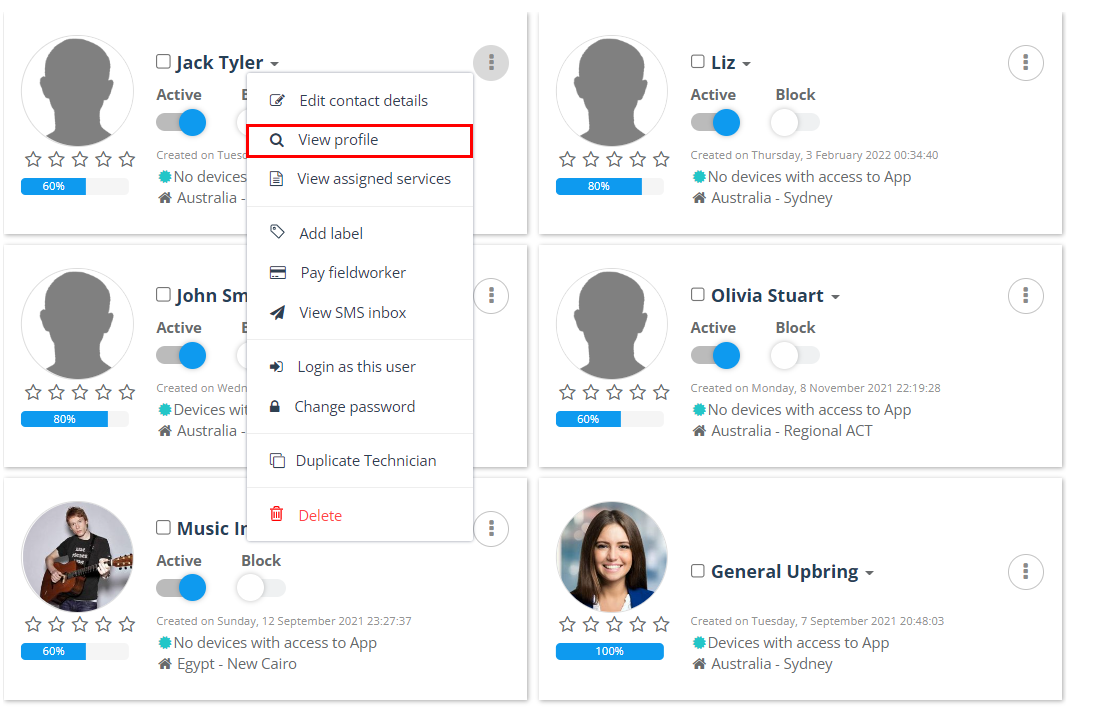
- Go to Fieldworkers from the left-side menu.
- Locate the fieldworker, open the Actions menu, then click View profile.
- On the profile page, open the Activity tab, then expand SMS Log (right panel).
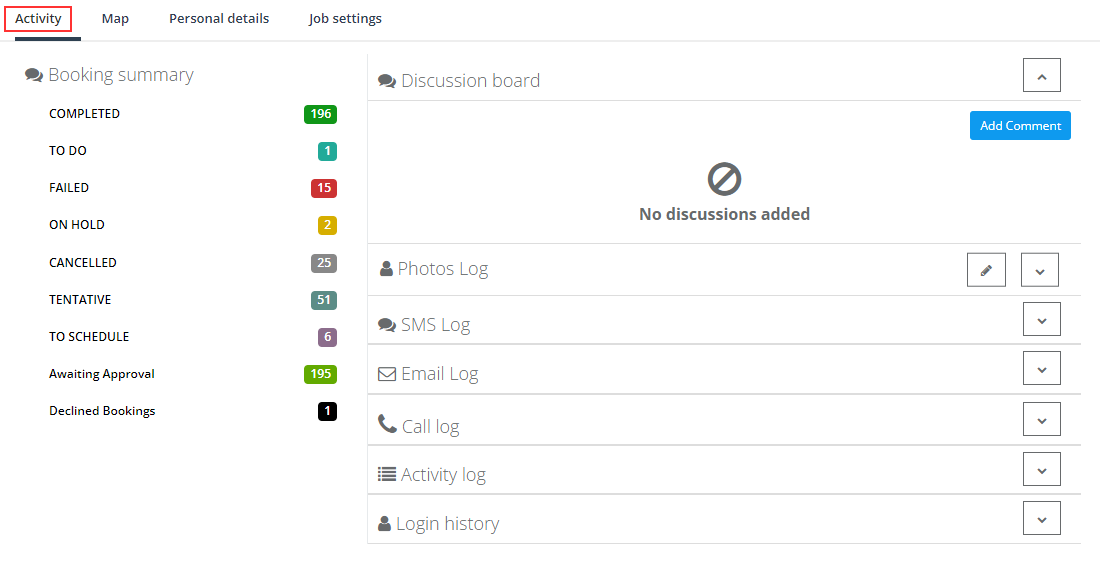
Messages are displayed in chronological order (newest first). Your available history may depend on your plan and retention settings.
Understand the SMS Log tabs (Automated / Sent / Received)
The SMS Log is grouped into three views, so you can quickly find the type of message you need:
- Automated Outgoing SMS – messages triggered by workflow automations (scheduled tasks), such as reminders and status notifications.
- Sent by fieldworker – messages the fieldworker sent (typically from the app) using your connected business number.
- Received by fieldworker – inbound customer replies received through your connected number and logged under the fieldworker’s activity.

What you’ll typically see in each SMS record:
- Message content (body text)
- Date/time stamp
- Direction (outbound vs inbound)
- Delivery status (e.g., queued/sent/delivered/failed—depending on your SMS configuration)
- Message identifier (e.g., Twilio Message SID when using Twilio), which is helpful for deeper troubleshooting
If you need a system-wide SMS search (filters + export), use the SMS History Log report instead of checking one fieldworker at a time (see Related guides below).
Enable two-way SMS using your Twilio number
To send and receive SMS through OctopusPro (and to log customer replies), it’s recommended to connect your business number using the Digital Phone System (Twilio).
- Go to Settings → Communications → Digital Phone System.
- Connect your Twilio details (Account SID, Auth Token, Phone Number, Number SID).
- Save changes.
Once connected, outbound and inbound messages can be tracked more reliably, and customers can reply to the same business number your team uses.
Learn more: Digital Phone System (Twilio): Set Up Calling, SMS & MMS
What admins can do with the SMS Log
The Fieldworker SMS Log supports day-to-day operations, quality control, and customer service workflows:
- Audit communications: confirm what was sent, when, and by whom.
- Validate automation performance: check that automated SMS messages are actually being triggered and delivered.
- Resolve disputes faster: reference the exact message thread if a customer challenges an ETA, quote, access instructions, or a reminder.
- Coach and standardize messaging: review tone and clarity, then improve templates and team guidelines.
- Troubleshoot delivery issues: use delivery status and identifiers (e.g., Message SID) to diagnose failures with your SMS provider.
If you want to review every automation run (not just the SMS message result), use the workflow automation log:
Workflow Automations Log (Automated Procedures History)

Best practices
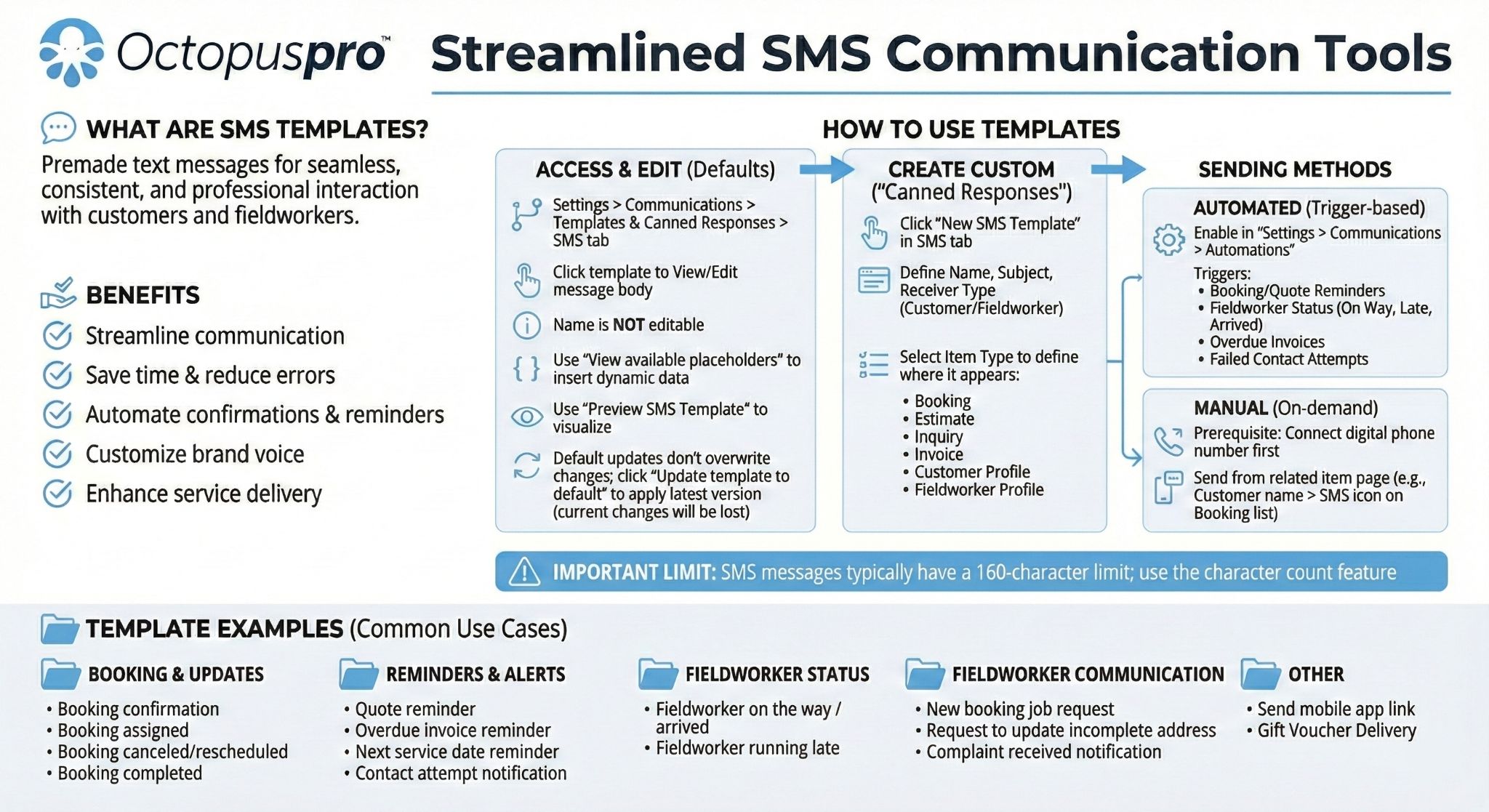
- Use templates for consistency: standardize reminders, ETAs, and confirmations to reduce miscommunication.
- Keep messages short and specific: include the business name + key info (time, address, ETA, booking reference if relevant).
- Centralize replies: connect one shared business number so customers always reply to a consistent sender ID.
- Review wording regularly: refine templates when you notice repeated customer questions or confusion.
Learn more: SMS Templates
Troubleshooting
If the SMS Log isn’t showing what you expect, use this checklist:
- No messages appear at all: confirm the fieldworker profile has a valid mobile number saved (including country code if required).
- Missing customer replies (inbound SMS): confirm your Digital Phone System (Twilio) is connected and configured correctly.
- Delivery shows failed: review the message details/status and use the message identifier (e.g., Twilio Message SID) to investigate provider-side error codes and carrier filtering.
- Need deeper filtering or export: use the system-wide report: SMS History Log & Notifications.

Related guides
- Viewing a Fieldworker Profile
- Contacting Fieldworkers (Email, SMS, Chat, Call)
- Contact Fieldworkers from Bookings & Quotes
- Automated Procedures (Workflow Automations)
- SMS Templates
- SMS History Log & Notifications
- Customer Communication History (Email/SMS Log)
- Digital Phone System (Twilio) Setup
- Fieldworker Permissions
To stay updated, please subscribe to our YouTube channel.