
Recent & Modified Bookings History Log (Audit Report)
The Booking History Log is a live audit-style report that lists bookings that were recently created or recently updated in your OctopusPro account. It gives managers and office teams an instant “what changed?” view—so you can catch scheduling changes, cancellations, and high-value bookings early, and maintain operational accountability.

What this report is (and what it’s not):
- It is: a fast, account-wide monitoring view for new and modified bookings.
- It’s not: the full line-by-line change log. For detailed field changes (exact values before/after), open the booking and review its history/activity.
On this page
- What this is for
- Where to find the report
- Recent vs Modified: what each view shows
- How to read the grid (columns)
- Filtering, shortcuts & views
- Common workflows & examples
- Drill down for full details
- Exporting & archiving (if enabled)
- Permissions & access control
- Troubleshooting
- Related guides
What this is for
This report is most useful for daily operations—especially when bookings can be created or changed by multiple sources (office staff, fieldworkers, customers via the Customer Portal, or automated workflows).
Use it to:
- Monitor new work instantly: spot newly created bookings (including online bookings) and assign/confirm quickly.
- Audit edits and reduce errors: keep visibility on bookings that were updated (time, status, pricing, assigned fieldworker, address, etc.).
- Improve accountability: quickly see who created/modified a booking and when.
- Act fast on cancellations: identify cancelled bookings early and run win-back follow-ups.
Where to find the report
In the admin portal, go to:
| Report | Navigation | What it shows |
|---|---|---|
| Recent Bookings | Left Menu → Reports → History Log → Recent Bookings | All bookings sorted by creation time (newest first). |
| Modified Bookings | Left Menu → Reports → History Log → Modified Bookings | All bookings sorted by last updated time (most recently edited first). |
Tip: Pin the History Log section to your favourites for faster access (if enabled on your account).
Recent vs Modified: what each view shows
- Recent Bookings is best for tracking new bookings that were just created (including online bookings).
- Modified Bookings is best for tracking changes made to existing bookings (ideal for auditing and catching unexpected edits).
Best practice: Most teams check Recent Bookings first thing in the morning, and review Modified Bookings after dispatch (or before invoicing) to catch last-minute changes.
How to read the grid (columns)
Each row represents a booking that was created or updated. Columns may vary slightly by account setup, but typically include:
| Column | What it shows | How it helps |
|---|---|---|
| Date / By | Timestamp + user who created/edited the booking. | Accountability and audit evidence. |
| Booking # | The booking reference code (click to open the booking). | One-click drill-down for full details. |
| Details | Snapshot of start/end date/time, status, and address/location. | Quick triage: see what changed at a glance. |
| Customer Name | Linked customer profile. | Fast follow-up, context, and communication. |
| Amount | The booking value (typically gross, tax-inclusive depending on your configuration). | Prioritise high-value work and reduce revenue leakage. |
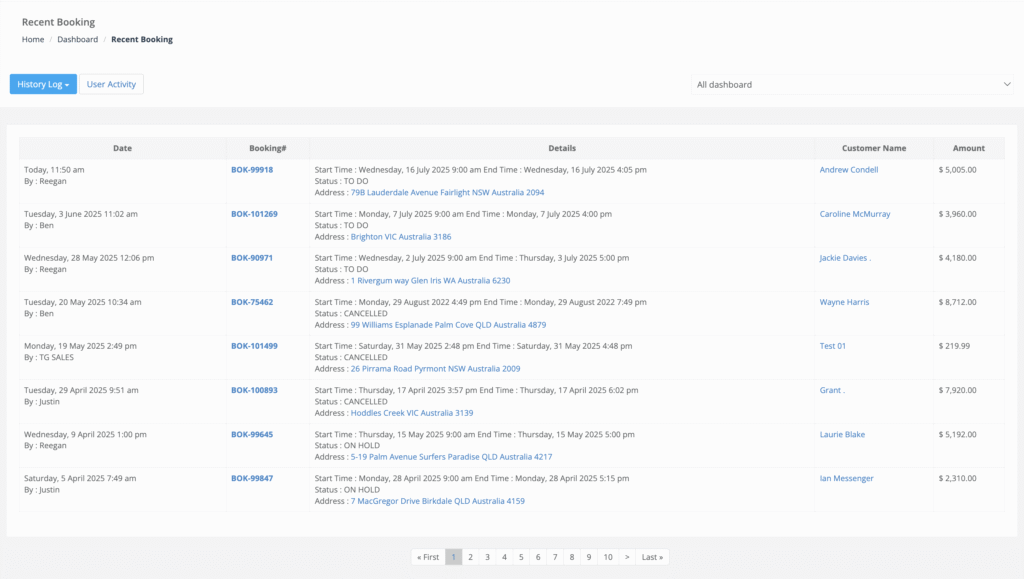
Note: The grid is a monitoring view. For the exact list of fields that changed (and the before/after values), open the booking and review the booking history/audit.
Filtering, shortcuts & views
Use the built-in controls to narrow results and move quickly:
- Dashboard Filter (top-right):
- All Dashboard – shows booking activity across all users.
- My Dashboard – shows only bookings you created or modified (useful for personal KPIs).
- Status shortcuts: quick filters (for example, Recent Cancelled or Recent Completed) to isolate a workflow stage.
- Pagination: use page controls to browse older entries.
Tip: The report updates in real time when records are saved, but your browser may require a refresh to display newly added rows.
Common workflows & examples
| Scenario | How to use the History Log | Outcome |
|---|---|---|
| Morning dispatch review | Open Recent Bookings and scan new jobs created overnight or via online bookings. | Nothing slips through the cracks; faster response times. |
| Quality control / change-control | Open Modified Bookings to identify jobs that were recently edited, then drill into the booking history for exact changes. | Fewer mistakes and stronger internal accountability. |
| Win-back cancelled jobs | Use status shortcuts to isolate Cancelled bookings and contact customers quickly. | Recover revenue before customers book elsewhere. |
| Prioritise high-value work | Scan the Amount column and ensure premium jobs are assigned and confirmed early. | Better service delivery and improved cash flow. |
Drill down for full details
To investigate any row in detail:
- Click the Booking # to open the booking record.
- Review the booking’s Activity area for a consolidated timeline (history, job requests, confirmations).
- Open the booking’s History / Audit view for the full change log (who changed what, when).


Exporting & archiving (if enabled)
Some accounts/roles include an Export (CSV) option on report grids. If available, exports respect your current filters and are useful for:
- Compliance and audit evidence
- Monthly/quarterly reporting and performance reviews
- External reconciliation and bookkeeping checks
Need a PDF for a specific job? Export the booking itself (recommended for record-keeping or sharing with customers): Exporting a Booking as PDF.
Permissions & access control
Access to reports is controlled by Role-Based Access Control (RBAC). If a user can’t see Reports or History Log, their role likely doesn’t include the required permissions.
To manage report access safely (especially when fieldworkers can edit bookings), review roles and permissions here:
Troubleshooting
- I can’t see History Log under Reports: confirm you’re in the admin portal and your role has reporting permissions (RBAC).
- I see fewer rows than expected: check the Dashboard Filter is set to All Dashboard (not My Dashboard).
- I need the exact details of what changed: the report is a monitoring view—open the booking and review the detailed audit log: Booking History & Audit Log.
- I need proof of communications sent: use the dedicated logs (these provide message-level evidence beyond booking edits):
Related guides
- Booking History & Audit Log (Change Log)
- Booking Activity & Audit Timeline
- Universal Search & Advanced Filters
- User Activity Log
- Exporting a Booking as PDF
- Role-Based Access Control (RBAC) & User Permissions
Next step
Open Reports → History Log → Recent Bookings now and make it part of your daily checklist—then review Modified Bookings to catch edits before they become scheduling or billing issues.
To stay updated, please subscribe to our YouTube channel.