
Discussions History Log (Recent Discussions Report)
Comments can change the entire job—new access codes, a reschedule request, progress photos from a fieldworker, or a customer question that needs a quick reply. The Discussions History Log (Recent Discussions) collects your latest discussion updates into one queue, so your team can triage messages faster, take action from the right record, and maintain a clear communication audit trail.

On this page
- What this is for
- Two ways to monitor new comments
- How to open the Discussions History Log
- History Log grid explained (columns & how to triage)
- Discussion Board widget (Dashboard)
- Where discussions live (discussion threads on records)
- Typical workflows (examples)
- Best practices
- FAQ & troubleshooting
- Related guides
What this is for
Use the Discussions History Log to:
- Never miss important updates: monitor the latest comments across active jobs in one place.
- Respond faster: open the linked booking/record and take action immediately (reply, reschedule, dispatch, invoice, etc.).
- Improve accountability: see who posted the comment and when.
- Strengthen documentation: keep an audit trail of instructions, approvals, and evidence shared inside the job thread.
- Support handovers: teams and shifts can review what changed without hunting through emails or calls.
Two ways to monitor new comments
OctopusPro provides two complementary ways to view recent discussion activity:
| View | Navigation | Best for |
|---|---|---|
| Discussions History Log (Report) | Reports → History Log → Recent Discussions | Managers/dispatchers who need a full, searchable queue of recent messages. |
| Discussion Board widget (Dashboard) | Dashboard → Discussion Board | Front desk teams who want an at-a-glance “inbox” for the newest updates. |
How to open the Discussions History Log
- Go to Reports → History Log → Recent Discussions.
- Use the dashboard switcher to choose:
- All Dashboard (team-wide activity)
- My Dashboard (comments relevant to your workload)
- Click the Booking # to open the job/record and reply in the full discussion thread.
Tip: The History Log is designed for monitoring and triage. To view the full thread (and attachments), open the linked record.
History Log grid explained (columns & how to triage)
Each row represents one comment posted on a record. The grid typically includes:
| Column | What it shows | How to use it |
|---|---|---|
| Date / Time | When the comment was posted | Prioritise newest items first (treat it like an inbox) |
| Booking # | Clickable job code (e.g., BOK-#####) | Open the job in a new tab to view the full thread and take action |
| Message | Short preview of the comment | Scan for urgency; open the job to read/reply |
| User | Who posted the comment (role may appear) | Know whether it came from customer, fieldworker, or office |
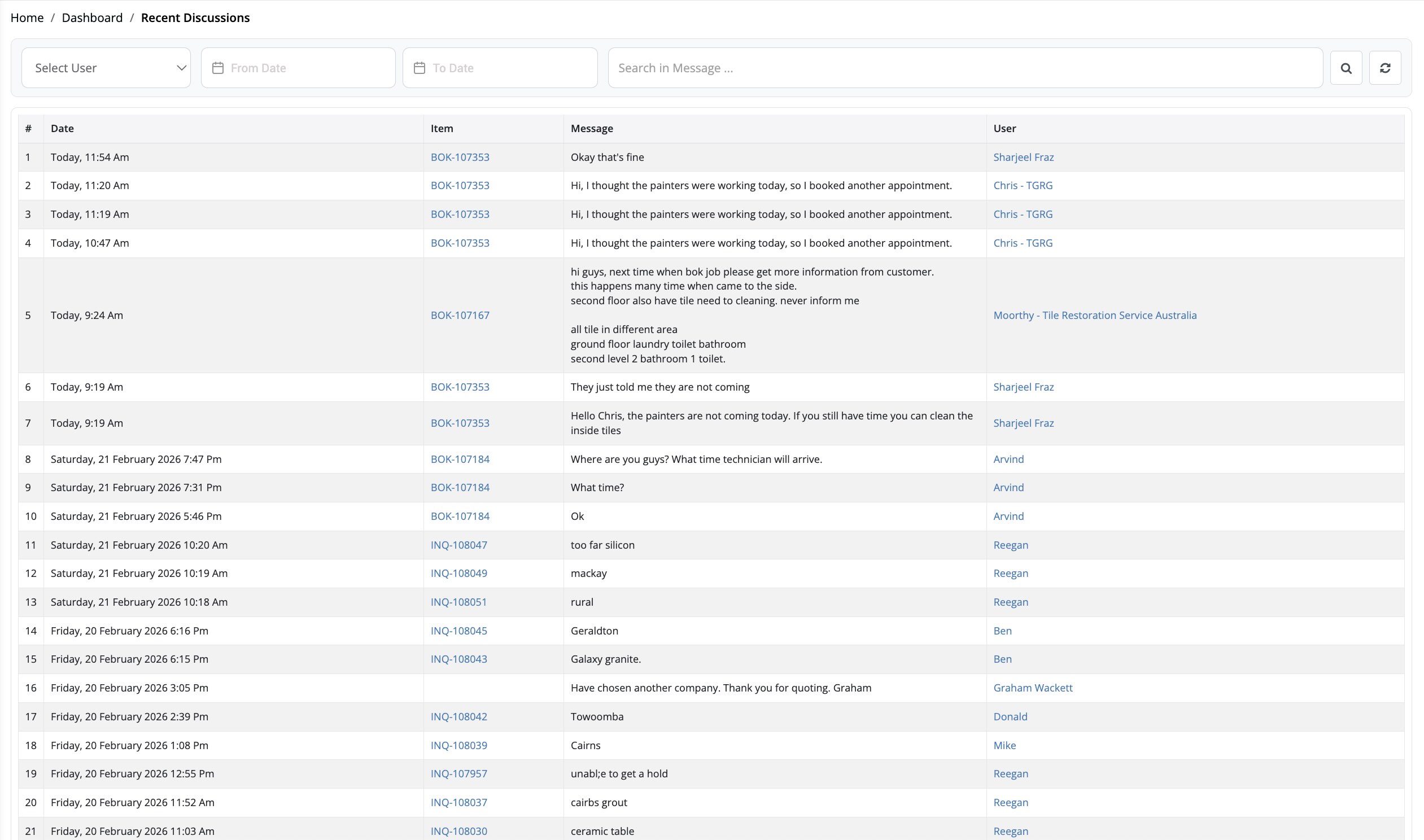
Fast triage tip: scan for keywords like access, gate, ETA, cancel, reschedule, invoice, or refund, then open the booking and action it immediately.
Discussion Board widget (Dashboard)
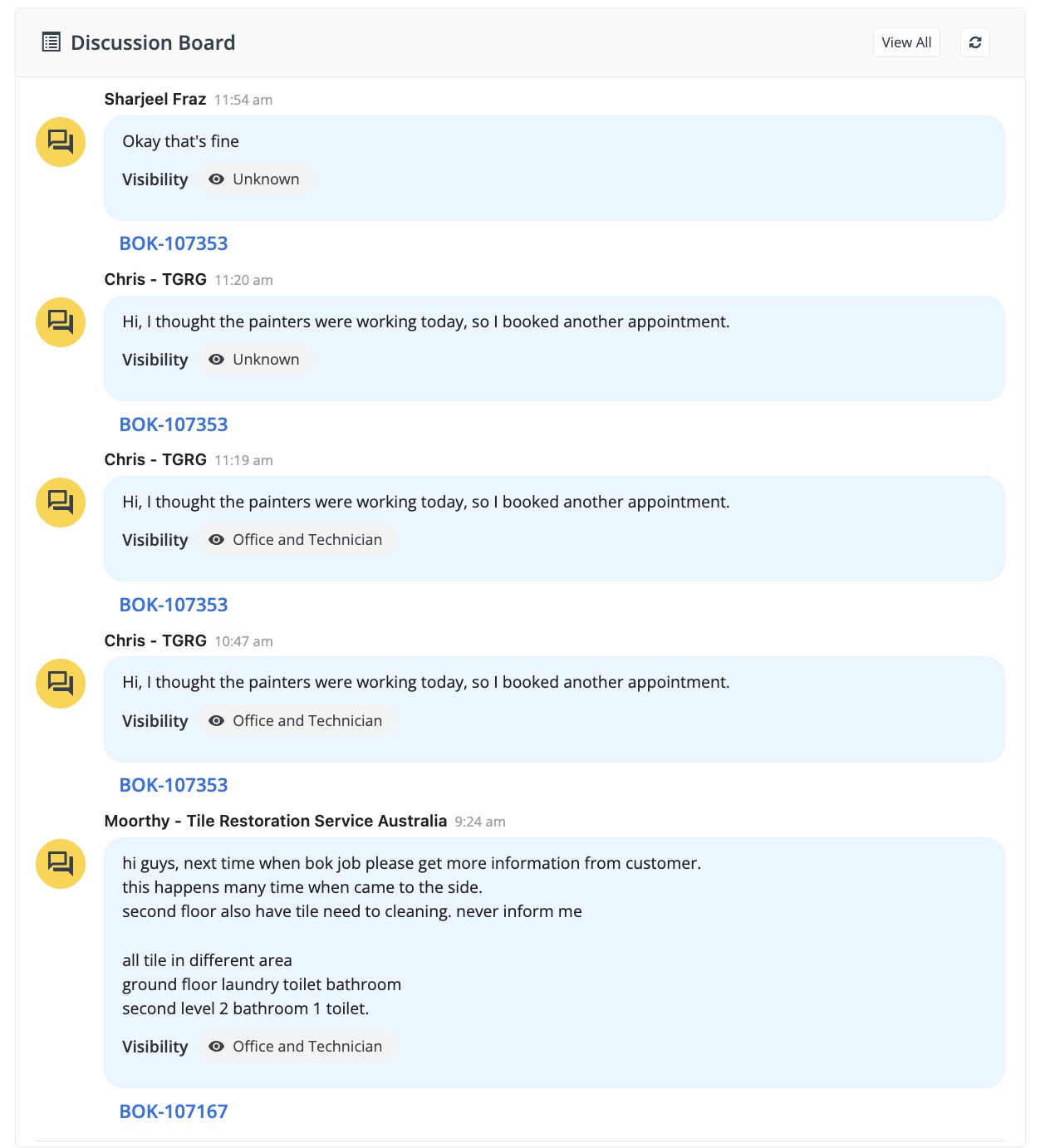
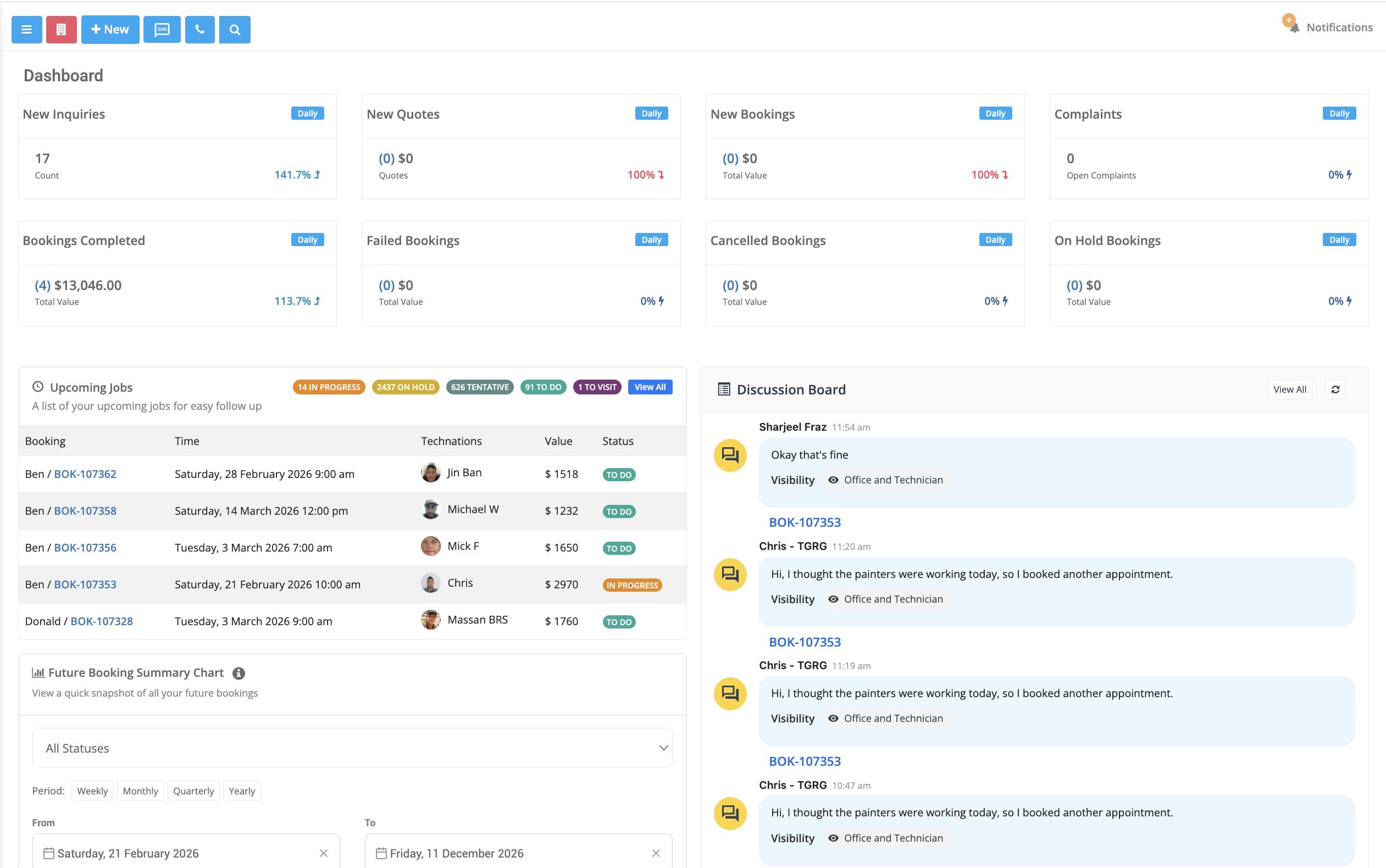
The Discussion Board widget is a quick view of the newest discussion comments on your Dashboard. It’s ideal for reception/dispatch teams who need to react quickly.
- Shows the 5 most recent comments system-wide.
- A New badge indicates the unread count.
- Click View All to jump to the full Discussions History Log.
Where discussions live (discussion threads on records)
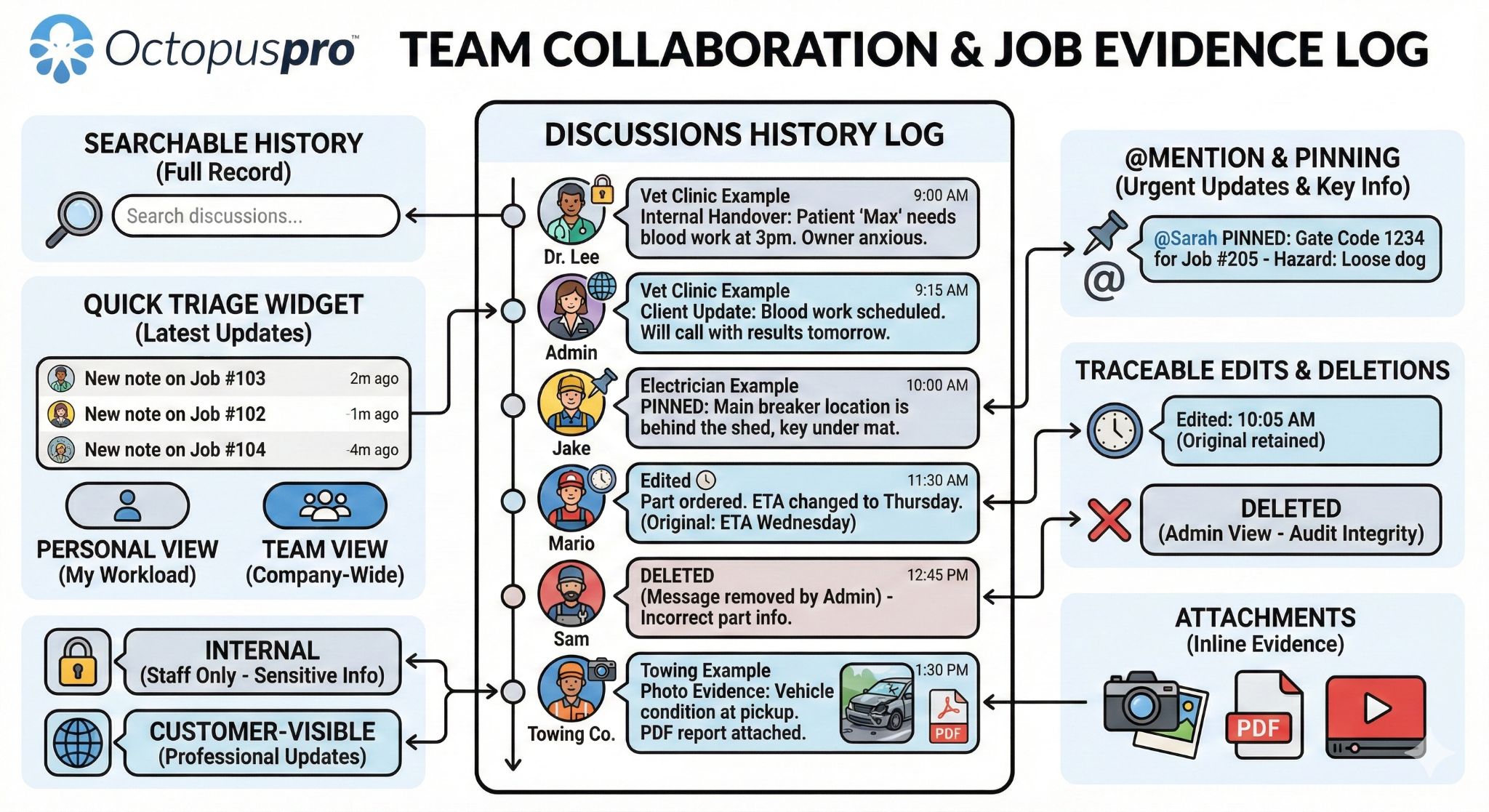
Discussions are threaded conversations attached to records (for example: bookings/jobs, quotes/estimates, invoices, inquiries, and complaints—depending on your setup). This keeps every message tied to the correct context: customer details, schedule, assigned fieldworker, attachments, and job history.
Common discussion capabilities (where enabled):
- Role-based visibility: internal-only vs customer-visible messages.
- @mentions & pinning: highlight urgent updates (access codes, hazards, VIP notes).
- Attachments: images, PDFs, and other files stay linked to the job for evidence and handovers.
- Audit integrity: edits/deletions can remain traceable for accountability (based on permissions).
Learn more about unified discussion threads and visibility rules: Unified Discussion Threads (Bookings, Quotes, Invoices, Inquiries & Issues).
Typical workflows (examples)
Workflow A — Front desk triage (Dashboard)
- CSR opens the Dashboard and sees a New badge on the Discussion Board.
- Reads the top update (e.g., customer requests to postpone, access code changed).
- Clicks the Booking # link to open the job and action it (reply, reschedule, notify fieldworker, update notes).
- Returns to the widget and clears remaining items, then clicks View All if they need the full queue.
Workflow B — Manager audit (History Log)
- Open Reports → History Log → Recent Discussions and set All Dashboard.
- Scan the newest rows for urgent keywords or high-risk jobs.
- Open the booking, verify context, and escalate/assign work as required.
- Use date-range and keyword searching (where available) to support investigations and compliance checks.
Best practices
- Treat discussions like an inbox: assign ownership (who clears the queue) and aim for “zero new” by end of day.
- @Mention teammates and pin critical messages (if enabled) so important instructions remain visible.
- Use the correct visibility: keep sensitive notes internal; share only professional updates with customers.
- Keep evidence in-thread: upload photos and files in discussions so the job retains a complete record.
- Configure alerts: ensure the right roles get notified about new discussion activity: Notifications, Discussions, Call & SMS Alerts.
FAQ & troubleshooting
I can’t see Recent Discussions under Reports
Your role may not have permission to view Reports/History Logs. Ask an admin to review your access settings: Role-Based Access Control (RBAC) & Permissions.
I only see my own discussions
Switch the dashboard filter to All Dashboard to view team-wide activity.
I can’t read the full message from the History Log
The grid shows a preview only. Click the Booking # to open the record and view the full thread (including attachments).
Does deleting or editing a comment remove it from the log?
Depending on your permissions/settings, deleted comments can remain visible to admins with an audit marker, and edits may be time-stamped to preserve the original message for accountability.
Are attachments supported?
Yes—images and documents can be attached to discussion comments and remain linked to the record as job evidence.
Related guides
- Unified Discussion Threads (Bookings, Quotes, Invoices, Inquiries & Issues)
- Booking History Log Report (Recent & Modified Bookings)
- Booking History & Audit Log (Change Log)
- User Activity Log (Account-Wide Audit Trail)
- Customer Communication History (Email/SMS/Calls/Discussions)
- Outbound Email Log (Audit Trail)
- SMS History Log & Notifications
- Call History Log
- Workflow Automations Log (Scheduled Tasks History)
- Role-Based Access Control (RBAC) & Permissions
- Notifications, Discussions, Call & SMS Alerts
To stay updated, please subscribe to our YouTube channel.