
Outbound Email Log (Email Audit Trail & Tracking)
When cash flow, compliance, and customer satisfaction are on the line, you need proof of exactly what was sent, to whom, and when. OctopusPro’s Outbound Email Log (also called an email audit trail) keeps a searchable record of every email sent from your account—across invoices, quotes/estimates, inquiries/leads, bookings, and mass/template emails—so you can verify delivery, resolve disputes faster, and resend the exact message in seconds.

On this page
- What this is (and why it matters)
- What gets logged (and what doesn’t)
- How to open the Outbound Email Log
- Reading the grid (columns, links, filters)
- Quick actions (preview, resend, export, print)
- Everyday scenarios & business benefits
- Best-practice tips (deliverability & audit readiness)
- FAQ & troubleshooting
- Related guides
What this is (and why it matters)
The Outbound Email Log is your company-wide email history report. It gives your team a single place to confirm:
- Proof of communication (time-stamped audit trail)
- Delivery & engagement signals (Sent/Delivered and, where available, Opened/Clicked)
- Context (linked reference back to the related invoice, quote, booking, or inquiry)
- Fast resolution (“Send it again” without copy/paste)
This is especially useful for “I didn’t receive it” disputes, internal accountability, insurance/ISO-style audits, and monitoring automated reminders and follow-ups.
What gets logged (and what doesn’t)
Included in the log
- Manual emails sent from inside OctopusPro (e.g., sending an invoice or quote)
- Automated emails (reminders, confirmations, follow-ups, invoice reminders, etc.)
- Mass/template emails (typically recorded per recipient so you can spot failures)
- Message preview (the exact email body/HTML that was sent, plus attachments where applicable)
- Linked references (jump to the related record from the Ref column)
Not included
- Replies received in your mailbox (Gmail/Outlook/etc.). OctopusPro logs outgoing emails only.
- Emails sent outside OctopusPro (from your personal email client).
Tip: For a complete customer timeline (email + SMS + calls + discussions) use the customer’s communication log: Customer Communication History.

How to open the Outbound Email Log
- Go to Emails from the left-hand menu.
- Click Outbound Email Log.
The grid loads in chronological order (newest first). If you can’t access this page, your admin may need to update your permissions (see Role-Based Access Control & Permissions).

Reading the grid (columns, links, filters)
Use the grid to quickly find an email by keyword, recipient, or reference number (e.g., invoice/quote/inquiry ID). Many teams use this as their first step when investigating “what happened?”
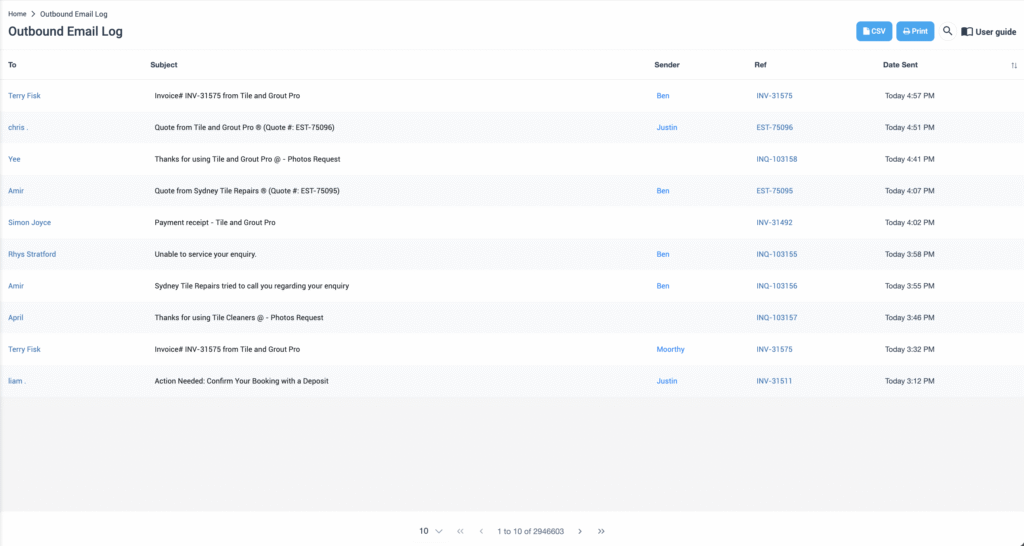
Common columns (what they mean)
| Column | What it shows | Click action |
|---|---|---|
| To | Recipient name/email (often linked to the customer record) | Open customer/profile (where available) |
| Subject | Full subject line of the email | Open the sent-email preview pop-up |
| Sender | Staff name or “System” (for automations) | Filter by sender for KPI tracking |
| Ref | Linked record reference (INV / EST / INQ / booking, etc.) | Jump straight to the related record |
| Date Sent | Timestamp (sortable) | Sort newest/oldest for auditing |
Filtering tip: Use the search/filter controls to locate emails by date range, recipient, subject keywords, or reference codes (e.g., INV-12345 / EST-6789).
Quick actions (preview, resend, export, print)
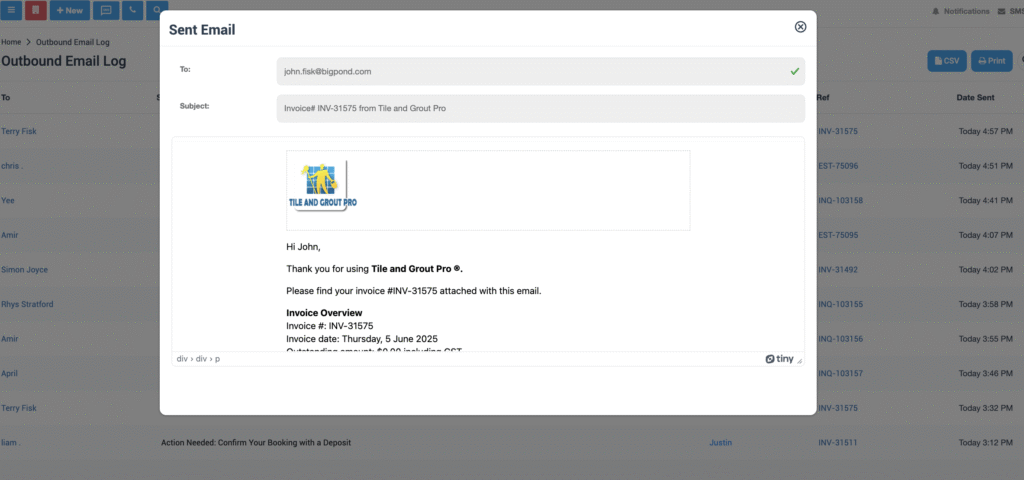
- Preview: click the Subject to view the exact email content (HTML/body) and attachments that were sent.
- Resend: from the preview pop-up, click Resend Email, make edits if required, then send.
- CSV Export / Print: use the buttons in the top-right for audits, insurance claims, compliance reporting, or internal reviews.
- User guide shortcut: some screens include a User guide button that opens this help page for quick staff training.
Note: Open/click tracking signals depend on the recipient’s email client and privacy settings. Some clients block tracking pixels or rewrite links, so treat “Opened/Clicked” as a helpful indicator—not your only source of proof.
Everyday scenarios & business benefits
| Scenario | Workflow in the Outbound Email Log | Business impact |
|---|---|---|
| Customer: “I never got my invoice.” | Search by customer email or invoice ref → preview → confirm timestamp/status → resend. | Faster payment, fewer disputes. |
| Finance audit / compliance request | Filter by date range → export CSV/Print → attach to audit pack. | Clear, time-stamped evidence trail. |
| Quote follow-up | Filter Subject contains “Quote” (or EST ref) & Sender = sales rep → prioritize follow-ups. | Higher conversion rate. |
| Template A/B testing | Compare open/click signals between different subject lines or templates. | Better messaging and engagement. |
| Team KPI / productivity | Filter/sort by Sender → review outbound volume by staff and time period. | Visibility into rep activity and follow-up consistency. |
Best-practice tips (deliverability & audit readiness)
| Tip | Why it matters |
|---|---|
| Authenticate your sending domain | Improves deliverability and reduces “missing email” complaints. See Business Email Authentication. |
| Use reference numbers in subjects | Instant searching and clearer audit trails (e.g., “Invoice INV-12345”). |
| Segment senders (billing@, sales@, etc.) | Easier filtering in logs and better inbox placement. |
| Review delivery failures regularly | Catch invalid addresses and fix your CRM before the next reminder cycle. |
| Combine with other audit logs | For a complete trace, pair emails with SMS/calls and automation history: SMS History Log, Call History Log, Automations / Scheduled Tasks Log, and User Activity Log. |
FAQ & troubleshooting
Can I delete an email from the log?
Only admins (or roles) with the appropriate permission (e.g., “Delete Outbound Email”) can delete entries. For audit transparency, deletions may still remain visible in the audit history depending on your configuration and reporting rules.
Does the log include mass-mail campaigns?
Yes. Mass/template emails are typically recorded per recipient, making it easier to spot bounces or delivery failures for specific contacts.
How far back does the log go?
The log can be retained long-term, with pagination allowing you to browse very large histories and jump to specific date ranges for audits and reporting.
Is there a mobile view?
Yes. You can access the Emails section from the mobile app, and the interface adapts to smaller screens.
Why don’t I see “Opened” or “Clicked”?
Some recipients block tracking (images disabled, privacy protections, link rewriting). Delivery can still be valid even when open/click signals don’t appear.
I can’t find an email I expected to see
- It wasn’t sent from OctopusPro: only OctopusPro-sent emails appear here.
- Automation didn’t run: check execution history in Automations / Scheduled Tasks Log.
- Notifications were paused: see Pause / Resume Automated Notifications.
- Deliverability issue: ensure your sender is properly set up (see Business Email Authentication).
Related guides
- Customer Communication History (email/SMS/call timeline)
- Booking Communication (job-level email/SMS/calls)
- Automations / Scheduled Tasks Log (when reminders ran and what was sent)
- Business Email Authentication (improve deliverability)
- Email Templates (create, edit, and standardize messaging)
- SMS History Log & Notifications
- Call History Log
- User Activity Log (who did what, when)
- Role-Based Access Control & Permissions
If you ever need to prove “what was sent” in seconds, the Outbound Email Log is your single source of truth—search, preview, export, and resend without guesswork.
To stay updated, please subscribe to our YouTube channel.