
User Activity Log (Audit Trail: Who Did What, When, and Where)
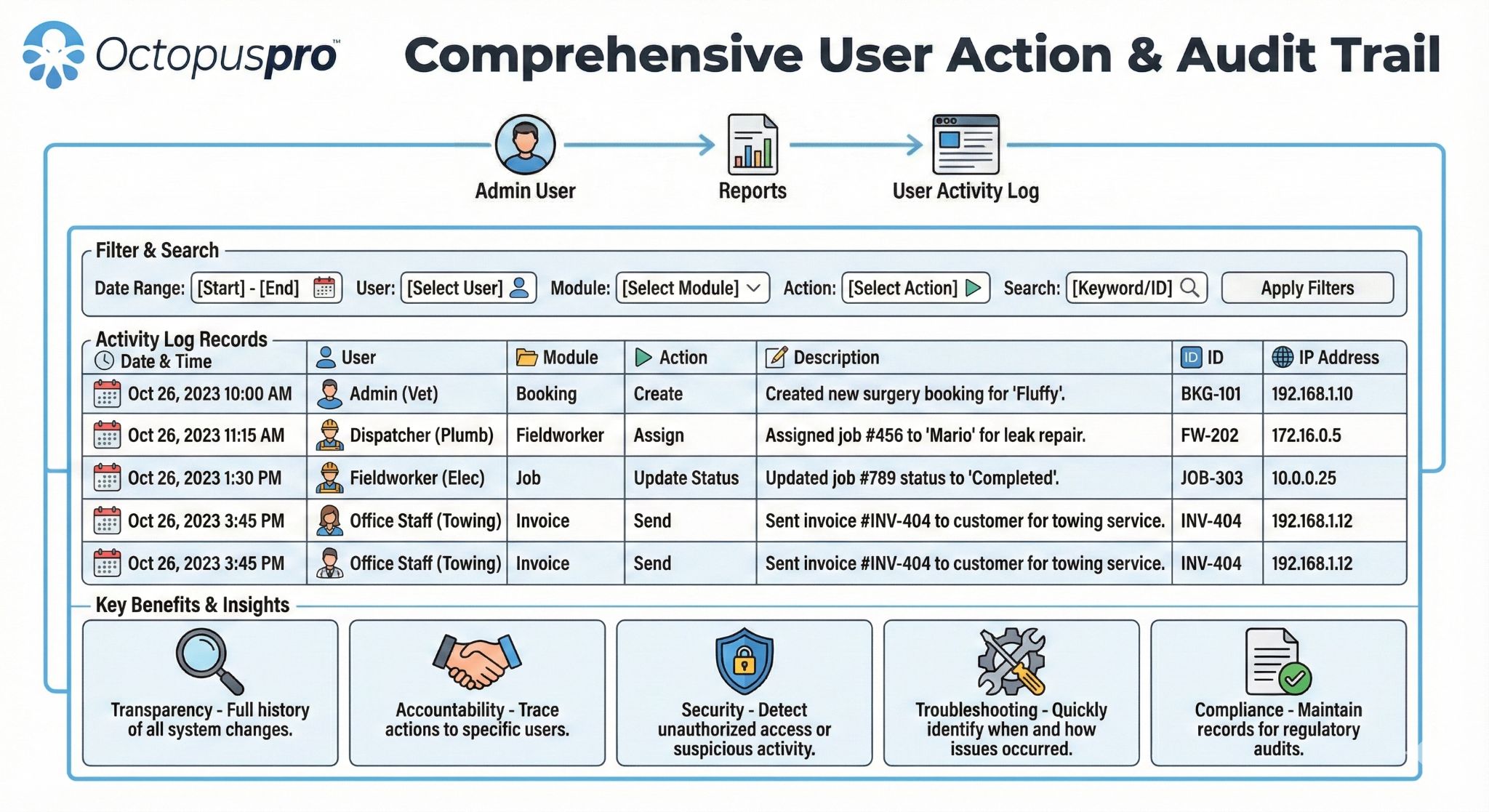
The User Activity Log is an account-wide audit trail that records a time-stamped history of actions performed by users inside OctopusPro. It helps you quickly confirm who did what, when it happened, and which record was affected (booking, invoice, quote, inquiry, customer profile, and more).
This is especially useful for security and compliance, dispute resolution, quality control, and root-cause troubleshooting when something changes unexpectedly.
On this page
- What gets logged (and what doesn’t)
- How to open the User Activity Log
- Screen anatomy (filters + columns)
- Filter, search & export to CSV
- Common use cases (examples)
- Best practices
- Permissions & access control
- FAQ & troubleshooting
- Related logs & guides
What gets logged (and what doesn’t)
Typically logged actions include:
- Access events: login/logout activity and related security events (where enabled).
- Record actions: creating, viewing, editing, deleting/restoring records such as bookings, inquiries, quotes/estimates, invoices, customers, and issues (depending on your modules and permissions).
- Workflow actions: status changes, assignment changes, approvals, and key operational updates.
- Communications activity: system events such as “Email has been sent…” or other communication-related actions (message details are usually verified in dedicated logs).
Not logged here: activity performed outside OctopusPro (for example, emails sent directly from a personal mailbox, or edits made in an external spreadsheet). For message-level evidence and delivery details, use the dedicated Email/SMS/Call logs linked below.
Audit integrity: the User Activity Log is designed to be tamper-resistant—entries are not editable. If something is deleted, the deletion event itself is recorded for accountability.
How to open the User Activity Log
Navigation: Left-hand menu → Reports → User Activity Log
Note: older dashboard shortcuts may not appear in newer versions—use the menu path above.
Screen anatomy (filters + columns)
Filter controls
At the top of the log, you can filter the activity list to find exactly what you’re looking for:
- Start Date / End Date: set the investigation window (often defaults to today).
- User: isolate one admin/employee/contractor (search-as-you-type).
- Module: narrow results to a specific area (e.g., Bookings, Invoices, Quotes, Customers).
- Action: narrow to the activity type (e.g., Create, Edit, Delete, Status Update, Send).
- Search (Keyword/ID): find activity by record reference (e.g., BOK-##### / INV-##### / EST-#####), customer name, or other identifiers (based on your configuration).
- All Dashboard vs My Dashboard: switch between team-wide activity vs your own activity.

Activity list (columns)
Each row represents one logged action. Common columns include:
- History / Description: a human-readable summary of what happened (often includes clickable links).
- Event On: the affected record reference (for example: booking number, invoice number, quote number, inquiry number).
- Date: timestamp of the action (usually newest first).
- Module / Action / ID / IP Address: may appear as separate columns or in details (depending on your account and permissions). Admins may be able to view additional security context such as IP address for certain events.
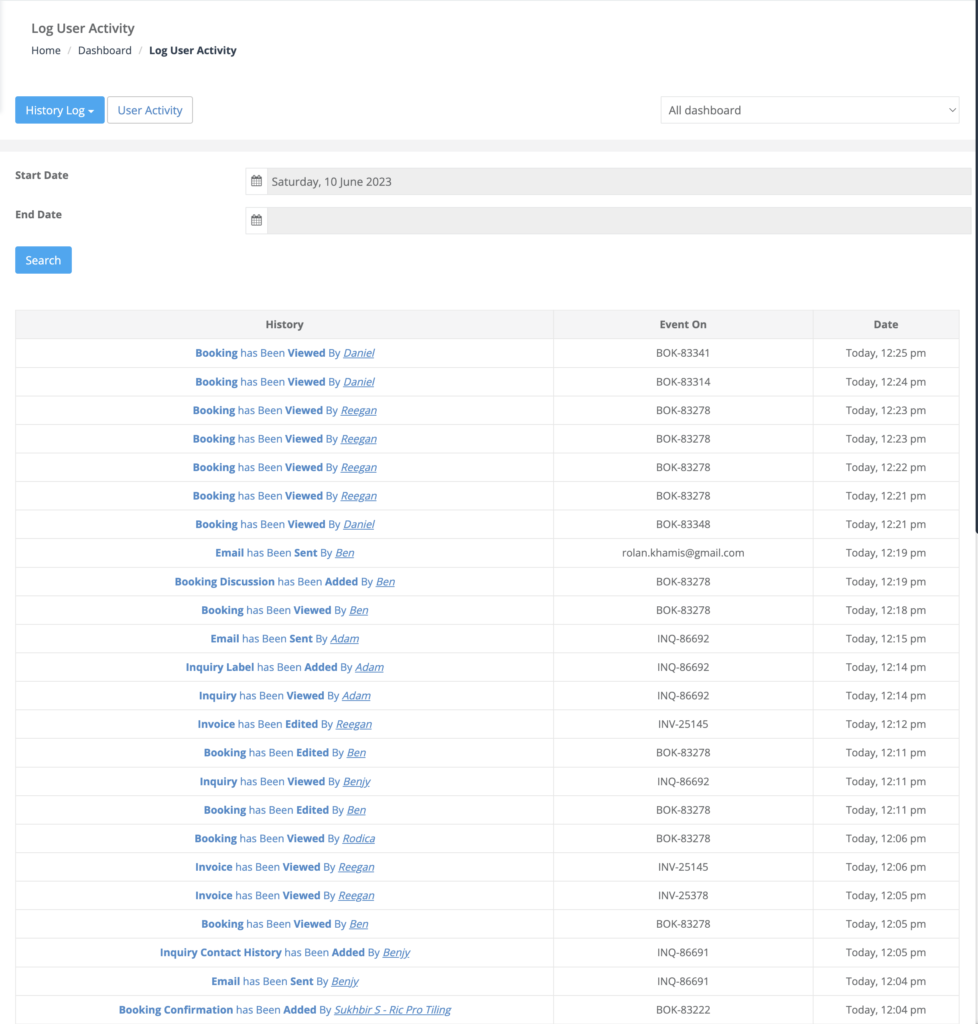
Tip: If you see a blue record reference (e.g., BOK-#####), click it to open the impacted record and review the full context (notes, status timeline, communications, attachments, etc.).
Filter, search & export to CSV
- Set a date range (example: first to last day of the month).
- (Optional) choose a User, Module, and/or Action.
- (Optional) search by Keyword/ID (example: a booking code like BOK-12345).
- Click Search / Apply Filters to refresh results.
- Click the CSV export icon (top-right, where enabled) to download your filtered results for Excel/Sheets or compliance archives.
Retention note: history is typically stored long term, unless your account has a data-retention policy configured (commonly under Settings → Security).
Common use cases (examples)
1) Investigate an unexpected change
- Set the date range to the time window when the change occurred.
- Use Keyword/ID to search the record reference (BOK/INV/EST/INQ).
- Identify the user + timestamp, then click the record to confirm what changed and why.
2) Prove an action happened (audit evidence)
- Search the History/Description for entries like “Email has been sent…” or “Status updated…”.
- Then verify message delivery and content in the relevant dedicated log (Outbound Email / SMS / Calls).
3) Coaching and performance reviews
- Filter by a specific user over a week/month to see workflow consistency (follow-ups, notes, status updates).
- Use patterns to identify training gaps (e.g., missing notes, delayed updates, repeated rework).
4) Security review (suspicious access)
- Filter by user and review unusual activity (odd hours, high volumes, repeated deletions/edits).
- Escalate by forcing logout, blocking, or deactivating the user if required (see Related guides).
Best practices
- Use unique user accounts: shared logins reduce accountability and weaken auditing.
- Least privilege access: restrict sensitive permissions (deletions, refunds, exports, security settings) to trusted roles.
- Make audits routine: do quick daily checks for new hires and weekly checks for teams handling high-value work.
- Export regularly: monthly/quarterly exports support long-term compliance and management reporting.
- Pair with specialist logs: use User Activity Log for “who did what,” and use Email/SMS/Call/Discussion/Automations logs for the full evidence trail.
Permissions & access control
Access to the User Activity Log is controlled by role permissions. If a user can’t see this report (or can only see “My Dashboard”), their role may not include team-wide reporting permissions.
Learn more: Role-Based Access Control (RBAC) & Permissions
FAQ & troubleshooting
I can’t see “User Activity Log” under Reports
- Confirm you’re logged into the Admin Portal (not the Customer Portal).
- Ask an admin to enable the required permissions in your role: RBAC & Permissions.
I only see my own activity
Switch the dashboard selector to All dashboard to view team-wide activity (if your role allows it).
Can I delete or edit log entries?
No. The User Activity Log is designed to preserve audit integrity and is not editable.
Does it capture IP address?
Some accounts show IP address (or show it on hover) for certain events. Visibility depends on permissions and security settings.
Related logs & guides
- Booking History Log (Recent & Modified Bookings)
- Booking History & Audit Log (Change Log)
- Outbound Email Log (Audit Trail)
- SMS History Log & Notifications
- Call History Log
- Discussions History Log
- Workflow Automations Log (Scheduled Tasks History)
- Customer Communication History (Email/SMS)
- Login as Another User (User Impersonation)
- Force Logout Users (End Active Sessions)
- Blocking Users
- Activate / Deactivate Users
- Delete Users vs Deactivate/Block Users
To stay updated, please subscribe to our YouTube channel.