
Assign Multiple Fieldworkers to a Single Service within a Booking
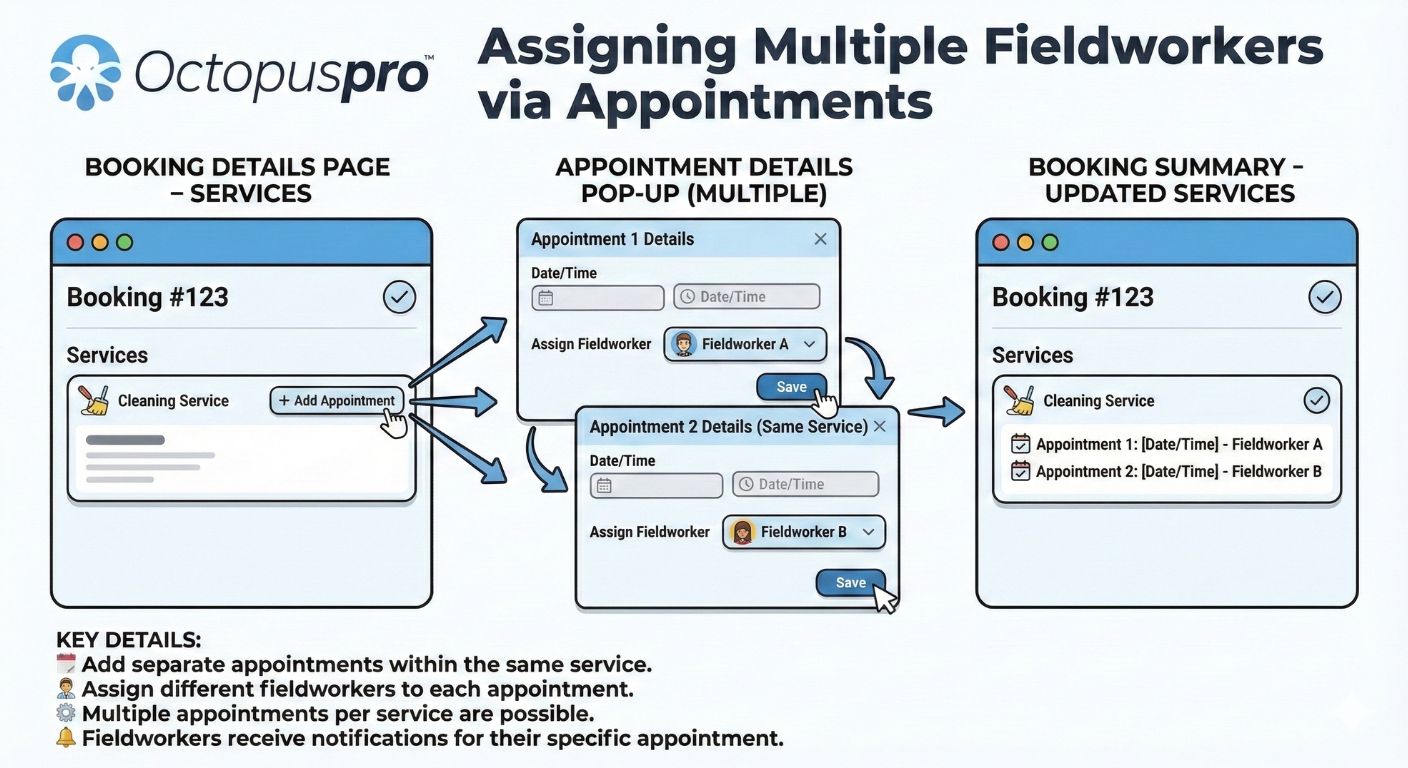
Some jobs need a team, not a single technician—think large projects, heavy lifting, specialist + assistant, or quality control follow-ups. In OctopusPro, you can assign multiple fieldworkers to the same booking by adding multiple scheduled appointments under the same service.
This makes it easy to:
- Schedule a crew job (multiple fieldworkers at the same time)
- Book follow-up appointments under the same service
- Assign different specialists to different visits (appointments)
- Improve speed, quality, and customer experience—without splitting the job into separate bookings
How this works (important)
A booking is structured like this:
- Booking = the overall job record for the customer (may include one or more services and one or more scheduled visits)
- Service = a service line item inside the booking (e.g., Tile Cleaning, HVAC Repair)
- Appointment = a scheduled visit (date/time) within a booking
To assign multiple fieldworkers to the same service, you add multiple appointments under that service—each appointment can have its own fieldworker and time.
✅ Crew job (same time): create multiple appointments with the same date/time, each assigned to a different fieldworker.
✅ Multiple visits: create appointments with different dates/times under the same service.
1) Before you start (eligibility & availability)
If a fieldworker doesn’t appear in your selection list, it’s usually due to assignment rules. Before scheduling, confirm:
- The fieldworker is Active
- The fieldworker is eligible for the service (services provided)
- The job location is inside their service area / travel radius (unless you override it)
- They are within working hours and not already booked (if availability filtering is enabled)
- Your dispatch settings allow assignment (manual vs job requests / accept-decline workflows)
Tip: Keep fieldworker profiles accurate—availability tools and matching rely on service eligibility, travel rules, working hours, and calendar availability.
2) Assign multiple fieldworkers (Admin Portal – Web)
Create a new booking with multiple fieldworkers on the same service
- Go to Bookings.
- Click Create New.
- Add your booking details (customer, address, etc.).
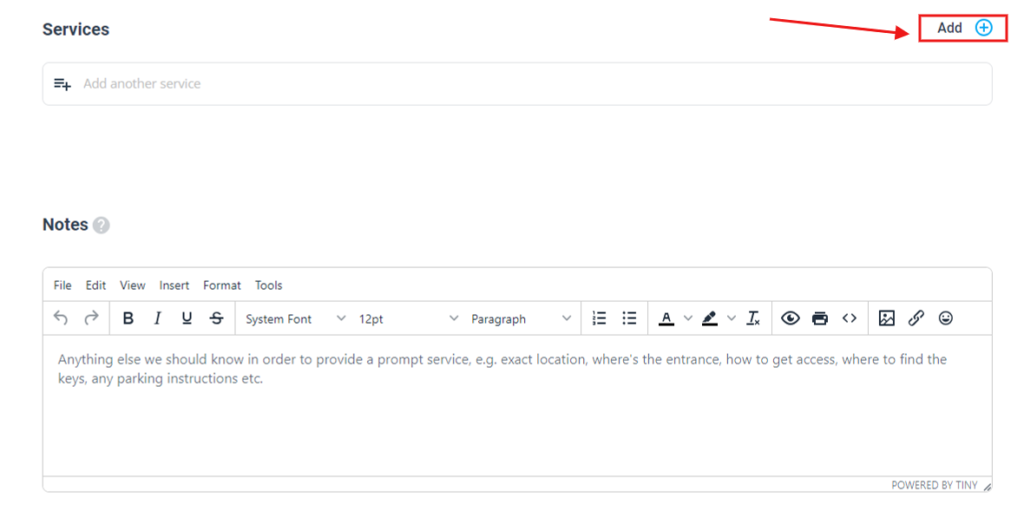
- In Services, click + Add and select the service.
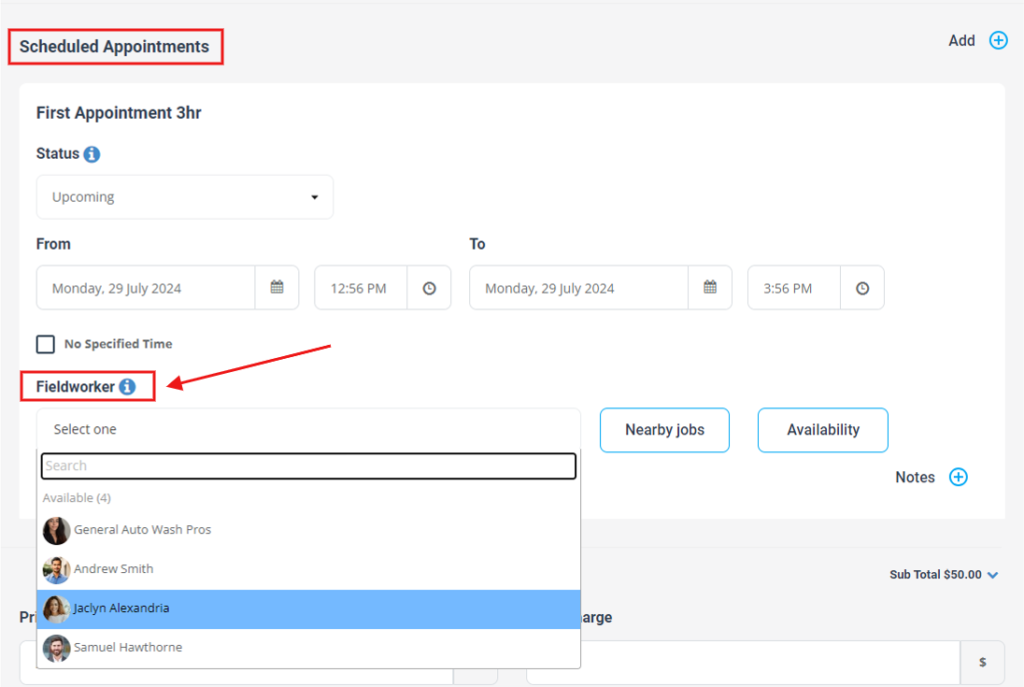
Add the first appointment (visit)
- Scroll to Scheduled Appointments.
- Enter:
- Date
- Start time / End time
- Assigned Fieldworker
Add additional fieldworkers (additional appointments)
- Click Add+ (above the appointments area).
- Select Add new appointment.
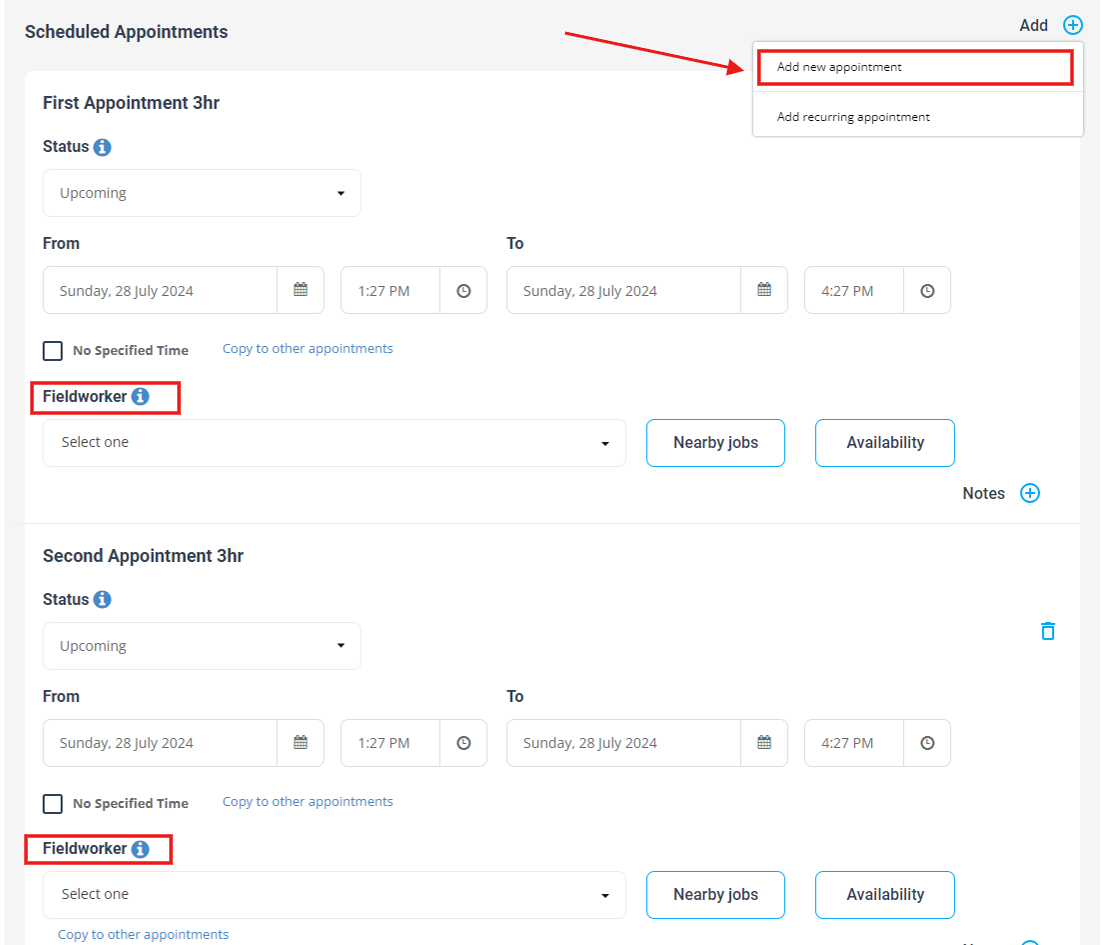
- Enter the appointment details and select a different fieldworker.
- Repeat steps 7–9 for as many fieldworkers as needed.
- Click Save Changes.
Crew job tip: If you want multiple fieldworkers on-site together, use the same date/time for each appointment.
3) Add fieldworkers to an existing booking (Edit Booking)
- Go to Bookings → Upcoming (or Past, if needed).
- Find the booking.
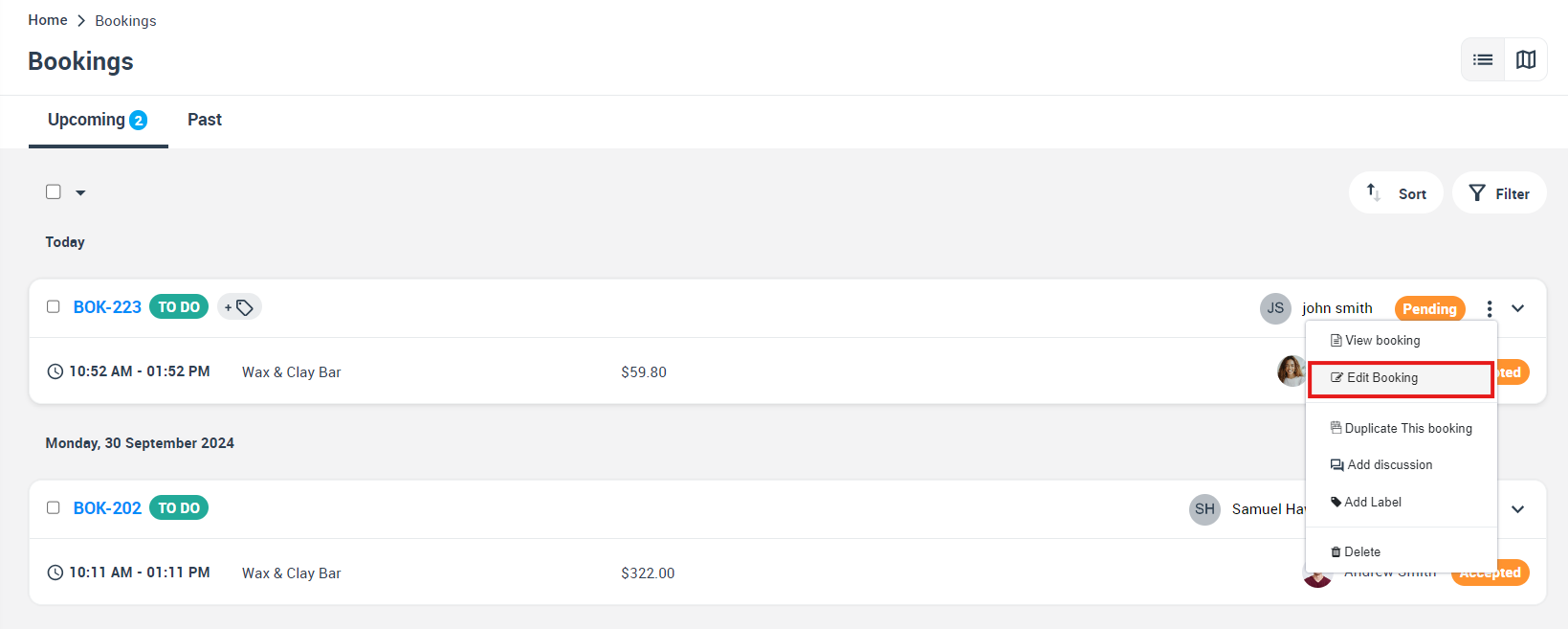
- Click Actions → Edit booking.
- Scroll to Scheduled Appointments under the relevant service.
- Click Add+ → Add new appointment.
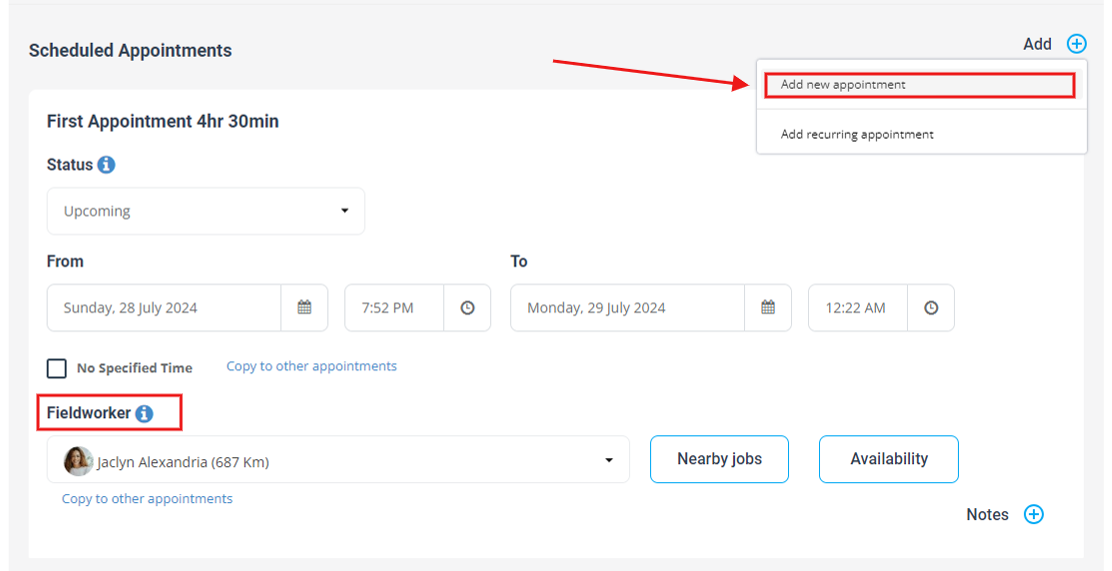
- Enter the date/time and select the additional fieldworker.
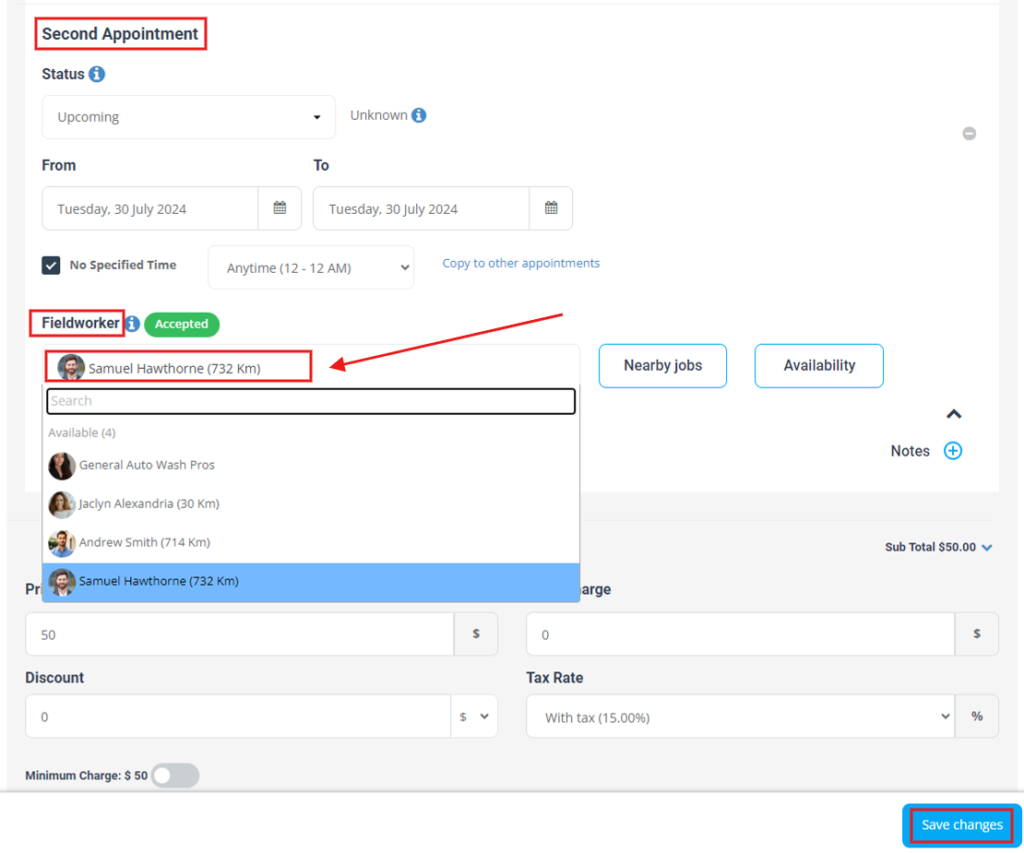
- Click Save Changes.
4) View all assigned fieldworkers on a booking
- Go to Bookings → Upcoming or Past.
- Find the booking.
- Click Actions → View booking.
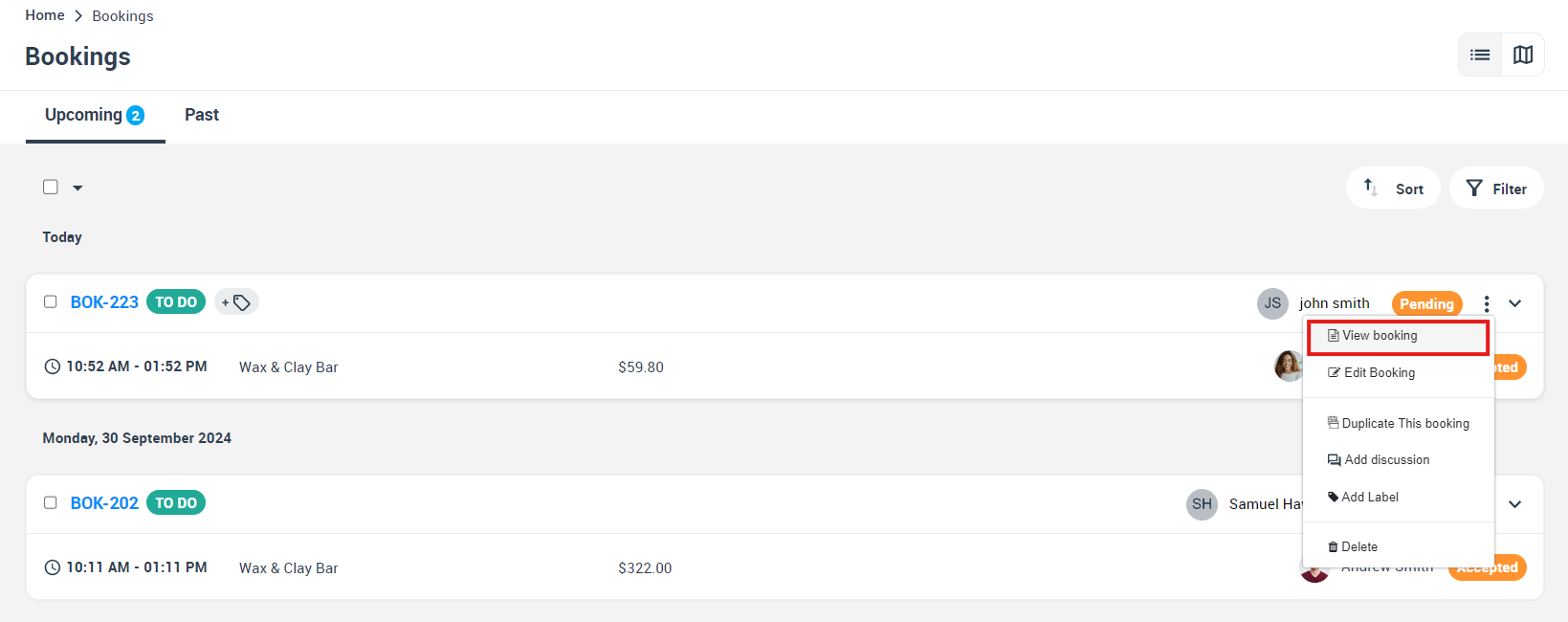
- Scroll to the service’s Scheduled Appointments section to see:
- All appointments (visits)
- Their dates/times
- Assigned fieldworkers
5) Assign multiple fieldworkers (Mobile App – Admin role)
Admins can also create a booking and assign multiple fieldworkers from the mobile app.
- Open the app and log in with an Admin role.
- Go to Bookings.
- Tap Create New.
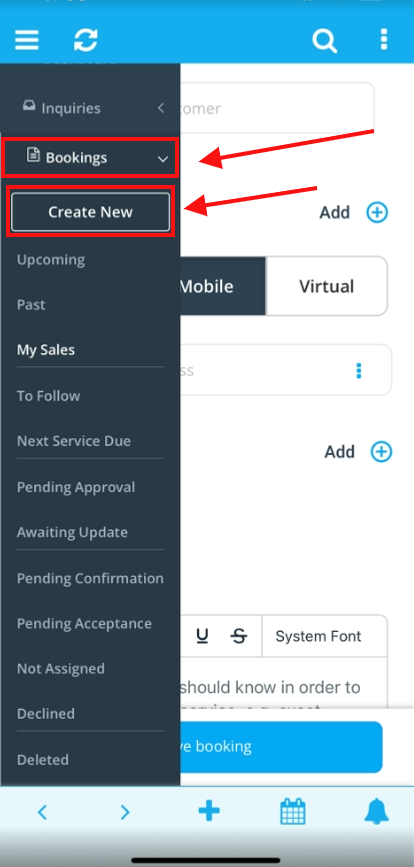
- Scroll to Services and tap + Add Service.
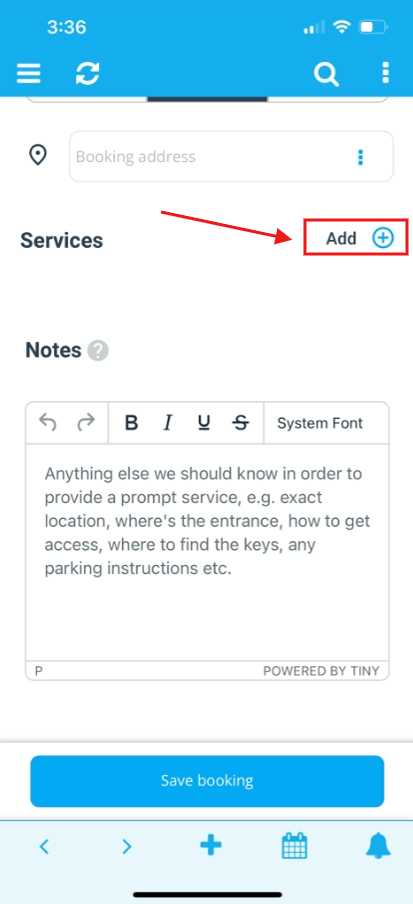
- Select the service.
- Add the first appointment (date/time + fieldworker).
- Tap Add+ → Add new appointment.
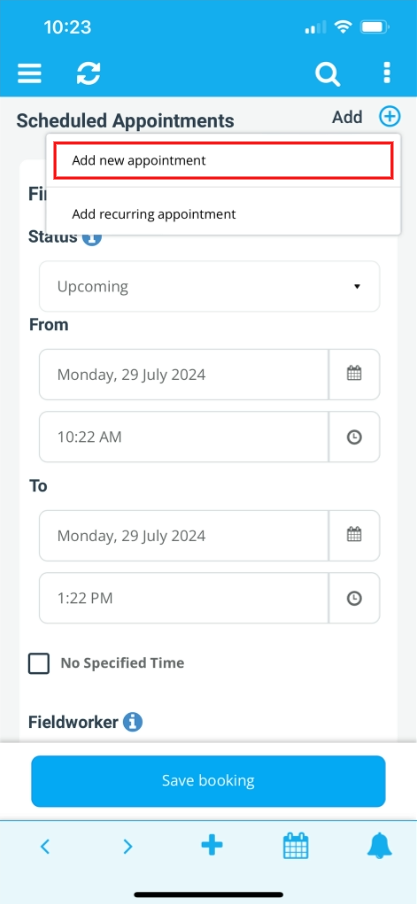
- Enter the appointment details and choose another fieldworker.
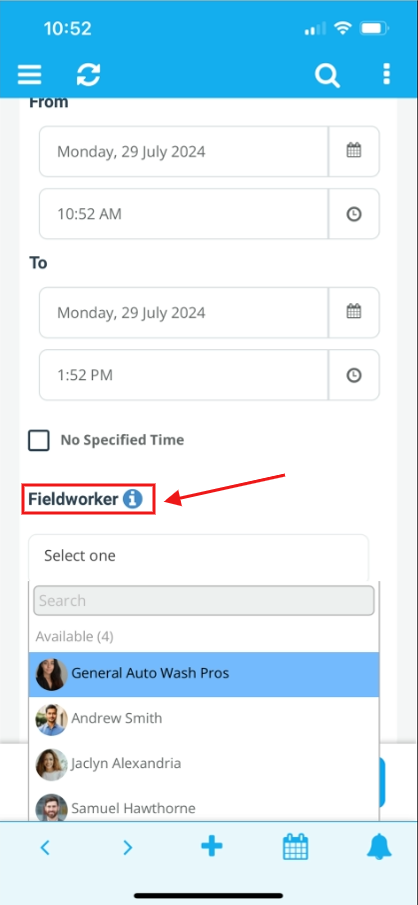
- Repeat as needed, then Save.
6) Remove a fieldworker (delete an appointment)
To remove a specific fieldworker from the booking:
- Open the booking in Edit mode.
- In Scheduled Appointments, find the appointment assigned to that fieldworker.
- Tap/click the Delete (trash) icon on that appointment.
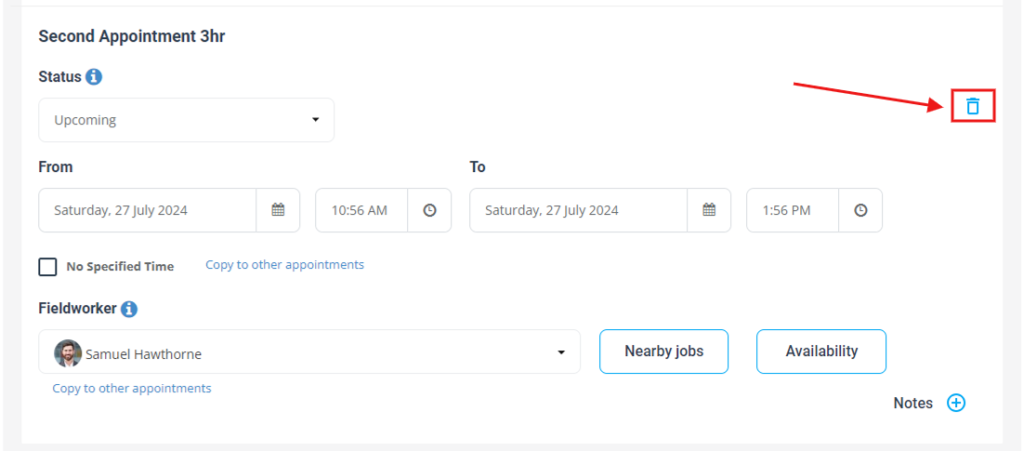
- Click Save Changes.
Note: Removing a fieldworker usually means removing their appointment, not deleting the service.
7) Dispatch & job requests (Accept/Decline workflows)
If your business uses job requests (fieldworkers accept/decline work), assignment behaves differently depending on your dispatch method.
Key points
- A Job Request is an invitation sent to one or more fieldworkers to Accept or Decline.
- Dispatch can be:
- Automated dispatch (first-to-accept): assigns immediately when the first worker accepts.
- Manual dispatch (admin approval): workers can accept/decline, but the booking stays pending until an admin finalizes assignment.
Sending job requests for bookings with multiple appointments
If your booking has multiple appointments, you can send a job request for:
- A specific appointment (one visit only)
- A specific service (when a booking contains multiple services)
Recommendation: If you’re assigning a crew job, decide whether:
- You want to direct-assign each appointment (fastest), or
- You want to request acceptance per appointment/service (best when relying on subcontractor availability)
8) Payroll & fieldworker share (earnings split)
When multiple fieldworkers are assigned, you may need to control how earnings are calculated and split.
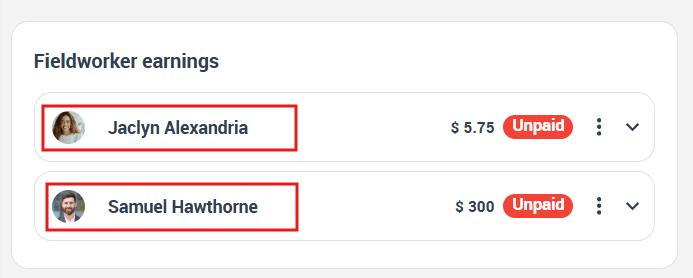
OctopusPro supports commission, hourly, or hybrid pay structures and uses a priority hierarchy so the correct rate is applied automatically.
Common setup options
- Default pay settings per fieldworker (global agreement on their profile)
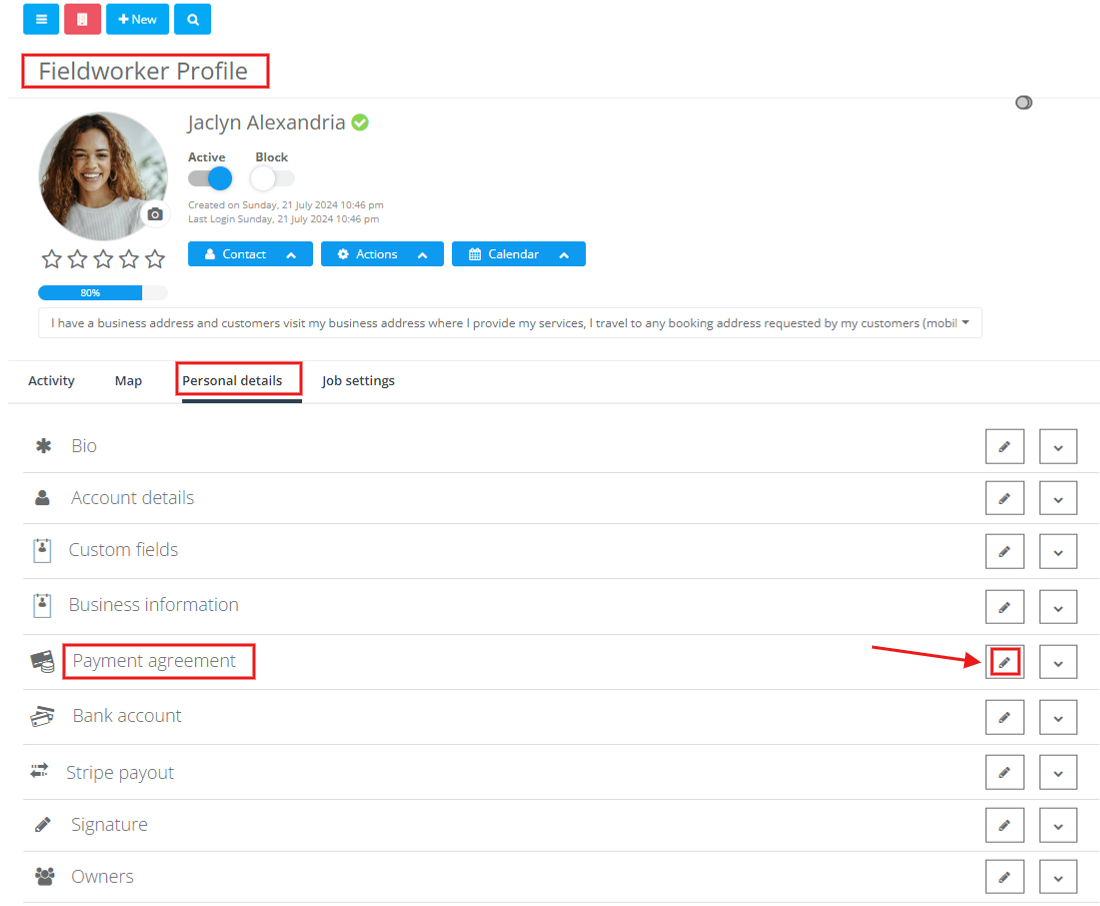
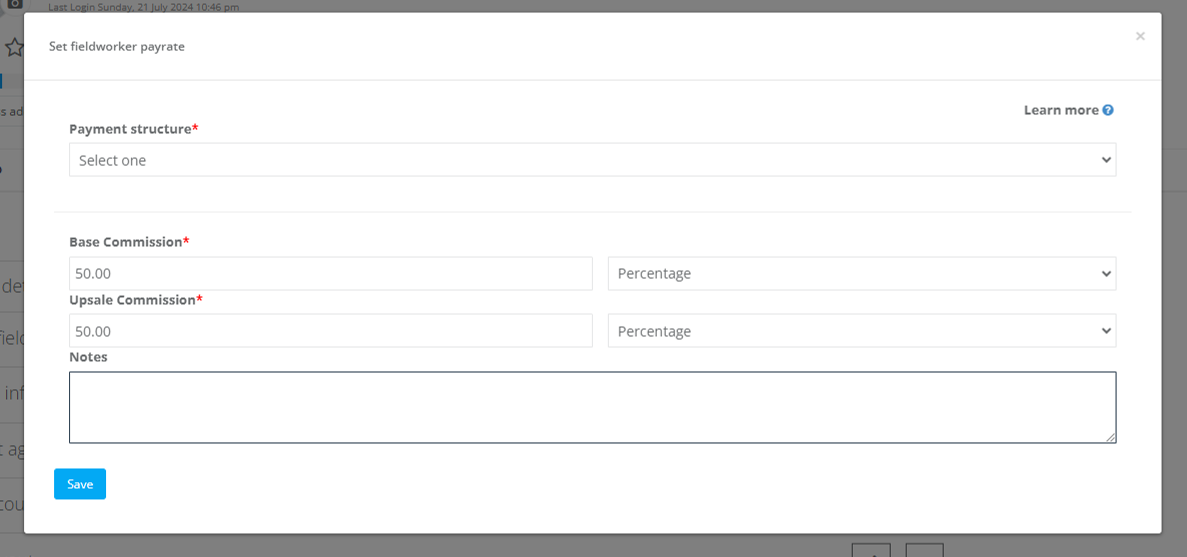
- Service-level pay defaults (company baseline rate per service)
- Fieldworker-specific service pay overrides (specialist rate for specific services)
- Booking-level overrides (one-off bonus or custom split for a specific job only)
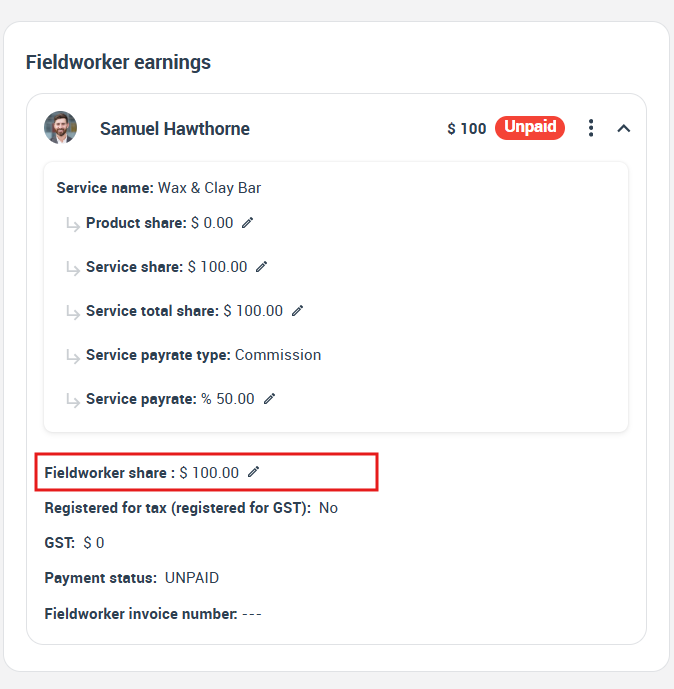
One-off splits (recommended for crew jobs)
If multiple fieldworkers work the same job and you need a special split, use the booking-level override / fieldworker share editor for that booking—this updates the split for that job only, without changing global pay rules.
9) Tracking & check-in/out (progress visibility)
When multiple fieldworkers are assigned, progress tracking remains clear because appointments can still follow the normal visit workflow.
Depending on your configuration, you can track:
- Status milestones (e.g., On the Way, Arrived, Started, Finished)

- Check-in/check-out times
- Customer/admin updates and visibility
Check-in and check-out timestamps and visit status updates can be viewed from areas like the booking details page, reports, and customer-facing interfaces (based on your permissions/settings).
10) Troubleshooting
A fieldworker isn’t showing in the list
Check:
- They don’t offer that service
- They’re outside the travel radius / service area
- They’re outside working hours
- They’re already booked at that time (availability rules)
- Matching rules require certain skills/qualifications/custom field selections
Tip: If needed, admins may be able to override radius restrictions (depending on your configuration) to force a match.
I want multiple fieldworkers on ONE visit (same time)
Create multiple appointments with the same date/time, each assigned to a different fieldworker.
I want a lead technician plus helpers, but I don’t want full profiles for everyone
Consider using “subworkers” (assistants/juniors) if your setup supports it—useful for tracking crew members without creating full accounts for each person.
11) Best practices
- Name/notes for clarity: Add internal notes describing each appointment’s purpose (e.g., “Technician”, “Assistant”, “QA follow-up”).
- Use the same time window for crew jobs: Keep all crew appointments aligned so schedules and reminders match reality.
- Avoid double-bookings: Use availability tools before saving the booking.
- Keep profile data accurate: Service eligibility, service areas, and working hours directly impact matching and dispatch.
- Set pay rules once, override only when needed: Use service defaults + fieldworker agreements for consistency; booking overrides for exceptions.
12) Related guides (recommended internal links to add)
Add internal links (titles below) so users can complete the full workflow:
- Creating & Editing Booking Management Guide
- Viewing and Managing Booking Details
- Job Assignment and Dispatch Methods
- Fieldworker Check-in and Check-out
- Fieldworker Payment (Commission & Pay Rates)
- Fieldworker Payroll Management & Reconciliation
- Fieldworker Service Areas
- Fieldworker Permissions (including subworkers)
- Booking Settings, Flags and Permissions
- Fieldworker Availability Finder / Find Availability
For more information please subscribe to our YouTube channel.