
[vc_row][vc_column width=”1/4″][vc_widget_sidebar sidebar_id=”sidebar-1″][/vc_column][vc_column width=”3/4″][vc_column_text]
Invoice Due Dates Management (Payment Terms)
An invoice due date is the deadline for payment. In OctopusPro, due dates are used to apply payment terms (e.g., Net 7, Net 30), calculate invoice aging, and help you identify invoices that are due or overdue. The due date is displayed on the invoice so customers clearly know when payment is expected.

Whether you’re setting a unique due date for a single invoice, configuring default payment terms for a specific customer, or applying a company-wide standard, this guide walks you through the setup and how OctopusPro calculates each due date type.
Contents
- What is an invoice due date?
- Why due dates matter (benefits)
- Invoice date vs. due date
- Due date levels & hierarchy (priority)
- What happens when you change a due date?
- How to set a due date for a specific invoice
- How to set a default due date for a customer
- How to set the company default due date
- Available invoice due date options (how each works)
- How to add a custom payment period (custom Net days)
- Best practices & common setups
What is an invoice due date?
The invoice due date is the final date payment must be received. If the invoice is not paid by that date, it may appear as Overdue in your invoice lists and reporting (depending on your workflow and invoice status rules).
Why due dates matter (benefits)
- Encourage timely payment: Clear payment terms reduce delays and “when do I need to pay?” questions.
- Better cash flow visibility: Sorting invoices by due date helps you forecast incoming payments and manage accounts receivable.
- Fewer disputes: Customers see a clear payment deadline on the invoice.
- Supports industry-standard billing: Deposits, pay-on-start, pay-on-completion, Net terms, and monthly billing cycles.
Invoice date vs. due date
- Invoice date: the day the invoice is issued/created.
- Invoice due date: the payment deadline calculated from your payment terms (or set as a specific calendar date).
Due date levels & hierarchy (priority)
You can set invoice due dates at three levels. The most specific level always takes priority:
- Invoice level (highest priority): A due date set on a single invoice overrides all other defaults.
- Customer level: A default due date for a specific customer applies to their future invoices (unless overridden on an invoice).
- Company level (default/fallback): The default due date used when no customer-level or invoice-level due date is set.

What happens when you change a due date?
When you change a due date (at the invoice, customer, or company level), it can affect:
- What the customer sees on the invoice (payment terms/due date).
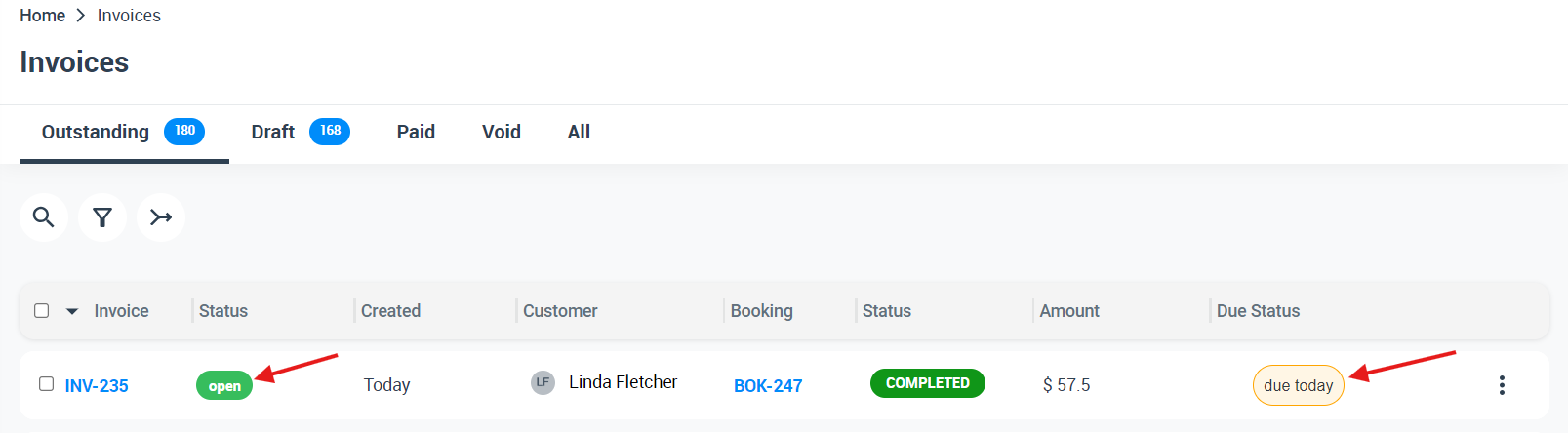
- Invoice aging & due status (e.g., due today, X days late).
- Overdue tracking once the deadline has passed.
When changing a customer-level or company-level setting, OctopusPro may ask whether you want to apply the change to existing outstanding invoices that are currently using that due date setting.
How to set a due date for a specific invoice (invoice-level override)
Use this when you need an exception for one invoice (e.g., “due in 48 hours” for a one-off job, or a special arrangement).
- From the side menu, open Invoices.
- Select the invoice list (e.g., Outstanding or All).
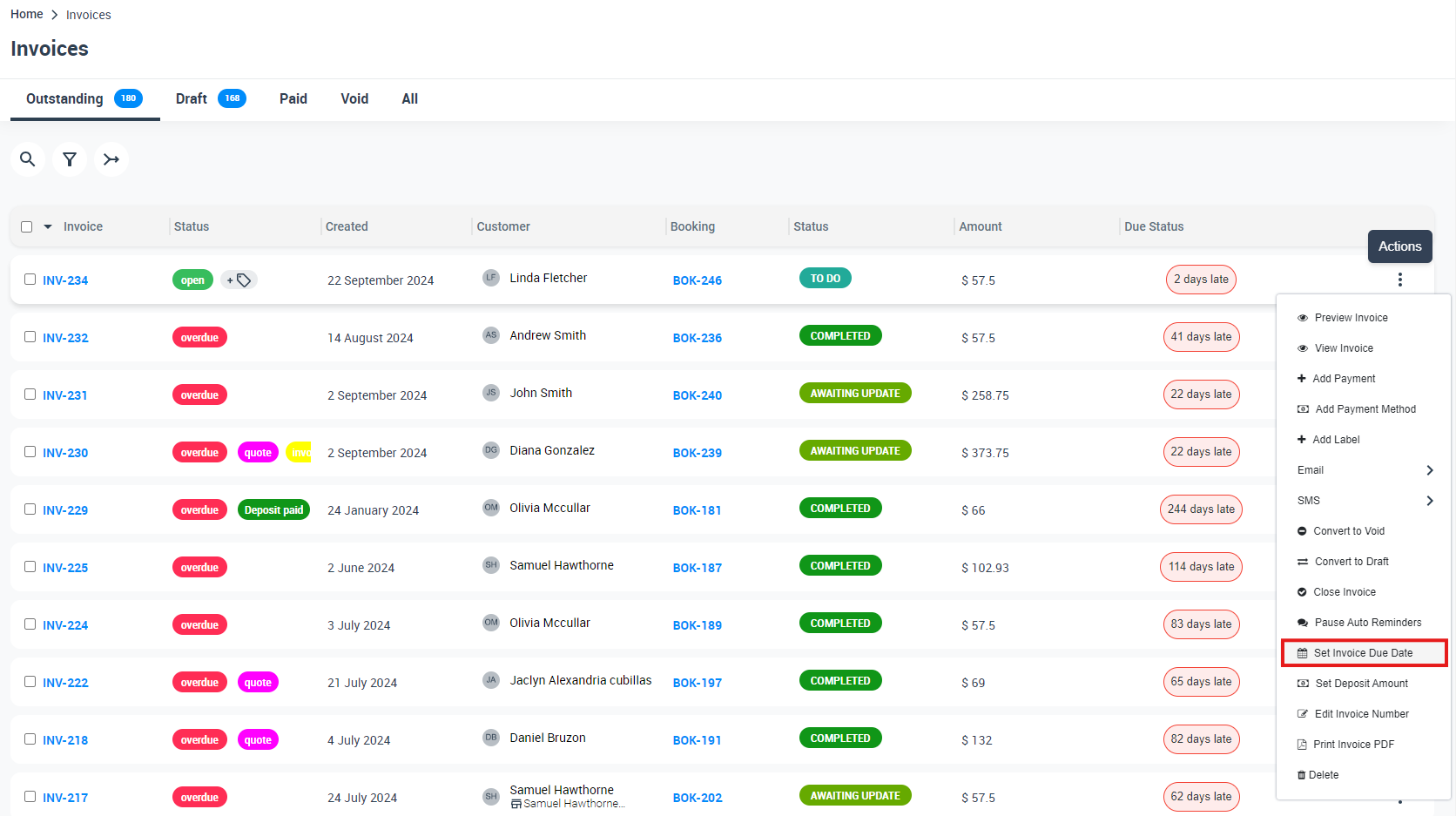
- On the invoice row, click Actions.
- Select Set invoice due date.
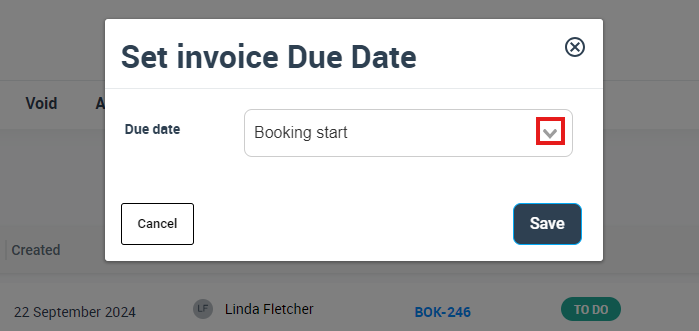
In the Set invoice Due Date window, choose the due date option from the dropdown:
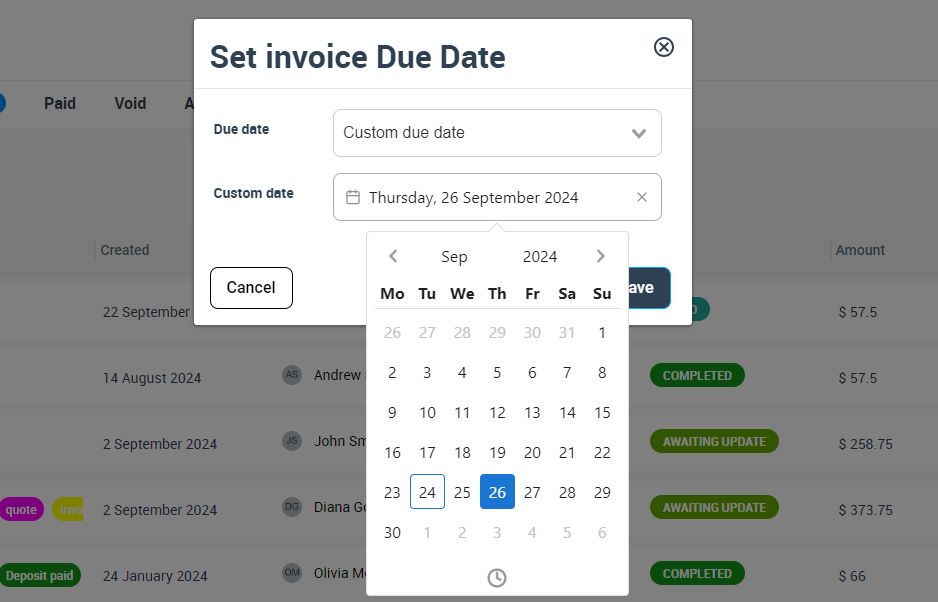
If you need to select an exact calendar date, choose Custom due date, then pick the date from the calendar and click Save:
How to set a default due date for a customer (customer-level default)
Use this when a customer has agreed payment terms (e.g., corporate customers on Net 30, residential customers on Net 7).
- From the side menu, open Customers.
- Select All Customers.
- Find the customer, then click Actions.
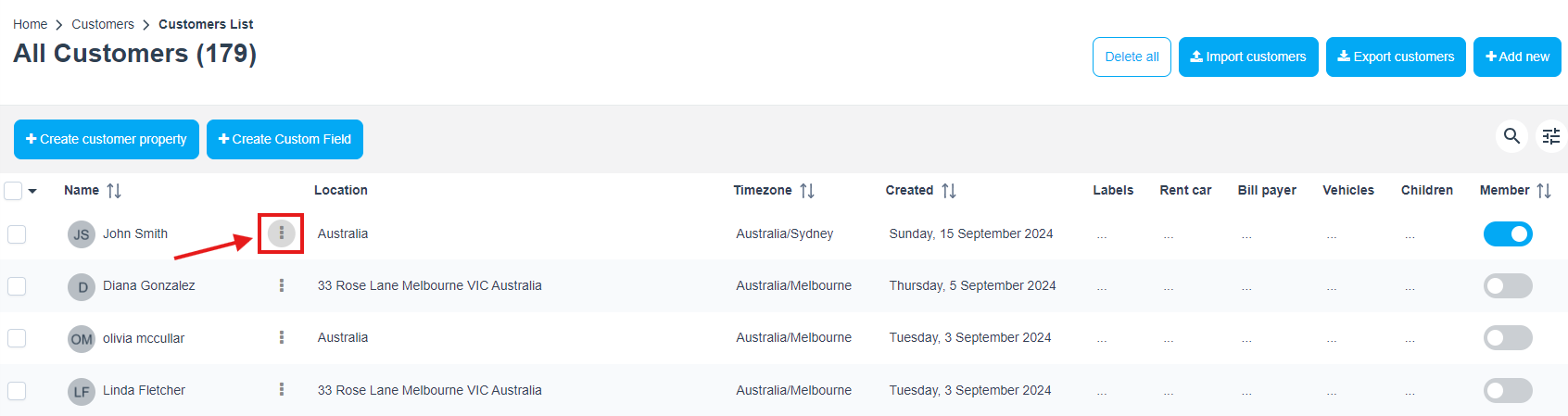
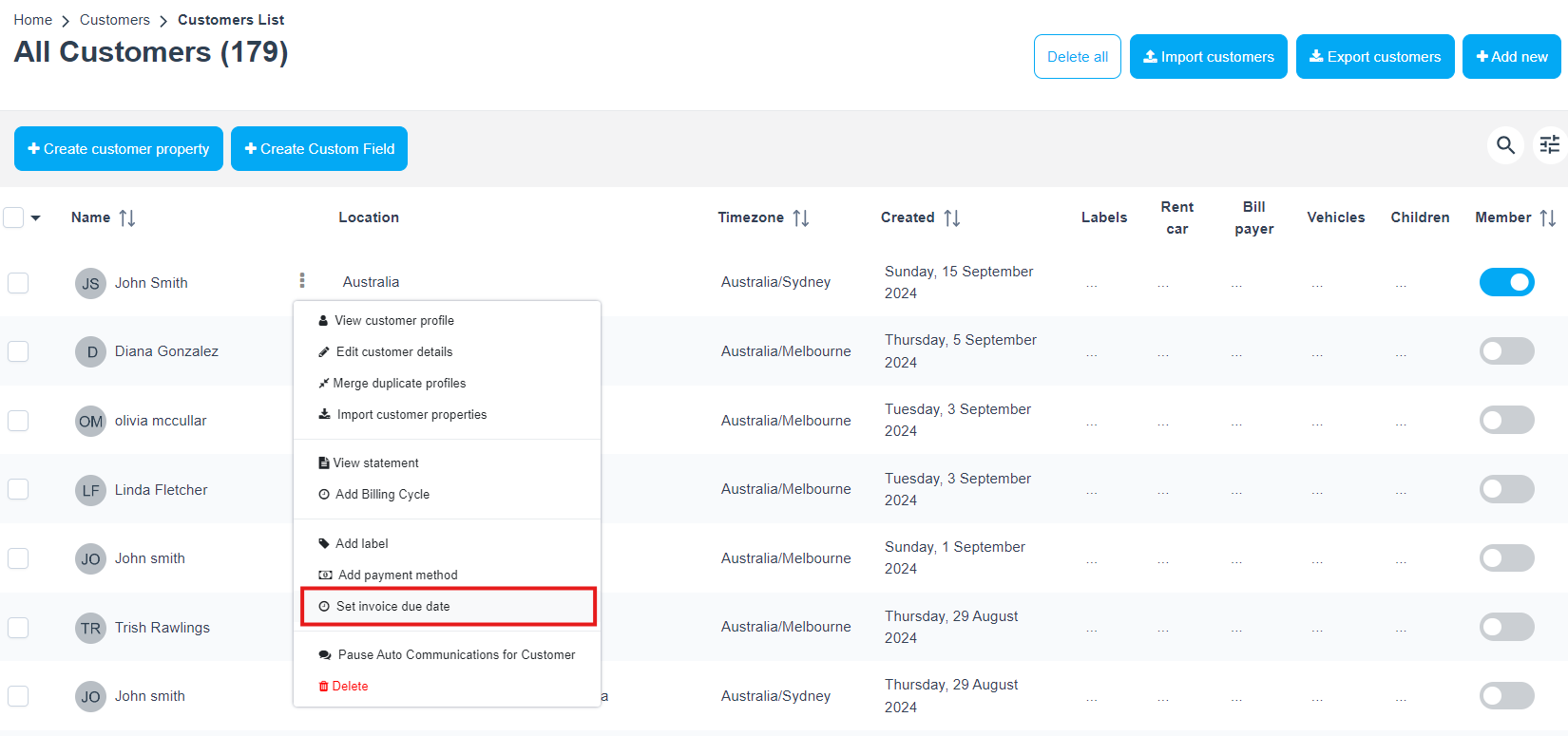
- Select Set invoice due date.
- Select the preferred due date option, then click Save.
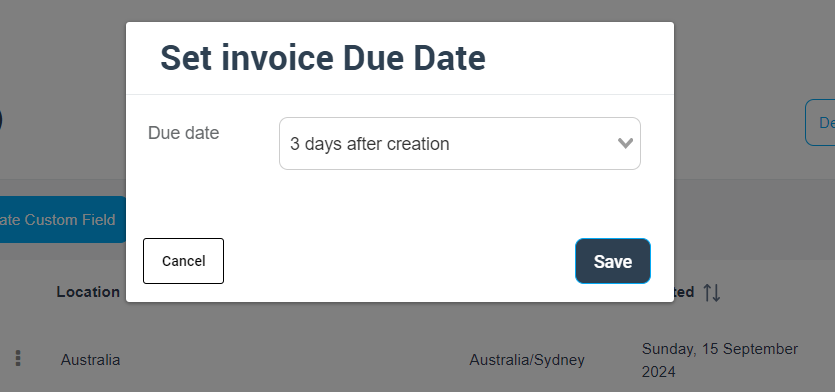
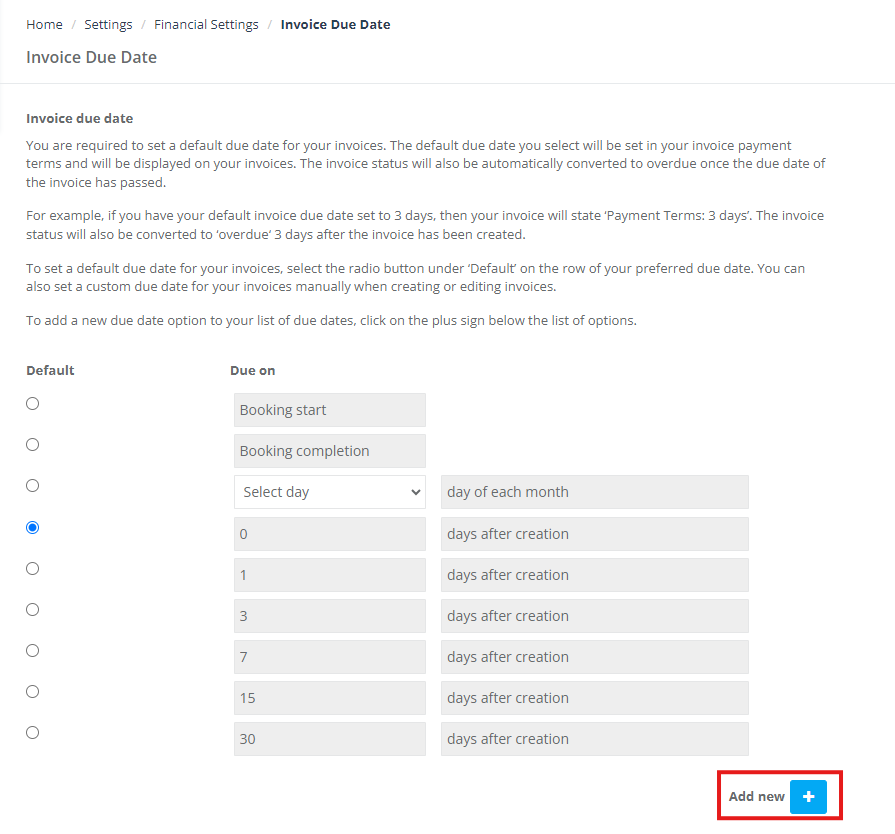
Note: From the customer level, you can only choose from the available due date options. To create a new Net-days option (e.g., 10 days), you must add it in Settings > Financial Settings > Invoice Due Date (see How to add a custom payment period).
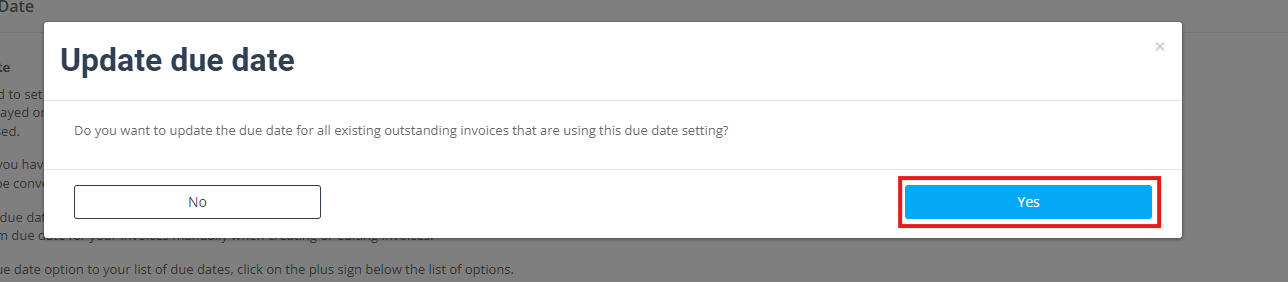
After clicking Save, you may be asked whether you want to update the due date for existing outstanding invoices for this customer that are currently using the same due date setting:
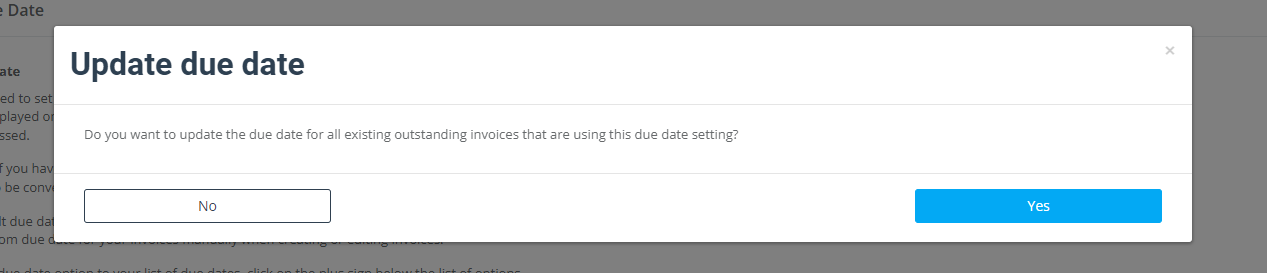
- No: Applies the new due date to future invoices only for this customer.
- Yes: Applies to future invoices and eligible current outstanding invoices that are using the same due date setting.
How to set the company default due date (company-level default)
This is your global default payment term applied to new invoices (unless overridden at the customer or invoice level).
- Go to Settings > Financial Settings > Invoice Due Date.
- Select the radio button under Default for the option you want to use as your company standard.
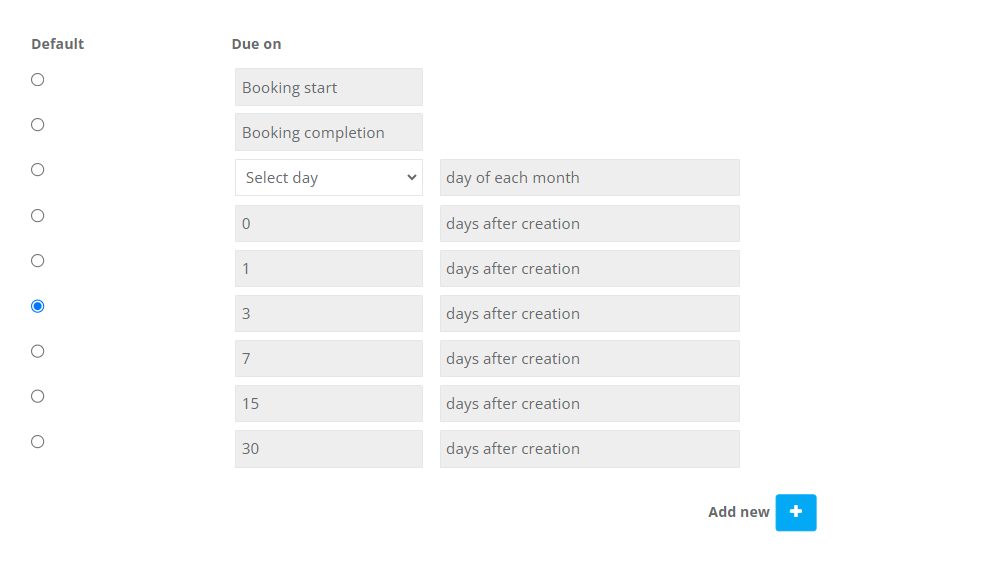
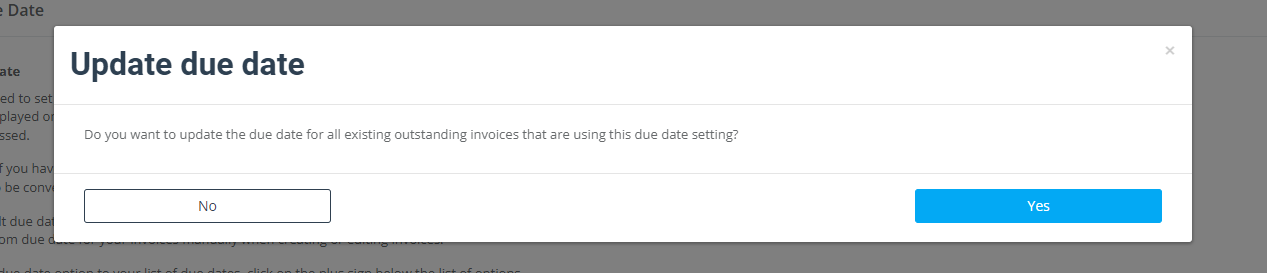
If prompted, choose whether to update due dates for existing outstanding invoices that are currently using the company default due date setting:
Available invoice due date options (how each works)
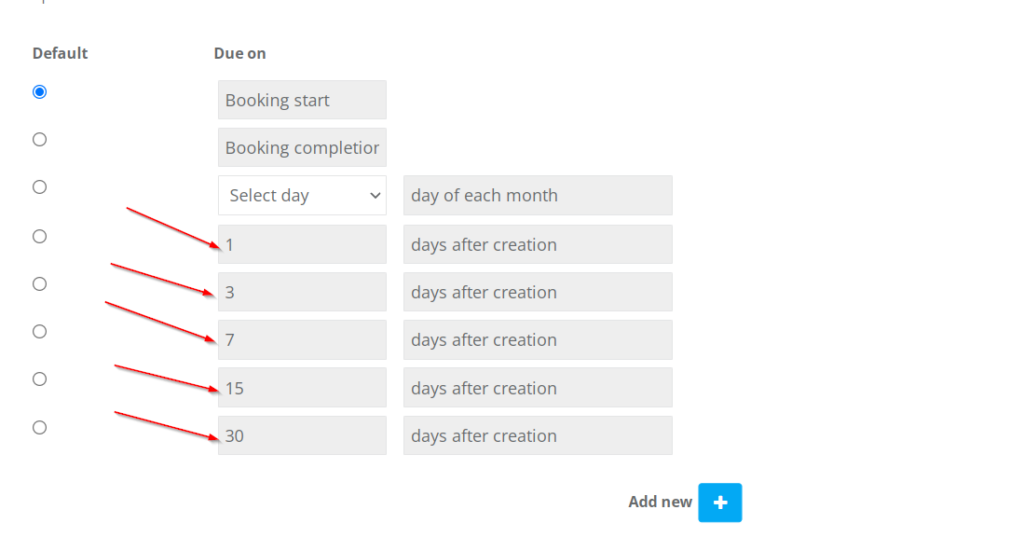
OctopusPro supports multiple due date calculation methods to match common billing workflows:
- Booking start: Due based on the first scheduled start time of the booking (pay-on-start workflows).
- Booking completion: Due when the booking is marked Completed (pay-on-completion workflows).
- Select day (day of each month): Choose a fixed billing day each month (typically 1–28).
- Days after creation (Net terms): Due a fixed number of days after the invoice date/creation (e.g., Net 7, Net 30). For example, an invoice created on Oct 6 with “3 days after creation” will be due on Oct 9.
Important note (booking-based due dates): If you use Booking start or Booking completion as the company-level default, invoices for customers without a customer-specific due date may appear under Open Invoices with “0 days” remaining until the booking timing determines the due date.
How to add a custom payment period (custom Net days)
If you need a Net-days option that isn’t listed (e.g., 10 days, 21 days, 45 days), you can create a custom payment period.
- Go to Settings > Financial Settings > Invoice Due Date.
- Click Add new + under the due date list.
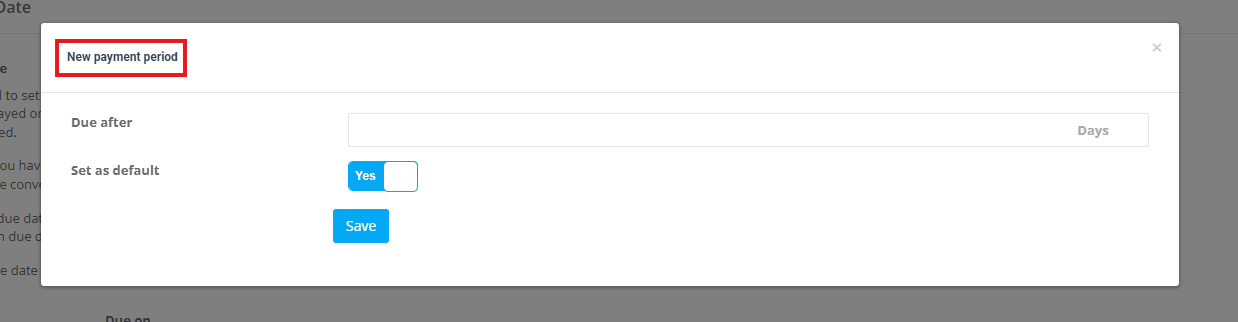
In the New payment period window:
- Enter the number of days in Due after.
- Choose whether you want this to become the default payment term (Yes/No).
- Click Save.
After saving, you may see a confirmation prompt asking whether you want to update the due date for all existing outstanding invoices that currently use this setting:

How invoice due dates work with Customer Billing Cycles (consolidated billing)
If you use Customer Billing Cycles to consolidate multiple bookings into a single invoice per period (weekly, monthly, quarterly, etc.), invoice due dates still work the same way:
- The consolidated invoice will receive a due date based on your due-date hierarchy (invoice → customer → company).
- This is especially useful for corporate accounts where you want consistent terms such as Net 30 or Due on the 1st.
- Best practice: For cycle-based invoicing, consider using Select day (predictable calendar-based due dates) or Days after creation (net terms after the consolidated invoice is generated).
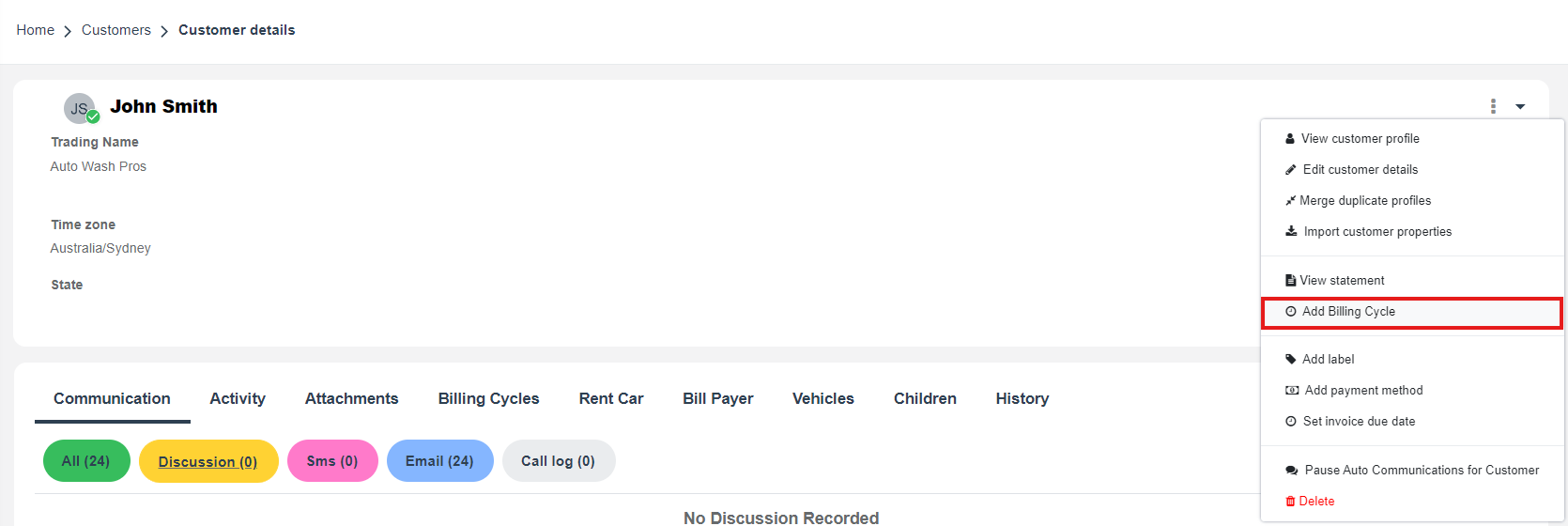
To manage billing cycles for a customer, open the customer profile, click Actions, and select Add Billing Cycle:
For the full setup and automation options (including locking invoices automatically at the end of the cycle), see our guide:
Customer Billing Cycle Management (Consolidated Billing)
Best practices
- Use customer-level terms for contract clients: set Net terms per customer so your team doesn’t need to adjust every invoice manually.
- Use invoice-level overrides sparingly: reserve for exceptions (urgent payment, disputes, special approval cases).
- Match due dates to your reminder strategy: automated reminders and “Overdue” status are only meaningful if your due-date rules match reality.
- For billing cycles: align due dates with cycle timing (e.g., monthly cycle + Due on 1st/15th, or Net 7 after invoice generation).
Common setups
- Residential services: Net 7 or Net 15 (reduces late payments).
- Corporate / trade accounts: Net 30 (often set at the customer level).
- Pay on arrival: Booking start.
- Pay after the job is done: Booking completion.
- Monthly billing: Select day (e.g., 1st, 15th, 28th).
Troubleshooting tip: If a due date doesn’t change as expected, check whether the invoice has an invoice-level override. Invoice-level due dates take priority over customer/company defaults.
Related guides
- Invoice & Billing Overview
- View & Manage an Invoice
- View Invoice Payments
- Service Payment Terms
- Customer Billing Cycle Management
- Consolidate & Merge Multiple Invoices
- Lock / Unlock Merged Invoices
- Pause / Resume Invoice Reminders & Notifications
To stay updated, please subscribe to our YouTube channel.
[/vc_column_text][/vc_column][/vc_row]