
Selling Gift Vouchers (Gift Cards) Through Your Website
OctopusPro makes it easy to sell gift vouchers (gift cards) online—so customers can purchase services as a gift, pay securely, and send a redeem link to the recipient. The recipient can then redeem the voucher to schedule the service later (choose date/time and, where applicable, location/address). This is a powerful way to increase cash flow, attract new customers, and boost repeat bookings—especially around seasonal campaigns and holidays.

On this page
- What this feature is for
- Key terms (gift voucher vs gift card)
- Prerequisites
- Enable gift voucher purchases
- How customers buy gift vouchers (Customer Portal)
- How admins buy gift vouchers (manual creation)
- Promo / voucher codes during gift voucher checkout
- How recipients redeem a gift voucher
- Rules & FAQs
- Best practices to sell more gift vouchers
- Related guides
What this feature is for
Gift vouchers work like prepaid service credit. Customers can purchase one or more services as a gift, then the recipient redeems the voucher to book the service at a convenient time.
Typical use cases:
- Service businesses: cleaning, trades, beauty, wellness, tutoring, pet services, automotive, and more.
- Fixed-site operations: customers gift a service delivered at your business location.
- Mobile services: recipient redeems and provides the service address.
- Virtual / online services: recipient redeems and schedules an online session (location steps may be reduced or skipped depending on your setup).
Key terms (gift voucher vs gift card)
- Gift voucher / Gift card: OctopusPro may use both terms in different screens. Functionally, they refer to the same feature.
- Buyer (purchaser): the customer paying for the gift voucher.
- Recipient: the person (or business) receiving the gift voucher.
- Redeem link: the link sent to the recipient to schedule the service.
- Gift voucher booking: the record created in OctopusPro to represent the gift voucher purchase.
Prerequisites
- Customer Portal is set up (so customers can browse services and checkout).
- Online payment methods are configured (gift vouchers require full payment at checkout).
- Gift voucher purchase is enabled in Customer Portal settings (see below).
If you haven’t finished your portal setup, see: Accept Online Bookings Through Your Website and Activate Payment Methods for Customer Portal Checkout.
Enable gift voucher purchases
Admins can enable gift voucher purchases from:
- Settings > Customer Portal > Flags & Permissions
- Enable: Allow customers to buy gift cards

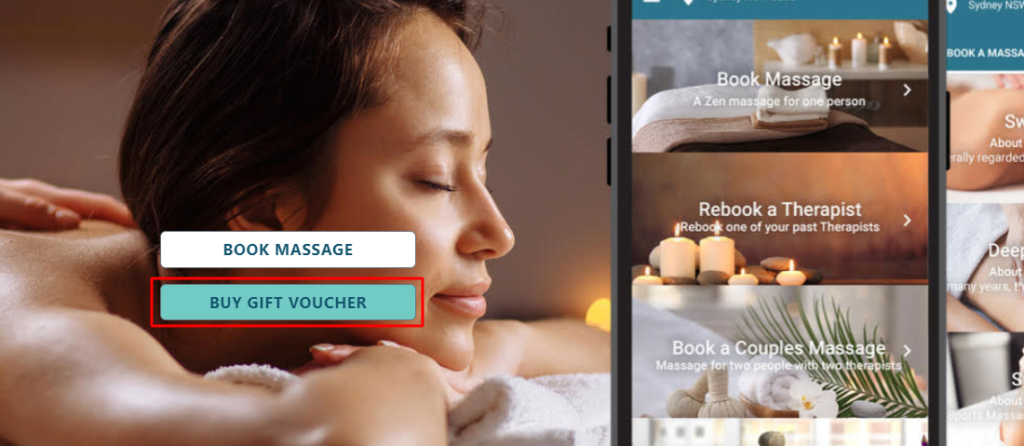
Once enabled, customers will see a Buy Gift Voucher option when viewing eligible services in your Customer Portal.
How customers buy gift vouchers (Customer Portal)
Step 1: Open your Customer Portal and select a service
Customers visit your portal, choose a service, then click Buy Gift Voucher.
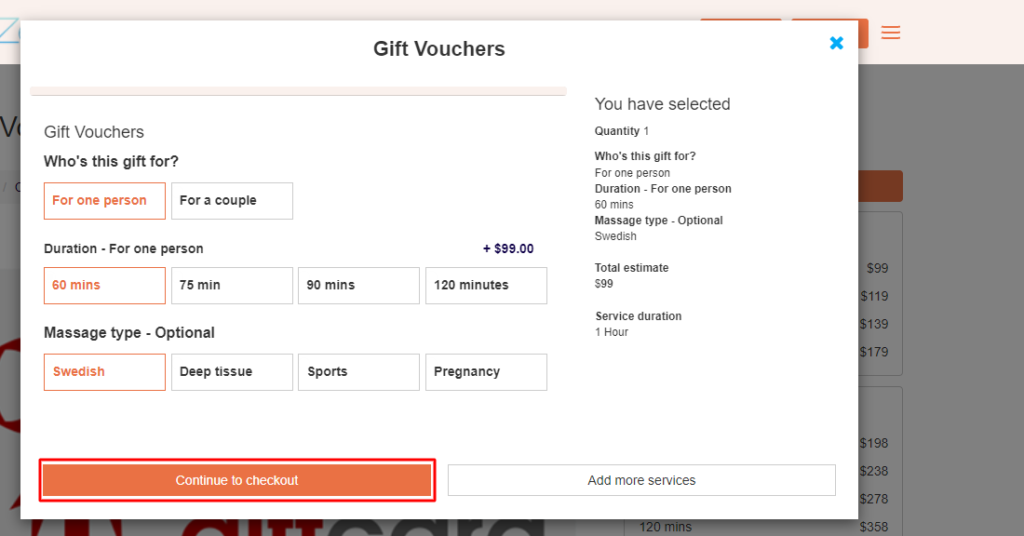
Step 2: Choose service options (if applicable)
If your services include options (e.g., duration, service type, add-ons), customers select them first, then continue to checkout.

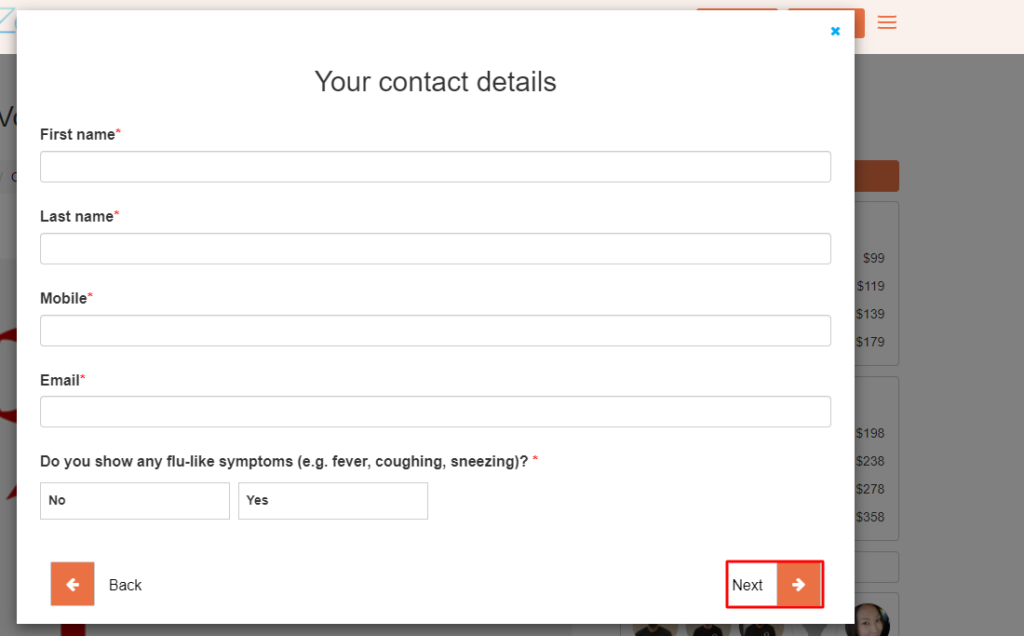
Step 3: Enter buyer contact details
The buyer enters their contact details, then clicks Next.
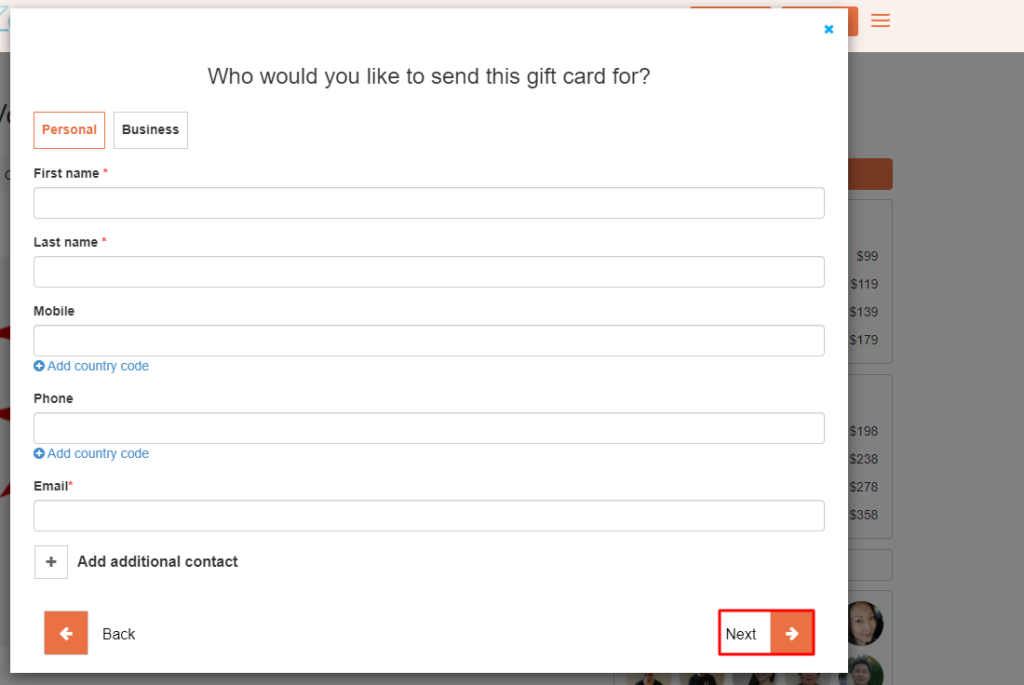
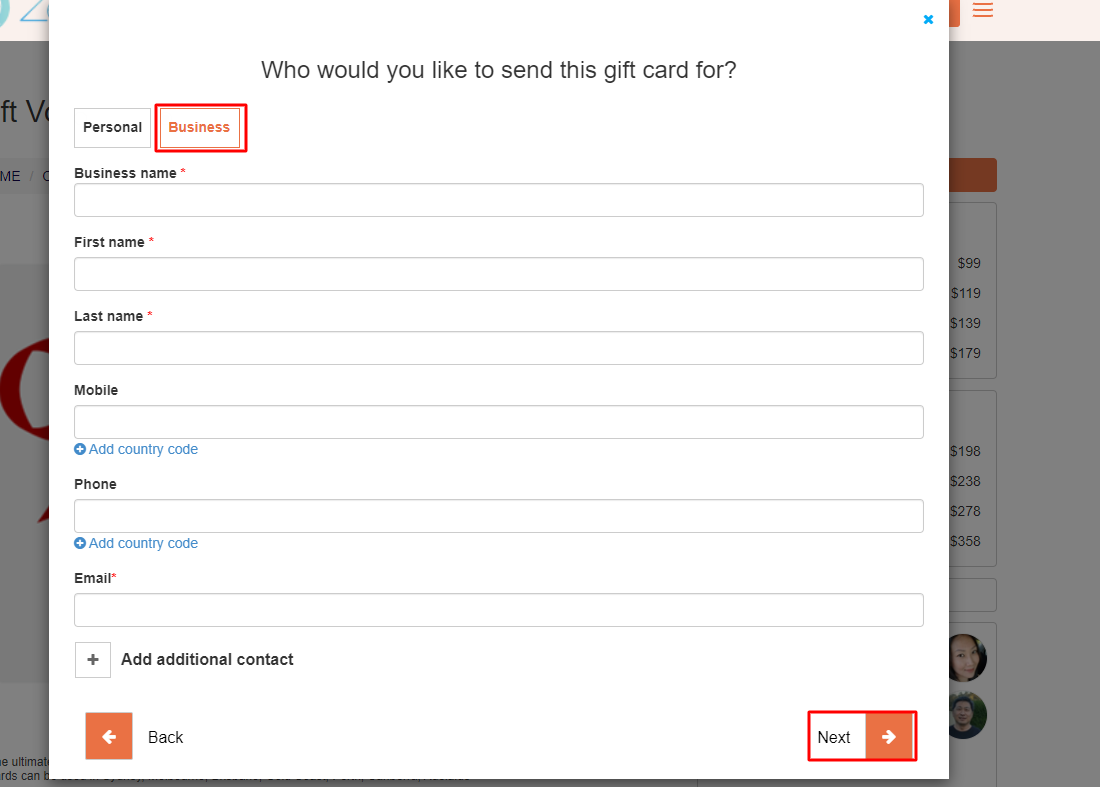
Step 4: Enter recipient details (Personal or Business)
Add the recipient’s information, then click Next.
Personal recipient:
Business recipient:
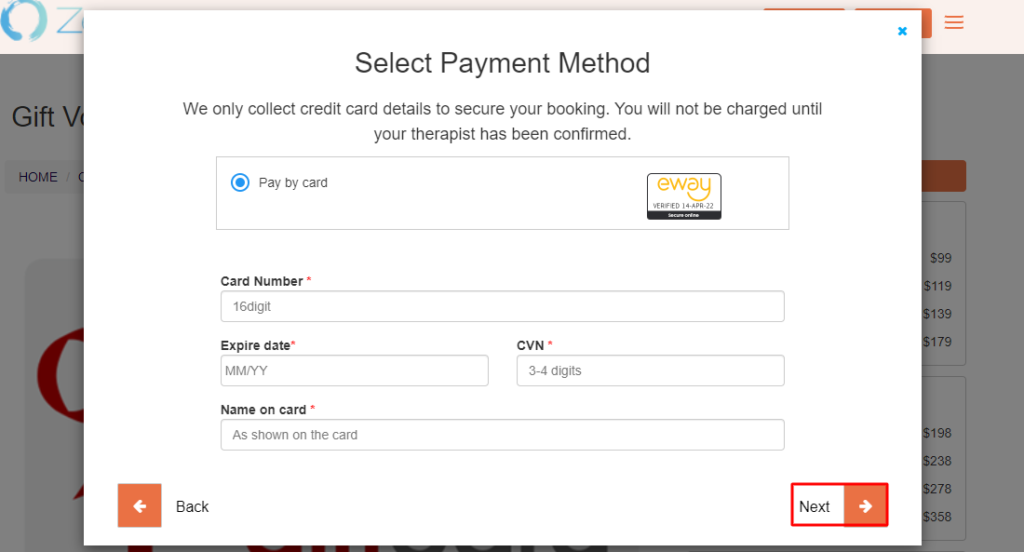
Step 5: Pay in full
Gift vouchers must be paid in full during checkout. The available payment options depend on your account setup.
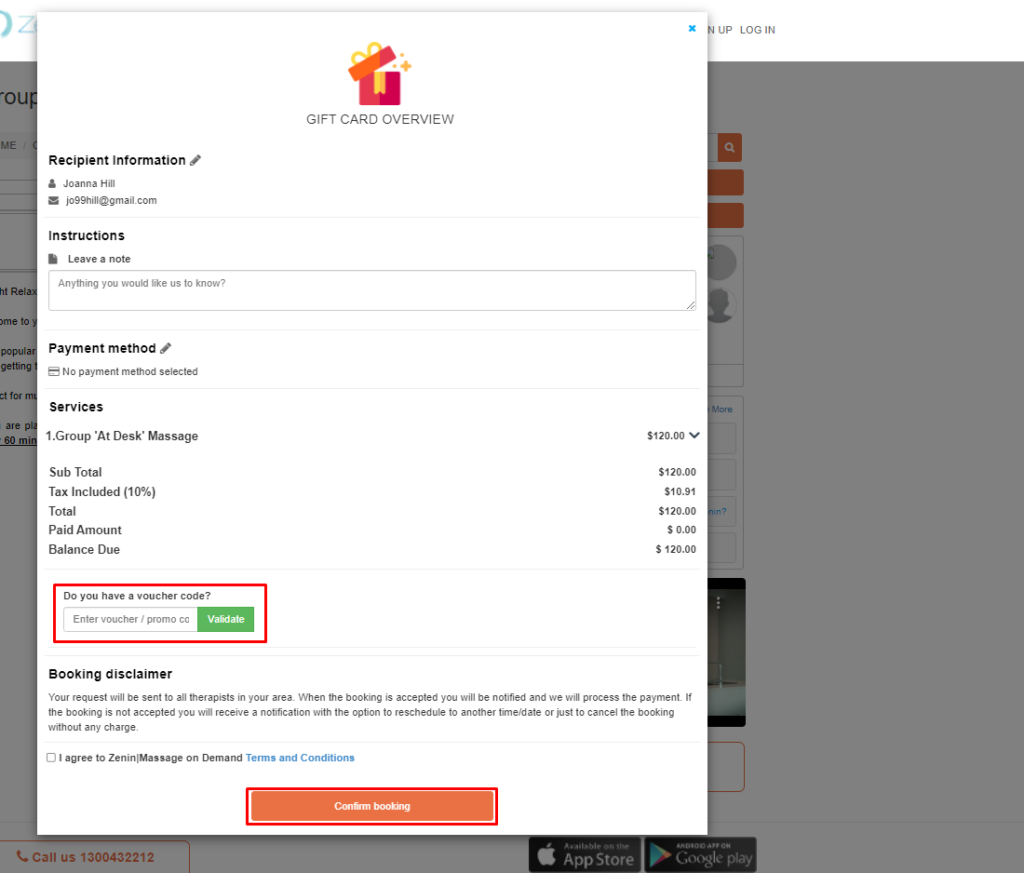
Step 6: Review and confirm booking (gift voucher)
On the overview screen, the buyer can review details and (if enabled) apply a promo/voucher code before confirming.
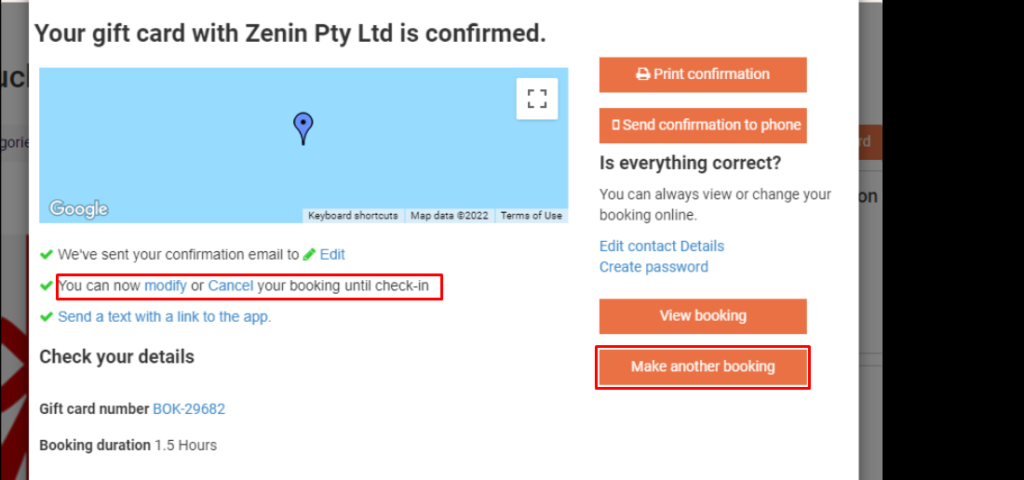
Step 7: Confirmation and email delivery
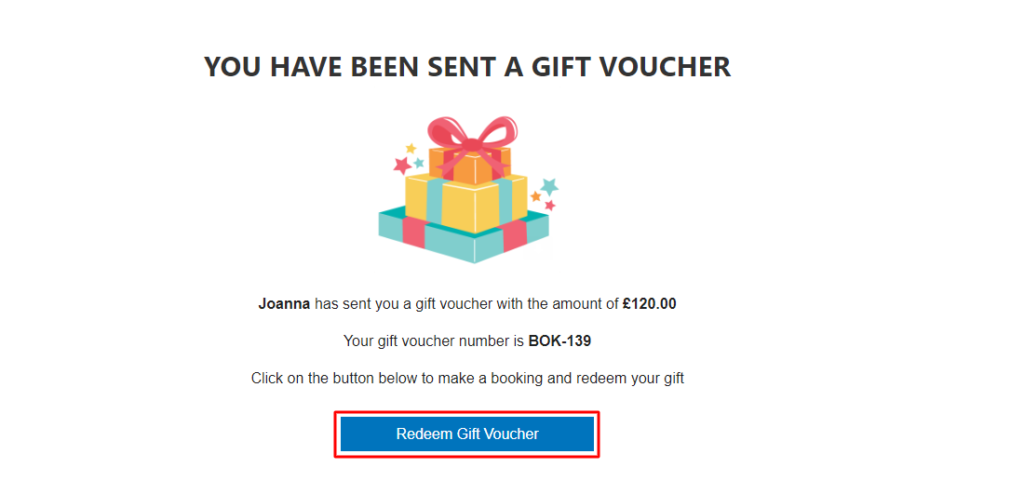
After purchase, the buyer sees a confirmation page and can view the booking details. Both the buyer and recipient receive confirmation emails containing the gift voucher details and a redeem link.
How admins buy gift vouchers (manual creation)
You can also create a gift voucher on behalf of a customer (for phone orders, in-store purchases, or corporate gifting).
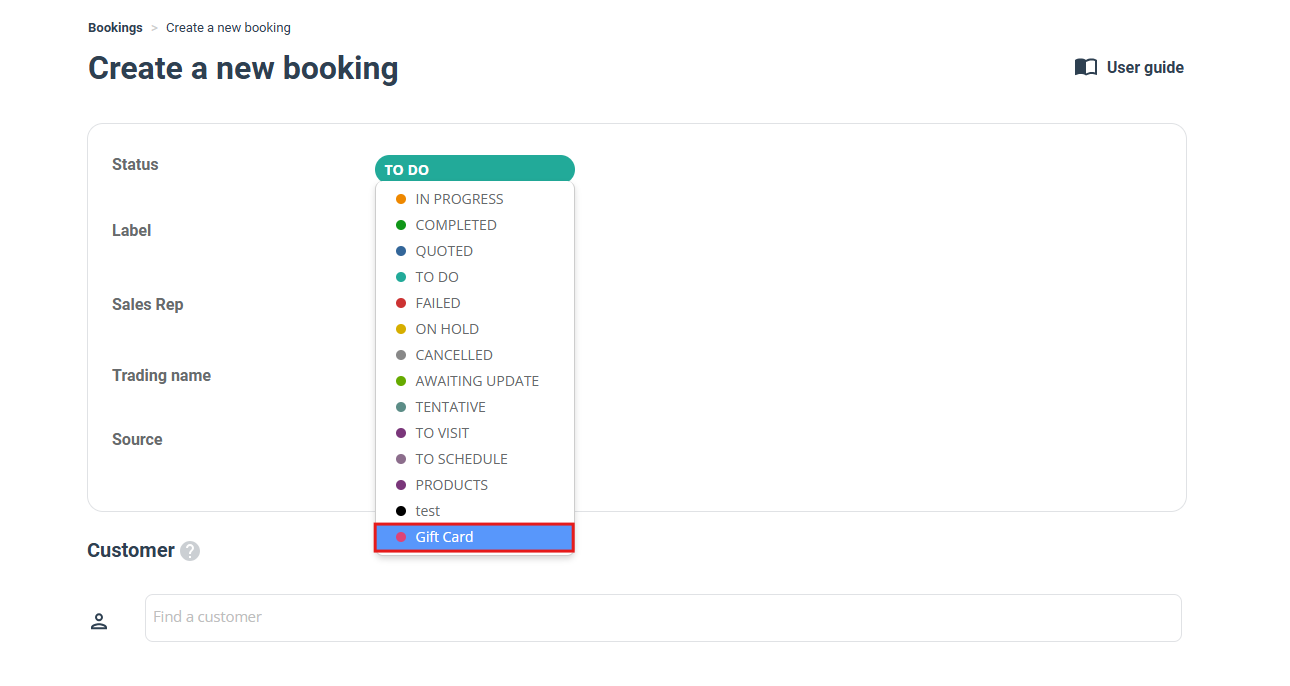
Step 1: Create a new booking and set it to Gift Card
- Go to Bookings > Create new
- Open the Status dropdown and select Gift Card
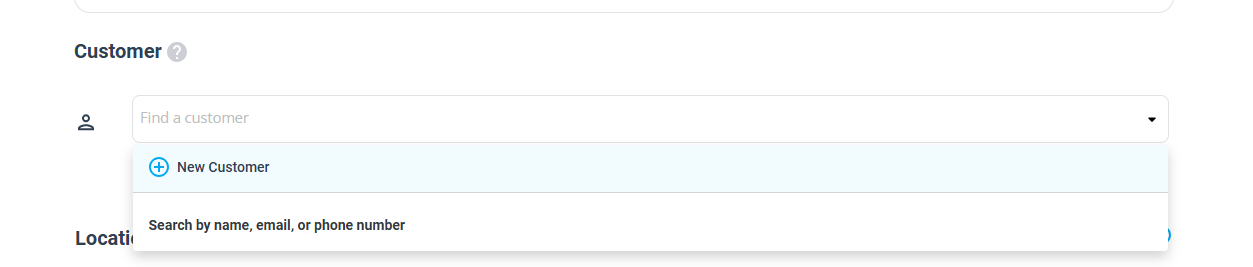
Step 2: Add the customer and recipient information
Add the buyer/customer record, then complete the recipient details in the gift voucher section.
Step 3: Take full payment and send the redeem link
Process the full payment. The recipient will receive the redeem link so they can schedule the service.
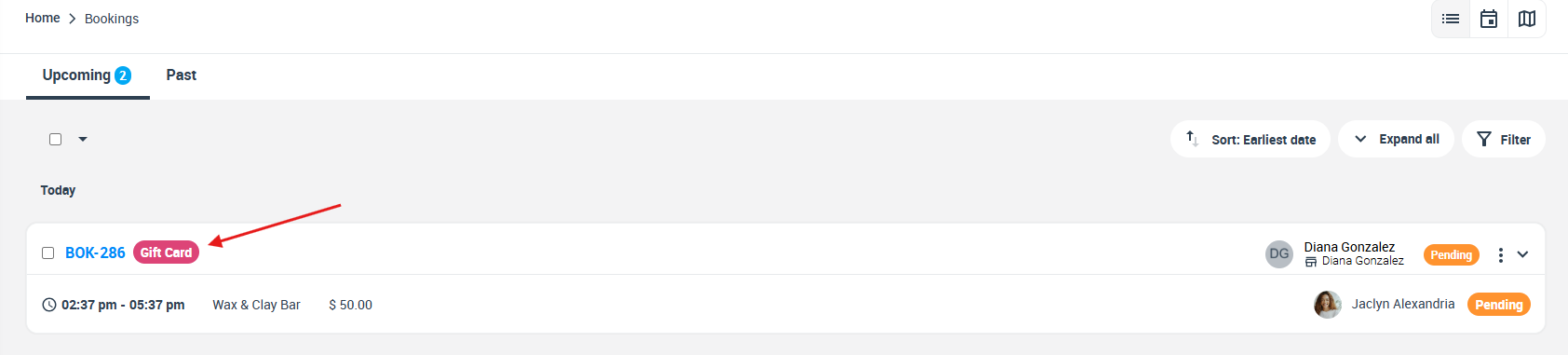
Step 4: Find gift vouchers in your bookings list
You can identify gift voucher records in Bookings (for example, by filtering or spotting the “Gift Card” label).

Promo / voucher codes during gift voucher checkout
Yes—customers can apply a promo/voucher code before confirming payment during gift voucher checkout (if you’ve enabled discount vouchers in your account).
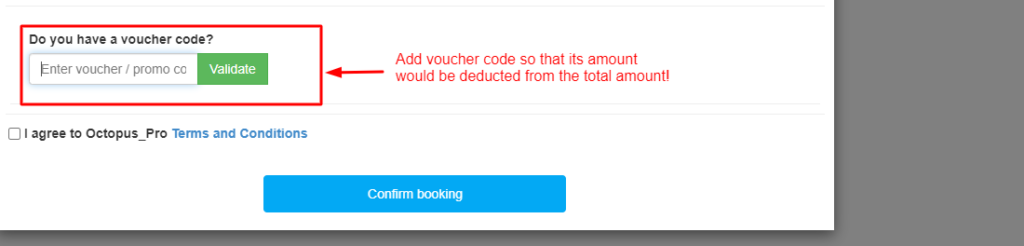
To manage discount codes, see: Discount Voucher Code Management.
How recipients redeem a gift voucher
Recipients redeem gift vouchers using the Redeem link in the email. They can then schedule the service (and, where applicable, provide location/address details).
Step 1: Open the redeem link
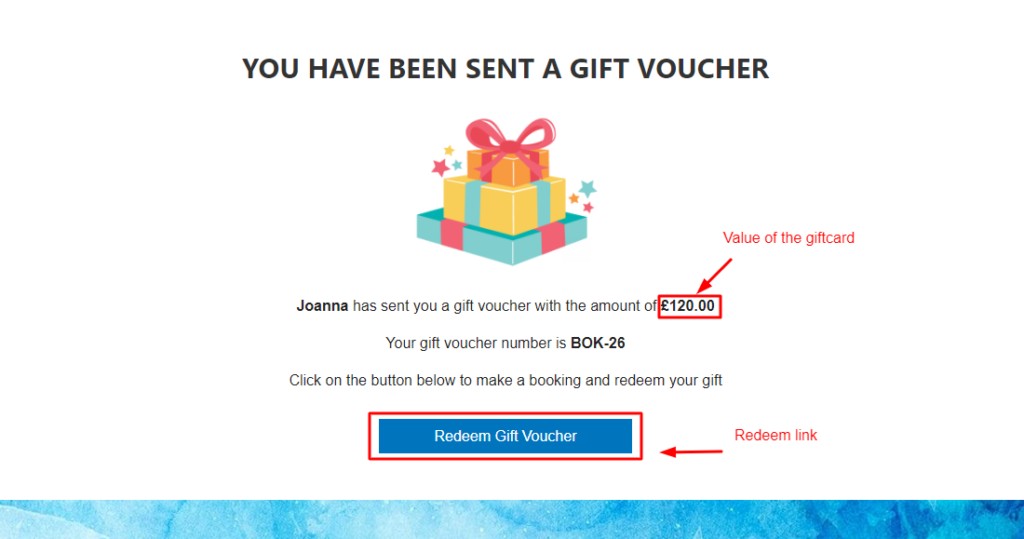
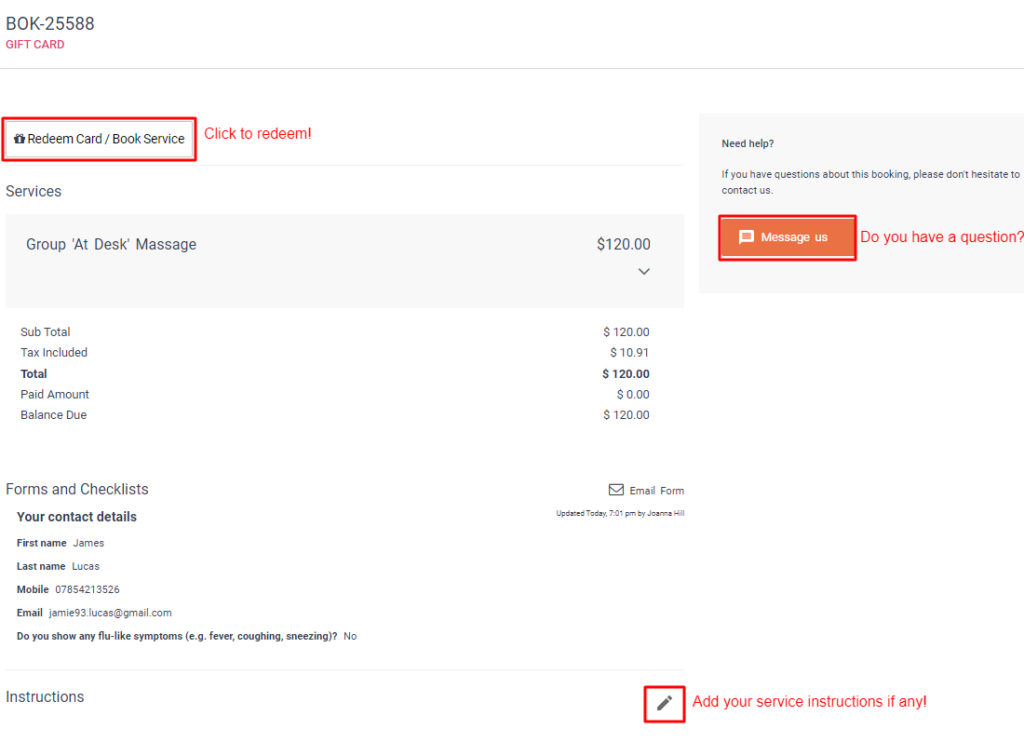
Step 2: Review the voucher and click Redeem
On the voucher page, click Redeem Card / Book Service.
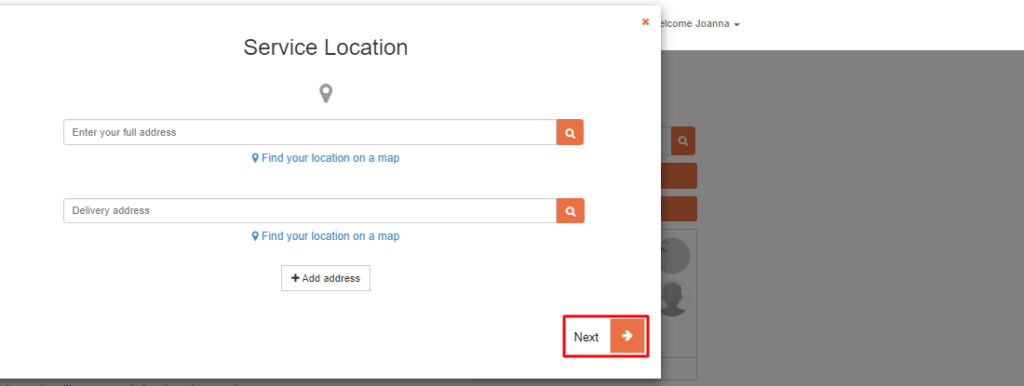
Step 3: Confirm service and choose location (if required)
Depending on your service type:
- Mobile services: recipient enters the service address.
- Fixed-site services: location may default to your business location (or may be pre-set).
- Virtual/online services: address fields may be skipped or reduced, depending on your configuration.
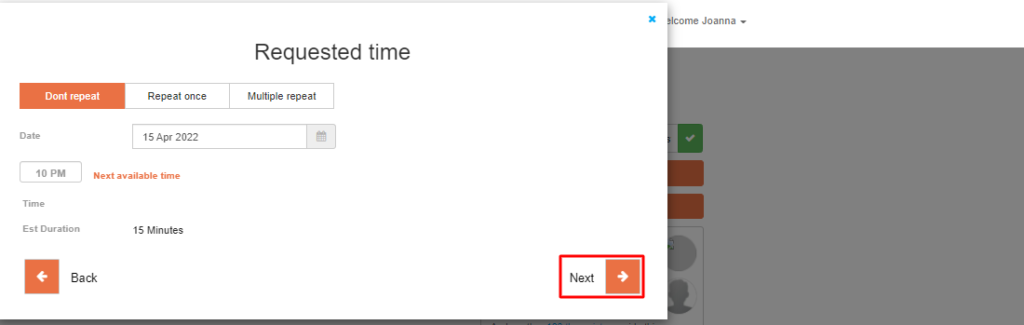
Step 4: Select date/time and confirm the booking
Step 5: Confirmation is sent
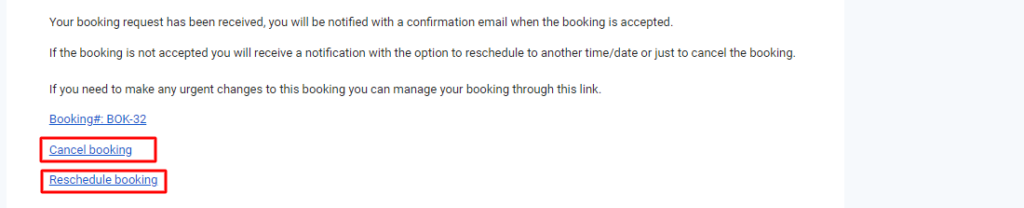
After booking, the recipient receives a confirmation email. Depending on your policies and portal settings, they may be able to reschedule or cancel.
Optional: change the service or add more services
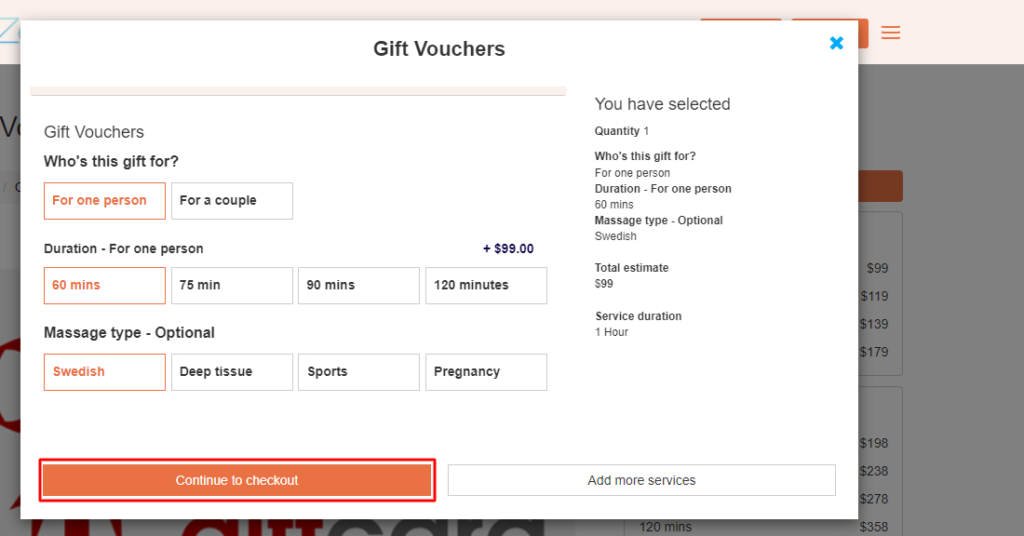
If enabled in your portal experience, recipients can redeem the original service or choose another service of equal or higher value (and pay any difference). They can also add more services during the redemption flow where supported.
Rules & FAQs
What are the advantages of allowing gift voucher purchases?
- Attract new customers through gifting and referrals.
- Increase cash flow with prepaid sales.
- Improve retention—recipients often become repeat customers.
- Boost average order value when recipients add extra services during redemption.
What’s the difference between a regular booking and a gift voucher purchase?
A regular booking is scheduled by the customer for themselves (date/time, location, and payment based on your terms). A gift voucher purchase is paid in full by the buyer, then the recipient schedules the service later using the redeem link.
Can customers buy a gift voucher without making full payment?
No. Gift vouchers require full payment at checkout.
Do my business payment terms affect gift voucher purchases?
No. Gift vouchers must be fully paid during purchase regardless of deposit or payment-term settings.
What value can customers add to a gift voucher?
The gift voucher value is typically based on the total price of the selected services (including service options where applicable).
Can recipients add more value or upgrade services?
Yes. During redemption, recipients may redeem the included services or choose additional/higher-value services and pay the difference (where supported).
Are there any services customers can’t buy as a gift voucher?
No. Once enabled, gift vouchers can be used to purchase your available services (subject to your portal/service settings).
Can gift vouchers be returned or refunded?
Typically, no—once purchased and delivered, the voucher belongs to the recipient. If you offer exceptions, handle them according to your business policy.
Is there an expiry date?
Gift vouchers can be configured and managed according to your business policies. As a general rule, the redeem link can only be claimed/redeemed once. If partial redemption is supported, the remaining balance can be used until fully consumed.
Can customers purchase gift vouchers for a company?
Yes. During recipient details, select the Business option and enter the company contact details.
Can recipients forward the voucher to someone else?
Yes. They can share the redeem link, but remember: the voucher can only be redeemed/claimed once.
Can gift vouchers be partially redeemed?
Yes. If the voucher value exceeds the redeemed service cost, the remaining balance can be used later (until the voucher value is fully used, where supported by your configuration).
Can purchases made using gift vouchers be returned?
This depends on your business cancellation/refund policy for the underlying service booking.
How can I track gift voucher sales and redemptions?
Track gift voucher activity from your Bookings area by identifying/filtering gift voucher (Gift Card) records and reviewing their status, payments, and related booking activity.
Can I customize the gift voucher design?
OctopusPro provides a standard gift voucher experience. You can add branding and messaging by customizing your email templates and using placeholders (merge fields).
Best practices to sell more gift vouchers
- Embed a Gift Voucher button on your website’s homepage, service pages, and “Gift” landing page.
- Match the button style to your brand (colors, text, rounded corners).
- Run seasonal campaigns (Mother’s Day, Father’s Day, holidays, anniversaries) and promote via email/social.
- Use promo codes strategically (limited-time offers to lift conversion).
To embed the Gift Voucher button, see: Add “Book Now” & Gift Voucher Buttons to Any Website.

Related guides
- Accept Online Bookings Through Your Website (Customer Portal Setup)
- Activate Payment Methods for Customer Portal Checkout
- Customer Portal Branding & Style (including Gift Voucher button styling)
- Discount Voucher Code Management
- Email Templates (Edit/View)
- Canned Responses & Templates
- Template Placeholders (Email/SMS/WhatsApp merge fields)
To stay updated, please subscribe to our YouTube channel.