
[vc_row][vc_column width=”1/4″][vc_widget_sidebar sidebar_id=”sidebar-1″][/vc_column][vc_column width=”3/4″][vc_column_text]
Display link to “About Us” page in the Customer Portal menu
Adding an About Us link to your Customer Portal menu helps customers learn who you are before they book. It’s a simple trust-builder that can improve conversions, reduce pre-booking questions, and set expectations about your services, coverage areas, and standards.
Where this is managed: Settings > Customer Portal > Flags & Permissions
Table of contents
- What this feature does
- Step 1: Enable the About Us link (flag)
- Step 2: Add your About Us content
- Step 3: What customers see
- Best practices (what to include)
- Troubleshooting
- Related articles
What this feature does
- Adds an About Us link to the Customer Portal menu.
- Lets you publish a branded page with your own text, formatting, media (images/video), and links.
- Works well alongside your portal’s Contact Us and FAQs links to reduce enquiries and help customers self-serve.
Step 1: Enable the About Us link (flag)
To show the About Us link in your portal menu, turn on the related website flag:
- Go to Settings > Customer Portal > Flags & Permissions.
- Scroll to Website Flags.
- Enable Display link to “About us” page in menu.
- Click Save.

Note: If you don’t enable the flag, the About Us link will not appear in the portal menu—even if you’ve added content.
Step 2: Add your About Us content
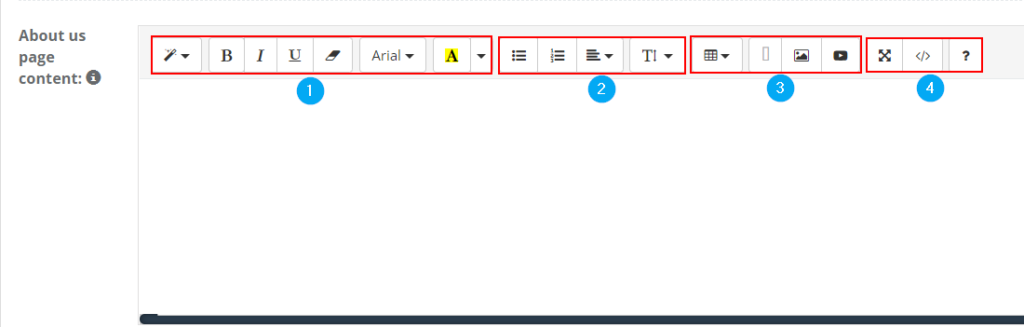
After enabling the flag, add the content that will appear on your About Us page. Use the built-in editor to format your content and add media.
- Locate the About us page content editor in the same settings area.
- Add your text (you can use headings, paragraphs, bullet points, and numbered lists).
- Use the toolbar to insert links, images, tables, and embedded videos (for example, a YouTube testimonial video).
- Use Full screen or Code view if you prefer advanced editing.
- Click Save.
Tip: If you add external links (e.g., your main website, certifications, social media), set them to open in a new tab so customers don’t lose their place in the portal.
Step 3: What customers see
About Us link in the portal menu
Once enabled, customers will see an About Us link in the top menu of your Customer Portal.

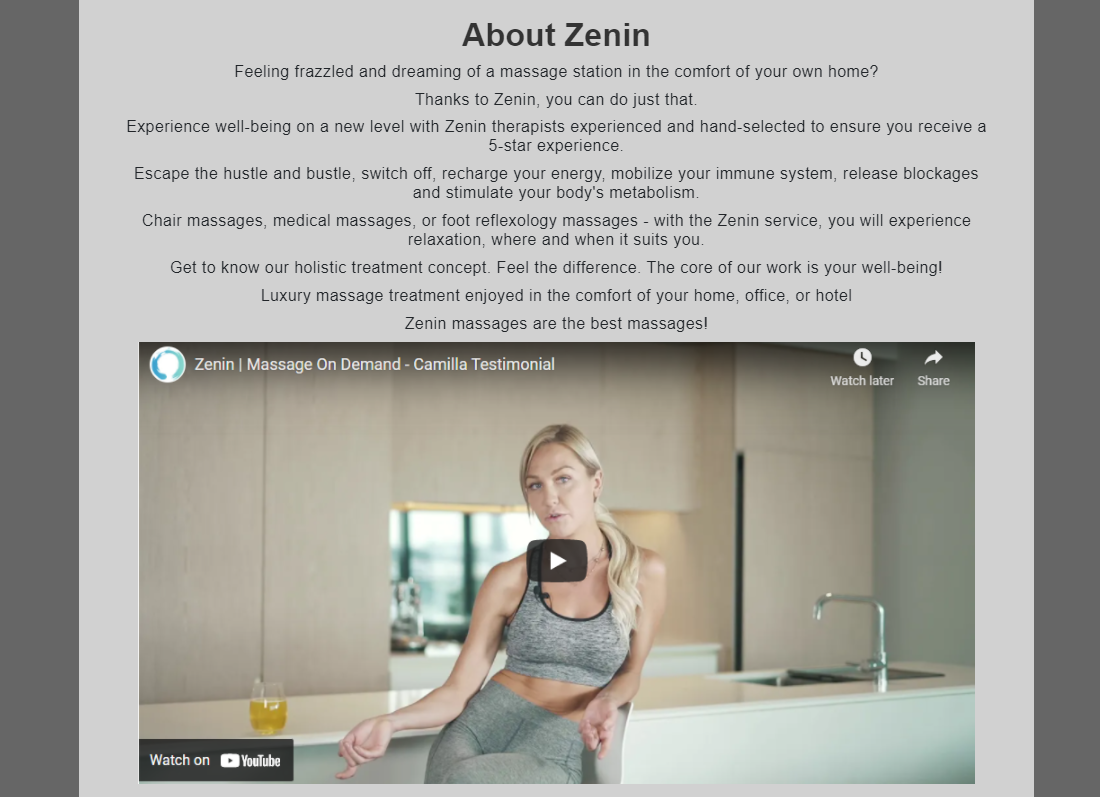
Your About Us page (customer view)
When customers click About Us, the portal will display the page using the content you entered in the editor. This is where you can showcase your brand story, experience, guarantees, service standards, and media.
Best practices (what to include)
To get the most value from your About Us page, keep it skimmable and customer-focused:
- What you do: a 1–2 sentence summary of your services and who you serve.
- Why choose you: differentiators (licensed/insured, years of experience, vetted technicians, guarantees, eco-friendly products, etc.).
- Service coverage: suburbs/regions, travel fees (if applicable), and how customers can confirm coverage.
- How it works: your process (quote → booking → onsite service → invoice/payment), so customers know what to expect.
- Trust signals: testimonials, before/after photos, certifications, awards, and links to external reviews.
- Clear next step: “Book now”, “Request a quote”, or “Contact us” guidance.
Pro tip: Use headings and short paragraphs. Most customers scan—especially on mobile.
Troubleshooting
The About Us link doesn’t appear
- Confirm the flag Display link to “About us” page in menu is enabled and you clicked Save.
- Refresh the portal in an incognito/private window to avoid cached sessions.
- If your account uses multiple brands/trading names/portal links, confirm you’re editing the correct portal settings.
The page is blank
- Open the About Us content editor and confirm you added content, then Save.
- If you pasted content from Word/Google Docs, try clearing formatting and re-adding using the editor tools.
Related articles
- Customer Portal Flags & Permissions
- Customer Portal General Settings
- Enable Online Bookings Through Your Website (Customer Portal Setup)
- Display Contact Us / Lead Capture Form
- Customer Portal Branding & Style
To stay updated, please subscribe to our YouTube channel.
[/vc_column_text][/vc_column][/vc_row][vc_row][vc_column]