
[vc_row][vc_column width=”1/4″][vc_widget_sidebar sidebar_id=”sidebar-1″][/vc_column][vc_column width=”3/4″][vc_column_text]
Notify Fieldworkers About Customer Booking Discussions
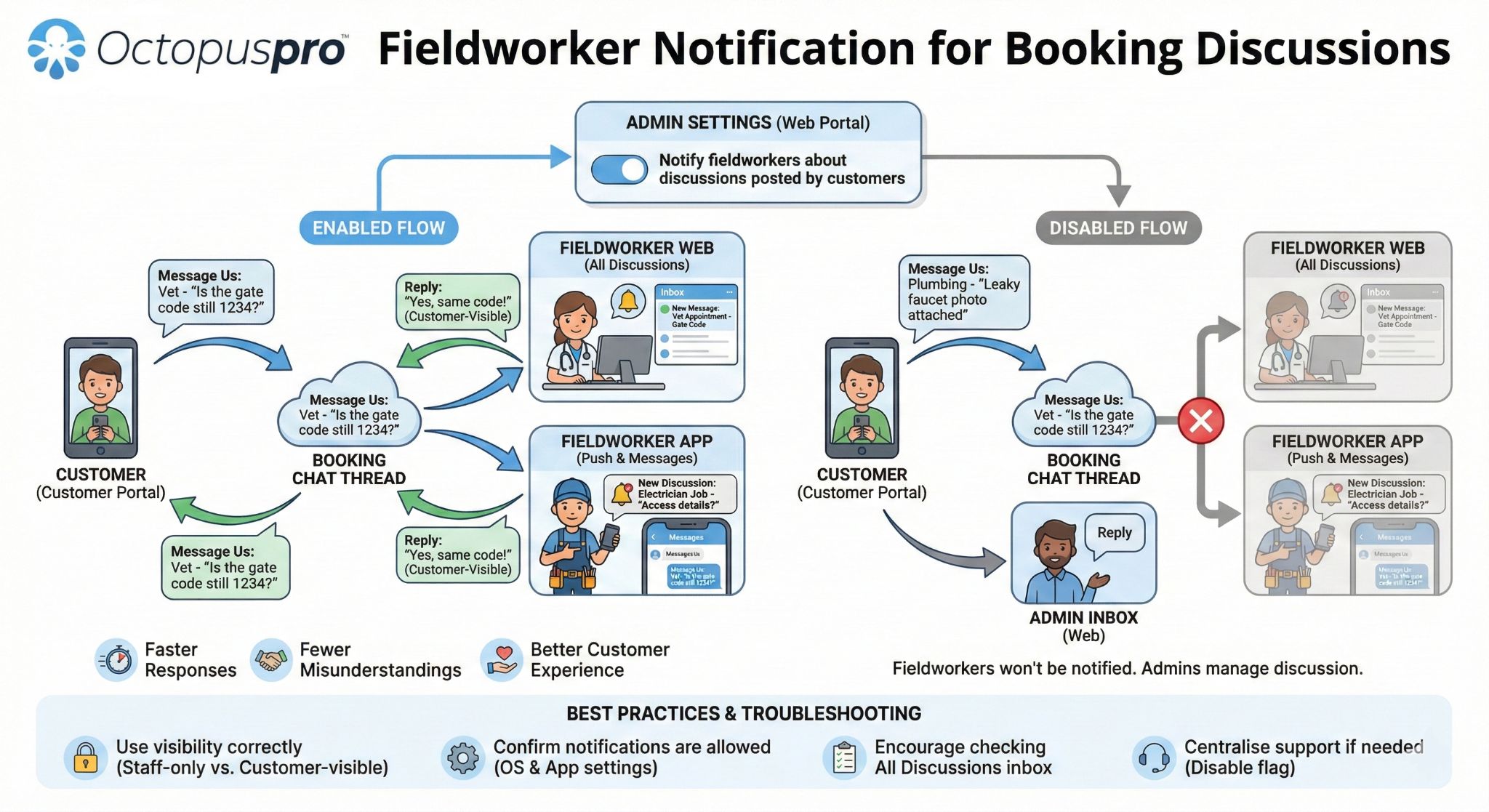
This guide explains how to notify fieldworkers when customers send booking messages from the Customer Portal using the Message Us option. When enabled, assigned fieldworkers can receive notifications, view the conversation, and reply from the web portal or the fieldworker mobile app.
Contents
- Overview
- How the customer-to-fieldworker discussion works
- Benefits
- Enable/disable the flag (Admin)
- Customer experience (Customer Portal)
- Fieldworker web view (All Discussions)
- Fieldworker app view (push notifications, Messages & Notifications)
- Use cases
- Best practices & troubleshooting
- Related articles
Overview
Flag name: Notify fieldworkers about discussions posted by customers
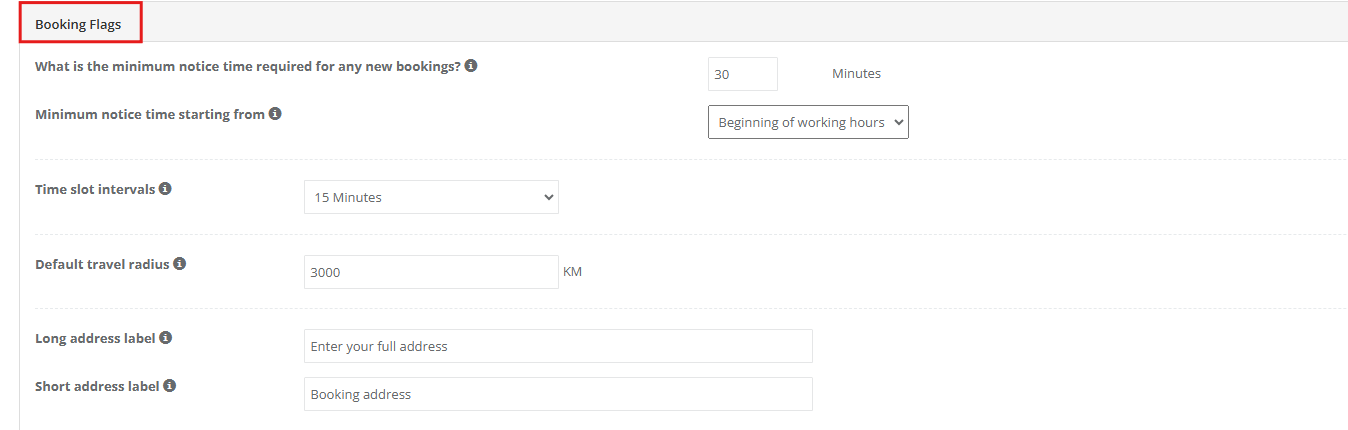
Location: Settings > Customer Portal > Flags & Permissions > Booking Flags
What it does:
- Enabled: Assigned fieldworkers can receive discussion notifications and can view/reply to customer booking messages.
- Disabled: Customers can still send messages, but fieldworkers won’t be notified and won’t be able to view/reply. Admin users can still manage the discussion.
Note: The flag controls whether fieldworkers are allowed to receive and access customer booking discussions. Delivery channels (push/email/SMS) may also depend on your notification settings and the user’s device/app notification permissions.
How the customer-to-fieldworker discussion works
Customers can message you about a specific booking from the Customer Portal. This is typically used to:
- Share access instructions (gate code, parking, entry details).
- Ask service questions before or after the appointment.
- Provide booking notes, photos, or feedback related to the job.

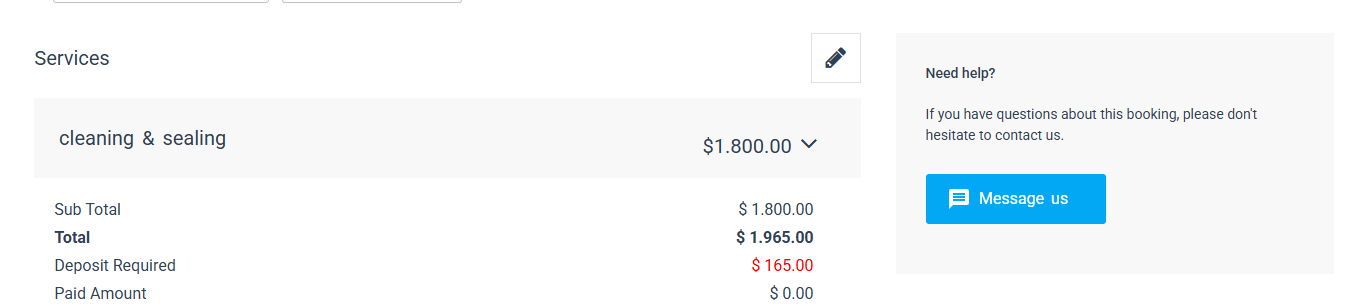
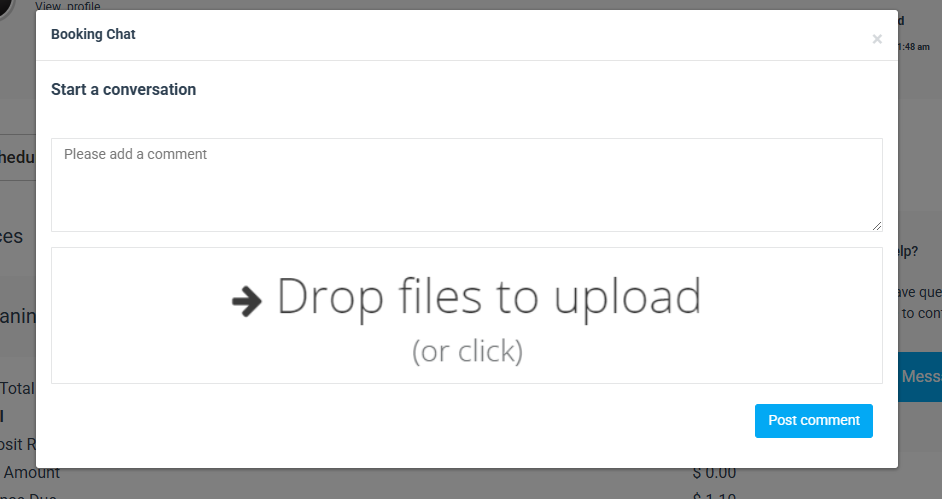
When the customer sends a message, it creates a discussion thread (booking chat) where messages and files can be exchanged.
Benefits
- Faster responses: Fieldworkers can respond directly to booking questions and reduce delays.
- Fewer misunderstandings: Critical job notes reach the assigned fieldworker quickly.
- Better customer experience: Customers get timely updates and feel supported.
- Operational control: You decide whether fieldworkers should see/respond to customer discussions, or whether office staff should handle all messaging.

Enable/disable the flag (Admin)
- Go to Settings > Customer Portal > Flags & Permissions.
- Scroll to Booking Flags.
- Toggle Notify fieldworkers about discussions posted by customers on or off.
- Save your changes (if prompted).

Disabled state example:

Customer experience (Customer Portal)
Customers can start a booking discussion from the Customer Portal by opening the booking and clicking Message Us. After sending the message, the conversation appears in the booking chat thread.
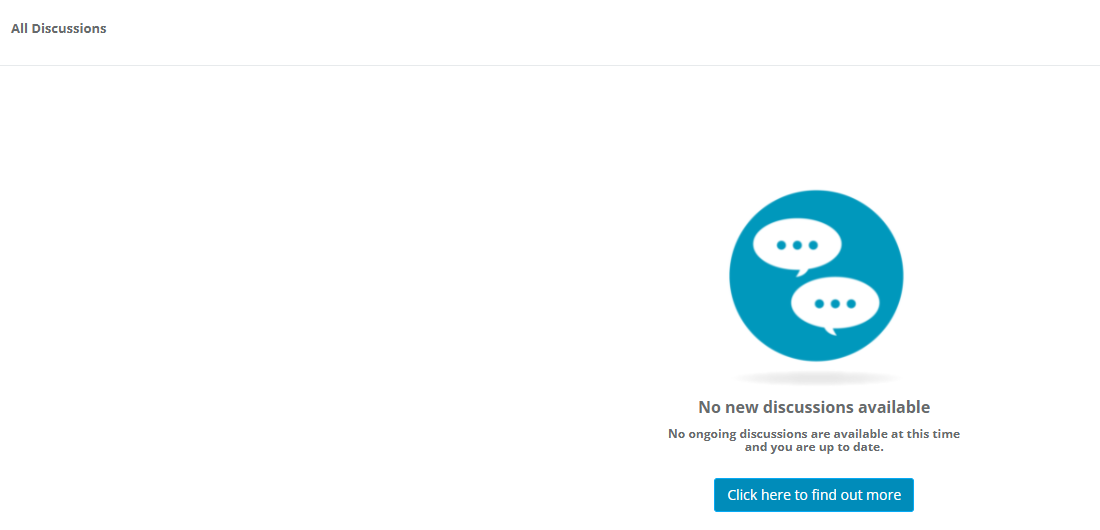
Fieldworker web view (All Discussions)
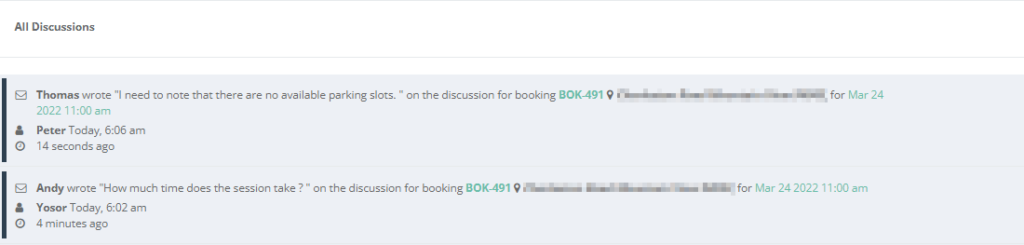
When the flag is enabled, fieldworkers can access an All Discussions inbox from the top navigation. This inbox helps fieldworkers quickly review customer messages across bookings.

From the All Discussions page, fieldworkers can view incoming customer messages and existing threads.

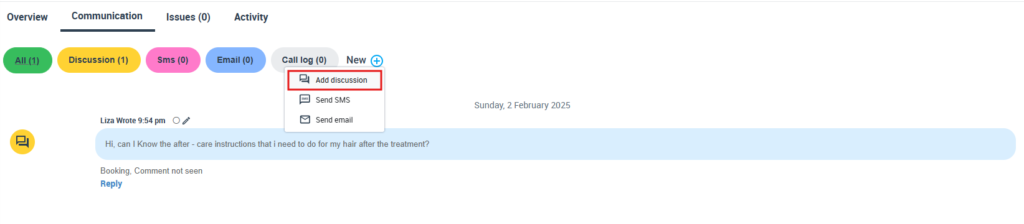
Replying from the web
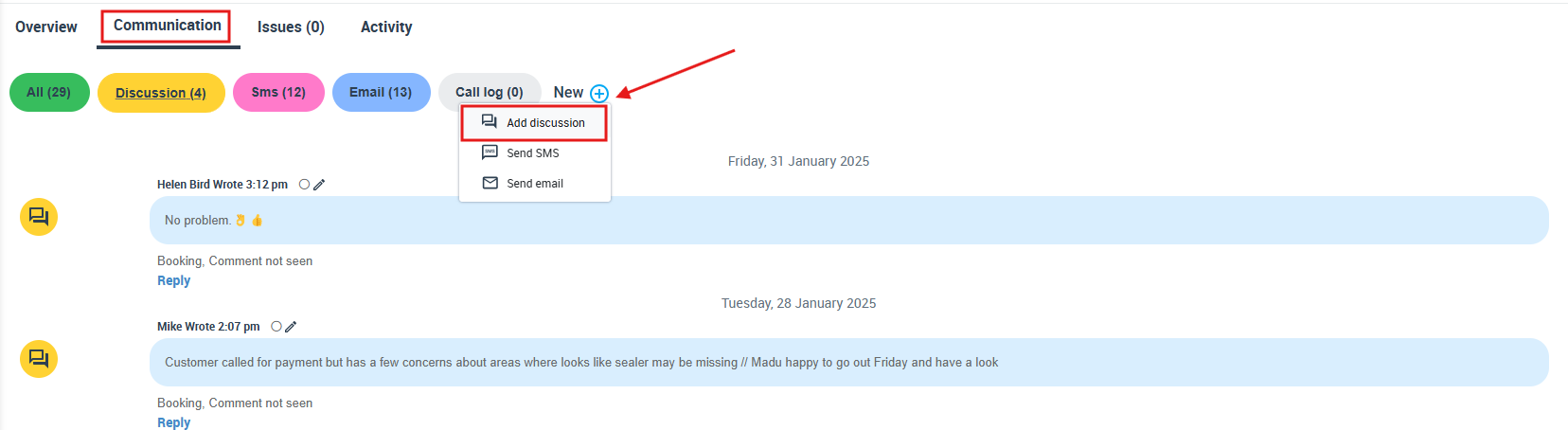
- Open the discussion thread (or open the booking linked to the discussion).
- Go to the booking’s Communication section.
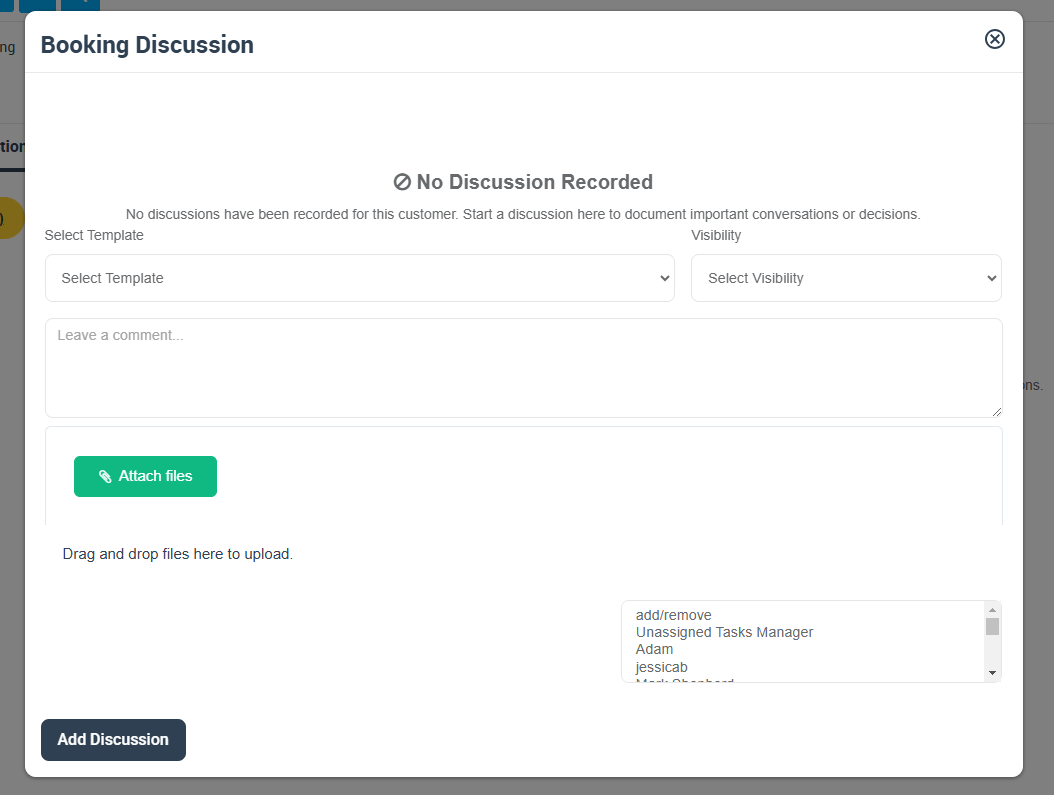
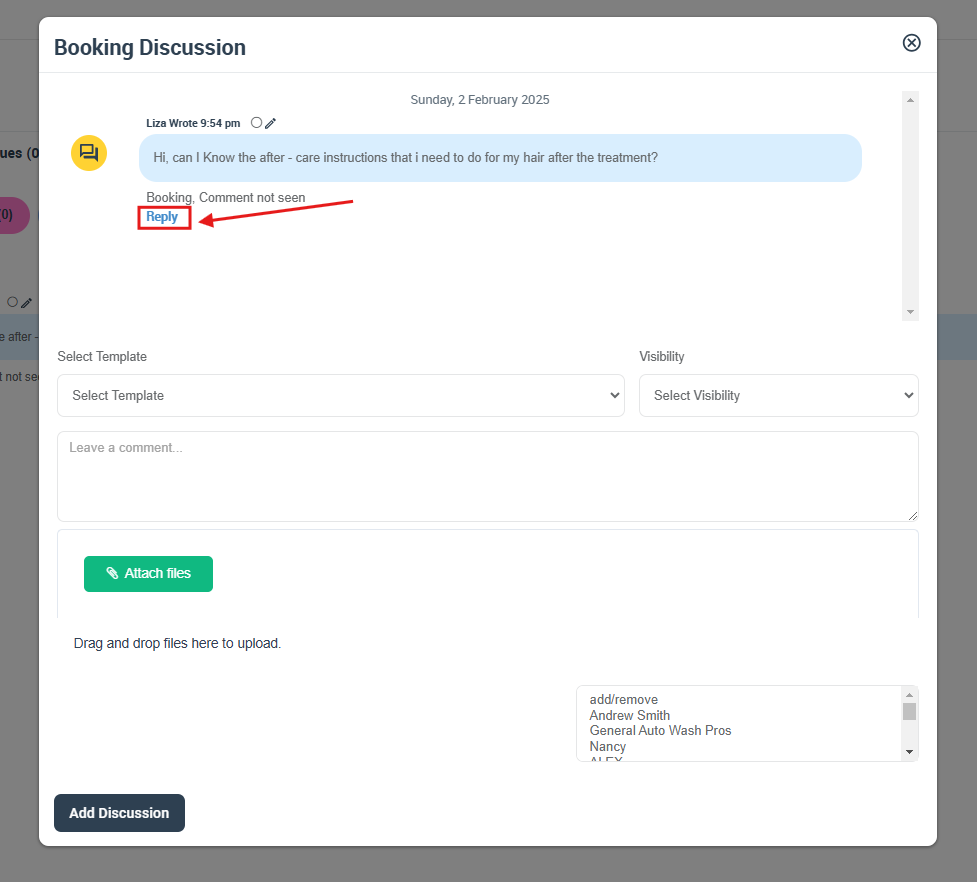
- Click Add discussion to reply (and attach files if required).
Reply example:
If the flag is disabled, fieldworkers won’t receive discussion notifications and won’t be able to access or view booking discussions from the fieldworker web view.

Fieldworker app view (push notifications, Messages & Notifications)
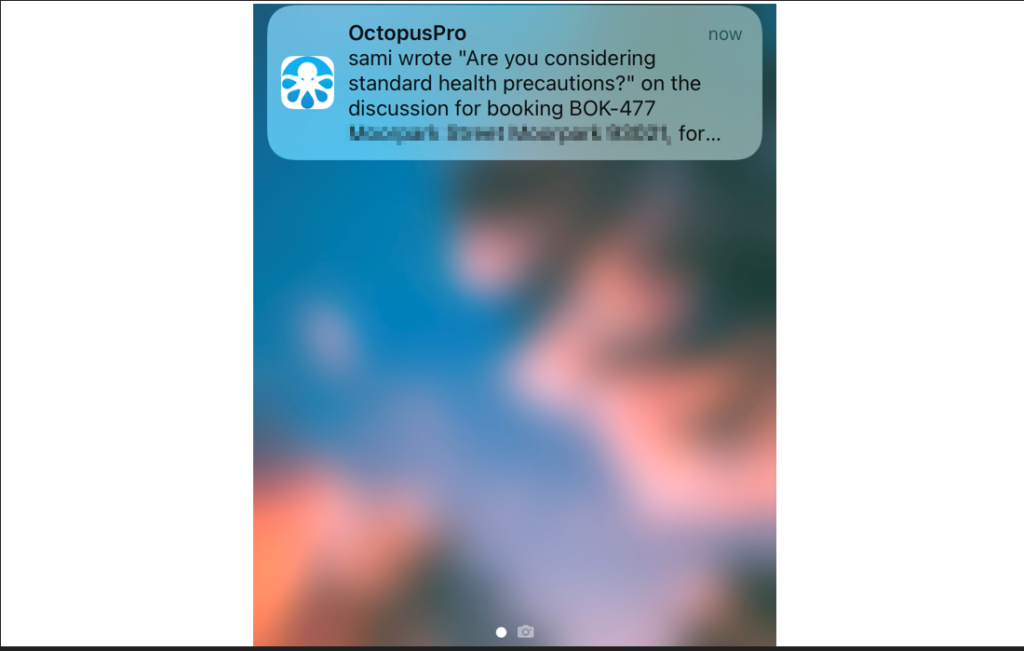
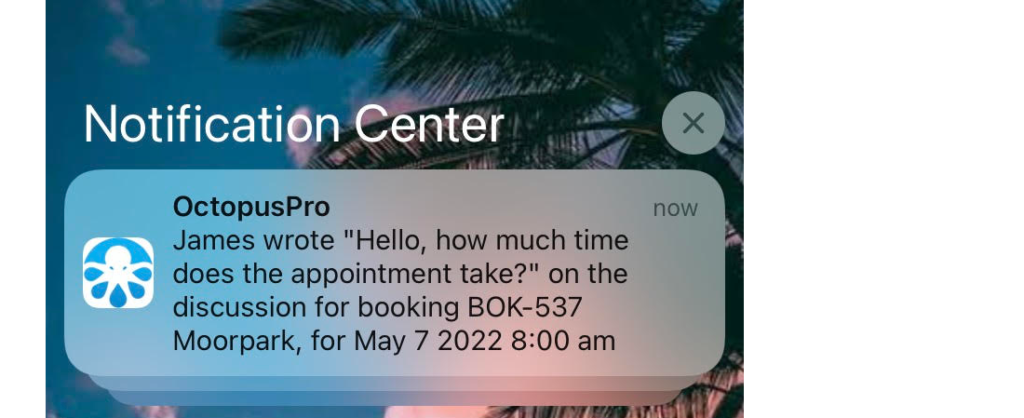
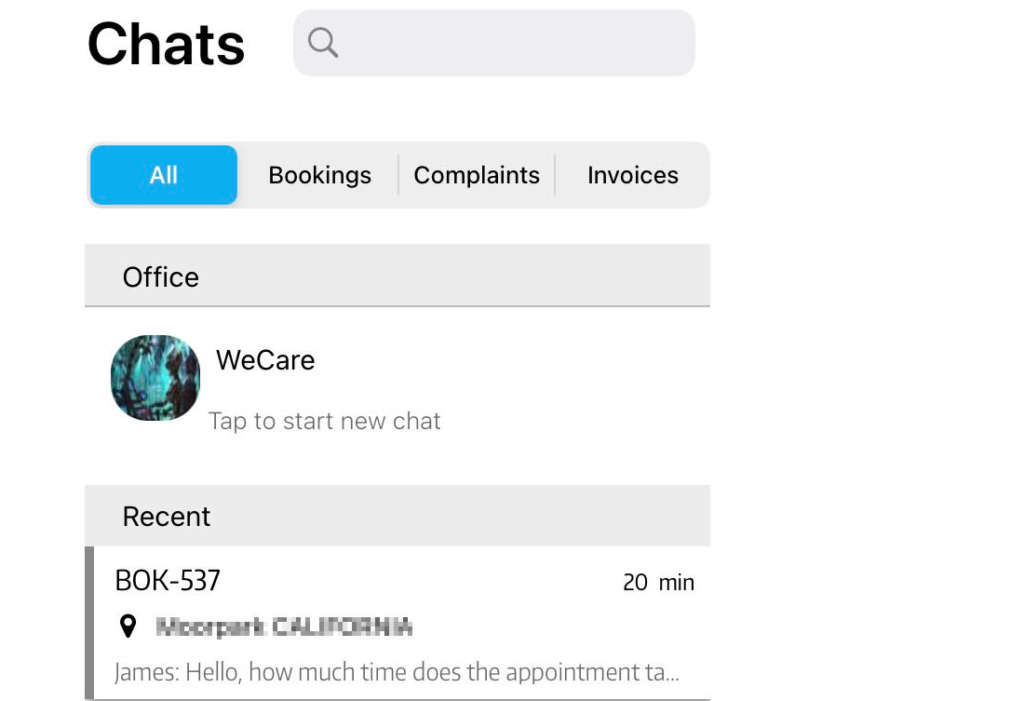
Fieldworkers can also receive and manage booking discussions from the mobile app. When enabled, new customer messages can trigger push notifications (depending on the device and notification settings).
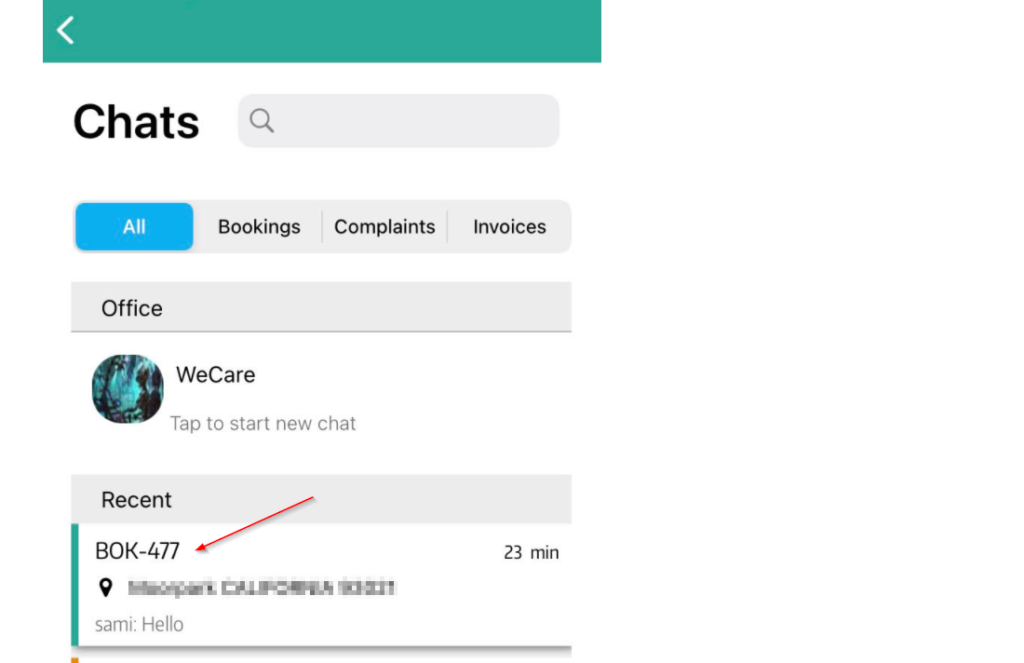
Option 1: View from Messages
- Open the app and tap Messages from the bottom menu.
- Select the relevant chat thread.
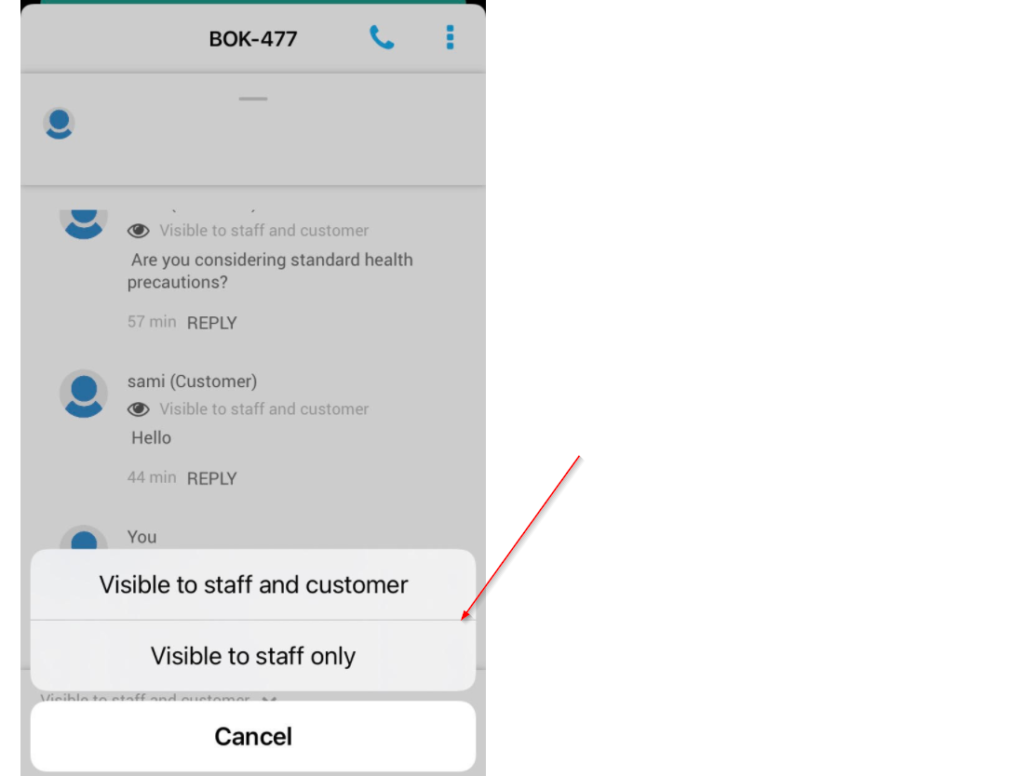
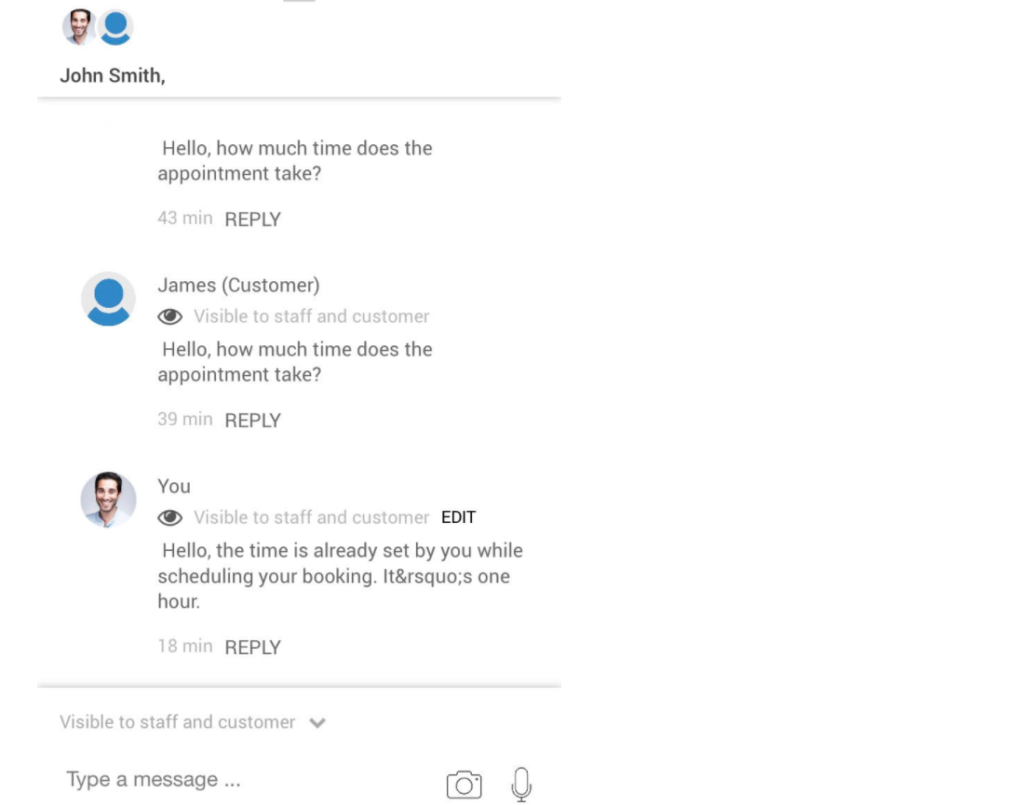
- Reply to the customer message (and choose the appropriate visibility, if available).

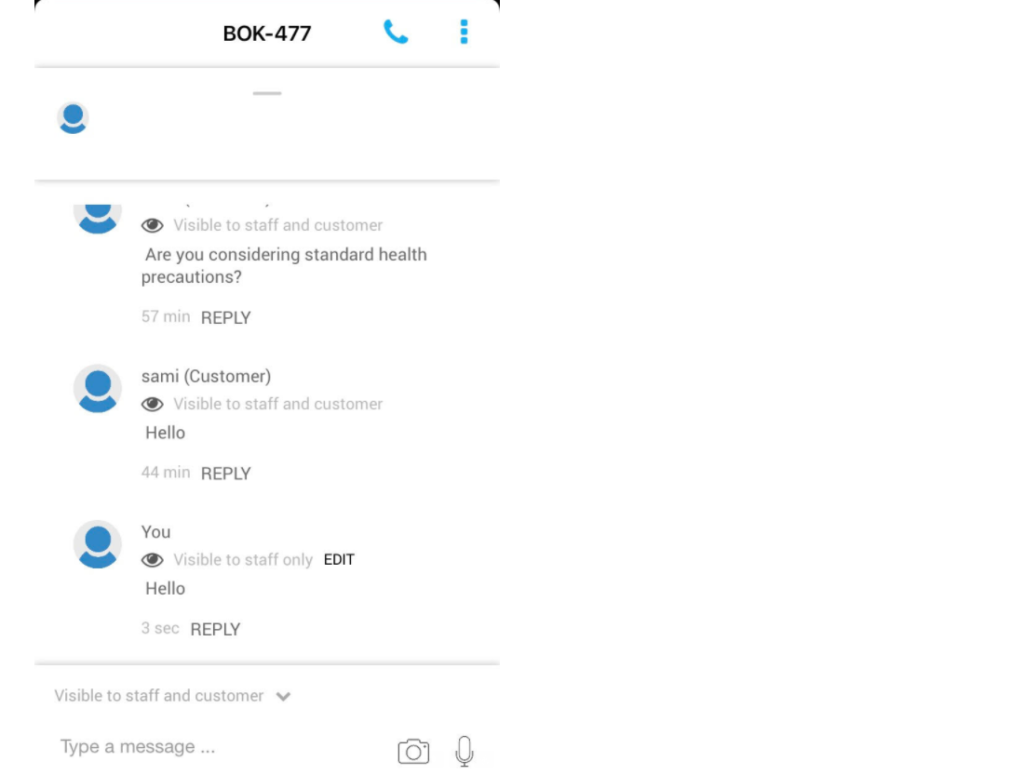
Message visibility (staff-only vs customer-visible)
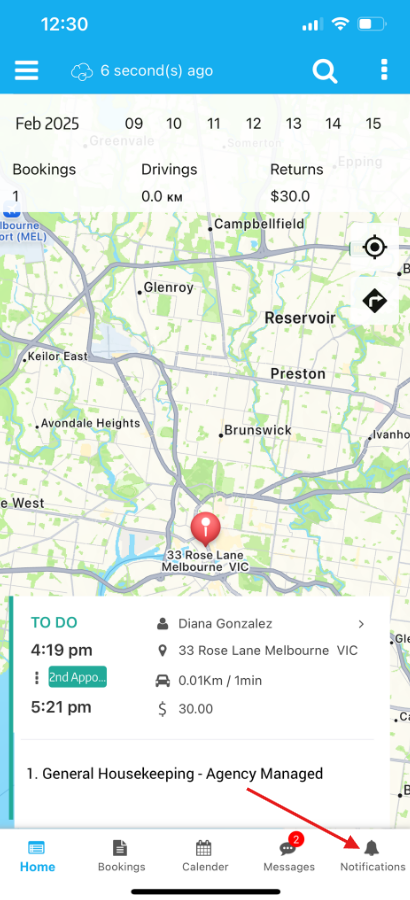
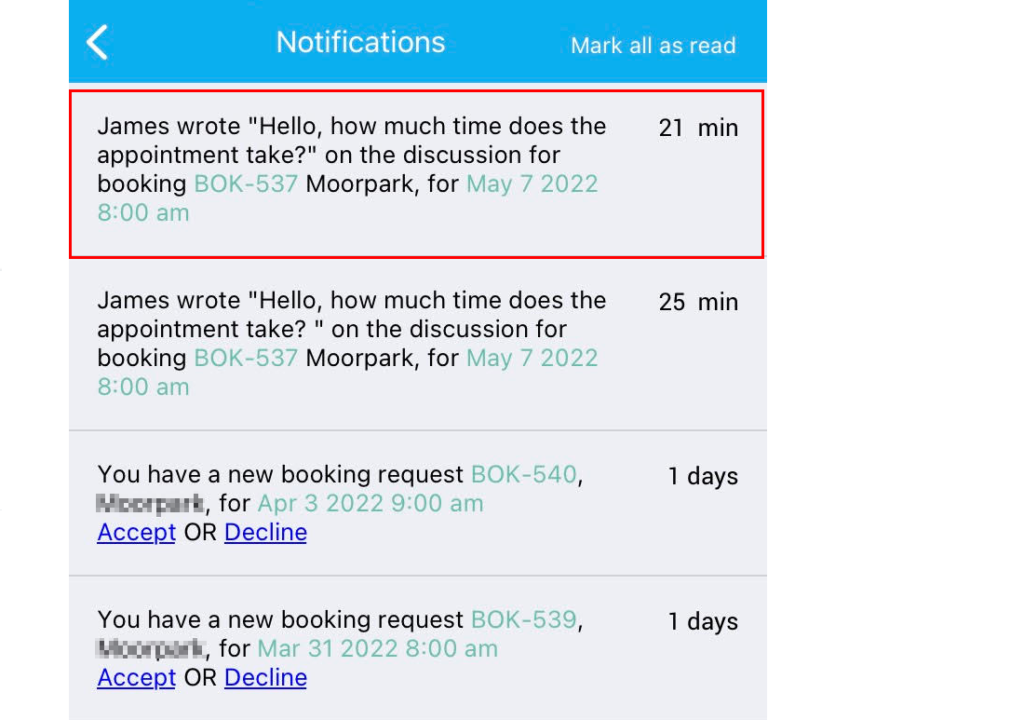
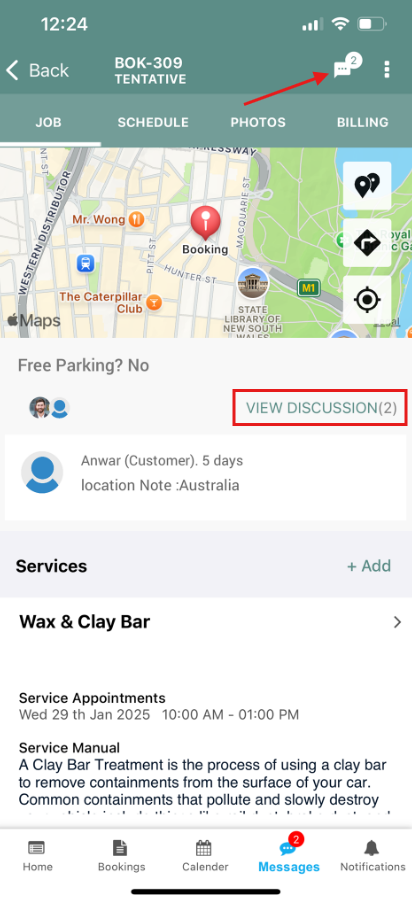
Option 2: View from Notifications
- Tap Notifications from the bottom menu.
- Open the discussion notification.
- The booking opens, and you can view the discussion from the booking screen.
Use cases
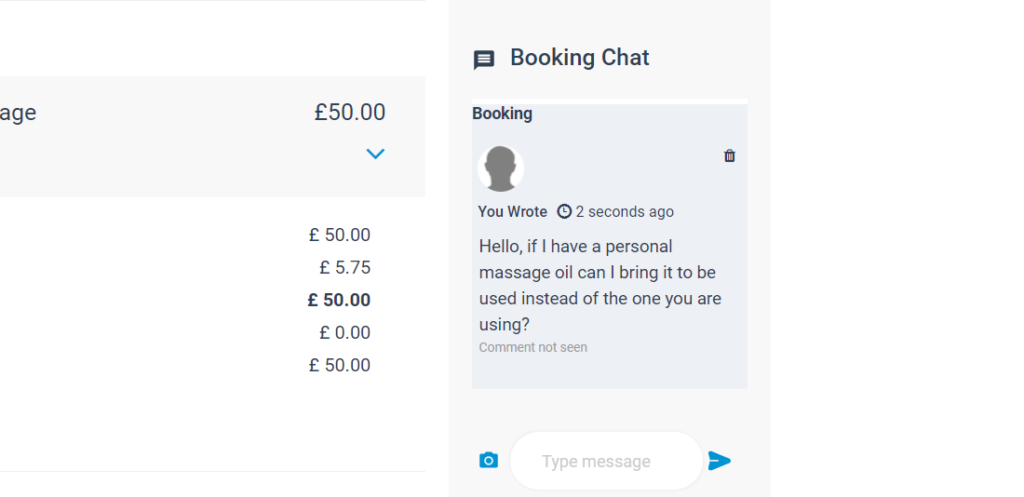
Example: A customer books a service, then asks a question related to the appointment (e.g., after-care instructions or access details). With this flag enabled, the fieldworker is notified and can respond quickly.
Step 1: Customer sends a message from the Customer Portal
Step 2: Fieldworker receives a web notification

Step 3: Fieldworker opens All Discussions and views the message

Step 4: Fieldworker replies from the booking (Communication > Add discussion)
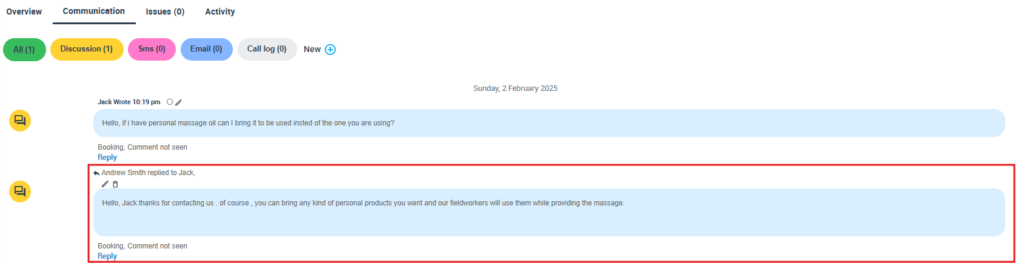
Step 5: Customer receives and views the reply
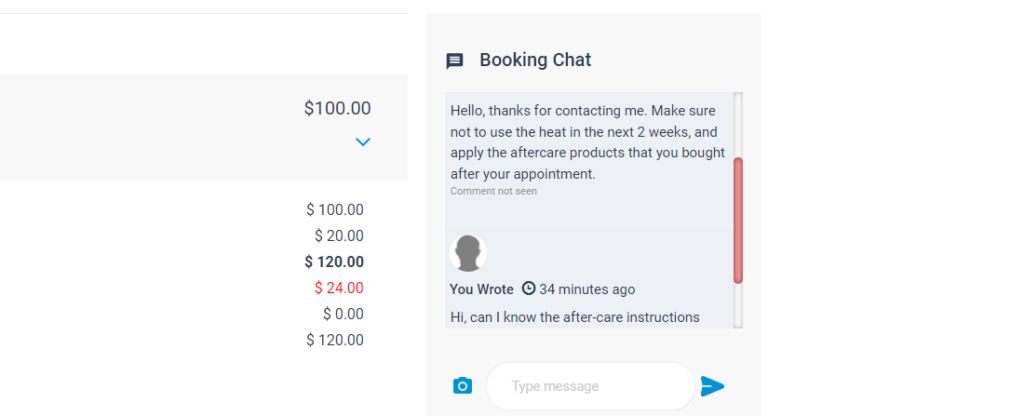
If the flag is disabled: customers can still send booking messages, but fieldworkers won’t receive notifications and won’t be able to view/reply. Admin users can still respond.

Best practices & troubleshooting
- Use visibility correctly: If the message is internal, set it to staff-only; if it’s intended for the customer, ensure it’s customer-visible.
- Confirm notifications are allowed: If fieldworkers don’t receive push alerts, confirm OS-level notifications are enabled for the app and that the user has app notifications enabled.
- Encourage fieldworkers to check All Discussions: Use it as an inbox during shifts to avoid missing messages.
- Centralise support if needed: If you prefer office-led communication, disable this flag so only admins handle customer discussions.
Related articles
To stay updated, please subscribe to our YouTube channel.
[/vc_column_text][/vc_column][/vc_row][vc_row][vc_column]