
Require Customers to Select a Dependent, Asset, or Property During Online Booking

OctopusPro’s Customer Properties feature (also called Customer Dependents, Assets & Properties) lets you store profiles for the thing the customer is booking a service for—such as a child, pet, vehicle, device, piece of equipment, or a service site/property.
This page shows how to require customers to select (or add) at least one Customer Property when booking through your Customer Portal. This ensures you collect the right dependent/asset details before confirming the appointment.
Why require Customer Property selection?
- Collect the right information upfront: avoid back-and-forth calls/messages to ask “which pet/child/vehicle?”
- Reduce booking mistakes: customers select the exact dependent/asset the booking is for.
- Faster repeat bookings: returning customers can choose from saved properties instead of re-entering details.
- Better records & reporting: track history per child/pet/vehicle/site across bookings, invoices, and issues.
Common examples
- Childcare / tutoring: select which child the booking is for.
- Pet grooming / boarding: select the pet (breed, temperament, special notes).
- Automotive / repairs: select the vehicle (make, model, year, rego/VIN).
- Property maintenance: select the site/property (address, access notes, onsite contact).
- IT / device repair: select the device (type, serial, issue category).
Before you start
- Set up Customer Properties for your business first (property types + fields).
Example property titles: Children, Pets, Vehicles, Sites. - Decide what should be mandatory:
- Portal requirement: customers must select/add at least one property during booking (configured below).
- Property fields requirement: specific fields inside the property form are mandatory (e.g., child name + DOB).
Learn more: Manage Dependents, Assets and Properties using Customer Properties

Enable “Select at least one customer property during booking process” (Customer Portal)
- Go to Settings > Customer Portal > Flags & Permissions.
- Scroll to the flag: Select at least one customer property during booking process.
- Toggle it ON to require customers to select or add at least one Customer Property when booking online.

Optional: Make the Customer Property mandatory (and/or make specific fields mandatory)
In addition to requiring selection during booking, you can also enforce data completeness by making:
- A property mandatory (e.g., “Child information” must be provided for bookings).
- Specific fields mandatory within the property (e.g., Name, Age/DOB, Breed, Registration).

Customer experience in the Customer Portal (how it works)
Step-by-step flow
- The customer selects a service and clicks Schedule appointment.
- If a booking location/site hasn’t been chosen yet, the portal prompts them to select a location first (if applicable).
- The portal then prompts them to Select or Add a Customer Property (dependent/asset/site) for the booking.
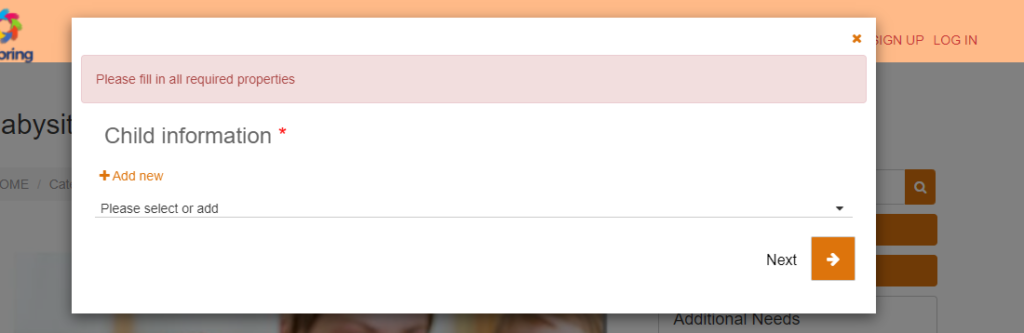
- If the property (or property fields) are mandatory, the customer must complete them before continuing.
- The customer can select one or multiple properties for the booking (useful for sibling bookings, multi-pet bookings, fleet service, etc.).
If the customer already has saved properties (registered/returning customers)
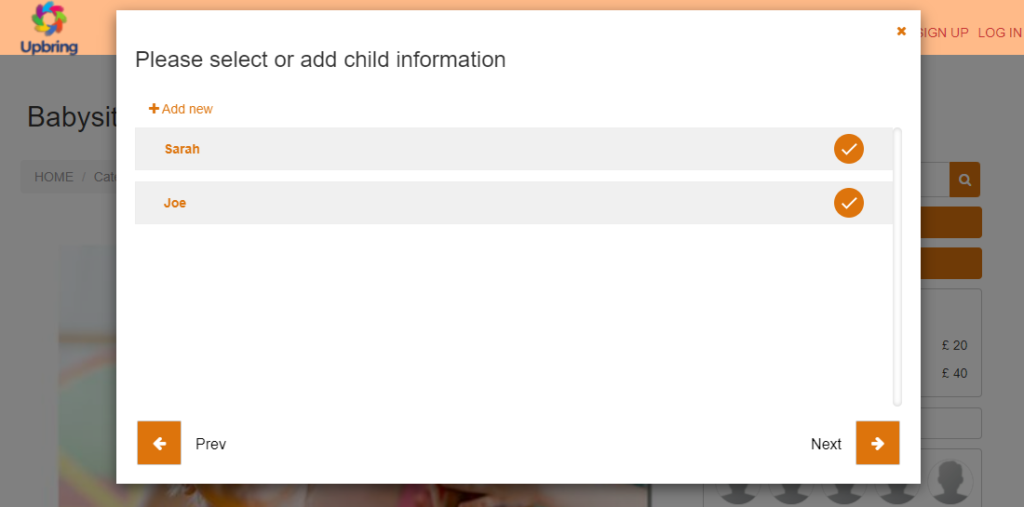
Returning customers can select from a list of saved properties (e.g., pick “Sarah” or “Joe”), and can also click Add new to create a new one if needed.
If the customer has no saved properties yet (first-time customers / guest booking)
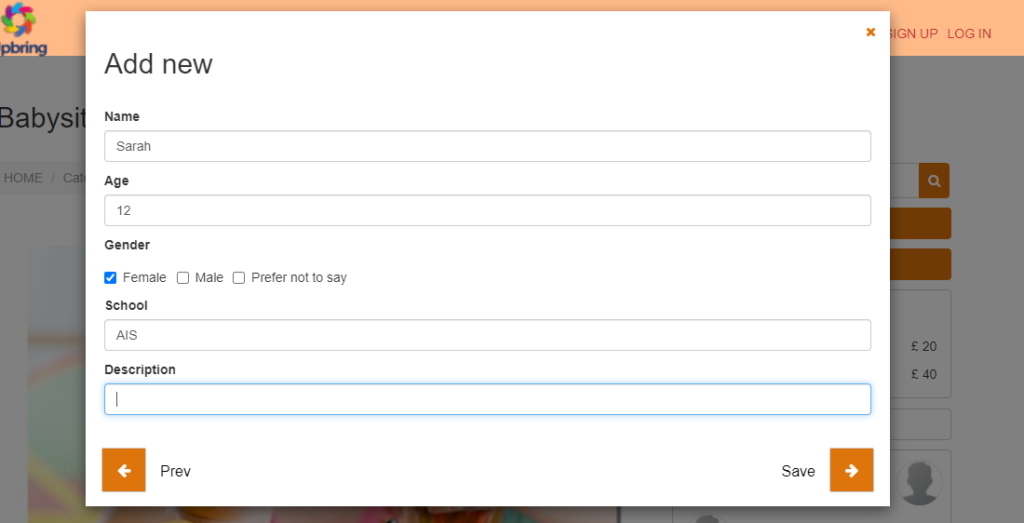
If the customer is booking as a guest or has no saved properties, they will be required to create at least one property by clicking Add new, completing the form, then saving it before continuing.
Best practices
- Name your property titles clearly (e.g., “Child information”, “Pet details”, “Vehicle”, “Service site”).
- Keep fields short and specific (use standard field labels like Make/Model/Year, DOB, Breed, Registration).
- Only require what you truly need to deliver the service (too many required fields can reduce conversions).
- Use “Notes” fields for exceptions (allergies, temperament, access instructions, special handling).
- Support multi-selection when customers might book for multiple dependents/assets in one visit.
Troubleshooting
- The property prompt doesn’t appear: confirm you enabled the portal flag in Settings > Customer Portal > Flags & Permissions, and that Customer Properties are set up and active.
- Customers can’t proceed: check whether the property is marked as mandatory and whether specific fields inside the property are mandatory. The portal will require those fields before allowing the customer to continue.
- Customers don’t see the right fields: update your Customer Property fields in Settings, then test again in the portal.
Related guides
- Manage Dependents, Assets and Properties using Customer Properties
- Import Customer Dependents / Properties (CSV Import)

To stay updated, please subscribe to our YouTube channel.