
Fieldworker Service Areas (Service Territories) & Location-Based Booking Control
OctopusPro’s Fieldworker Service Areas (also known as service territories) help you control where your team can be booked, which fieldworker is matched to a job, and how online bookings behave when a customer selects an address, branch, or virtual appointment.

This feature is not only for mobile/on-site services. OctopusPro supports three service delivery models—and your location settings work together across all of them:
- Mobile / On-site services: customers book an address, and fieldworkers are matched based on service territories or travel radius.
- Fixed-site operations (physical storefronts/branches): customers book at a specific branch/location you operate.
- Virtual / online services: customers book remote appointments (no physical travel required), including global bookings across time zones.
What you can achieve with service areas:
- Prevent unserviceable bookings (reduce cancellations and negative reviews) by restricting bookings to supported areas/locations.
- Improve dispatch accuracy by matching jobs to the best fieldworker based on territory, proximity, and availability.
- Reduce irrelevant job requests to fieldworkers who don’t cover that area (higher acceptance rates).
- Enable location-based scheduling for multi-branch businesses (only show valid locations/times).
- Support location-based pricing with Geo-Pricing Zones (optional).
Quick Navigation
- How it works (Mobile vs Fixed-site vs Virtual)
- Step 1: Set booking location types & primary business location
- Step 2: Configure the default travel radius
- Step 3: Define fieldworker service areas (map drawing)
- Step 4: Allow fieldworkers to manage their own areas
- How service areas affect admin & online bookings
- Service areas & Geo-Pricing Zones
- FAQs
How it works: Mobile, Fixed-Site, and Virtual Services
OctopusPro can restrict booking availability based on the service delivery type your business offers:
1) Mobile / On-site services (Fieldworker territories)
For mobile work (e.g., home services, repairs, cleaning, deliveries), each fieldworker can have:
- Travel radius (distance from their base), and/or
- Custom service areas drawn on a map (highly accurate territories).

2) Fixed-site operations (Branches / storefronts)
For storefront/branch businesses (e.g., salons, clinics, studios, workshops), customers book an appointment at a specific business location. You can run one or many locations, and assign services and team members to each site.

3) Virtual / online services (Remote delivery)
For online services (e.g., coaching, telehealth, consulting, online lessons), OctopusPro can accept bookings without any geographic limitation. Customers can book from anywhere, and you can include meeting links (Zoom/Google Meet/Microsoft Teams) in booking instructions or messages.

Tip: Many businesses are hybrid (e.g., both mobile and in-store). OctopusPro supports this by letting you enable multiple booking location types, then offering the right options per service and booking channel.
Step 1: Set Booking Location Types & Your Primary Business Location
Before defining territories, confirm your business location settings. This controls whether your account can accept:
- Physical Storefront or Branches
- Mobile / On-Site Services
- Remote / Virtual Services
To configure this:
- Go to Settings > Company settings > Locations.
- Set your Business primary address.
- Select the relevant Service location types for your business.
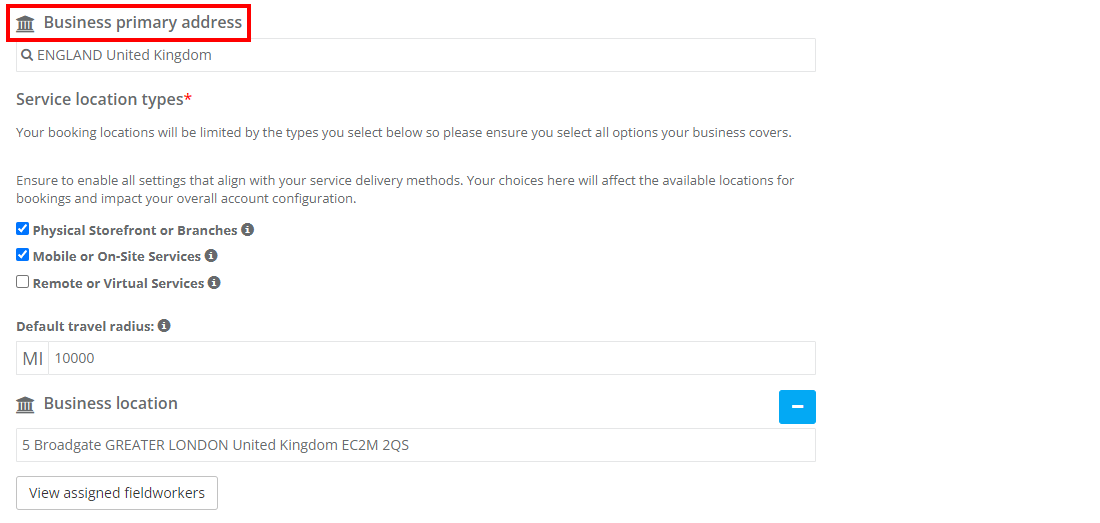
Important notes:
- For mobile and fixed-site operations, your account is typically limited to the selected country due to tax/currency rules. If you operate in multiple countries, you may need separate accounts per country.
- Virtual services can be offered globally (customers can book from anywhere), depending on your configuration.
Learn more about service delivery options here: Service Delivery Types: Storefront, Mobile & Remote.
Step 2: Configure the Default Travel Radius (Safety Net)
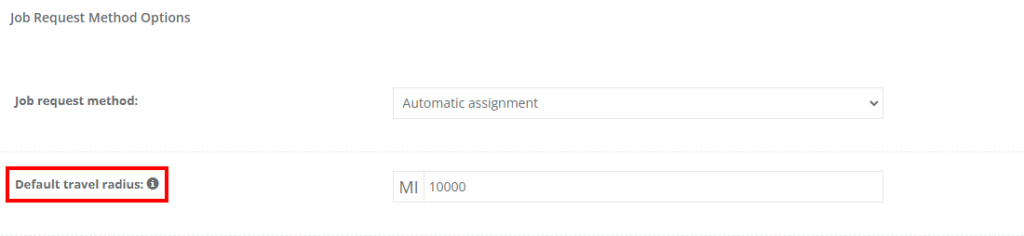
The Default Travel Radius is a company-level setting used mainly when a fieldworker has not yet drawn a custom service area. It helps prevent jobs being matched to a fieldworker who is too far away.
To set it up:
- Go to Settings > General Settings > Job Assignment.
- Enter the Default travel radius (miles or kilometers).
- Save your changes.
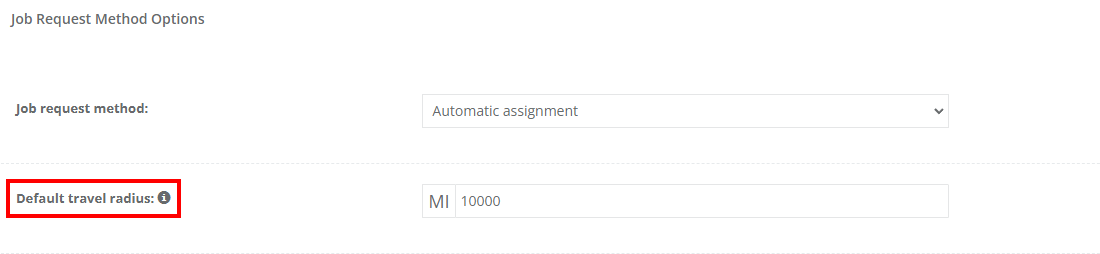
Best practice: Use the default radius as a baseline only. For accurate territory control (and better online booking validation), define custom service areas per fieldworker.

Related setup: Job Assignment & Dispatch (Manual vs Automatic), Fieldworker Service Areas (Service Territories) & Location-Based Booking Control
Step 3: Define Fieldworker Service Areas (Map-Based Territory Drawing)
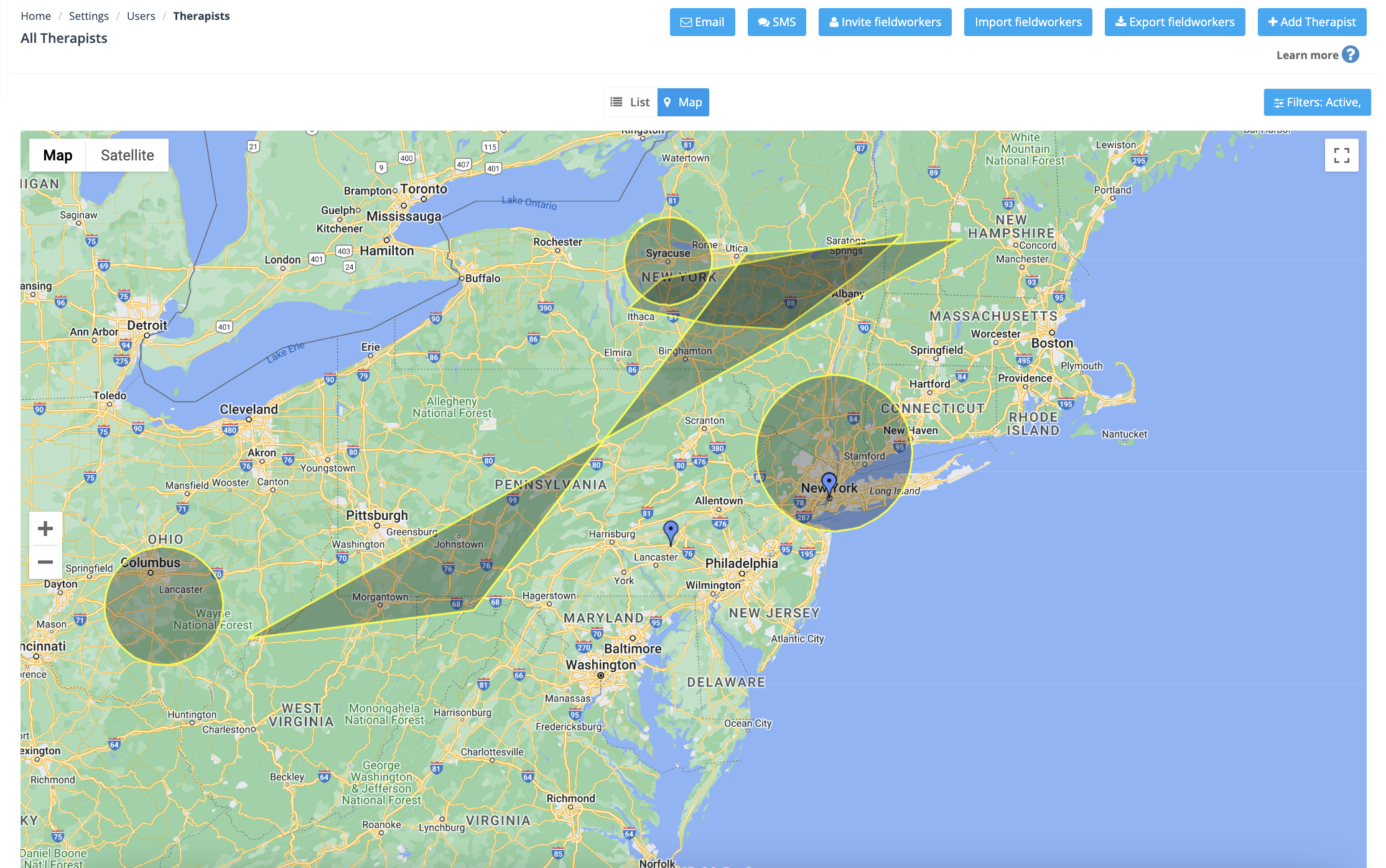
Fieldworker service areas are configured per fieldworker and can include:
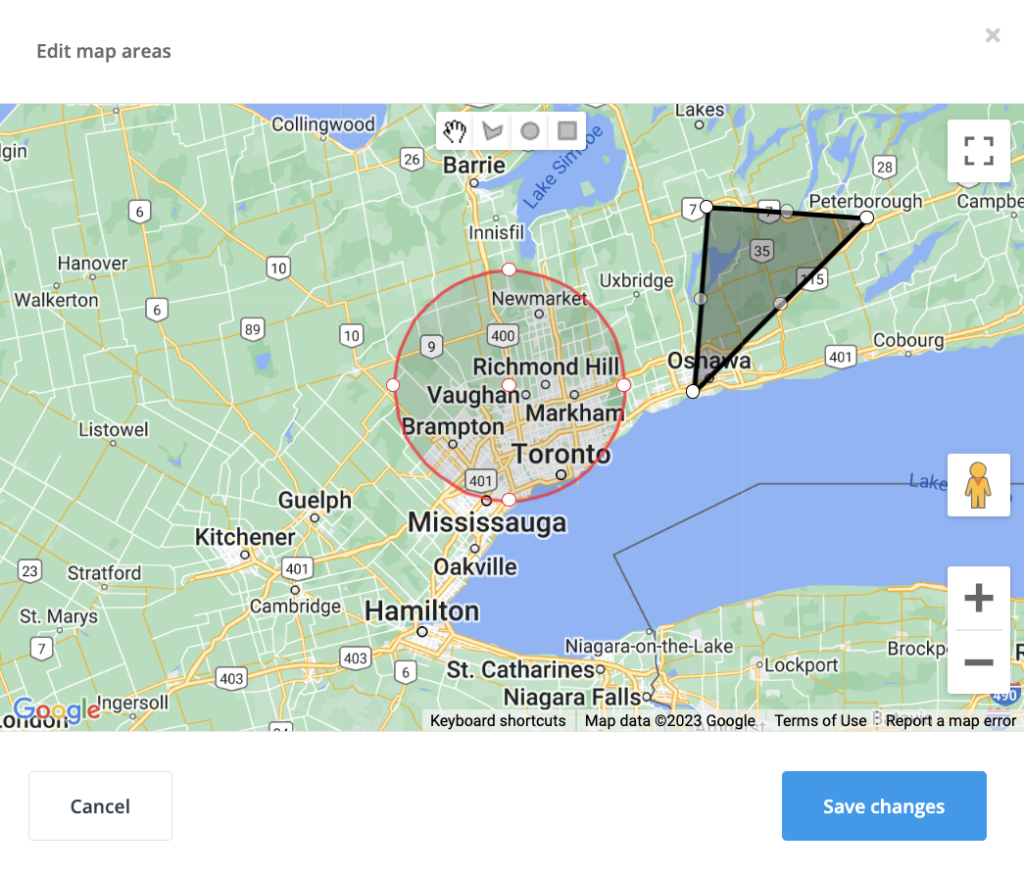
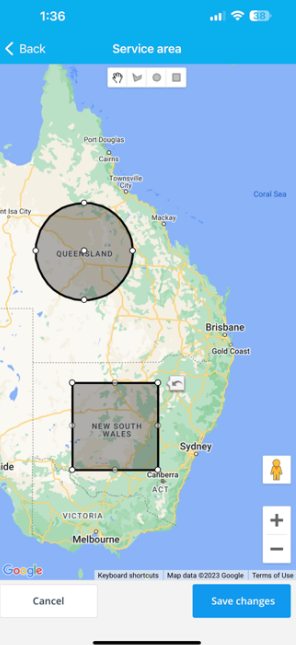
- One or more custom shapes (polygons) for precise coverage
- Multiple separate territories (e.g., two cities)
- Overlapping areas where multiple fieldworkers can be eligible
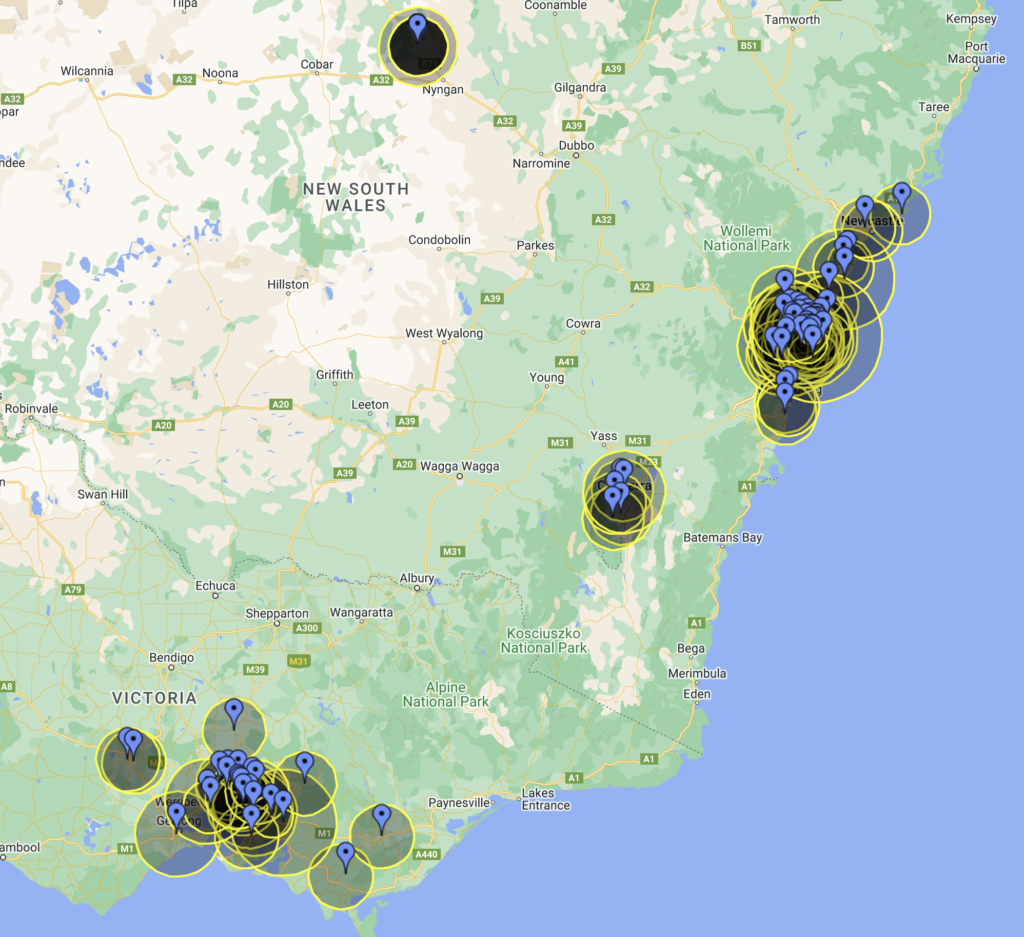
To set a service area for a fieldworker:
- Go to Fieldworkers from the sidebar.
- Open the fieldworker profile you want to update.
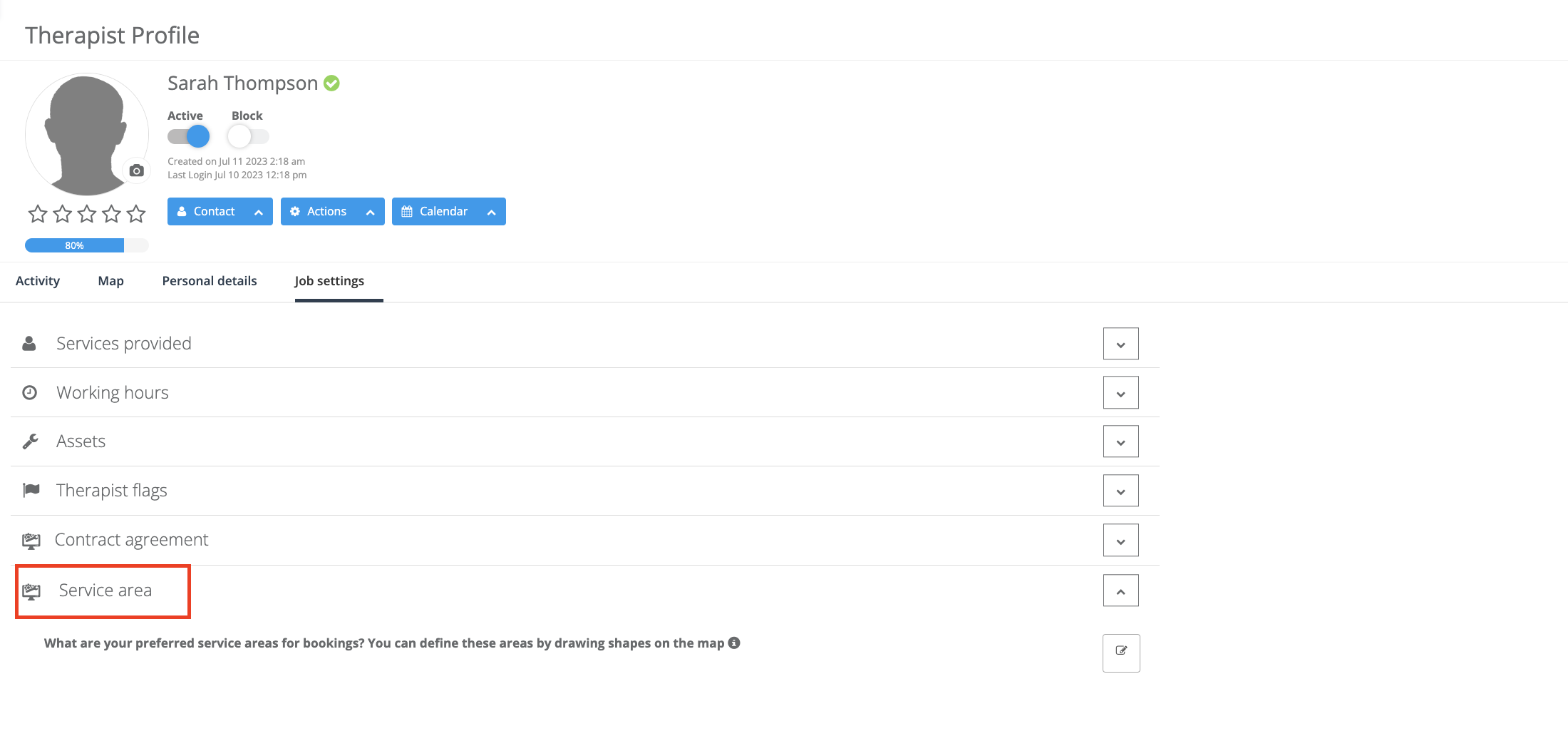
- Go to Job settings > Service area.
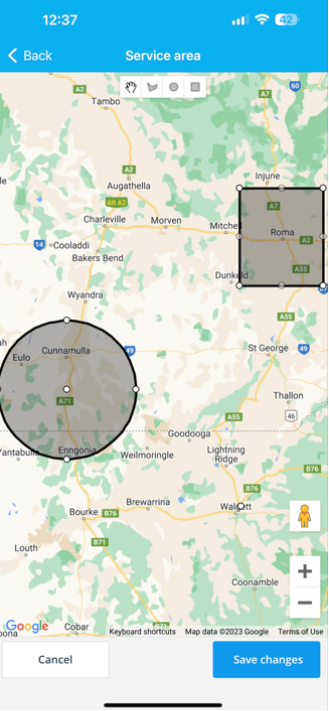
- Click the Edit icon to open the map drawing tool.
- Draw the service area(s) on the map, then Save.
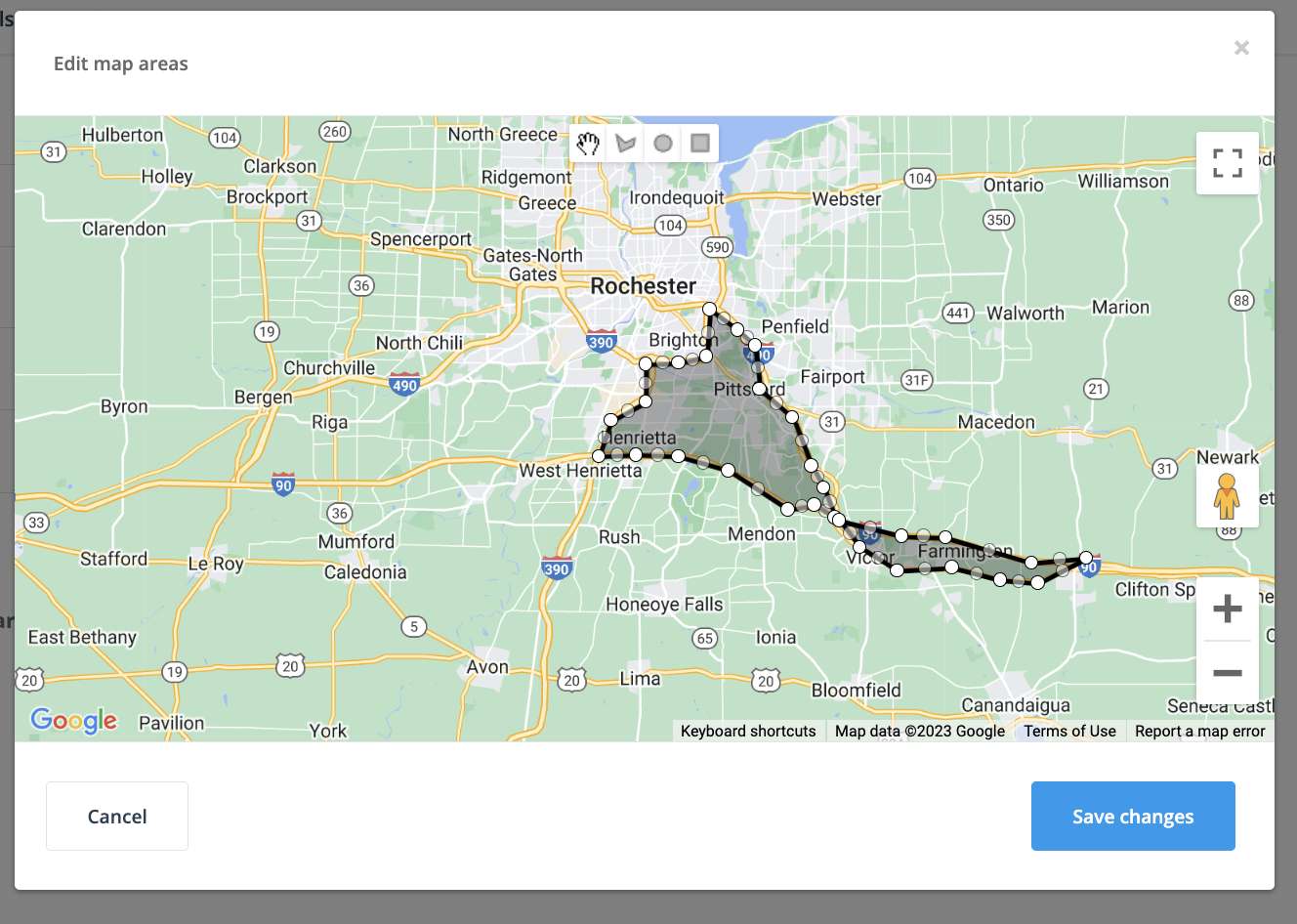
Tip: You can draw multiple shapes to include multiple regions (and simply avoid drawing over areas you want excluded).
Step 4: Let Fieldworkers Update Their Own Service Areas (Desktop or Mobile App)
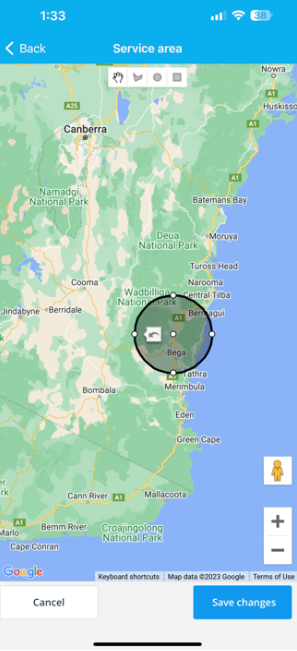
Depending on your permissions and workflow, fieldworkers can manage their own territory (and keep it up to date as they move, change availability, or expand coverage).

Fieldworker guide: How Fieldworkers Can Draw Service Areas & Set Address.
Mobile app example:
Tip: If fieldworkers manage their own areas, confirm they also maintain their working hours and availability for accurate matching: Manage Fieldworker Working Hours & Availability.

How Service Areas Affect Bookings (Admin Bookings vs Online Bookings)
1) Bookings created by admin users
When admins create bookings, OctopusPro uses service areas/travel radius to help match and suggest suitable fieldworkers—especially when you use automatic assignment or “nearby” tools. If a fieldworker has a custom territory, it takes priority over the default radius.
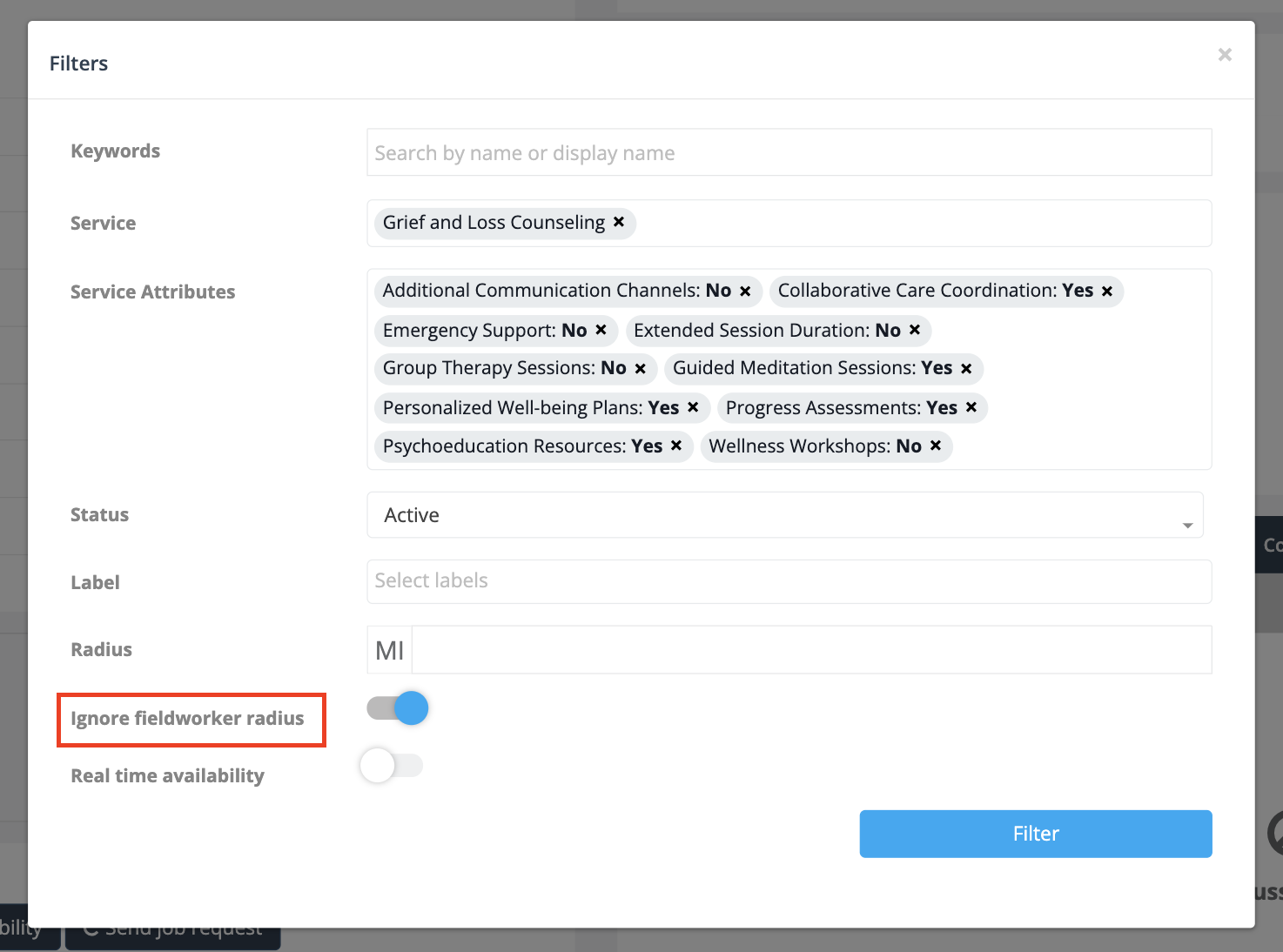
Need to override territory restrictions? Admins can still assign outside the normal area when needed (recommended only when you’ve confirmed availability and travel expectations).
2) Online bookings through your website / Customer Portal
For online bookings, location settings become even more important because OctopusPro can prevent customers from booking services that don’t match your delivery model:
- Mobile: customers must be within a supported service area or radius.
- Fixed-site: customers must choose an available branch/location.
- Virtual: customers can book from anywhere (no travel limits).
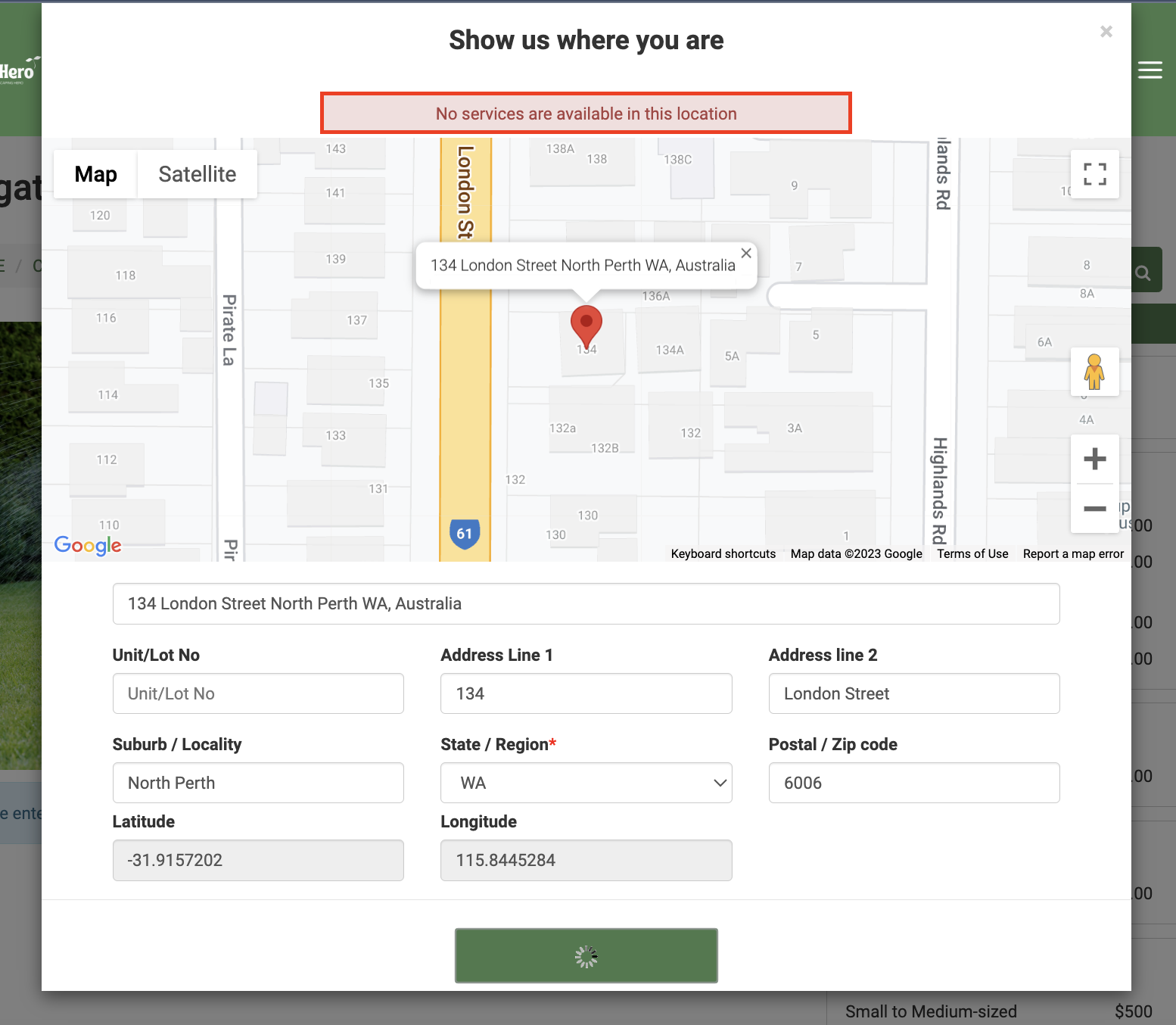
If a customer attempts to book outside your allowed service coverage, the system can stop the booking flow and show a message such as “No services are available in this location”.
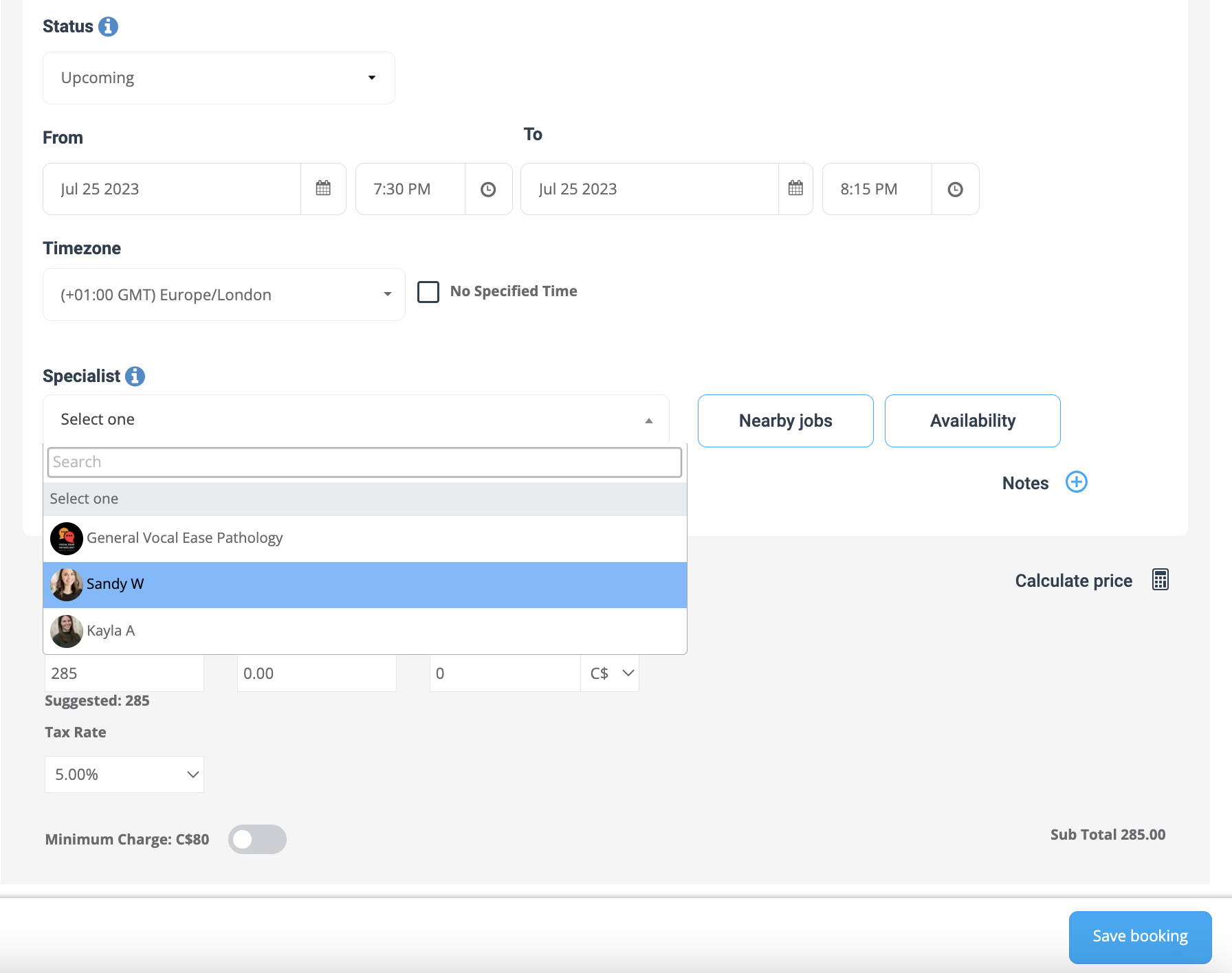
Mobile services: accurate booking availability by address
Customers enter their address, and OctopusPro checks coverage based on fieldworker territories and/or default radius. This reduces wasted inquiries and prevents bookings you can’t fulfill.
Fixed-site operations: branch/location-based booking control
For storefronts and branches, customers book at a specific location. To keep scheduling accurate:
- Ensure Physical Storefront or Branches is enabled in your location types.
- Maintain each branch address correctly (so availability and location selection is accurate).
- Assign fieldworkers/services to the correct branch locations so customers see valid times and options.
Recommended reading for multi-location businesses: Multi-Location POS Software for Physical Storefronts & Branches.

Virtual/Online services: global booking with meeting links & time zones
When virtual services are enabled, customers can book remote appointments without geographic limits. Common best practices include:
- Add a meeting link (Zoom/Google Meet/Teams) to the booking instructions or confirmation message.
- Use clear time zone handling and include the time zone in booking confirmations.
- Use pre-appointment forms/checklists to collect information before the session (optional).
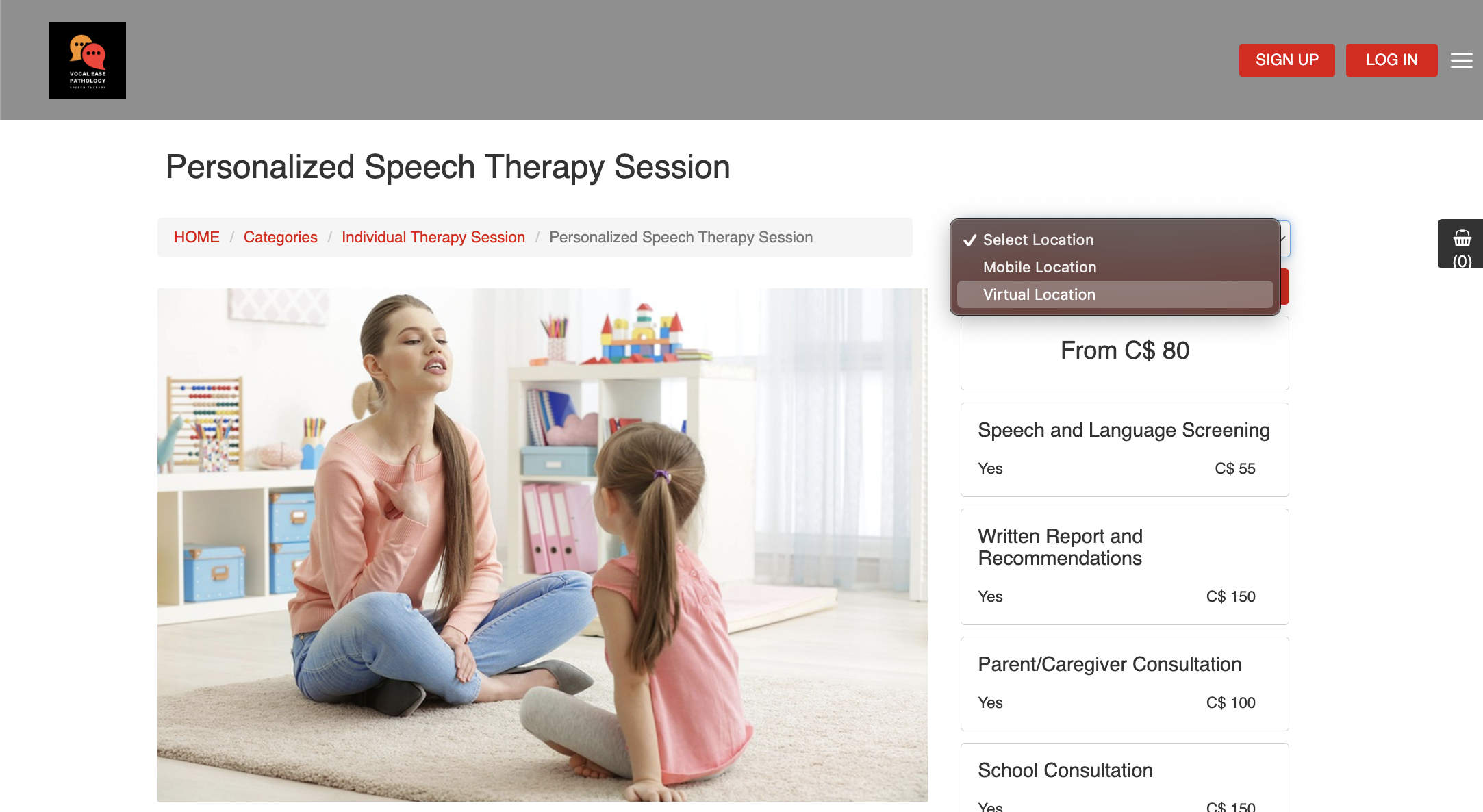
Virtual services guide: Remote & Virtual Service Management (Online Services).
Tools That Work Hand-in-Hand with Service Areas
- Proximity-Based Scheduling: quickly schedule work near an existing job route (Nearby Bookings: Proximity-Based Scheduling).

- Filter Calendar by Area: view bookings by territory/region for dispatch planning (Filter Calendar by Area).
- Google Maps accuracy: improve geocoding and address validation (Google Maps API Integration).

Service Areas & Geo-Pricing Zones (Optional Location-Based Pricing)
Service areas can also support location-based pricing using Geo-Pricing Zones. Instead of only calculating travel cost, you can adjust pricing automatically based on the customer’s location (and optionally service type and other rules).
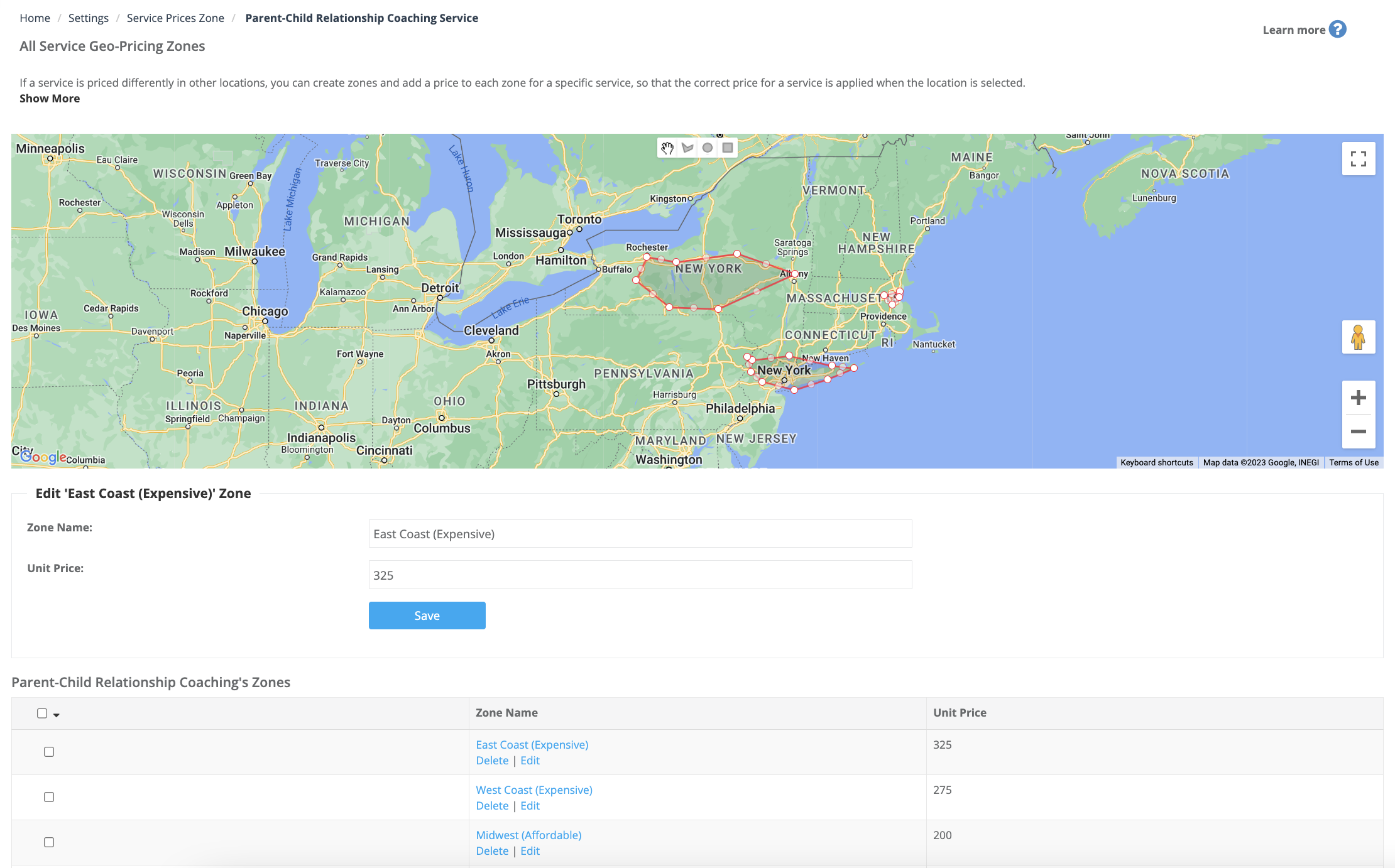
With Geo-Pricing Zones, you can:
- Apply different pricing per region (e.g., “City” vs “Outer suburbs”).
- Set minimum charges by zone.
- Increase prices for remote or high-demand areas.
- Create zone-based rules for bulk work or discounts.

Learn more here: Geo-Pricing Zones for Field Service – Dynamic Location-Based Rates.
Territory Design Tips (Best Practices)
- Start simple: set a sensible default travel radius, then refine with custom territories.
- Use overlapping coverage intentionally: overlap areas to increase availability and reduce response times.
- Exclude hard-to-serve regions: draw around areas you can’t serve (or split into multiple shapes).
- Review regularly: update areas when you hire new fieldworkers, add branches, or change coverage strategy.
- Keep availability accurate: service areas + working hours + real availability = best matching.
FAQs
Can a fieldworker set their own service area?
Yes—fieldworkers can update their service area on desktop or through the mobile app (depending on your permissions and workflow).
What if a fieldworker doesn’t have a set service area?
The default travel radius applies, acting as a fallback boundary so they aren’t matched to jobs that are too far away.
What’s the difference between service areas and travel radius?
Service areas are precise, map-drawn territories. A travel radius is a distance-based circle from a base location. Custom service areas are typically more accurate than a simple radius.
How does setting service areas impact the booking process?
It ensures customers can only book where you actually operate (mobile territories, valid branches, or virtual delivery), and it helps match bookings to the right fieldworker.
Can a fieldworker have multiple service areas?
Yes—fieldworkers can define multiple separate areas (e.g., two cities or regions).
What happens when multiple fieldworkers’ service areas overlap?
All eligible fieldworkers can be considered for that location. If you use automatic assignment, OctopusPro can notify multiple fieldworkers and assign the job based on your workflow (e.g., first to accept).
Can a service area cover multiple cities or states?
Yes—service areas can span large regions or multiple cities, as long as it’s operationally realistic for your business.
Can I assign a job to a fieldworker outside their designated service area?
Yes. Admins can override radius/territory restrictions using the Ignore fieldworker radius option in the matched fieldworkers filters (recommended only when you’ve confirmed the fieldworker can take the job).
How can I view the service area of a specific fieldworker?
Open the fieldworker profile and go to Job settings > Service area to view the saved territory.
Can service areas be set based on specific services offered by the fieldworker?
Yes. You can use service configuration and assignment rules so that only the right services appear for the right regions and fieldworkers (useful for specialized services offered only in certain areas).
Can I exclude certain regions within a fieldworker’s service area?
Yes. Draw multiple shapes to include only the areas you want covered (and simply avoid drawing over areas you want excluded).
Are service areas visible to customers?
Service areas are primarily used to control availability and fieldworker matching. Customers typically see the outcome (available vs not available) rather than the exact territory boundaries.
How are service areas linked with fieldworker schedules?
Service areas determine where a fieldworker can be booked. Schedules determine when they can be booked. OctopusPro considers both when suggesting or matching fieldworkers.
Can I set job priority based on service areas?
Service areas don’t automatically set job priority, but you can use them with other rules (availability, proximity, workload, skill set) to prioritize assignments.
What happens if a job falls exactly on the boundary of a service area?
Jobs on a boundary are typically treated as “inside” the service area. If you need strict separation, slightly adjust your territory shape to avoid edge cases.
To stay updated, please subscribe to our YouTube channel.