
Allow Fieldworkers to Modify Their Services List
This permission lets fieldworkers (technicians/subcontractors) manage which assigned services they are currently available to perform by turning services on or off from inside the mobile app. It’s a practical way to keep dispatching accurate—so the right person is offered the right job.

What this setting does
- Enabled: Fieldworkers can toggle assigned services on/off in the app, based on their skills, preferences, or availability.
- Disabled: Fieldworkers cannot change their service availability themselves; admins control the fieldworker’s active services from the admin portal.
Why this is useful
- Better job-to-skill matching: Reduce the chance of assigning a service to someone who doesn’t offer it.
- Fewer scheduling issues: Helps prevent avoidable reassignments, cancellations, or delays caused by mismatched services.
- Higher customer satisfaction: Customers get a qualified fieldworker for the requested service.
- More fieldworker accountability: Fieldworkers can keep their profile accurate (e.g., seasonal services, temporary limitations).
Common use cases
- Specialisation: A technician focuses on a subset of services (e.g., furnace repair only) and disables others.
- Seasonal services: Enable “Gutter Cleaning” in autumn, disable it during peak interior work periods.
- Capability changes: Temporarily disable a service due to equipment availability, injury, licensing, or training status.
How it works
Fieldworkers can only enable/disable services that have already been assigned to them by the business. When a service is disabled, it is removed from their active list, which helps ensure they are only offered/assigned work for services they have enabled.
Admin setup: enable/disable this permission
- In the admin portal, go to Settings → General Settings → Fieldworker Permissions.
- Find the permission: Allow fieldworkers to modify their services list.
- Toggle it ON to allow fieldworkers to manage their active services, or OFF to restrict this to admins only.
- Save (if required). Changes will apply according to your system behavior.
Tip: If you disable this permission, make sure your office team keeps each fieldworker’s assigned/active services up to date in the admin portal, especially after onboarding, training, or role changes.
Fieldworker steps: view and update your service list
To view your service list as a fieldworker:
- Log in to the OctopusPro fieldworker app.
- Open the side menu, then tap your profile name.
- Open the Services section to see your Available Services.
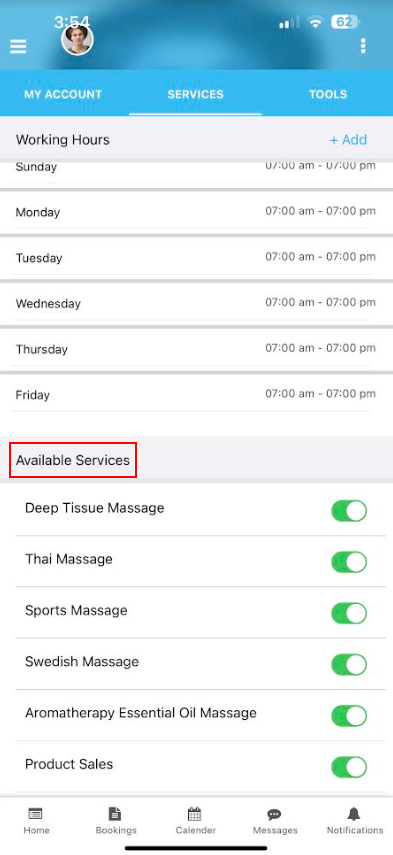
Enable or disable a service
If your admin has enabled this permission, you can turn services on/off as needed:
- In the Services section, find the service you want to change.
- Use the toggle to set it ON (enabled) or OFF (disabled).
- When enabled, the service stays available on your profile. When disabled, it is removed from your active service availability.

What to expect after changing active services
- Fieldworkers will only be able to accept and be assigned bookings for services they have enabled.
- Admins can still manage a fieldworker’s assigned/active services from the admin portal at any time.
Troubleshooting
I can’t see the Services section
- Your role/permissions may not allow access, or the business may have disabled this permission.
- You may not have any services assigned to your profile yet.
I’m still being offered the wrong type of work
- Confirm the service is actually disabled in your Services list.
- Ask your admin to review your assigned services and dispatching/job assignment settings.
Can fieldworkers create brand-new services?
That is controlled by a separate permission (adding custom services to quotes/bookings/invoices). If you want fieldworkers to only work from the approved service catalogue, keep that separate permission disabled.
Related guides
- Fieldworker Permissions & Access Control
- Fieldworker Service Preferences
- Assign/Remove Services on a Fieldworker Profile (Admin)
To stay updated, please subscribe to our YouTube channel.