
Quantity-Based Discounts (Bulk / Volume Pricing)
Quantity-Based Discounts let you offer a single “buy more, save more” discount when the quantity of a service reaches a range you define (for example: 3–4 hours, 50–100 m², or 10+ items). OctopusPro then applies the discount automatically in quotes, bookings, invoices, and the customer portal—keeping pricing consistent and transparent.

In this guide
- What are Quantity-Based Discounts?
- Key benefits
- How it works
- How discounts are calculated
- Applying discounts in quotes & bookings
- Custom-field-specific bulk discounts
- Quantity discounts vs. tiered unit pricing
- Example configurations
- Best-practice tips
- Troubleshooting & FAQs
- Related guides
What are Quantity-Based Discounts?
A Quantity-Based Discount is a single discount rule that triggers when a booking hits a defined quantity range. It’s ideal for services charged per unit (m², items, rooms, panels, circuits) or per hour. It’s generally not suitable for flat-fee services that don’t have a quantity input.
You can create multiple ranges (tiers), and each range can use one of these discount types:
- % off total (percentage discount applied to the subtotal)
- $ off total (fixed amount deducted from the subtotal)
- $ off each unit (reduces the per-unit price by a fixed amount)
Key benefits
- Increase average order value (AOV): customers are motivated to bundle more work into one booking to unlock savings.
- Simple, transparent invoices: the invoice keeps the original unit price and shows a clear discount line (instead of complex per-unit re-pricing).
- Protect margins: you decide exactly which ranges qualify and which discount type applies.
- More accurate scheduling: add Extra Service Time for larger quantities so longer jobs automatically block more time in the calendar.
- Consistent pricing everywhere: the customer portal applies the discount automatically and prevents customers from editing it.
How it works
- Define one or more quantity ranges (e.g., 3–4 hours, 50–100 m², 10+ items).
- Choose a discount type (percent off total, fixed $ off total, or fixed $ off each unit).
- (Optional) Add Extra Service Time for that range to automatically extend the booking duration.
Once configured, OctopusPro automatically suggests/applies the correct discount when the booking quantity falls inside a range—no manual calculation required.
Quick industry examples
Here are practical “buy more, save more” examples across common industries. These show different ways to structure quantity-based discounts (percentage off subtotal, fixed amount off subtotal, or fixed amount off each unit).
| Industry & Service | Pricing basis | Example discount rule | Why it works |
|---|---|---|---|
| Industrial machinery installation | Per machine installed | 15% off subtotal when ≥ 5 machines in one visit | Rewards bundling installs and reduces mobilisation costs per unit. |
| HVAC install / servicing | Per unit | 10% off subtotal when ≥ 10 units at the same site | More work per trip reduces travel time and improves technician utilisation. |
| Solar panel fit-out | Per panel | 20% off subtotal when ≥ 100 panels in one booking | Encourages full-roof installations rather than small add-ons. |
| Telecom cabling | Per data/voice line (drop) | 12% off subtotal when ≥ 50 drops in one visit | Routing and setup work is shared across many drops, lowering time per line. |
| Electrical fit-out | Per circuit | 10% off subtotal when wiring ≥ 100 circuits | Rewards awarding the full project to one contractor and reduces repeated setup. |
| Commercial painting | Per ft² / m² | $0.10 off per ft² for areas ≥ 10,000 ft² | Large surfaces reduce stop/start time; crews work continuously at scale. |
| Landscaping (large sites) | Per m² / yd² | $0.50 off per yd² when area ≥ 10,000 yd² | Spreads mobilisation and equipment costs across a larger site footprint. |
| High-rise window cleaning | Per pane (or per level) | 15% off subtotal when booking the entire building | One rigging/setup per tower instead of repeated setups per floor. |
| Heavy equipment rental | Daily hire rate per machine | 8% off subtotal for rentals ≥ 30 consecutive days | Improves fleet utilisation and reduces transport in/out frequency. |
| Residential services (cleaning / mowing / small trades) | Per room / per m² / per linear metre | Choose one: 15% off 4–6 rooms OR $0.02 off per m² (1,000–1,999 m²) OR $500 off (150–250 lm) | Simple, customer-friendly thresholds that increase booking size and reduce travel cost per job. |
Note: Quantity-Based Discounts are not the same as Tiered Unit Pricing. Tiered pricing changes the unit price when a threshold is reached; Quantity-Based Discounts keep the same unit price and apply a discount to the subtotal (or reduce each unit by a fixed amount).
How discounts are calculated
| Discount type | How it’s applied | Example calculation |
|---|---|---|
| % off subtotal | Subtracts a percentage from the subtotal once the quantity hits the configured range. | 10% off for 4–6 rooms → 5 × $40 = $200 → discount $20 → $180 |
| Fixed $ off subtotal | Deducts a flat amount from the subtotal once the range is met. | -$50 off jobs ≥ 150 lm → 180 × $90 = $16,200 → discount $50 → $16,150 |
| Fixed $ off each unit | Reduces the price of each unit by the specified amount (then multiplies by quantity). | -$0.02 per m² for 1,000–1,999 m² → 1,500 × ($0.20 − $0.02) = $270 |
Applying discounts in quotes & bookings
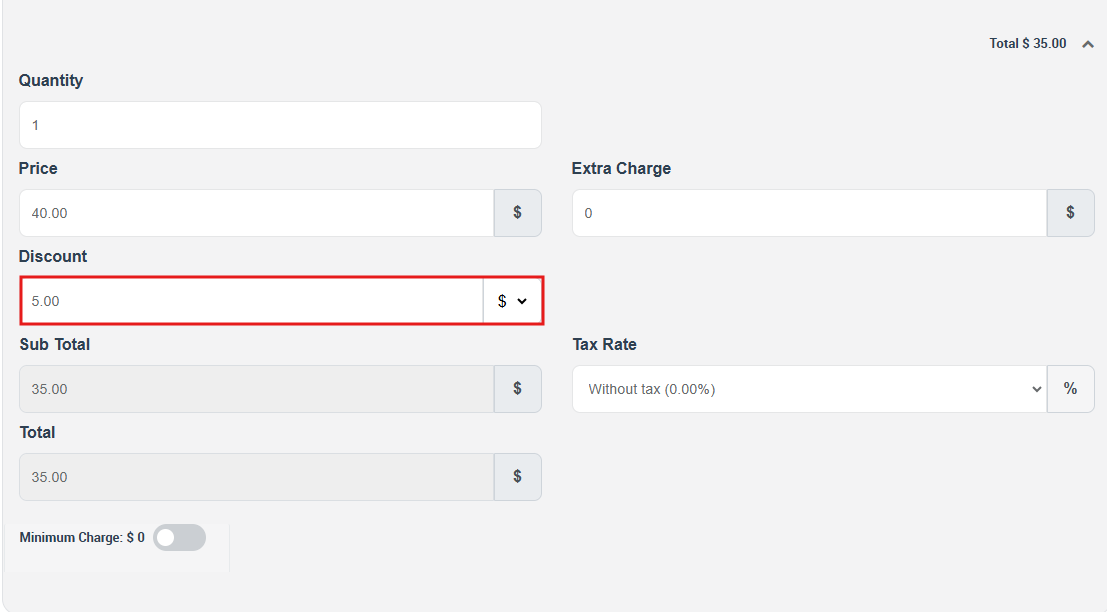
- Automatic suggestion: when the entered quantity lands inside a configured range, OctopusPro suggests the discounted price.
- Admin override: office users (and permitted fieldworkers) can accept the suggested discount or overwrite it when needed.
- Customer portal: the discount is applied automatically and cannot be edited by customers—ensuring consistent pricing.

Custom-field-specific bulk discounts
Sometimes the service quantity isn’t the only trigger for a discount. You may want specific service options (custom field selections) to have their own bulk discount rules—for example, offering a discount on an add-on when a customer selects multiple items.
Why use it?
| Scenario | Benefit |
|---|---|
| Add-ons (e.g., “Deep Fridge Clean”) | Discount the add-on for multiple appliances without changing the base service price. |
| Variants (e.g., premium materials) | Offer volume discounts on a premium option while keeping the main rate fixed. |
| Equipment hire (e.g., lift/scaffold) | Auto-discount hire costs for longer durations, separate from labour discounts. |
| Package extras (e.g., makeup artist add-on) | Apply bulk discounts to extras while the core service has its own pricing rules. |
How to set it up
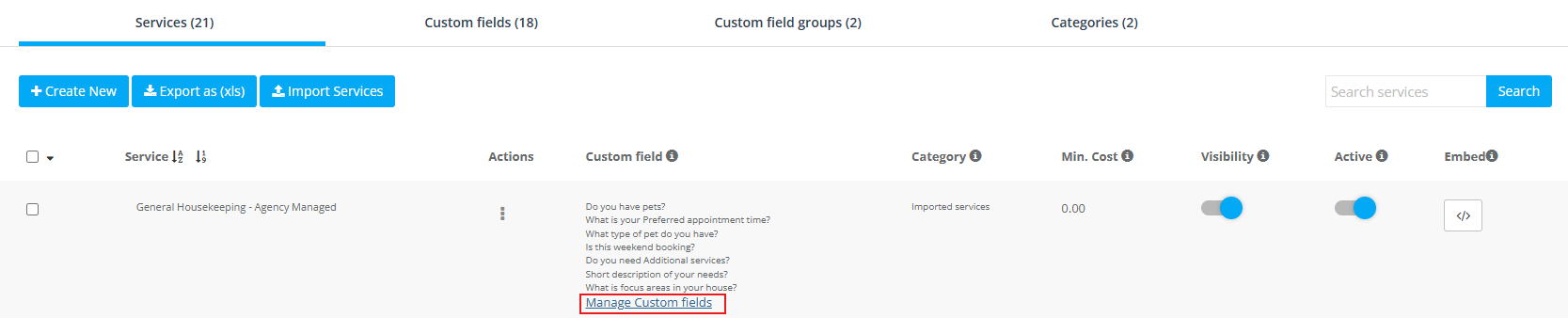
- Go to Settings → Service Settings → Services.
- Find your service and click Manage Custom Field.
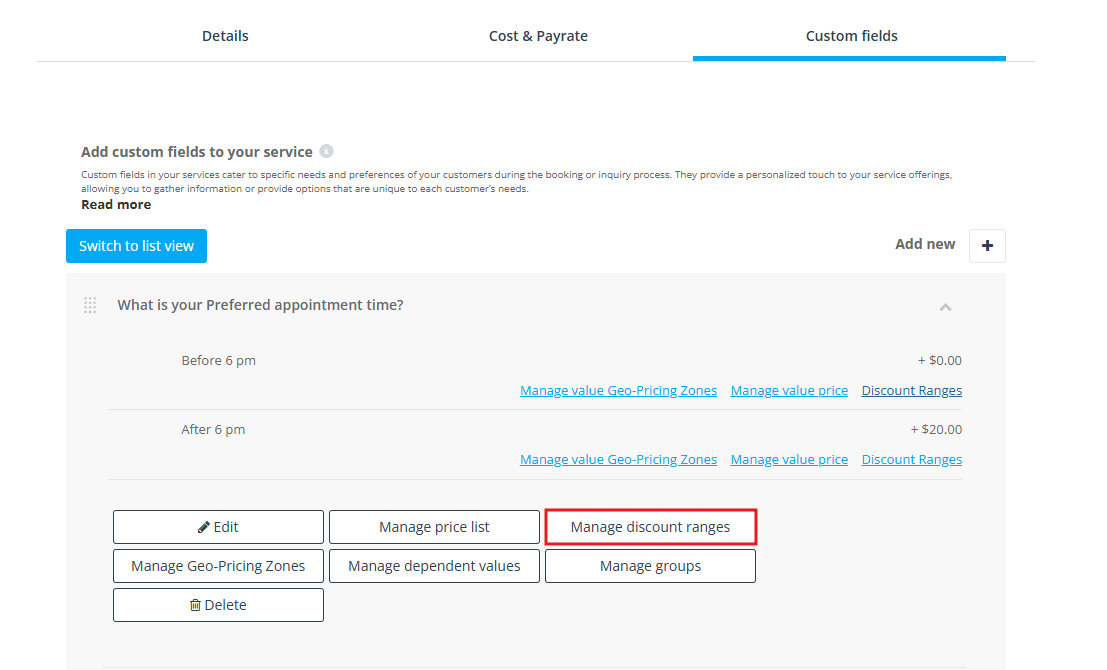
- Next to the required custom field value, choose Set Bulk-Discount Range.
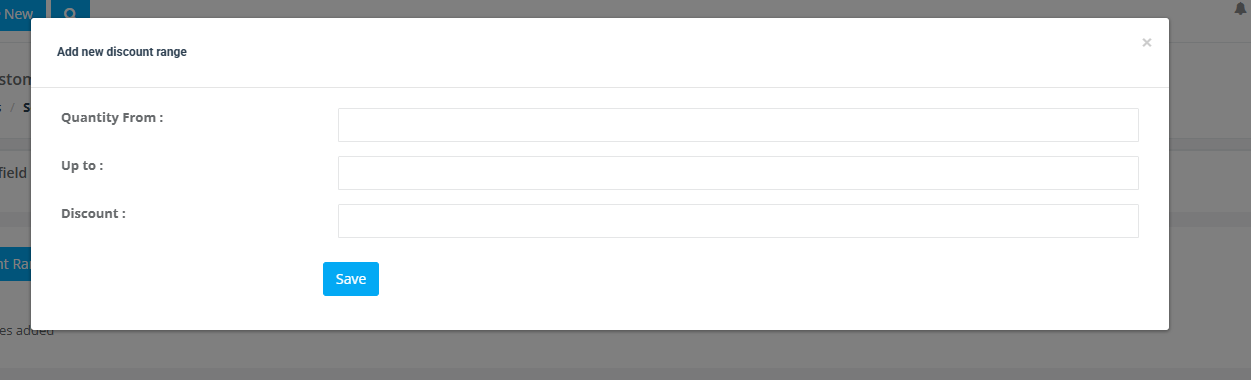
- Click Add Discount Range, enter the quantity range and discount type, then Save.
How it behaves:
- Auto-suggestion: when the option is selected and its quantity falls inside a configured range, OctopusPro suggests the discounted price line for that option.
- Admin override: office users and permitted fieldworkers can accept or adjust the suggestion.
- Customer portal: the discount applies automatically; customers cannot override it.
Quantity discounts vs. tiered unit pricing
| Feature | Quantity-Based Discount | Tiered Unit Pricing |
|---|---|---|
| Price logic | One discount line is applied to the subtotal when a threshold is hit. | Unit price changes to the tier/band that matches the final quantity. |
| Invoice display | Base unit price + separate discount row. | All units shown at the selected tier unit price. |
| Best for | Simple promos (e.g., 10% off 5+ items). | True step-down rate cards (e.g., $4/m² once order ≥ 51 m²). |
Example configurations
| Service | Base rate | Discount rule | Outcome |
|---|---|---|---|
| Industrial equipment install | $2,000 / machine | 15% off 5+ machines | 6 machines: $12,000 → $10,200 |
| HVAC maintenance | $120 / unit | 10% off 10–15 units | 12 units: $1,440 → $1,296 |
| Solar panel install | $250 / panel | -$25 per panel (100–199 panels) | 150 panels: (150 × $225) = $33,750 |
| Commercial painting | $3 / ft² | -$0.30 per ft² (10,000–19,999 ft²) + Extra Service Time | 12,000 ft²: $32,400 – $3,600 = $28,800 |
Best-practice tips
- Use clean, non-overlapping ranges: avoid overlapping thresholds so the correct discount is always unambiguous.
- Match ranges to your operational breakpoints: set thresholds where travel/setup costs are amortised (e.g., “4+ rooms”, “10+ units”, “100+ panels”).
- Use Extra Service Time for big jobs: protect your calendar from overbooking when the discount encourages larger quantities.
- Keep discounts easy to understand: customers respond best to simple rules (e.g., “10% off 5+ items”).
- Combine strategically: quantity discounts can be used alongside custom-field discounts and voucher codes to run clear campaigns without manual edits.
Troubleshooting & FAQs
The discount didn’t apply—why?
- The service has no quantity input: quantity-based discounts require a unit/hour quantity.
- The entered quantity isn’t inside a configured range: confirm your minimum/maximum thresholds.
- The discount was overridden: office users/fieldworkers may overwrite suggested discounts if permitted.
- You’re testing in the wrong workflow: confirm the service is being quoted/booked where the rule is active (quotes, bookings, and portal checkout).
Can customers edit the discount in the portal?
No. The customer portal applies the discount automatically and prevents customers from changing it—ensuring consistent pricing and margin control.
Do custom-field bulk discounts stack with service quantity discounts?
Yes. Option-level bulk discounts (custom field selections) are evaluated separately from the main service quantity discount. This is useful when you want the base service and add-ons to each have their own bulk rules.
Where should I start if I haven’t set up services or custom fields yet?
Related guides
- Creating a New Service
- Service Catalogue Overview
- Create a New Booking
- Custom Fields (Booking, Lead Capture & CRM Data)
- Attach Custom Fields to Services
- Number Stepper (Quantity) Custom Field
- Dependent Custom Fields (Conditional Logic)
- Custom Field Groups (Multi-Step Forms)
- Dynamic Geographical Pricing Zones
- Service Packages & Bundles
- Discount Voucher Code Management
To stay updated, please subscribe to our YouTube channel.