
Recent Issues & Complaints – History Log Report
The Recent Issues & Complaints History Log is your “early warning” report for service problems and customer complaints logged against bookings. It provides a live, time-stamped feed of newly reported issues—so managers and office staff can triage quickly, protect customer satisfaction, and reduce rework.
On this page
- What this report is (and what it’s not)
- Why it matters (benefits)
- How to open the report
- Understanding the grid (columns)
- All dashboard vs My dashboard
- Recommended triage workflow
- Best-practice tips
- Practical examples
- Frequently asked questions
- Related guides
What this report is (and what it’s not)
What it is: A History Log report that lists the most recent issues/complaints recorded in your account, each linked to the relevant booking. It’s ideal for daily monitoring and fast follow-up.
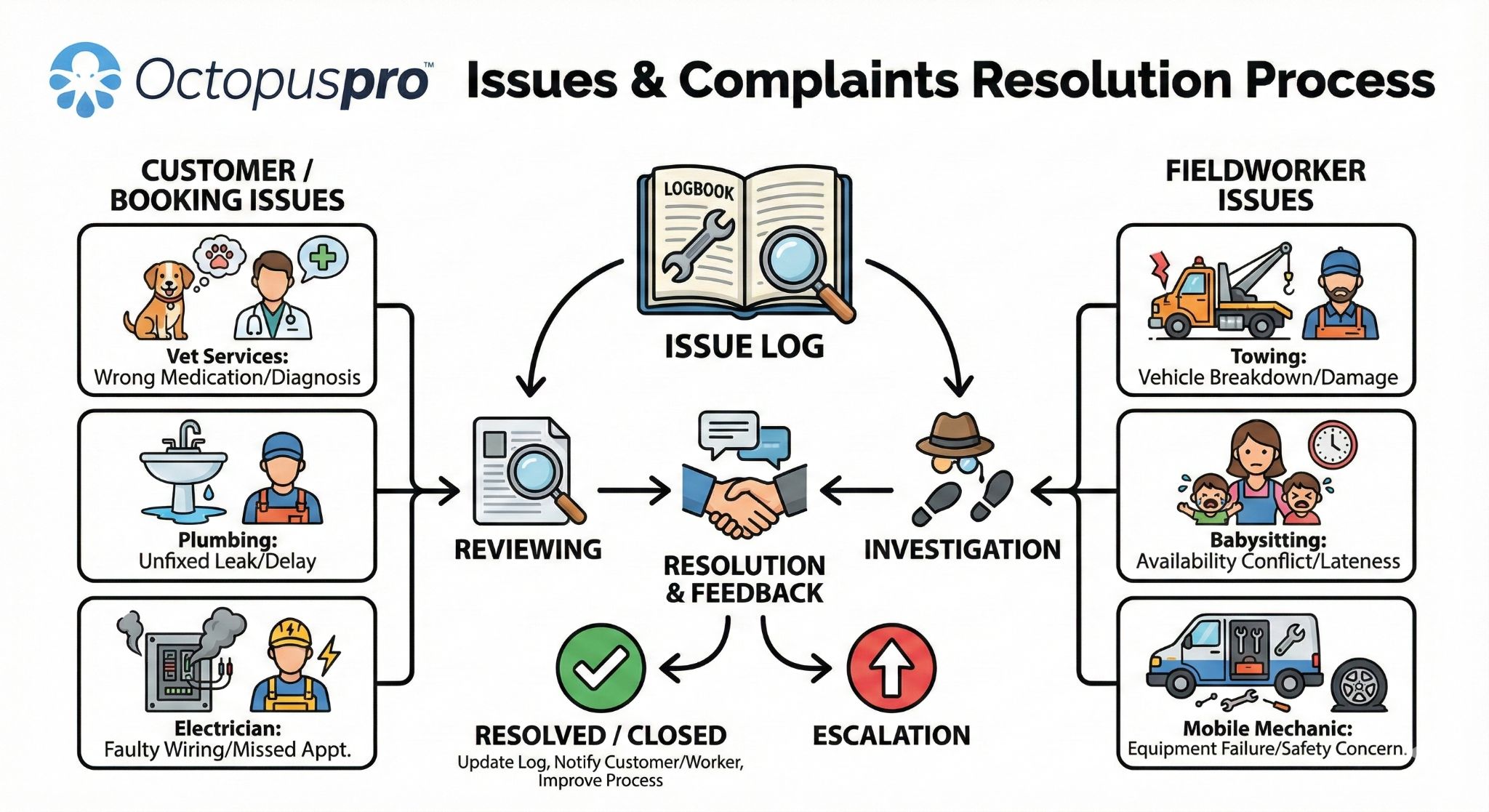
What it’s not: A full “case management” screen. To view the full complaint details, evidence (photos/files), internal notes, and take action (respond, update status, resolve/close, escalate), open the linked booking and manage the issue there.

To learn how issues are logged and managed on bookings/quotes/invoices, see: Issue & Complaint Handling for Quotes, Bookings & Invoices.
Why it matters (benefits)
- Faster response times: spot new complaints as soon as they’re logged and respond before they escalate.
- Better customer experience: acknowledge issues early, set expectations, and prevent bad reviews.
- Accountability: see who logged the issue and which booking it relates to.
- Operational visibility: identify recurring problems (quality, scheduling, access issues, no-shows) and fix root causes.
- Stronger audit trail: keep a central record of what was reported and when.
How to open the report
In the Admin Portal, go to:
Left Menu → Reports → History Log → Recent Issues
The grid loads with the most recent entries at the top. Use pagination to view older items.
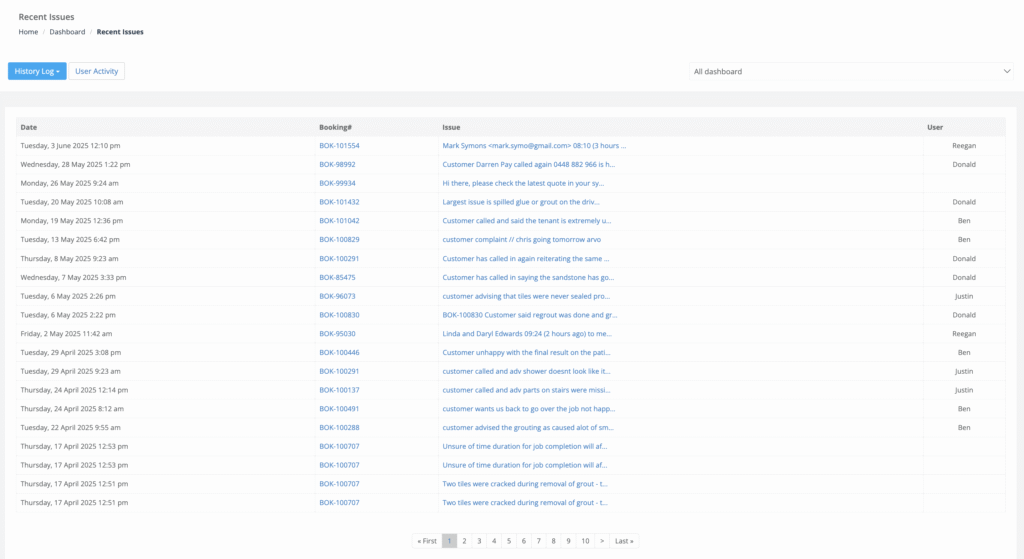
Understanding the grid (columns)
Each row represents an issue/complaint logged against a booking. Columns may vary slightly by account setup, but typically include:
| Column | What it means | How to use it |
|---|---|---|
| Date / Time | When the issue was created (or last updated in the log). | Check urgency and measure response time (SLA). |
| Booking # | The booking the issue is linked to (clickable). | Click to open the booking to view full details, evidence, notes, and next steps. |
| Issue | A short preview of the complaint text. | Scan and prioritise quickly (open the booking for the full message and attachments). |
| User | The staff member who logged or updated the issue. | Follow up internally if clarification is required or evidence is missing. |
Tip: The report is a fast “monitoring view.” For the full timeline (messages, attachments, outcomes), always drill down into the booking.
All dashboard vs My dashboard
Use the dashboard dropdown (top-right) to control which issues you see:
- All dashboard: shows issues across the business (ideal for managers, dispatch, and admin teams).
- My dashboard: limits the list to issues relevant to you (for example, issues you logged or are responsible for), depending on your role permissions and configuration.
Recommended triage workflow
Use a consistent workflow to speed up resolution and reduce escalations:
- Open the booking (click the Booking #).
- Confirm the details: what happened, where/when, and what the customer expects as an outcome.
- Review evidence: photos, files, notes, and discussion history.
- Assign ownership and set the next action (inspection, rework, refund review, call-back, etc.).
- Update status as work progresses (e.g., New → In Progress → Awaiting Approval → Closed), using your issue workflow.
- Communicate: acknowledge the issue, confirm next steps, and provide an ETA.
For resolution and closure workflows, see: Issue & Complaint Closure & Approval Workflow and Reopen a Closed Issue or Complaint.
Best-practice tips
| Tip | Why it matters |
|---|---|
| Use clear, searchable summaries (e.g., “Tile cracked in ensuite”) | Makes triage faster and improves reporting over time. |
| Attach evidence early (photos/files) | Speeds up decisions and reduces disputes and repeat visits. |
| Standardise severity/SLA (e.g., High / Medium / Low) | Helps teams prioritise consistently and meet response targets. |
| Review trends weekly | Spot root causes (training gaps, scheduling issues, product problems) and fix them system-wide. |
| Cross-check internal notes & discussions | Ensures the team’s actions are documented and resolution steps are clear. |

For discussion auditing, see: Discussions History Log.
Practical examples
| Scenario | Action from this report | Result |
|---|---|---|
| Customer complains about workmanship | Open the booking → review complaint note & photos → schedule rework/inspection → message customer with ETA. | Prevents escalation and improves retention/reviews. |
| Repeated issue type appears frequently | Weekly review → identify patterns → update training/checklists/templates → monitor trend next week. | Reduced repeat mistakes and rework costs. |
| Escalation to insurer / legal | Open booking → gather attachments and notes → preserve evidence per policy. | Faster documentation and a stronger audit trail. |
| Technician/department accountability | Switch to My dashboard (where applicable) → follow up on assigned items → ensure closure and customer update. | Fewer unresolved issues and better internal ownership. |
Frequently asked questions
- Can I filter by status (open vs resolved)?
Status is managed within your issue/complaint workflow. For best results, standardise statuses and ensure your team updates them consistently within the issue record linked to each booking. - Who can delete an issue/complaint?
This depends on your user role permissions. For best practice, restrict deletion permissions to trusted admin roles to protect your audit trail. - Are customers notified automatically?
Optional. You can enable automated acknowledgement and follow-up communications depending on your configuration and templates. - Is there a mobile view?
Fieldworkers can log issues (including photos) from the Fieldworker App (subject to permissions). Office users typically review and manage issues in the Admin Portal.
To manage permissions, see: Configuring User Roles, Permissions & Access Control and Fieldworker Permissions & Access Control.
Related guides
- Issue & Complaint Management (Customer Issue Tracking)
- Issue & Complaint Handling for Quotes, Bookings & Invoices
- Issue & Complaint Closure & Approval Workflow
- Reopen a Closed Issue or Complaint
- Discussions History Log
- Call History Log (Recent Calls)
To stay updated, please subscribe to our YouTube channel.