
Pause & Resume Automated Notifications for Invoices, Quotes & Bookings
Need to mute invoice reminders during a dispute, pause quote follow-ups while a customer is away, or temporarily stop booking confirmations during a schedule change?
OctopusPro lets you pause or resume automated email and SMS notifications at the record level (Invoice, Quote/Estimate, or Booking) so you can prevent tone-deaf reminders—without disabling your global automation rules for everyone else.

Related: Notifications are triggered by your automation rules (“Automated Procedures”). Learn how to set those up here: Automated Reminders & Confirmations (Automated Procedures).
Table of contents
- How Pause / Resume works
- Where to find Pause / Resume
- Step-by-step: Pause/Resume invoice reminders (example)
- Customer-level master pause (mute all auto-comms for one customer)
- View recent SMS conversations (delivery, replies & threads)
- Typical use cases
- Benefits
- Best-practice checklist
- Troubleshooting
- FAQs
- Related guides
How Pause / Resume works
- Pause Auto Reminders stops any queued and future scheduled automated notifications (email + SMS) for that specific record (invoice/quote/booking).
- Once paused, the action changes to Resume Auto Reminders.
- When you resume, OctopusPro recalculates the remaining reminder schedule from the moment you click Resume, based on your automation rules (for example, “3 days before due”).
- If a reminder step’s send-time is already in the past when you resume, that step is usually skipped and the next applicable step can proceed normally.
Note: Pausing does not undo messages already delivered. It only stops messages that have not been sent yet.
Permission gate: Only roles with the relevant “Notifications – Pause / Resume” permission will see these options. This prevents accidental silencing of critical customer communications.
Where to find Pause / Resume
You can pause/resume notifications from the Actions menu on the record you want to control:
| Record type | Where you click | What gets paused | What happens when you resume |
|---|---|---|---|
| Invoice | Invoice → Actions → Pause Auto Reminders | Invoice emails, SMS payment prompts/receipts (anything scheduled by your automation rules for that invoice) | Queued/future steps are recalculated from now (e.g., “3 days before due” re-queues if the due date is still ahead) |
| Quote / Estimate | Quote → Actions → Pause Auto Reminders | Quote follow-ups, acceptance nudges, deposit reminders (if configured) | The cadence restarts at the next applicable automation step |
| Booking | Booking → Actions → Pause Auto Reminders | Booking confirmations, reminders, schedule-change notifications (if configured) | Notifications resume with the next applicable trigger |
Need to pause everything (company-wide)? Disable the relevant automation(s) in your automation settings instead: Automated Procedures.

Step-by-step: Pause / Resume invoice reminders (example)
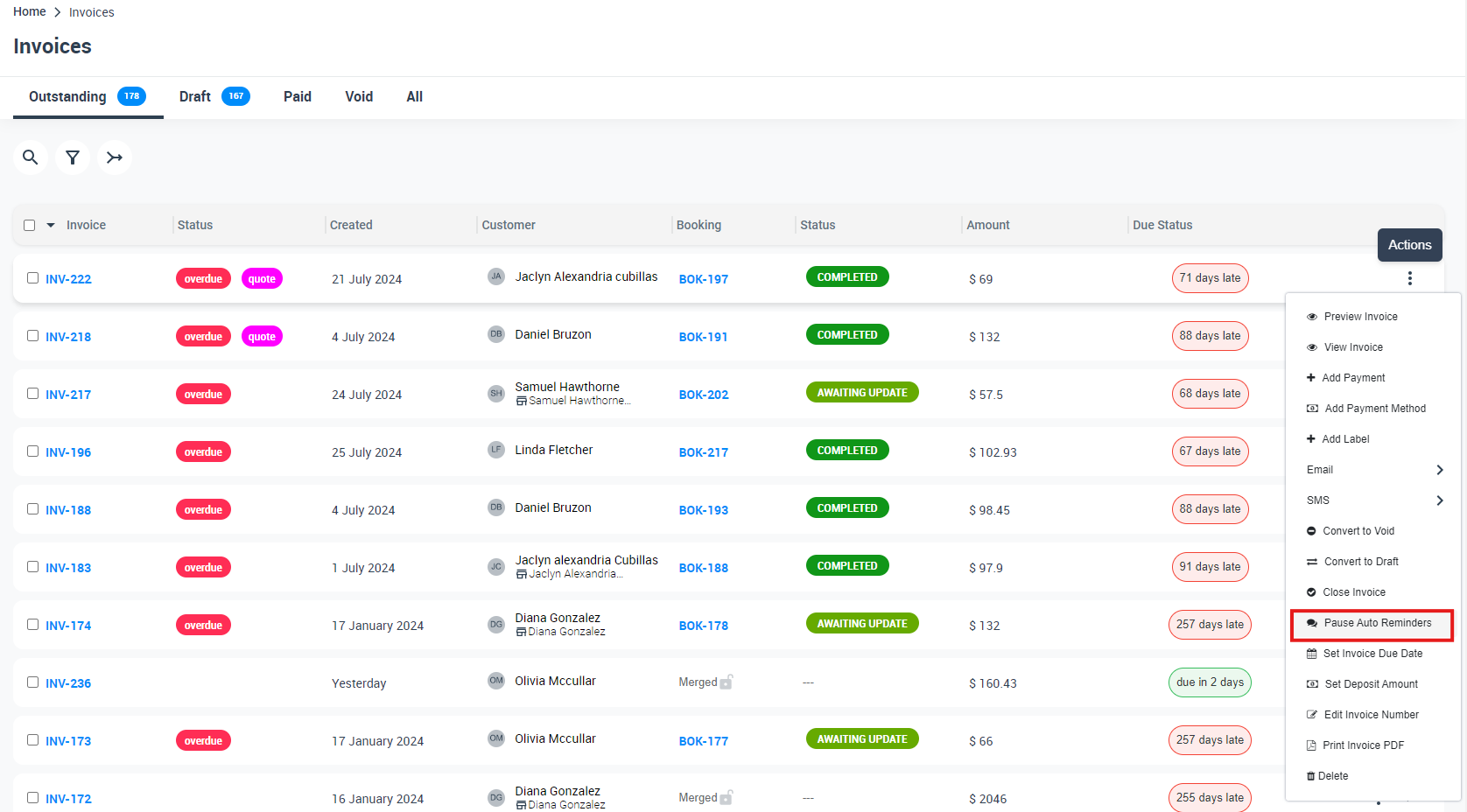
Option A: Pause from the invoices list
- Go to Invoices.
- Find the invoice, click Actions, then select Pause Auto Reminders.
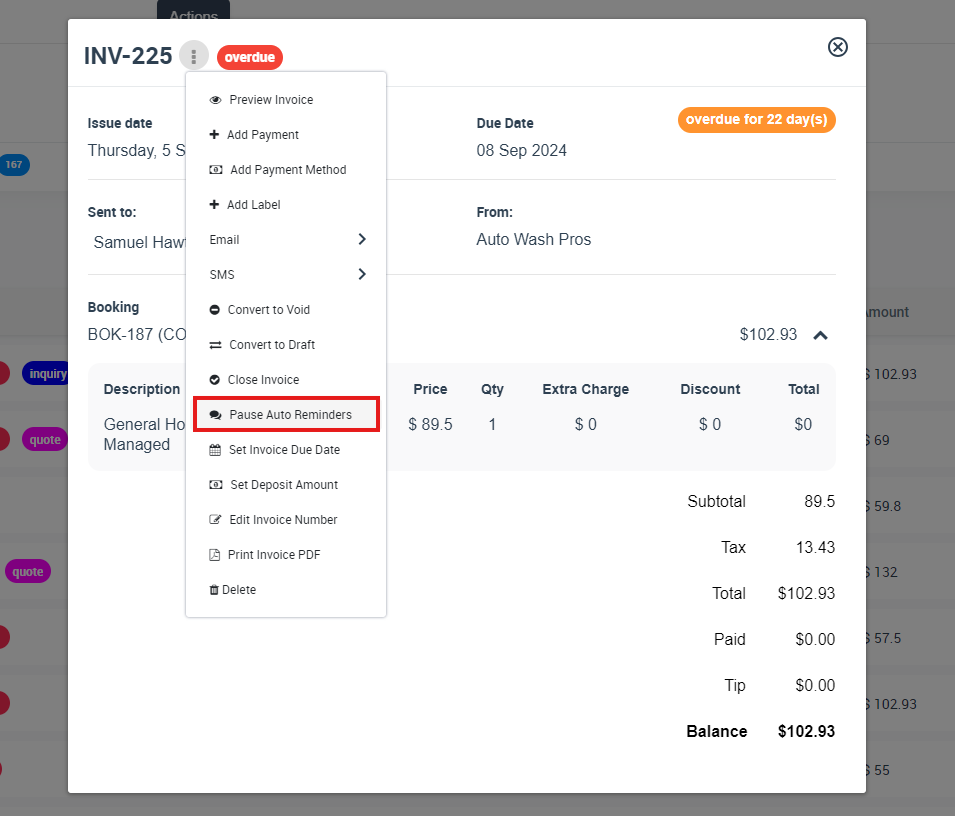
Option B: Pause inside the invoice
- Open the invoice.
- Click Actions → Pause Auto Reminders.
- Confirm. A banner/notice indicates that automated notifications are paused for that invoice.
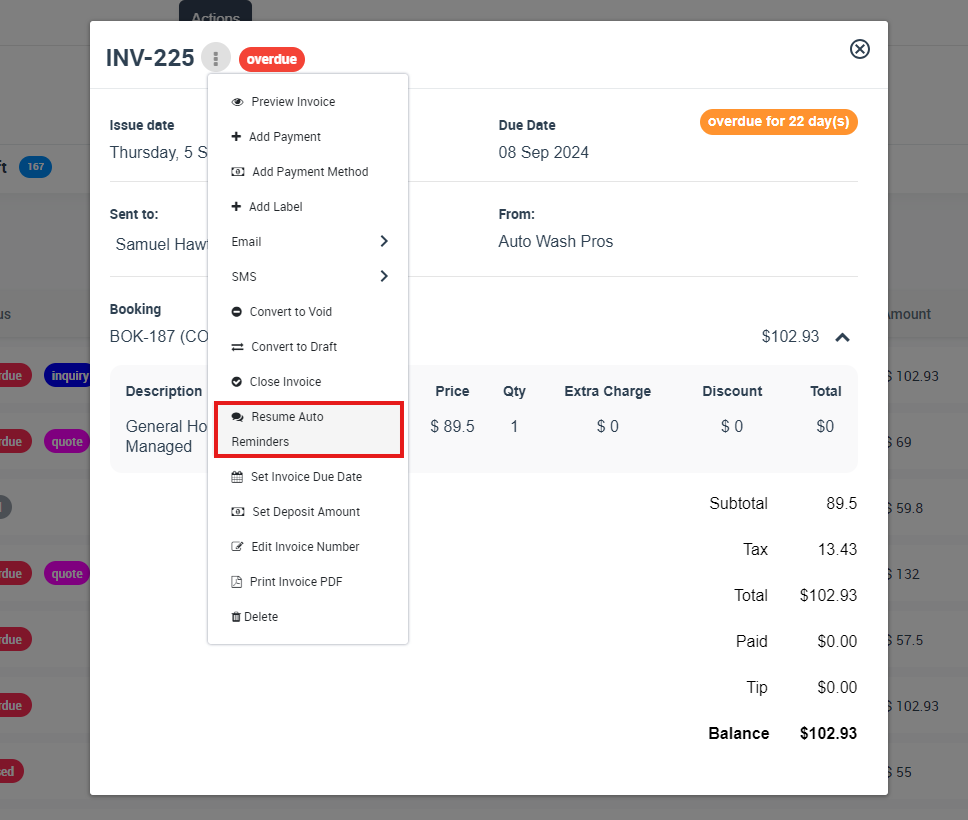
Resume later
- Open the same invoice.
- Click Actions → Resume Auto Reminders.
The same two-click flow applies to quotes and bookings (open the record → Actions → Pause/Resume Auto Reminders).
Customer-level master pause (mute all auto-comms for one customer)
If you need to silence all automated messages for a specific customer (across every invoice, quote, and booking), use the customer-level pause. This is ideal when multiple records are impacted (e.g., a dispute, contract renegotiation, or an opt-out request).
- Open any related invoice, quote, or booking for that customer.
- In the Customers card/panel, click the ⋮ Actions menu.
- Select Pause Auto Communications for Customer.
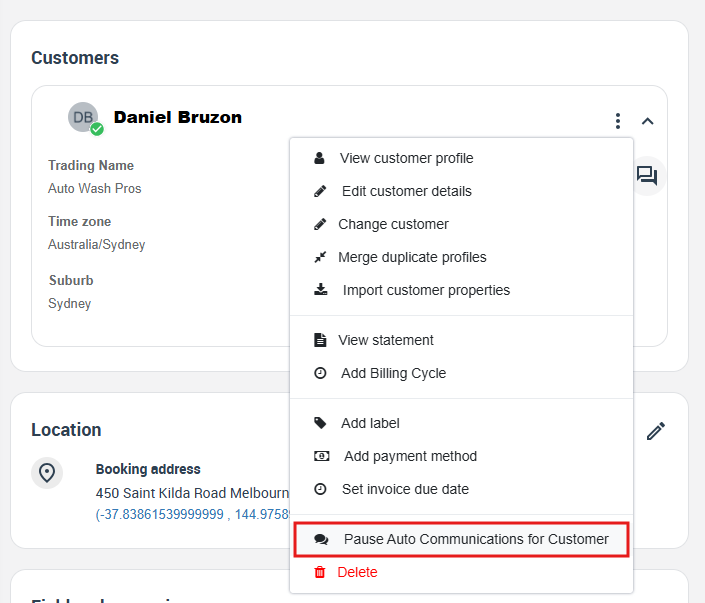
To resume: return to the same menu and select Resume Auto Communications for Customer.
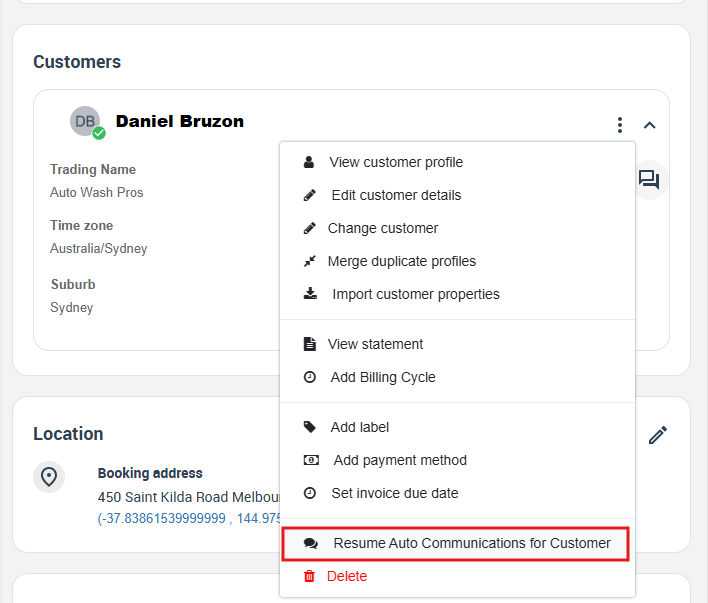
Why this is useful: Because the toggle lives in the customer action menu, you can pause/resume from any related record—without opening the full customer profile first.
View recent SMS conversations (delivery, replies & threads)
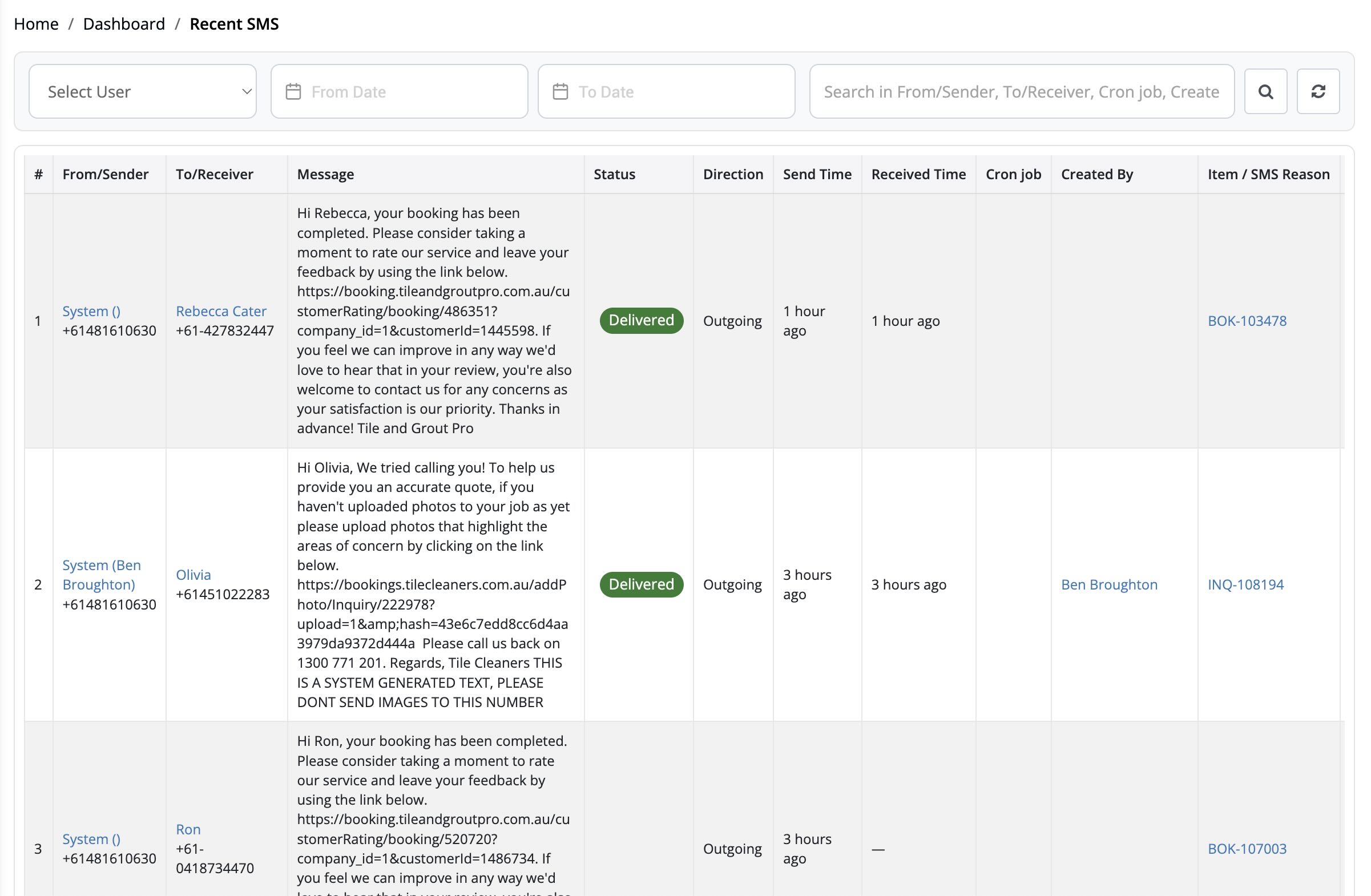
OctopusPro stores outbound reminders and inbound replies in a searchable Recent SMS log—so you can confirm delivery status, read the full message body, and view conversations in thread form.
How to open the Recent SMS log:
- Go to Reports → History Log → Recent SMS.
- Use search/filters to narrow by customer, fieldworker, date, direction (inbound/outbound), and status (sent/delivered/failed).
- Open a row and select View conversation to see the thread and reply without leaving the page.
Quick access: Click the Notifications bubble icon in the top bar to open the same page (then switch to “SMS” if needed).
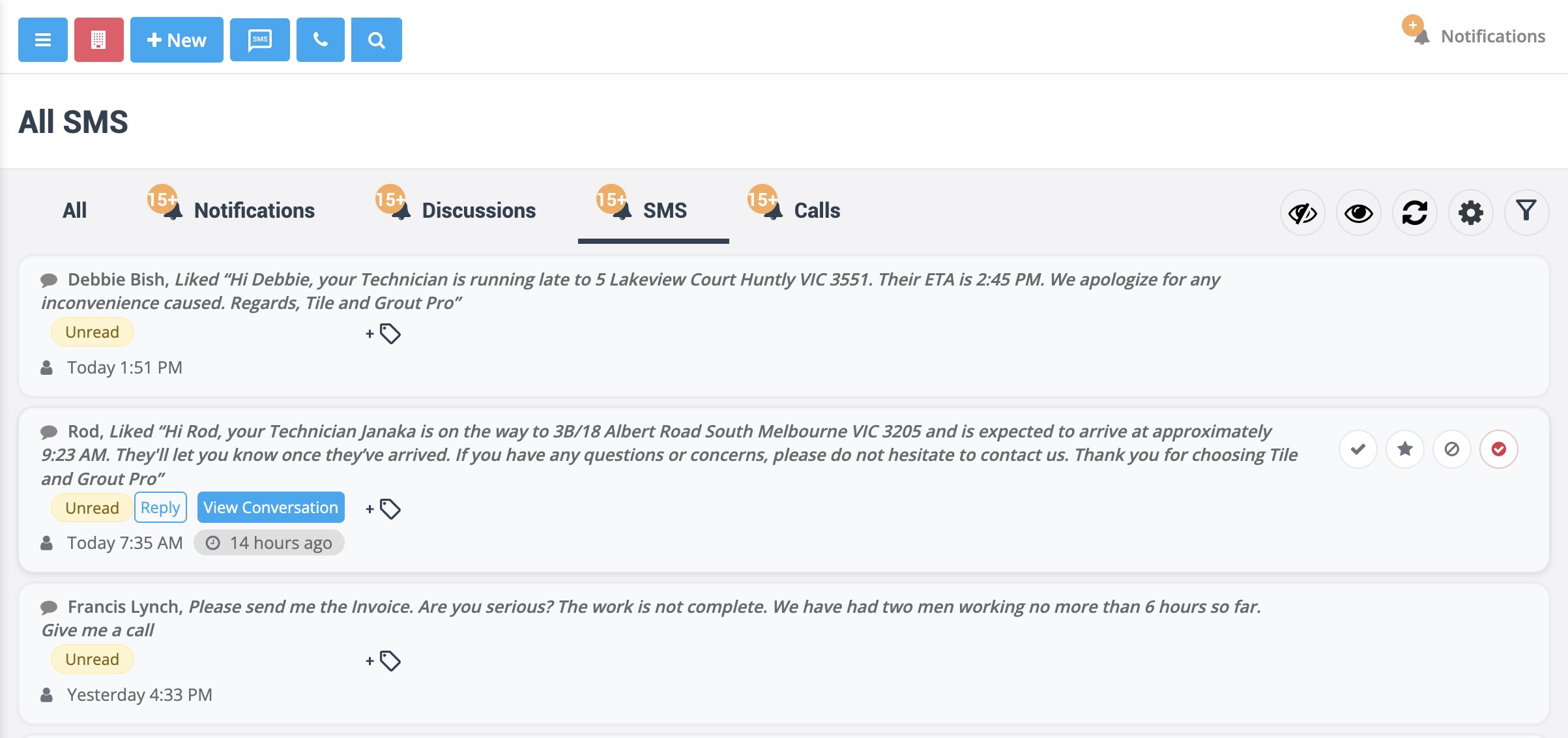
Customer drill-down: From the Customers panel on any record, you can use the customer actions menu to jump into a filtered SMS history for that customer (e.g., “View SMS history”).
SMS requirement: To send/receive SMS through OctopusPro, connect your phone system: Twilio Digital Phone System Setup.
For more detail on SMS logs and notifications: SMS History Log & Real-Time Notifications.

Typical use cases
- Disputed invoice: pause reminders while finance investigates to prevent “Please pay now” messages.
- Scope change / rescheduling: stop booking confirmations or reminders until the new plan is locked in.
- Seasonal shutdown / customer holiday: pause quote follow-ups and resume when business returns.
- Opt-out requests (compliance): quickly silence record-level SMS/email follow-ups without disabling templates globally.
Benefits
| Benefit | Why it matters |
|---|---|
| One-click control | Mute notifications for one record without cloning templates or turning off global automations. |
| Customer trust | Prevents tone-deaf reminders while an invoice is being reviewed or a schedule is changing. |
| Operational efficiency | Staff can pause/resume instead of manually rescheduling, deleting, or recreating automation steps. |
| Audit trail | Pause/Resume activity is recorded in the record’s activity stream so you can see who changed what and when. |
Best-practice checklist
| Recommendation | Why it helps |
|---|---|
| Pause before refunds, rewrites, or dispute letters | Prevents contradictory reminders from sending while amounts/terms are changing. |
| Resume as soon as the issue is cleared | Keeps your follow-up cadence on track and avoids unnecessary cashflow delays. |
| Add an internal note for longer pauses | Helps your team understand why notifications were muted (especially after handovers). |
| Use customer-level pause for broad situations | Silences every invoice/quote/booking at once—no need to pause record-by-record. |
| Restrict access via permissions | Prevents unauthorised staff from silencing critical communications. |
Tip: For deeper auditing and troubleshooting, use: Automations Log (Scheduled Tasks Execution History) and Customer Communication History.


Troubleshooting
- I can’t see “Pause Auto Reminders”. Your role may not have permission to pause/resume notifications. Ask an admin to update your role permissions.
- Reminders didn’t send after resuming. Confirm the record still matches the automation criteria (status, due date, filters, valid email/mobile). Then check the Automations Log.
- Emails are not delivering (or branding looks wrong). Configure your sender authentication: Business Email Authentication.
- SMS is not sending or replies aren’t appearing. Ensure your phone system is connected: Twilio Digital Phone System Setup.
Frequently Asked Questions (FAQs)
Does pausing cancel emails or texts that have already gone out?
No. Delivered messages remain in the customer’s inbox/phone. Pausing only stops messages that are still queued or scheduled for the future.
What exactly happens when I click “Resume Auto Reminders”?
OctopusPro recalculates every unsent step in the sequence from the moment you resume. For example, if a reminder is set for “3 days before due” and you resume while the due date is still in the future, that step can re-queue based on your rules.
What if a reminder was already overdue when I hit Pause?
Any step whose send-time is in the past may be skipped; the next rule in the cadence (e.g., “7 days after due”) can still go out once you resume.
Can fieldworkers pause or resume reminders?
Only if their role includes the “Notifications – Pause / Resume” permission. Many businesses keep this admin-only.
Can I mute every invoice for one customer in bulk?
Yes. Use Invoices → Advanced Search (filter by customer) → Bulk Actions → Pause Auto Reminders for the selected invoices.
What if I need to pause everything (invoices, bookings, and quotes) for one customer?
Use the customer-level toggle: from any related record, open the customer actions menu and select Pause Auto Communications for Customer. Resume the same way.
Does pausing notifications interrupt accounting integrations (e.g., Xero/QuickBooks)?
No. Accounting sync runs independently of outbound notifications; pausing only affects automated messages.
Will late fees or automatic surcharges still apply while reminders are paused?
Yes. Financial rules (late fees, interest, taxes) still calculate as configured—only outbound communications are paused.
Can I see who paused or resumed a reminder?
Yes. Each Pause/Resume event is time-stamped in the record activity stream with the user who performed the action.
Is there a global switch to pause reminders for all customers (e.g., public holiday)?
Yes. Disable the relevant automation(s) under your communications/automation settings, then re-enable when ready: Automated Procedures.
Related guides
- Automated Procedures (Automated Reminders & Confirmations)
- Automations Log (Scheduled Tasks Execution History)
- Customer Communication History (Email/SMS Log)
- Booking Communication (Email, SMS, Calls & Chat)
- Email Templates
- SMS Templates
- Template Placeholders (Merge Fields)
- SMS History Log & Real-Time Notifications
- Business Email Authentication
- Twilio Digital Phone System Setup
To stay updated, please subscribe to our YouTube channel.