
Filter Calendar by Area (Location-Based Filtering)
Location-based filtering lets you narrow your OctopusPro Calendar to show bookings within specific State/Region (service territories). This is ideal for dispatching teams across multiple locations, reducing travel time, and quickly understanding capacity in a particular area.
Use location-based filtering to:
- Reduce calendar clutter by showing only bookings within selected areas.
- Dispatch faster by focusing on the territory you’re managing right now.
- Improve route efficiency by grouping jobs within the same region.
- Manage multi-location operations (branches, regions, and field teams) from a single calendar.
- Combine with other filters (status, service, fieldworker, labels) to refine your view even further.
On this page
- How area filtering works
- Before you start
- Step 1: Open calendar filters
- Step 2: Filter by State/Region and Location type
- Step 3: Review, adjust, or clear filters
- Common use cases (examples)
- Tips & best practices
- Troubleshooting
- Related articles
How area filtering works
When you apply an area filter, the calendar updates to display only bookings that match the selected State/Region (and the selected Location type, if applicable). This is a view-only filter—it does not change your bookings. You can remove or adjust filters at any time.
What is “Location type”?
Location type controls which booking location/address should be used for filtering. This is helpful if your account supports multiple service delivery models (for example, mobile/on-site vs storefront vs remote). If you’re unsure which to choose, review your service delivery setup here: Configure Booking Location Types (Service Delivery Types).
Before you start
- Confirm booking addresses are complete: bookings must have an address saved with a valid State/Region to appear when filtered.
- Confirm the correct Location type: if you select the wrong location type, matching bookings may be hidden.
- Remote/virtual bookings: if a booking does not use an address (remote service), it may not appear under area filtering depending on your configuration.
Step 1: Open calendar filters
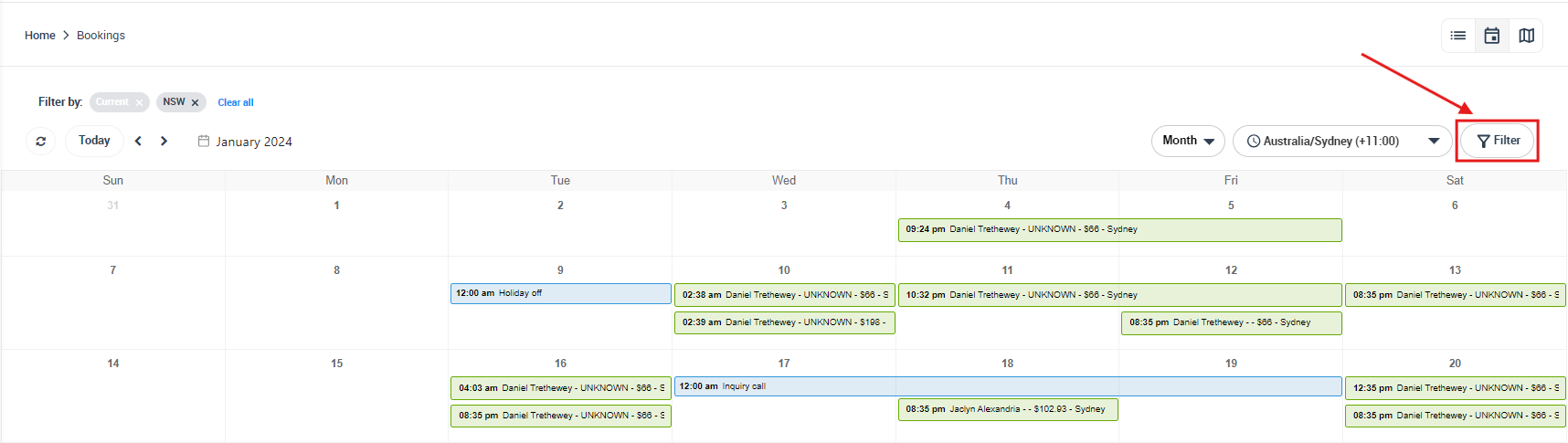
Go to Bookings > Calendar, then click Filter (top-right). This opens the Filters panel.
Step 2: Filter by State/Region and Location type
In the Filters panel, set the following fields:
- State / Region: select one or multiple areas you want to display.
- Location type: choose which booking location/address type to use for filtering (options depend on your setup).
Then click Filter to apply.

Step 3: Review, adjust, or clear filters
After applying the filter, your calendar will show only bookings that match your selected area(s). For example, if you select NSW, you’ll only see bookings scheduled in NSW (based on the selected location type).
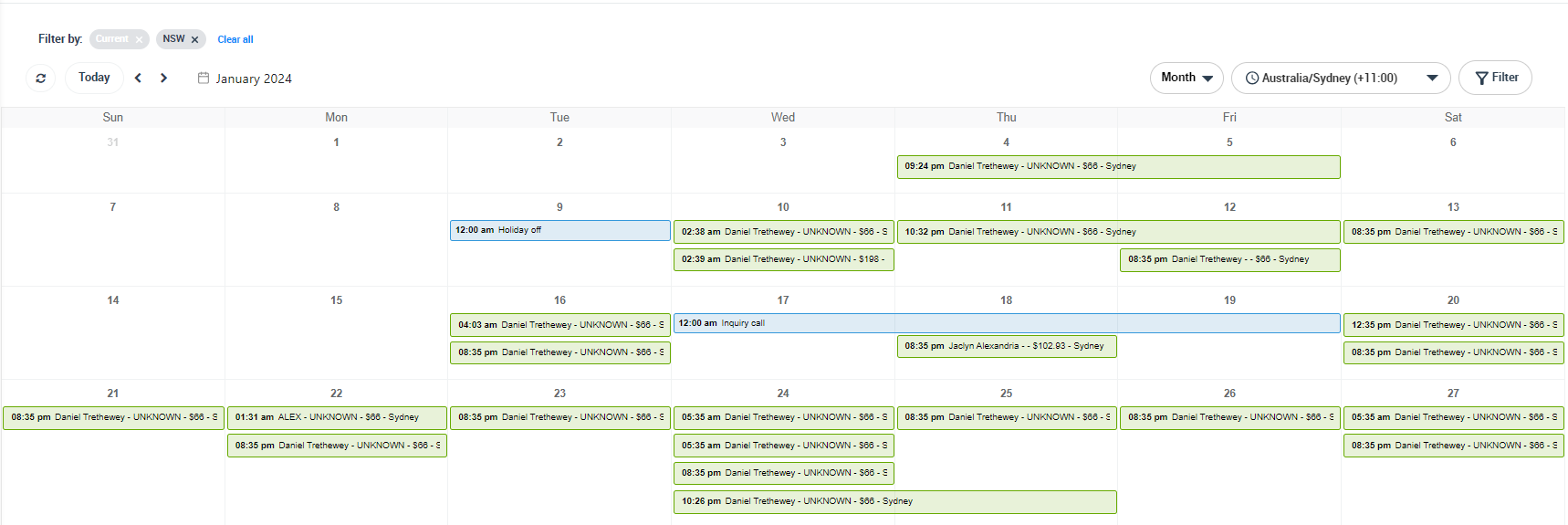
- Adjust filters: click Filter again and update your selections, then click Filter to refresh the view.
- Clear filters: use Clear all (where available) or remove selected values, then click Filter again to return to the full calendar.
Common use cases (examples)
- Territory dispatch: filter to a region and assign additional jobs to fieldworkers already working in that area to reduce travel time.
- Multi-branch operations: switch between regions to manage multiple teams from one calendar without overlapping schedules.
- Capacity planning: identify days with lighter workload in a region and proactively fill gaps.
- High-volume scheduling: combine area filtering with booking status (e.g., Upcoming) to focus only on jobs that still need action.
Tips & best practices
- Combine filters for precision: Area + Booking Status + Fieldworker is a powerful dispatch workflow.
- Standardize address entry: consistent address details (especially State/Region) improves filtering accuracy and reporting.
- Use the best view for the job: Week View for balancing workload, Day View for same-day dispatch, and Month View for high-level planning.
- Align service areas with teams: if you dispatch by territory, configure fieldworker coverage zones here: Fieldworker Service Areas.
Troubleshooting
I applied an area filter but I can’t see a booking.
- Confirm the booking has an address with a valid State/Region.
- Try a different Location type (the booking may store location under another type).
- Check whether other filters (service, status, fieldworker, labels) are excluding the booking.
- Clear all filters and reapply only State/Region to confirm what’s narrowing the results.
Does filtering change bookings or assignments?
No. Filters only change what you see on the calendar. Your bookings, times, and assignments remain unchanged.
Related articles
- Calendar – Scheduling and Dispatching
- Calendar Month View
- Calendar Week View
- Calendar Day View
- Calendar List View
- Add New Bookings from the Calendar
- Block Unavailable Date and Time
- Adding Notes to Calendar Dates
- Filter Calendar by Booking Status
- Filter Calendar by Fieldworker
- View Fieldworker Google Calendar
- Configure Booking Location Types (Service Delivery Types)
- Fieldworker Service Areas
To stay updated, please subscribe to our YouTube channel.