
[vc_row][vc_column width=”1/4″][vc_widget_sidebar sidebar_id=”sidebar-1″][/vc_column][vc_column width=”3/4″][vc_column_text]
WhatsApp Integration via Meta
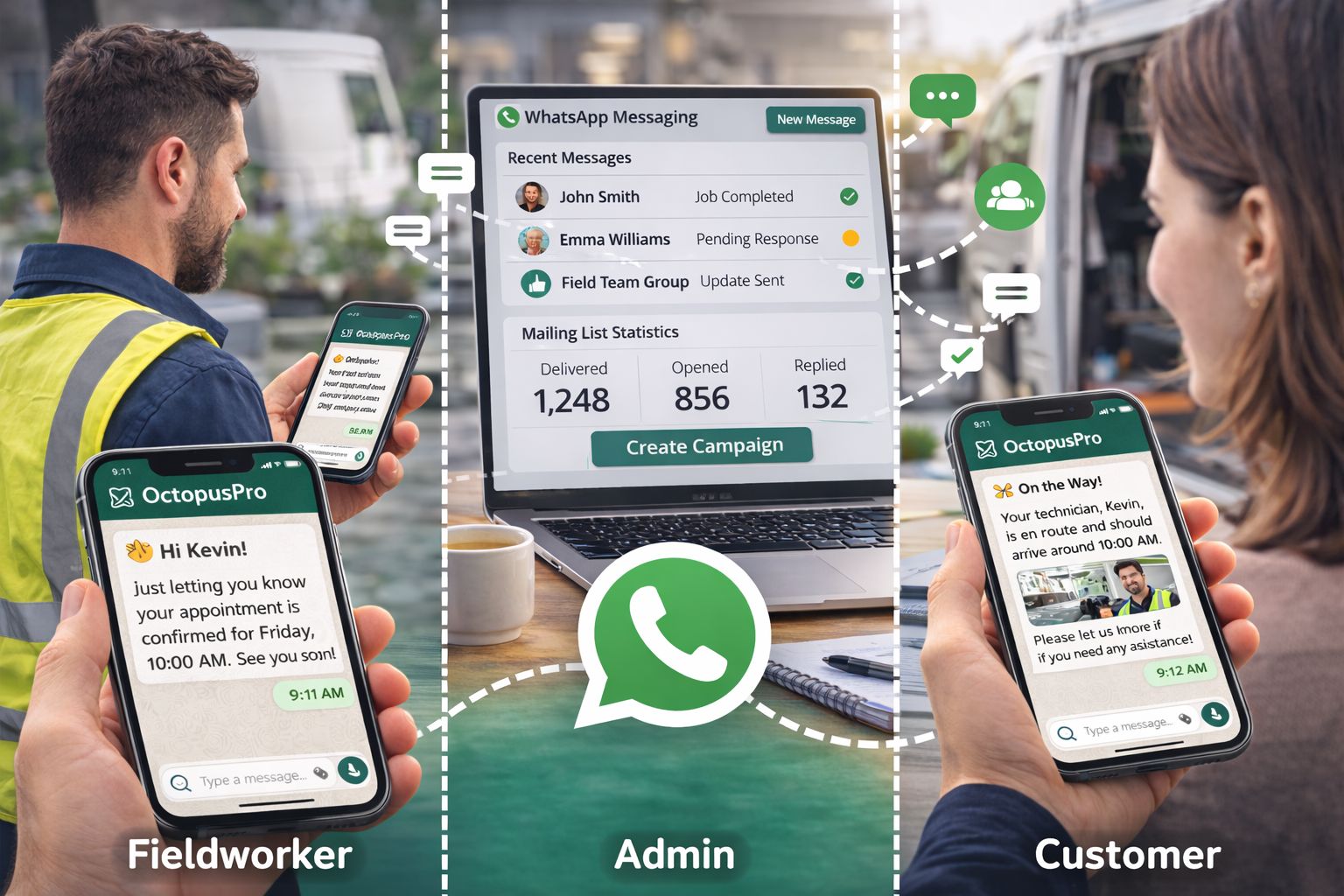
WhatsApp Integration allows you to connect your WhatsApp Business account to OctopusPro through Meta so you can send and receive WhatsApp messages directly from your OctopusPro account. This gives your business a professional, widely used communication channel for customer messaging, fieldworker messaging, automated notifications, and targeted bulk messaging through mailing lists.
Once enabled, WhatsApp can be used in many of the same communication workflows where service businesses would normally use SMS, including booking confirmations, booking reminders, status updates, follow-ups, acknowledgements, internal coordination, and campaign messages. It is especially useful for businesses that want faster response times, better message visibility, and more centralized communication management.
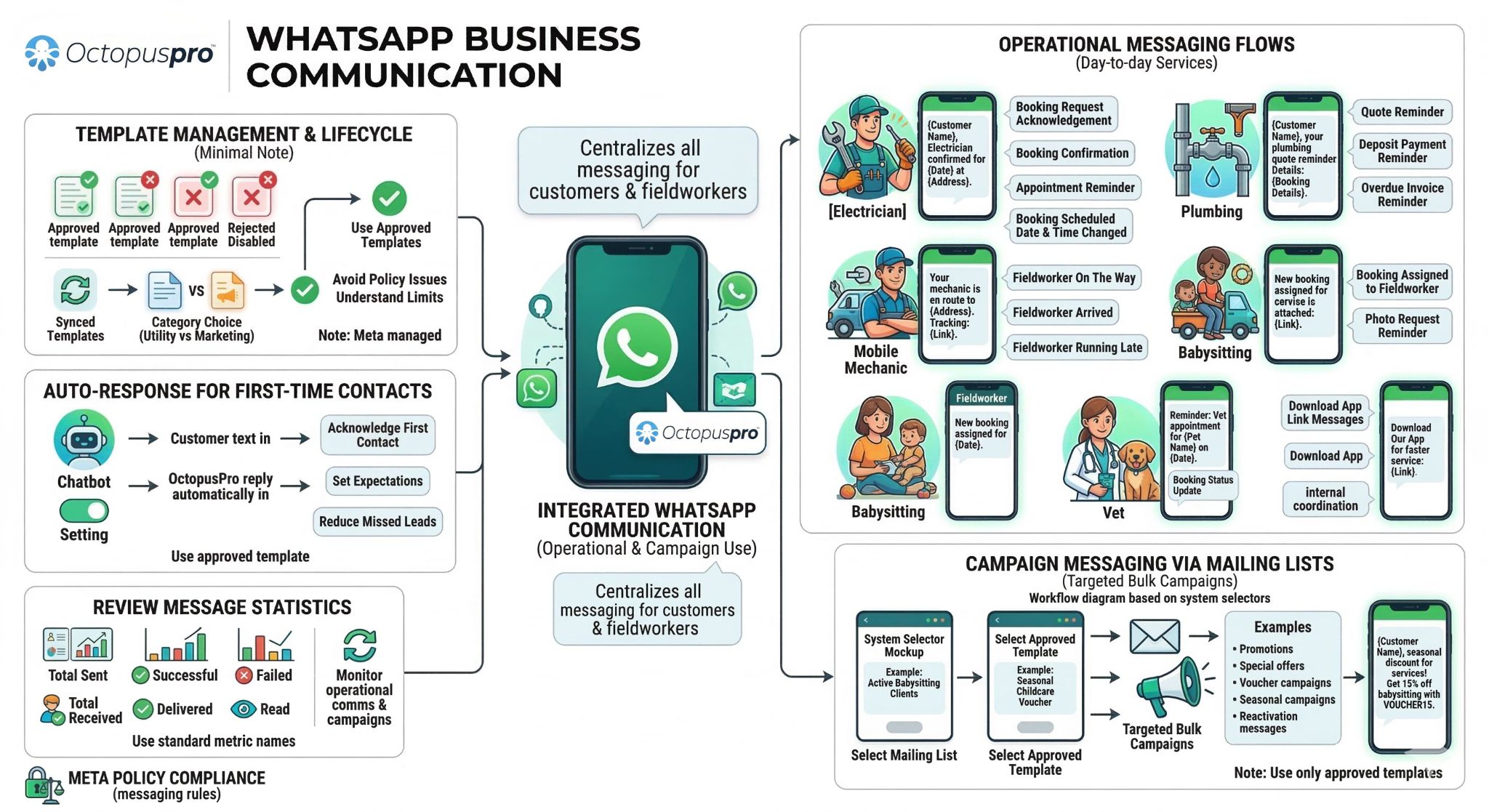
In OctopusPro, WhatsApp is configured from Settings > Communications > WhatsApp Integration and connected through Meta / WhatsApp Business. This setup is separate from your other communication channels because WhatsApp Business account connection, template approval, template categories, template status, and some delivery controls are managed by Meta.
Table of contents
- What is WhatsApp Integration?
- Why use WhatsApp in OctopusPro?
- What you can do with WhatsApp Integration
- Before you start
- Connect your WhatsApp Business account
- Enter your Meta PIN code
- Understand the connected account details
- Enable auto-response for first-time contacts
- Review message statistics
- Sync and manage WhatsApp templates
- Understand WhatsApp template categories
- How Meta approvals work
- Template statuses, quality, and limits
- Review and edit WhatsApp templates
- Use WhatsApp for operational messaging
- Send WhatsApp messages to mailing lists
- Best practices
- Meta and WhatsApp policy compliance
- Troubleshooting tips
- Related guides
What is WhatsApp Integration?
WhatsApp Integration connects your WhatsApp Business account to OctopusPro through Meta so your business can use WhatsApp as an approved business messaging channel inside the platform. This helps centralize communication and makes it easier to manage customer and fieldworker messaging without relying on personal devices or disconnected apps.
Instead of using WhatsApp separately from your operational workflow, OctopusPro lets you use it as part of a structured communication system. That means your business can manage WhatsApp messaging in connection with bookings, reminders, fieldworker notifications, customer follow-ups, and mailing-list campaigns.
Depending on your setup and approved templates, WhatsApp can be used for:
- booking request acknowledgements
- booking confirmations
- appointment reminders
- booking status updates
- fieldworker on-the-way and running-late notifications
- quote reminders and follow-ups
- invoice and payment reminders
- download app link messages
- photo request reminders
- first-contact auto-responses
- bulk WhatsApp campaigns sent to mailing lists
Why use WhatsApp in OctopusPro?
Many service businesses already use SMS for confirmations, reminders, and updates. Adding WhatsApp gives you another highly visible, mobile-friendly communication channel that many customers and fieldworkers already use every day. In many cases, WhatsApp messages are easier to notice and respond to than email, while also supporting a more modern messaging experience than standard SMS.
Using WhatsApp in OctopusPro can help you:
- improve customer response times
- reduce missed or overlooked messages
- keep customers informed before, during, and after service
- send fast updates to fieldworkers in the field
- automate high-volume routine communication
- standardize outbound messaging with approved templates
- run targeted campaigns using mailing lists
- manage communication from one business system instead of multiple tools
What you can do with WhatsApp Integration
Once connected, WhatsApp can be used for both operational messaging and campaign messaging.
Operational messaging includes messages that support day-to-day service delivery, such as:
- booking request acknowledgement
- booking confirmation
- booking reminder
- booking scheduled date and time changed
- booking assigned to a fieldworker
- fieldworker is on the way
- fieldworker is running late
- fieldworker has arrived
- quote reminder
- deposit payment reminder
- overdue invoice reminder
- download our app links
Campaign messaging includes messages such as:
- promotions
- special offers
- voucher campaigns
- seasonal campaigns
- reactivation messages
- mailing-list campaigns for selected audiences
Before you start
Before setting up WhatsApp Integration, make sure you have access to the Meta business account used to manage your WhatsApp Business account and that you have permission to complete the connection process.
You should also understand that WhatsApp Business messaging is governed by Meta and WhatsApp Business rules. Some outbound messages require approved templates, and some marketing or promotional use cases may also require specific customer opt-in and policy compliance.
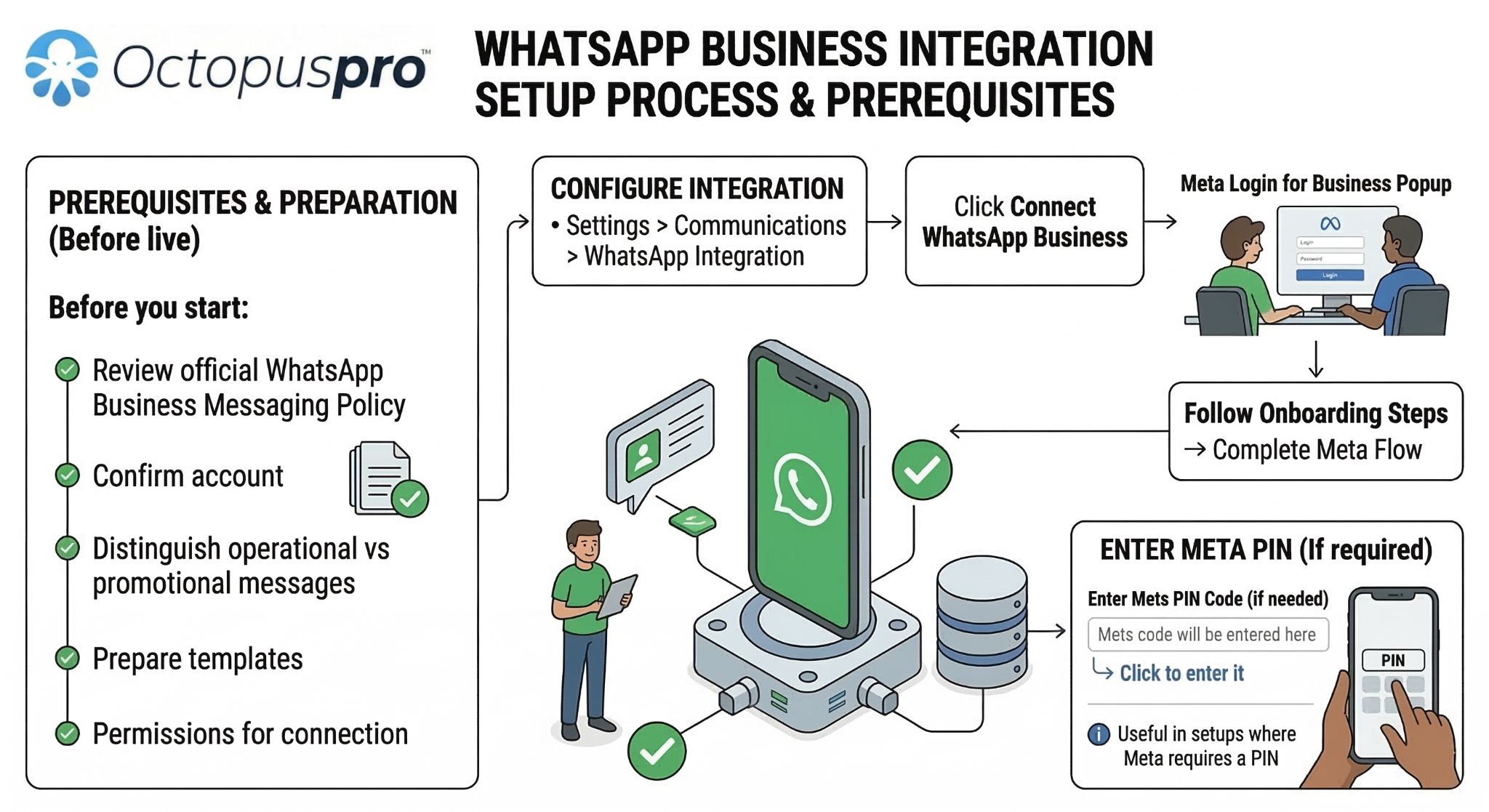
Before going live, it is a good idea to:
- confirm which WhatsApp Business account and phone number will be connected
- identify which messages are operational and which are promotional
- prepare the templates you want to use
- make sure your business has the required permissions and approvals in Meta
- review the official WhatsApp Business messaging policy
Connect your WhatsApp Business account
To connect your WhatsApp Business account in OctopusPro:
- Go to Settings > Communications > WhatsApp Integration.
- In the Connect your WhatsApp Business account section, click Connect WhatsApp Business.
- A Meta or Facebook Login for Business window will open.
- Follow the onboarding steps to connect your WhatsApp Business account to OctopusPro.
- Complete the Meta flow and return to OctopusPro.
Meta will guide you through the account connection steps and required permissions. Once completed, OctopusPro will display the connection status and your account details.
Enter your Meta PIN code
If you already have a Meta PIN code, you can enter it directly from the WhatsApp Integration page by clicking Click to enter it and entering the PIN in the field provided. This is useful in setups where Meta requires a PIN during the connection process.
If you do not already have a Meta PIN code, you can continue through the standard connection flow instead.
Understand the connected account details
After the account is connected, OctopusPro shows a summary of the current WhatsApp connection. This section helps confirm that the correct account has been linked and gives you quick visibility into the integration status.
Depending on your account, this section may show:
- business name
- business ID
- phone number
- WhatsApp Business Account ID
- company name
- number of templates
- number of failed templates
- account status
- total messages
This is useful for confirming that the correct WhatsApp Business account is active and that templates and message activity are being synced successfully.
Enable auto-response for first-time contacts
In the Settings section of the WhatsApp Integration page, you can enable auto-response for first time contacting clients. When enabled, OctopusPro automatically sends a response to customers who contact your business for the first time through WhatsApp.
This can help your business:
- acknowledge first contact immediately
- set expectations for response times
- reduce the chance of missed new leads or inquiries
- maintain a more professional first-response experience
If OctopusPro shows a warning that auto-response templates are missing, you need to sync the relevant WhatsApp templates first. Auto-response depends on an appropriate approved template being available.
Review message statistics
The Messages Statistics section gives you visibility into WhatsApp messaging activity and performance directly inside OctopusPro. This helps you monitor usage, identify delivery issues, and understand whether messages are being sent and opened successfully.
Depending on your account activity, this section may display:
- Total Sent Messages – the total number of outbound WhatsApp messages sent
- Successful – messages successfully processed
- Failed – messages that failed to send or process
- Total Received – inbound WhatsApp messages received
- Delivered – messages confirmed as delivered
- Read – messages confirmed as read
These metrics are useful for monitoring both operational communication and campaigns. Use the refresh icon when you want to update the displayed results.
Sync and manage WhatsApp templates
The Templates section in WhatsApp Integration is where you sync and manage the WhatsApp templates available to your account. These templates are important because many business-initiated messages require approved templates, especially outside the customer service window.
From this section, you can:
- sync templates from Meta into OctopusPro
- search templates
- sort templates by display name, status, category, message count, last update, item type, or receiver type
- review whether a template is approved and ready to use
- see which templates are for customers and which are for fieldworkers
- review how templates are linked to specific workflows
The template table may include fields such as:
- Display Name
- Name
- Category
- Status
- Item Type
- Receiver Type
- Last Update
- Last Error
- Message Count
Templates may be linked to different receiver types and item types such as:
- customer
- fieldworker
- booking
- inquiry
- customer profile
- fieldworker profile
Understand WhatsApp template categories
Meta currently defines three main WhatsApp template categories:
| Category | What it is used for | Common examples |
|---|---|---|
| Utility | Transactional or service-related messages sent to support an existing customer action, service workflow, or account event. | Booking confirmations, booking reminders, schedule changes, fieldworker on-the-way updates, overdue invoice reminders, quote reminders, payment reminders. |
| Marketing | Promotional or commercial messages intended to drive awareness, engagement, sales, or reactivation. | Discount offers, voucher campaigns, seasonal promotions, service offers, reactivation messages, promotional mailing-list campaigns. |
| Authentication | Identity verification or one-time passcode messaging used in login or verification workflows. | Login codes, verification codes, one-time passcodes. |
For most OctopusPro service-business use cases, the most relevant categories are Utility and Marketing.
Utility templates are generally the correct choice for operational communication such as:
- booking request acknowledgement
- booking confirmation
- booking reminder
- booking scheduled date and time changed
- fieldworker is on the way
- fieldworker is running late
- fieldworker has arrived
- quote reminder
- overdue invoice reminder
- deposit payment reminder
Marketing templates are generally the correct choice for communication such as:
- discount offers
- voucher promotions
- seasonal campaigns
- reactivation messages
- promotional mailing-list campaigns
- non-transactional offers or sales messages
Authentication templates are typically used for verification-related workflows rather than standard service delivery workflows.
Choosing the correct category matters because Meta reviews templates against their actual purpose. If a template contains promotional or sales-oriented content, Meta may re-categorize it as Marketing even if it was originally submitted as Utility.
How Meta approvals work
Meta controls approval for the WhatsApp Business account, the templates used by the account, and the category assigned to each template. This means your business cannot assume that a new or edited template is immediately ready to use just because it exists in OctopusPro.
Meta review can affect:
- the connected WhatsApp Business account
- whether a template is approved or rejected
- which category a template belongs to
- whether a template remains usable after it has been edited
In practical terms, this means:
- new templates may need Meta approval before they can be used
- edited templates may need Meta review again
- template categories can be changed by Meta if the message content does not match the selected category
- the connected account must remain in good standing with Meta
The screenshots also show that Meta may send email notifications when:
- a WhatsApp Business account is granted or connected in Business Manager
- a WhatsApp template state changes
- a WhatsApp template is approved
- a template category is updated by Meta
If a template is approved or changed in Meta, it should then be synced into OctopusPro so the latest status is visible in the Templates section.
Template statuses, quality, and limits
Meta can assign and change template states over time. In practice, templates may move through statuses such as pending review, approved, rejected, paused, or disabled depending on review results, quality signals, and customer feedback.
Important things to understand:
- an approved template can be used when it meets Meta’s messaging rules
- a rejected template cannot be used until corrected and approved
- a paused or disabled template cannot be sent while that state remains in place
- Meta can change a template’s category if the content does not match the intended category
- Meta can apply quality controls and messaging limits, especially for marketing templates
Meta also uses quality and delivery signals to determine how templates perform. For example, customer feedback and engagement can affect template quality, and Meta may limit the number of marketing template messages a person receives if that person is less likely to engage with additional marketing messages.
Messaging limits and delivery behavior are controlled by Meta, not by OctopusPro. Template performance, category, approval, and message limits can all influence whether a template can be sent reliably at scale.
The template editing screen also shows that changes to template bodies may be limited. This is important because template editing is not an unrestricted process. Businesses should draft template content carefully, minimize unnecessary edits, and treat template changes as controlled actions that may trigger Meta review.
Review and edit WhatsApp templates
When you open a WhatsApp template in OctopusPro, you can review details such as:
- name
- display name
- receiver type
- item type
- Meta status
- template message body
You can also use actions such as:
- Preview WhatsApp Template
- View default template
- View available placeholders
- Save
This helps confirm that the template content is appropriate for the selected workflow and that the correct placeholders will be inserted when the message is sent.
Examples of WhatsApp templates shown in OctopusPro may include:
- booking reminder
- booking has been assigned
- booking has been completed
- booking request acknowledgment
- fieldworker is on the way
- fieldworker is running late
- overdue invoice reminder
- quote reminder
- photo request reminder
- download our app links
Use WhatsApp for operational messaging
Once connected, WhatsApp can be used in many of the same communication scenarios where businesses normally rely on SMS. This helps you keep customers and fieldworkers informed using a familiar and more interactive messaging channel.
Common operational use cases include:
- sending booking confirmations by Email, SMS, and WhatsApp
- sending automated reminders and confirmations
- sending booking request acknowledgements
- sending fieldworker on-the-way messages
- sending fieldworker arrived notifications
- sending schedule-change notifications
- sending payment reminders and overdue invoice reminders
- sending quote reminders and follow-ups
- sending internal updates to fieldworkers
To keep these messages accurate and personalized, OctopusPro supports template placeholders for Email, SMS, and WhatsApp templates. These placeholders automatically insert live data such as customer names, booking details, dates, links, addresses, and company information into the message.
Send WhatsApp messages to mailing lists
OctopusPro also supports sending WhatsApp messages to mailing lists. This allows you to run targeted bulk messaging campaigns using approved WhatsApp templates. It is useful for promotions, announcements, re-engagement campaigns, reminder campaigns, payment reminders, and other permitted outreach activity.
To send WhatsApp messages to a mailing list:
- Go to Settings > Communications > Mailing Lists.
- Click Send WhatsApp.
- Select the mailing list you want to target.
- Select an approved WhatsApp template.
- Review the template preview.
- Send the message.
The workflow shown in OctopusPro includes:
- a Mailing List dropdown for selecting the target audience
- a WhatsApp Template dropdown for selecting an approved template
- a Template Preview section for reviewing the message before sending
Only approved WhatsApp templates should be used for bulk messaging. This helps ensure the selected audience receives the correct approved message format and helps keep campaign communication aligned with Meta’s messaging rules.
For more details about segmentation, filters, exporting, syncing, and bulk communication workflows, see Mailing Lists in OctopusPro | Bulk SMS, Mailchimp Sync & WhatsApp.
Best practices
For the best results when using WhatsApp Integration in OctopusPro:
- keep messages short, clear, and action-focused
- choose the correct category from the start
- use approved templates where required
- use dynamic placeholders to personalize messages
- sync templates regularly so new approvals appear in OctopusPro
- segment mailing lists carefully before sending bulk messages
- review the template preview before sending campaigns
- monitor delivered, read, and failed-message statistics regularly
- avoid over-messaging customers, especially with marketing templates
- make sure your team understands when WhatsApp is the most appropriate channel
Meta and WhatsApp policy compliance
Because WhatsApp Integration is powered through Meta, your business must follow Meta and WhatsApp Business messaging policies. These rules affect:
- account approval
- template approval
- template categories
- business-initiated messaging
- the 24-hour customer service window
- opt-in and consent requirements
- marketing and promotional use
- template pause, rejection, or disable decisions
As a general rule:
- you should only message people who have provided the required opt-in where applicable
- you may reply freely within the 24-hour customer service window after a user message
- outside the 24-hour window, business-initiated messages usually require an approved message template
- template content must match the correct category and purpose
- marketing and promotional messages must comply with Meta’s policy and local laws
For official policy guidance, see WhatsApp Business Policy.
Troubleshooting tips
If WhatsApp is not working as expected, check the following:
- confirm that your WhatsApp Business account is connected successfully
- confirm that the correct Meta business account was used during setup
- check that the connected account status is active
- sync templates again if templates are missing
- make sure the template you want to use is approved
- review whether the template category is correct
- check whether Meta has re-categorized, paused, or rejected the template
- review message statistics to see whether messages are failing, delivered, or read
- make sure auto-response is not relying on a missing template
- make sure mailing-list sends use an approved WhatsApp template
Related guides
- Send Booking Confirmations (Email, SMS, WhatsApp)
- Automated Reminders & Confirmations (Email, SMS & WhatsApp)
- Template Placeholders for Email, SMS & WhatsApp Templates
- Mailing Lists in OctopusPro | Bulk SMS, Mailchimp Sync & WhatsApp
- WhatsApp Business Policy
To stay updated, please subscribe to our YouTube channel.
[/vc_column_text][/vc_column][/vc_row]