
Notify Customers by SMS When the Fieldworker Is On the Way (ETA & Live Tracking)
OctopusPro includes an optional “I’m On My Way” workflow that lets fieldworkers notify the office when they’re travelling to a booking. When enabled, OctopusPro can also notify the customer by SMS with an estimated time of arrival (ETA) and (where supported/configured) an optional live tracking link. This reduces “Where is the technician?” calls, helps prevent missed appointments, and improves the overall customer experience.

Table of contents
- What this feature does
- Benefits and use cases
- Prerequisites
- Enable or disable the SMS notification
- Customize the SMS template (recommended)
- How fieldworkers use “I’m On My Way”
- What customers receive
- Best practices
- Troubleshooting
- Related guides
What this feature does
When this setting is enabled, customers can receive an SMS when the assigned fieldworker taps I’m On My Way in the mobile app. The message can include the fieldworker’s name, the ETA, and (optionally) a tracking link—depending on your configuration and SMS template.
How the ETA and tracking link work
- ETA: The fieldworker confirms an ETA in the app when they tap I’m On My Way. Your SMS template can include this ETA so customers know when to expect arrival.
- Live tracking link (optional): If your configuration/template includes a tracking link (and the feature is supported in your setup), customers can open it to view progress in real time.
SMS sender (business number vs personal number)
If you have a Digital Phone System connected, SMS can be sent from your business number for a consistent, professional customer experience. If you don’t have a Digital Phone System connected, the SMS may be sent from the fieldworker’s personal device number instead.
Benefits and use cases
- Reduce no-shows and missed appointments: customers get a timely heads-up and ETA.
- Improve customer experience: proactive updates reduce “Where is the technician?” calls.
- Build trust and transparency: clear arrival expectations (and optional tracking) increase confidence.
- Better dispatch operations: teams get fewer inbound status requests and can focus on scheduling.
Common examples
- Home services (cleaning, HVAC, plumbing, electricians, pest control)
- Mobile services (beauty, wellness, repairs, onsite inspections)
- Any booking where customers need time to prepare access/parking/pets/entry instructions
Prerequisites
- Customer mobile number: ensure the customer profile includes a valid SMS-capable phone number.
- Fieldworker access: the fieldworker must be able to open the booking in the OctopusPro app.
- Recommended: connect the Digital Phone System so messages come from your business number (and to centralize communications).
Tip: If you plan to rely heavily on SMS, connect the Digital Phone System first so outbound messages use your company caller ID and workflows are consistent.
Enable or disable the SMS notification
Enable
- Log in as an admin.
- Go to Settings → Booking Settings → Fieldworker Permissions.
- Enable: “Notify customers by SMS when fieldworkers are on their way”.

Once enabled, customers can be notified by SMS when the fieldworker confirms they are on the way, including an ETA.
Disable
If you prefer that customers do not receive SMS messages when a fieldworker is on the way, disable the same flag:
- Go to Settings → Booking Settings → Fieldworker Permissions.
- Disable: “Notify customers by SMS when fieldworkers are on their way”.
After disabling this flag, fieldworkers may still be able to update their status internally, but customers will not receive the “on the way” SMS.
Customize the SMS template (recommended)
You can customize the message customers receive (tone, business name, and the information you include) using the SMS templates area.
- Go to Settings → Communications → Templates & Canned Responses.
- Open the SMS tab.
- Search for the relevant SMS template (for example: “Fieldworker Is On The Way”), then edit the message.
- Use available placeholders (merge fields) to automatically insert details such as customer name, booking details, fieldworker name, and ETA.
- Save your changes.
Recommendation: Include your business name + a clear ETA. Example:
“Hi {{customer_name}}, {{business_name}} update: {{fieldworker_name}} is on the way. ETA: {{eta_time}}. Reply to this SMS if you need anything.”
Learn more about SMS templates and placeholders here:
How fieldworkers use “I’m On My Way”
- Open the booking in the app (from Calendar, Dashboard, or Booking list), then tap I’m On My Way.
- Confirm the arrival time/ETA when prompted.

- When prompted to notify the customer via SMS, tap Send.

Important: If you have a Digital Phone System connected, SMS notifications can be sent using your company number. If not connected, SMS may be sent from the fieldworker’s personal phone number (depending on device behavior and configuration).
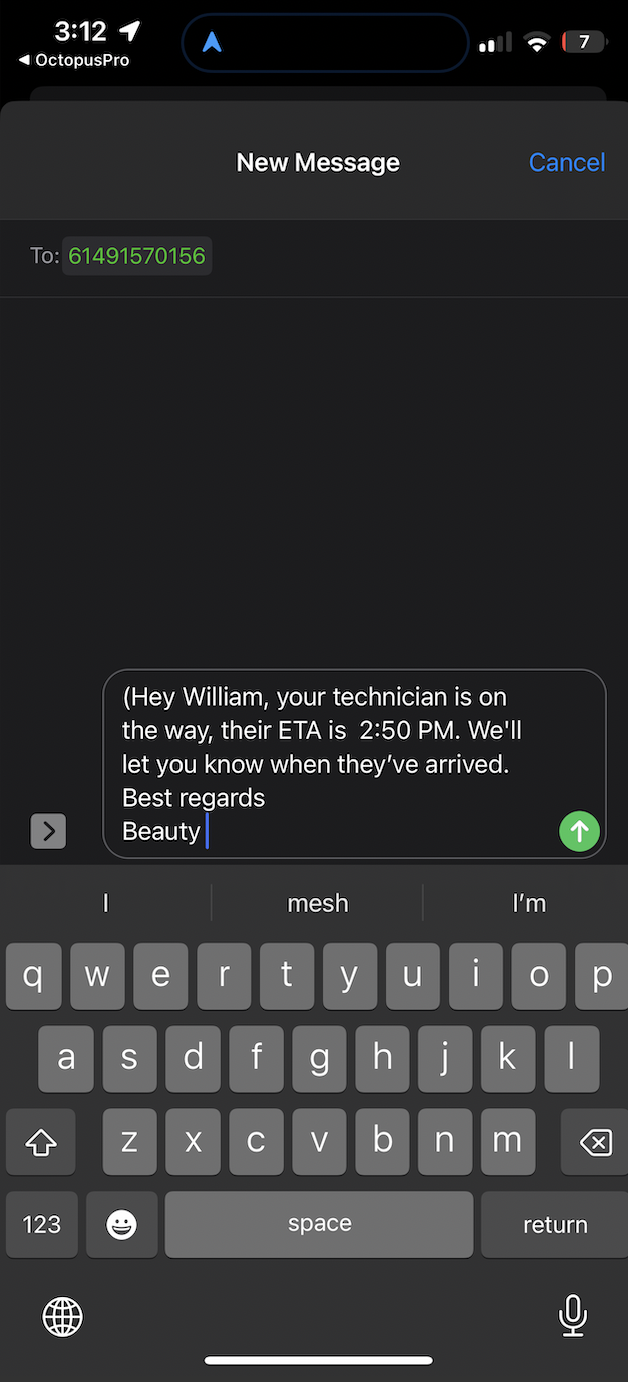
What customers receive
Customers receive an SMS that typically includes:
- Business / sender identification (recommended)
- Fieldworker name
- ETA (based on the fieldworker’s confirmation)
- Optional tracking link (where supported/configured)
Best practices
- Standardize your messaging: include business name, ETA, and a short reassurance (“we’ll notify you on arrival”).
- Use placeholders: personalize messages and reduce manual edits.
- Send from your business number: connect the Digital Phone System so customers recognize the sender.
- Train fieldworkers: ensure they always confirm an accurate ETA and send the SMS promptly.
- Respect compliance: only SMS customers who have provided a valid number and consent where required by local regulations.
Recommended: Connect the Digital Phone System to send messages from your company number and keep customer communications consistent.
Digital Phone System (Twilio): Set Up Calling, SMS & MMS
Troubleshooting
Customers aren’t receiving the SMS
- Confirm the feature is enabled in Fieldworker Permissions.
- Check the customer profile has a valid mobile number.
- Review the SMS template content and placeholders (avoid deleting required placeholders).
- If using the Digital Phone System: confirm it is connected and configured correctly.
The fieldworker doesn’t see “I’m On My Way”
- Confirm the fieldworker has access to the booking in the app.
- Check role/permission settings related to booking actions and fieldworker app access.
Need more help?
If the issue persists, contact OctopusPro Support and include:
- Booking ID / number
- Fieldworker username
- Customer mobile number (masked where appropriate)
- Approximate time the SMS should have been sent
Related guides
- Digital Phone System (Twilio): Set Up Calling, SMS & MMS
- SMS Templates
- Template Placeholders
- Contact a Customer (Email, SMS, Call)
- Fieldworker Permissions
If you have any questions or concerns about this feature, please don’t hesitate to contact our support team for assistance.
To stay updated, please subscribe to our YouTube channel.