
Admin Override: Accept, Decline, or Convert Booking Requests to Pending

OctopusPro supports job-request style dispatching, where fieldworkers can Accept or Decline assigned booking appointments. When a request is urgent, the fieldworker is unavailable, or your dispatcher needs to keep the schedule moving, authorised admin/office users can override the response and action the request on the fieldworker’s behalf.
This is especially useful for fast-paced teams, subcontractor fleets, after-hours coverage, and SLA-driven operations—because it prevents delays while keeping a clear record of who performed the override and when.
On this page
- What this feature is for
- How it works (quick overview)
- Prerequisites & permissions (RBAC)
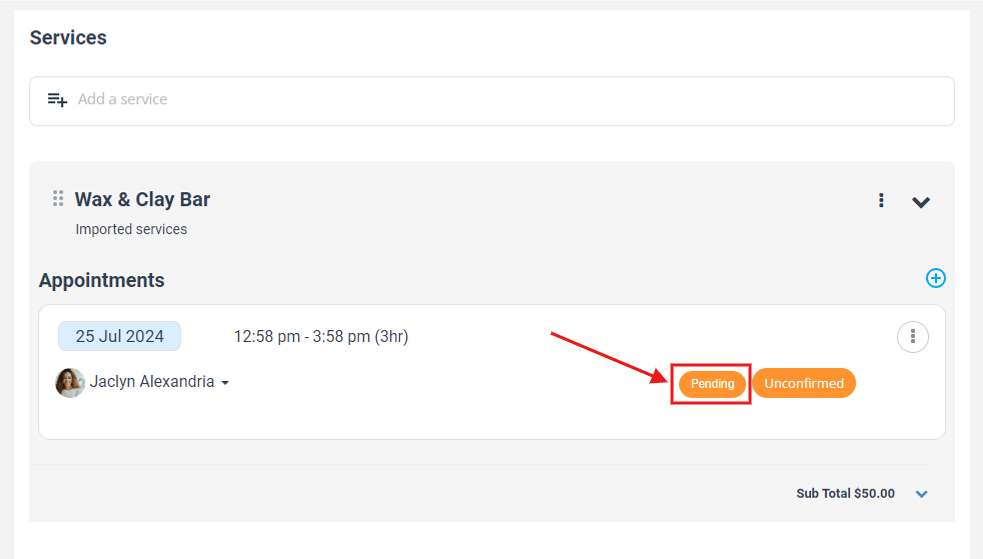
- Identify a Pending booking request
- Accept a request on behalf of a fieldworker
- Decline a request on behalf of a fieldworker
- Convert a request back to Pending
- Optional settings (recommended)
- When to use each action (examples)
- Best practices
- Troubleshooting
- Related guides
What this feature is for
Use admin override when you need to act on a booking request without waiting for the fieldworker to respond, while still preserving a proper audit trail.
- Speed up confirmations: avoid customer delays when the fieldworker doesn’t respond in time.
- Prevent no-shows: quickly decline or revert requests if a technician is no longer available.
- Maintain accountability: override actions are recorded in booking history/activity logs for auditing and internal reviews.
How it works (quick overview)
- Accept: confirms the request for the selected appointment row(s) and applies your usual confirmation workflow (notifications/automations depend on your configuration).
- Decline: marks the request as declined so dispatch can reassign or re-dispatch.
- Convert to Pending: returns the request to “needs action” (useful after reschedules/changes when you want the fieldworker to reconfirm).
Admin override is typically used alongside dispatch workflows (Manual vs Automated/First-to-Accept). Learn more here: Job Assignment & Dispatch (Manual vs Automatic).

Prerequisites & permissions (RBAC)
1) Ensure your dispatch workflow uses accept/decline requests
If fieldworkers are not allowed to decline, requests may auto-accept (depending on your settings). To manage this workflow, see: Empower Fieldworkers: Accept or Decline Job Requests.

2) Enable the admin override permission in Roles
Go to Settings > Users > Roles and enable the credential/permission: “Accept/Decline on behalf of fieldworker” for the relevant role (e.g., Dispatcher / Operations Manager).
For more about roles & permissions, see: Role-Based Access Control (RBAC) & User Permissions.

Identify a Pending booking request
Open the booking, then locate the appointment inside the Services / Appointments section. Requests awaiting action typically display a Pending label.
Accept a request on behalf of a fieldworker
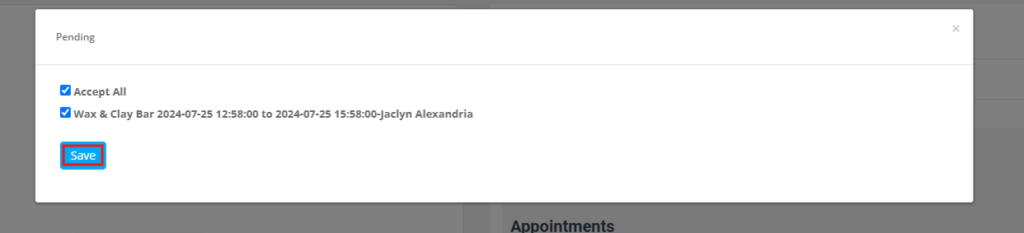
- Go to Bookings (Upcoming / Past / All) and open the booking.
- In Services & Appointments, select the appointment row(s) you want to accept.
- Click Accept All (or select specific rows), then click Save.
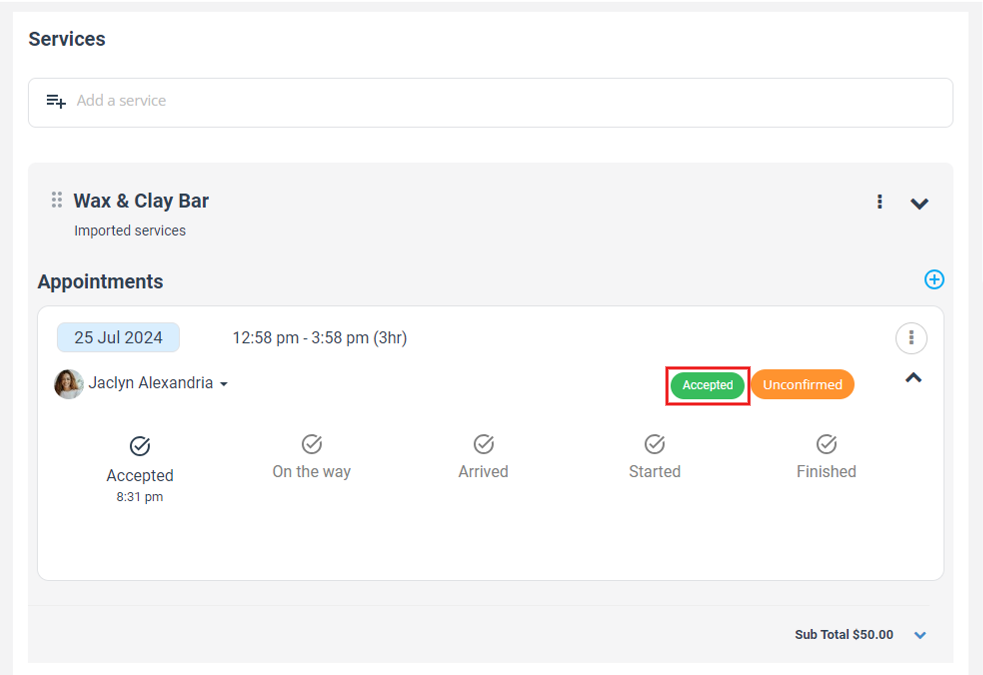
What happens next?
- The request is marked as accepted for that fieldworker/appointment.
- Your usual confirmation notifications may be sent (based on your notification/automation settings).
- The action is recorded in the booking’s logs for auditing.
Decline a request on behalf of a fieldworker
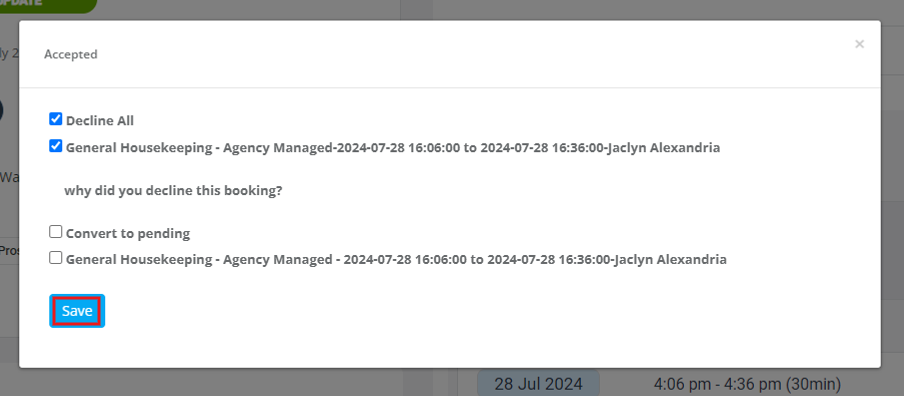
- Open the booking and go to Services & Appointments.
- Select the appointment row(s) you want to decline.
- Click Decline All (or select specific rows), then click Save.
Notes:
- If your account has a Decline Reason form enabled, you may be prompted to choose/provide a reason (recommended for faster reassignment and reporting).
- Once declined, dispatch can reassign immediately (or re-dispatch to other eligible fieldworkers, depending on your workflow).
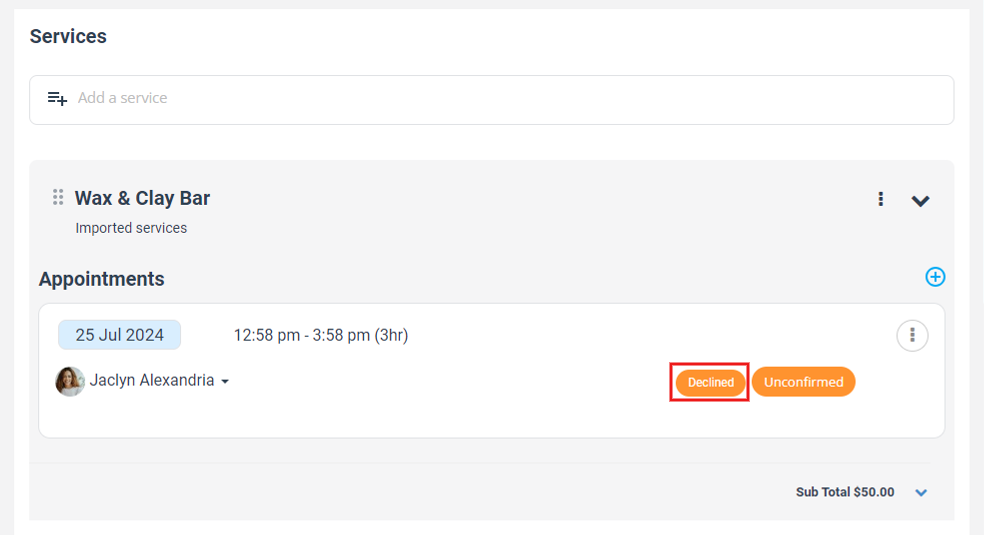
Convert a request back to Pending
Use this when the appointment details change (date/time/scope/notes) and you want the fieldworker to respond again, or if the request was accepted/declined by mistake.
- Open the booking and go to Services & Appointments.
- Select the appointment row(s) that are currently accepted or declined.
- Choose Convert to Pending, then click Save.
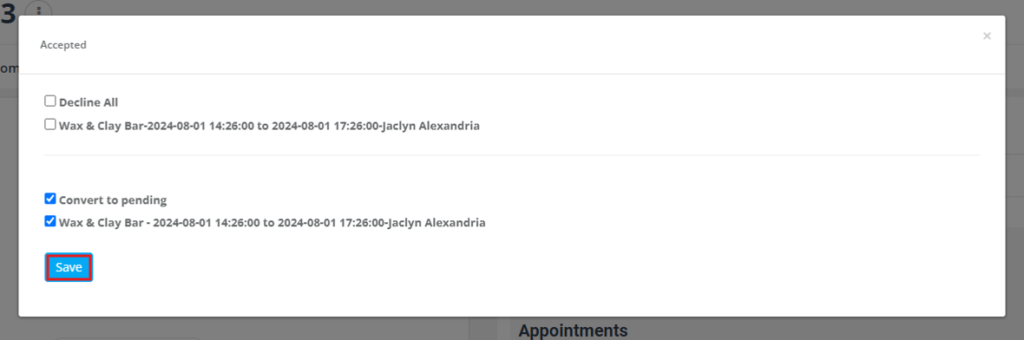
Result: The request returns to the fieldworker’s normal acceptance flow, while keeping the full audit trail intact.
Optional settings (recommended)
1) Capture a decline reason (recommended)
Decline reasons reduce back-and-forth and help you identify patterns (coverage gaps, timing conflicts, incorrect eligibility rules). Learn how to set it up here: Fieldworker Job Decline Reason Form (Decline Booking Request Form).

2) Enable “Pending Accept/Decline” reminders
If you frequently get unanswered requests, enable the reminder alarm so fieldworkers are periodically prompted until they respond: Fieldworker App Alarms, Alerts & Reminders.

3) Use Booking Activity to review what happened
For a quick timeline of job requests, confirmations, and actions taken on a booking, use the Booking Activity tab: Booking Activity: Timeline, Job Requests & Appointment Confirmation.

When to use each action (examples)
| Situation | Admin action | Why it helps |
|---|---|---|
| Fieldworker unreachable & the job is urgent | Accept | Locks in the appointment and avoids customer churn from slow confirmations. |
| Fieldworker is double-booked or no longer available | Decline | Frees the request for reassignment and reduces no-show risk. |
| Appointment changed after acceptance (time/scope/notes) | Convert to Pending | Prompts the fieldworker to reconfirm based on the updated details. |
Best practices
- Keep override access limited: only dispatch/ops roles should have the “Accept/Decline on behalf of fieldworker” permission.
- Prefer appointment-level accuracy: for multi-visit/recurring bookings, accept/decline the correct appointment row(s) (don’t unintentionally accept all visits).
- Use decline reasons: structured reasons improve reassignment speed and help you fix underlying dispatch rules (service eligibility, service areas, working hours, travel radius).
- Review logs regularly: use Booking Activity / Booking History to confirm what happened and maintain accountability.
Troubleshooting
- I don’t see Accept/Decline/Convert to Pending options: confirm your role has the permission enabled under Settings > Users > Roles (Accept/Decline on behalf of fieldworker).
- Requests are auto-accepted (no Pending state): check whether fieldworkers are allowed to accept/decline booking requests: Accept/Decline Job Requests (Setting).
- We need to see who performed the override: check the booking logs: Booking Activity and/or Booking History & Audit Log.
Related guides
- Job Assignment & Dispatch (Manual vs Automatic)
- Fieldworker Guide: Managing New Job Requests
- Empower Fieldworkers: Accept or Decline Job Requests
- Role-Based Access Control (RBAC) & Permissions
- Booking History & Audit Log (Change Log)
- Fieldworker Job Decline Reason Form
- Fieldworker App Alarms, Alerts & Reminders
To stay updated, please subscribe to our YouTube channel.