
Service FAQs Management (Customer Portal + Automated Emails)
OctopusPro’s Service FAQs Management lets you create a centralised FAQ library and publish the right questions and answers to customers at the right time:
- Customer Portal (global FAQs page + service pages/booking view)
- Booking journey (contextual FAQs shown for the relevant service)
- Automated emails (insert FAQs automatically using the {faq} placeholder)
By linking FAQs to specific services (and even specific custom field options), you reduce repetitive enquiries, improve conversion, and ensure customers receive consistent, accurate information.

Table of contents
- What are Service FAQs?
- Key benefits
- Access the Service FAQs page
- Create, edit, and organise FAQs
- Assign FAQs to services
- Assign FAQs to custom field options (advanced)
- Display FAQs in the Customer Portal
- Automatically include FAQs in emails using {faq}
- Manage, maintain, and retire FAQs
- Best practices
- FAQ examples (ready to copy)
- Troubleshooting
- Related articles
What are Service FAQs?
Service FAQs are question-and-answer entries you manage in OctopusPro to address common customer questions about your services, policies, pricing drivers, and requirements.
FAQs can be:
- Global FAQs (general business questions not linked to a specific service)
- Service-specific FAQs (shown only when customers are viewing/booking that service)
- Option-specific FAQs (shown only when a customer selects a particular custom field option)
Key benefits
- Centralised knowledge base: Keep all FAQs in one place so information stays consistent and up to date.
- Context-specific answers: Link FAQs to services (and options) so customers only see what’s relevant.
- Fewer repetitive enquiries: Customers self-serve answers instead of calling or emailing.
- Higher conversion: Clear FAQs reduce uncertainty and objections before booking.
- Email automation: Use {faq} to automatically include the right FAQs in key emails.
Access the Service FAQs page
To manage FAQs in your OctopusPro admin account, go to:
Settings → Communications → Service FAQs
(In some accounts, this may appear as Settings → Communication → Service FAQs.)
Create, edit, and organise FAQs
1) Add a new FAQ
- Click Add FAQ (or New FAQ).
- Enter your Question and Answer.
- (Optional) Assign a Category to group similar FAQs (e.g., Pricing, Preparation, Policies, Safety).
- Click Save.

2) Edit an existing FAQ
- Locate the FAQ in the list.
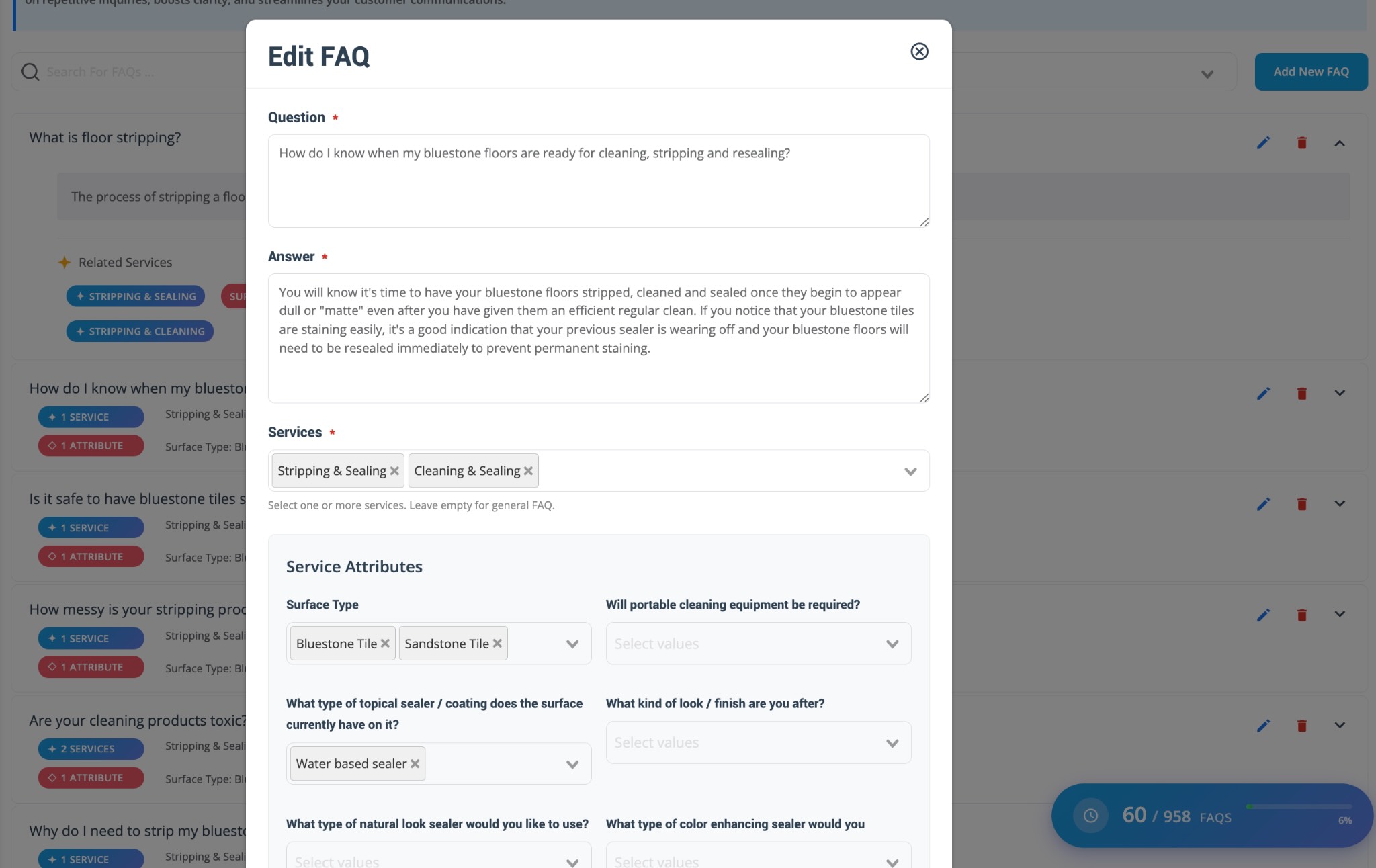
- Click Edit Question.
- Update the question and answer, choose the relevant services and custom field options from the sections below in the pop-up, then click Save. You can select multiple options.
3) Delete an FAQ (when no longer needed)
If an FAQ is outdated and should no longer appear to customers, click Delete Question. If your account supports disabling/inactivating items, you may also be able to hide an FAQ without deleting it.
Assign FAQs to services
Assigning FAQs to services ensures customers only see relevant information when browsing or booking that service.
- Find the FAQ you want to assign.
- Click Add New FAQ.
- Select the service from the dropdown.
- Click Save.

Tip: If the same FAQ applies to multiple services (e.g., cancellation policy, arrival windows), simply use Add Service again to link it to additional services.
Helpful guides: Creating a New Service | Organise Service Categories

Assign FAQs to custom field options (advanced)
If your service uses Custom Fields (dropdowns, radio buttons, checkboxes, button groups, etc.), you can link an FAQ to a specific option so it only appears when that option is selected. You can also link multiple options if desired.
Example: A “Massage” service asks customers to select an “Oil type” (Coconut or Lavendar). You can attach an FAQ that only appears when “Coconut” is selected (e.g., allergy note, preparation, aftercare instructions).
Learn more: Custom Fields (Booking, Lead Capture & CRM) | Dependent Custom Fields (Conditional Logic)
Display FAQs in the Customer Portal
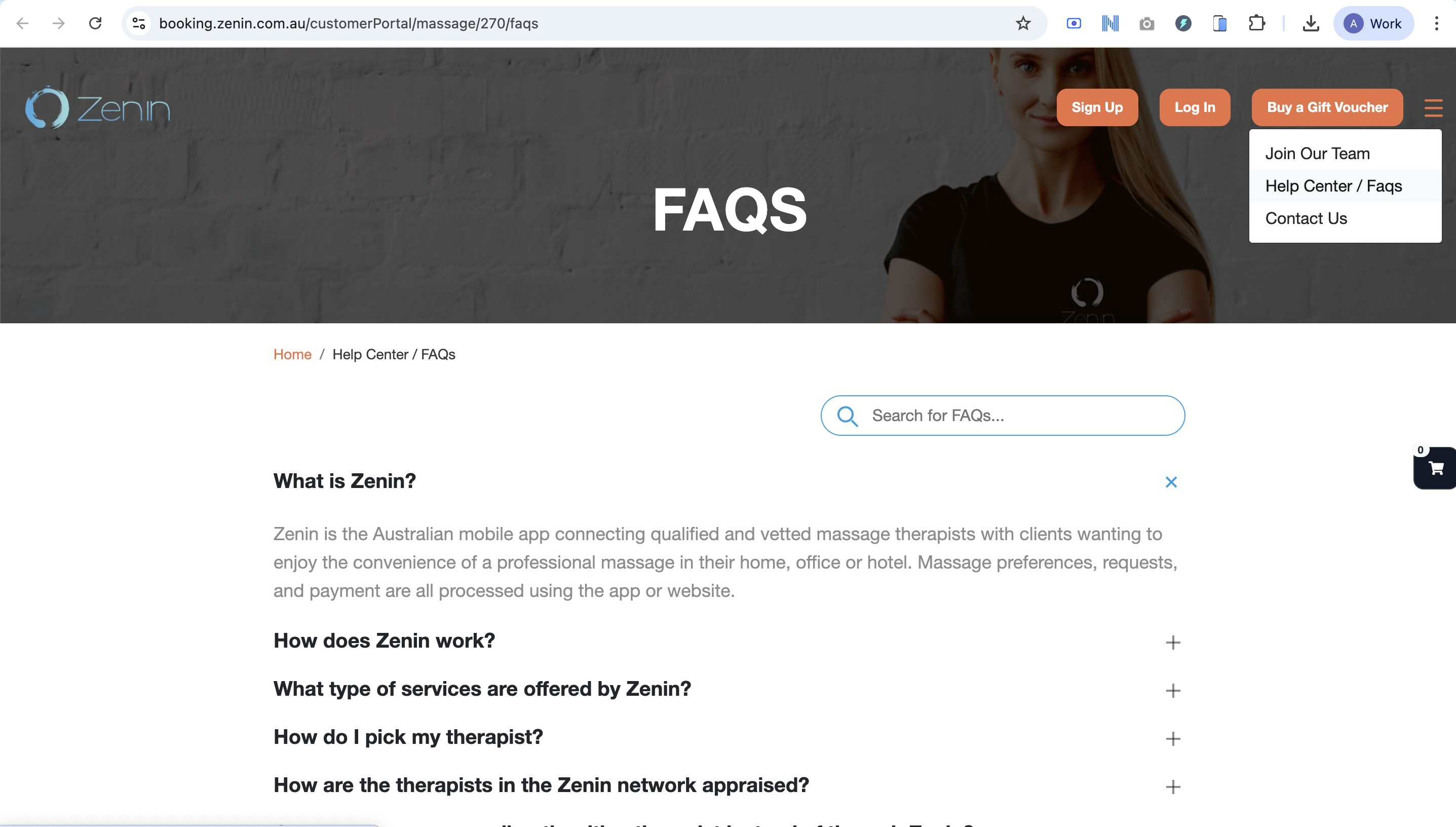
FAQs can appear in multiple places inside the Customer Portal. The FAQs menu link typically appears in the top navigation and collapses into a side menu on mobile.
Enable the FAQs page link in the portal menu
- Go to Settings → Customer Portal → Flags & Permissions.
- Enable “Display link to ‘FAQs’ page in menu”.
- Click Save.

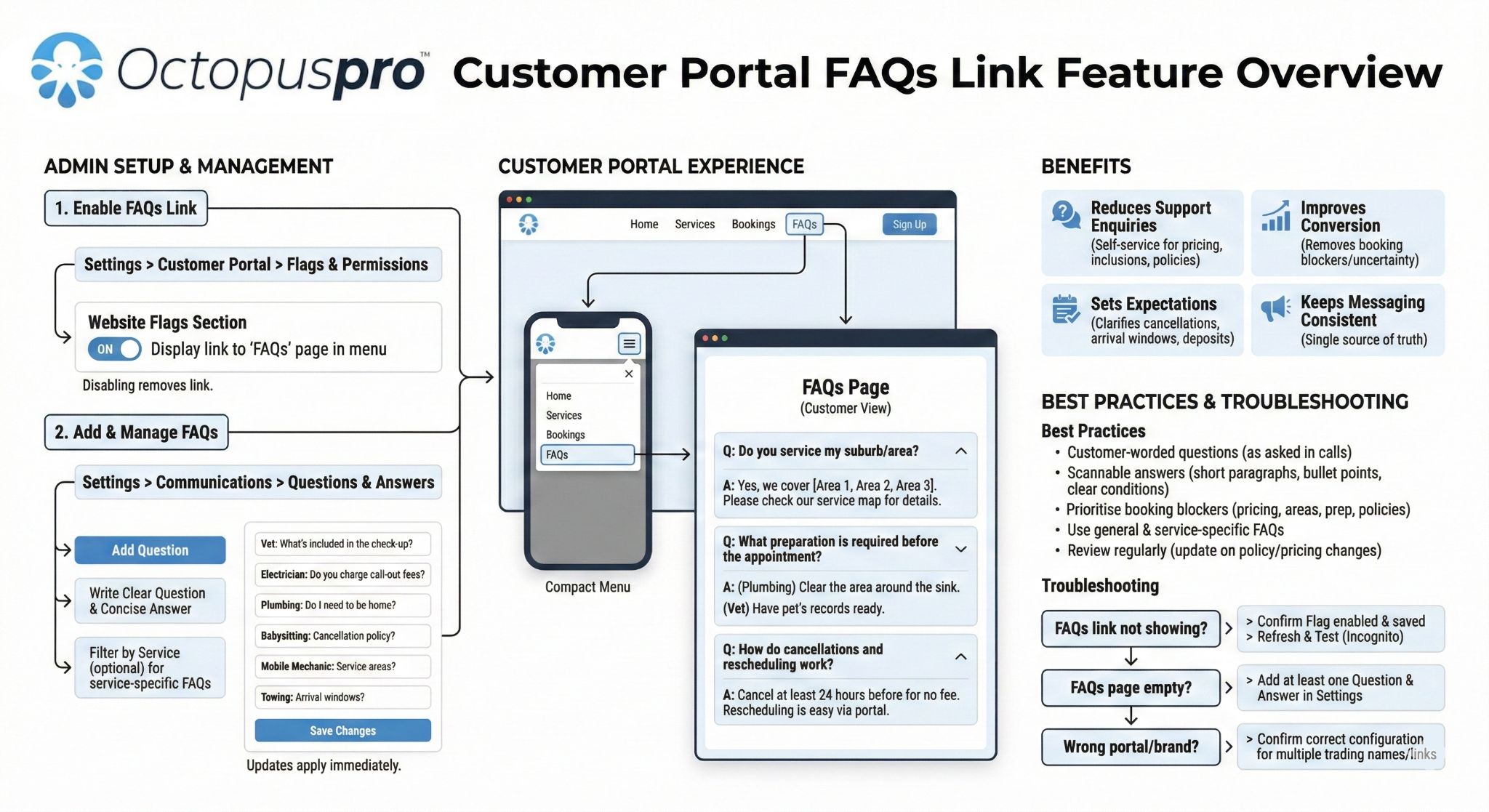
Learn more: Display link to “FAQs” page in menu | Customer Portal Flags & Permissions
Where FAQs appear for customers
- Global FAQ section: FAQs not assigned to any service can appear in your main FAQs page (ideal for general business policies).
- Service-specific FAQs: FAQs linked to a service appear on that service’s page/booking view—right when customers are deciding to book.
- Option-specific FAQs: FAQs linked to a custom field option show only when that option is selected.
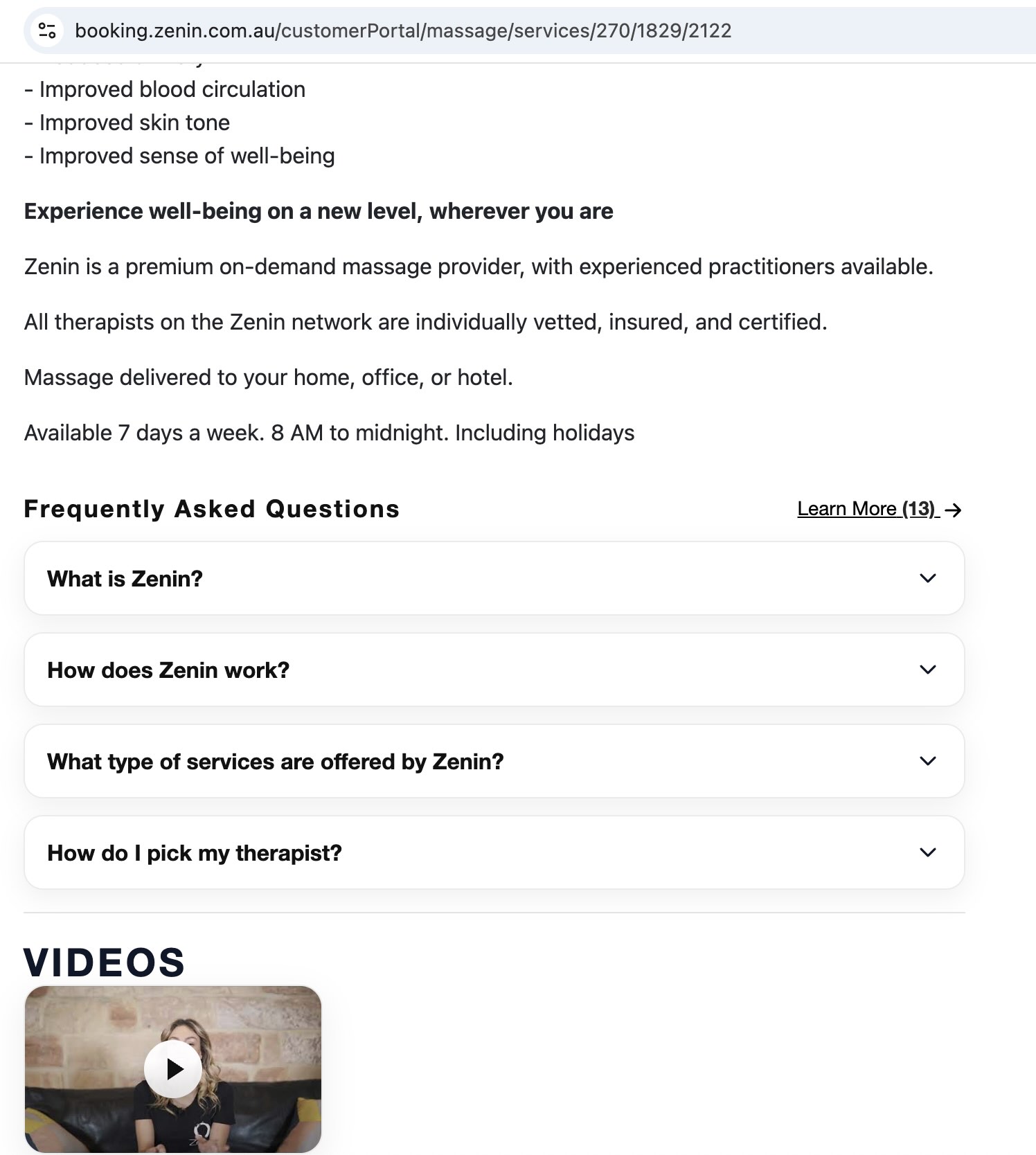
Tip: Depending on your portal layout, customers may also be able to search FAQs on the FAQs page to quickly find answers.
Automatically include FAQs in emails using {faq}
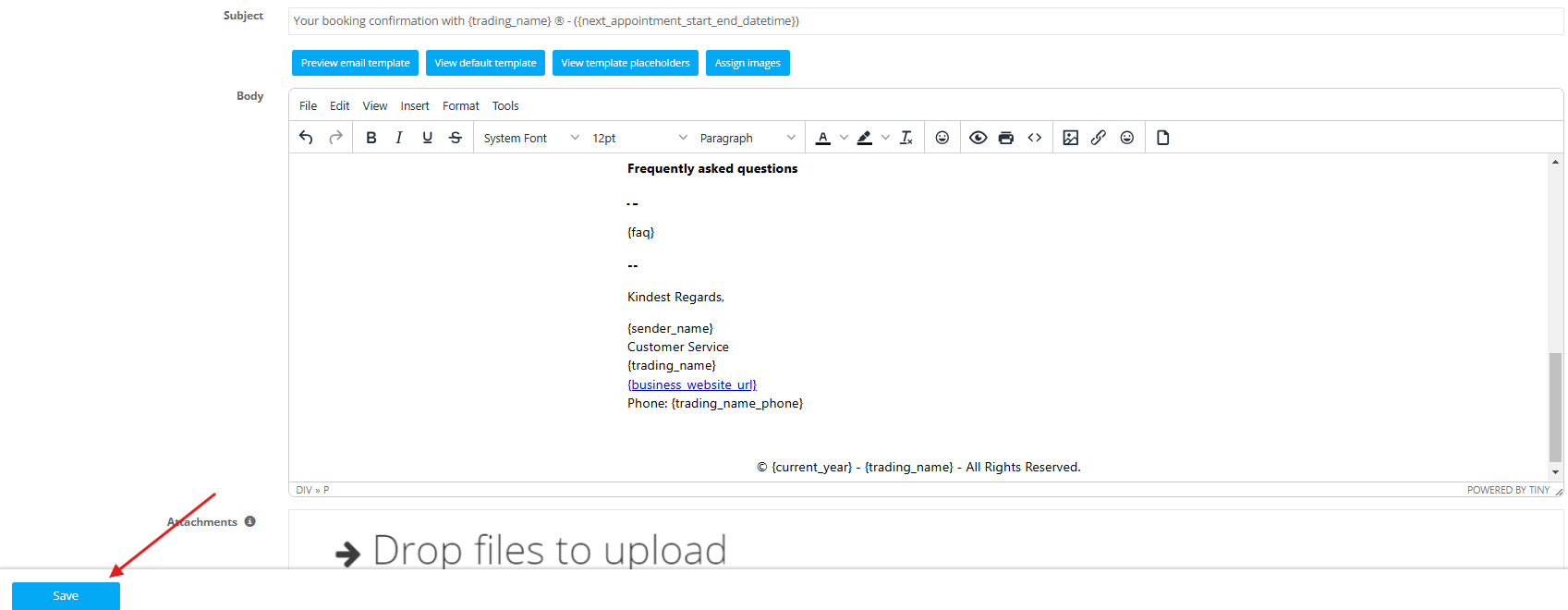
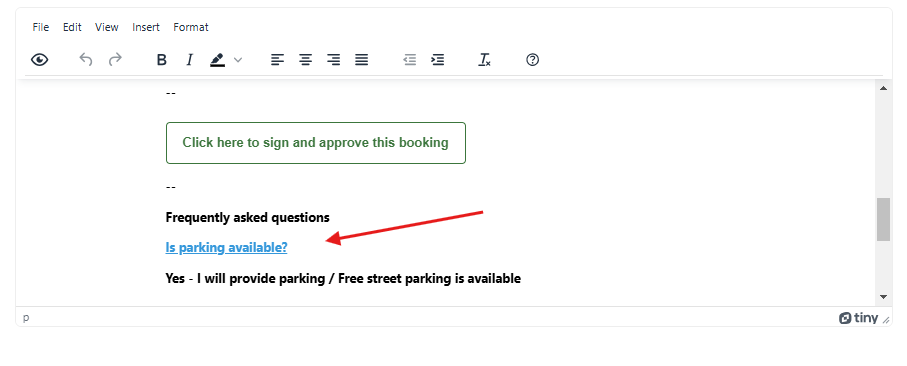
You can automatically insert relevant FAQs into outgoing emails using the {faq} placeholder. When an email is sent, OctopusPro replaces {faq} with FAQs linked to the services (and options) included in the booking/quote/inquiry.
How to add {faq} to an email template
- Go to Settings → Communications → Templates & Canned Responses.
- Open the Emails section, then edit the relevant template (e.g., booking confirmation, reminder, quote, invoice, inquiry receipt).
- Insert {faq} where you want FAQs to appear.
- Save the template.
Which emails can include FAQs?
- Booking confirmations & reminders: include FAQs for the booked service(s).
- Quote emails: include FAQs for services referenced in the quote.
- Invoice emails: include FAQs for invoiced services (where applicable).
- Inquiry emails: include FAQs for the service the customer asked about.
Example: how FAQs appear in an email
Opt out for specific emails
If you don’t want FAQs in a particular email, simply remove the {faq} placeholder from that specific template. Each email template is controlled independently.
Helpful guides: Edit/View Email Templates | Template Placeholders (Merge Fields) | Canned Responses & Templates
Manage, maintain, and retire FAQs
- Edit or reassign: update questions/answers and adjust assigned services/options anytime. Changes apply to the portal and future emails.
- Reuse across services: link one FAQ to multiple services (ideal for shared policies).
- Retire outdated FAQs: delete the FAQ (or mark inactive if available) so customers don’t see outdated info.
- Review regularly: update FAQs whenever you change pricing, policies, booking rules, travel fees, or service inclusions.
Best practices
- Use customer language: write questions exactly how customers ask them.
- Answer first, explain second: lead with the direct answer, then add details/exceptions.
- Keep one topic per FAQ: avoid bundling multiple policies into one answer.
- Use categories: group FAQs (Pricing, Preparation, Policies, Safety) to keep your library organised.
- Maximise relevance: service- and option-linked FAQs reduce noise and boost clarity.
- Audit your templates: make sure your team knows which email templates include {faq}.
FAQ examples (ready to copy)
Cleaning & home services
- Do I need to be home? No—if you provide access instructions. If access isn’t available, the booking may need to be rescheduled.
- Do you bring supplies? Yes, we bring standard supplies. Specialty products can be requested as an add-on.
- What affects the price? Size, condition, access, and selected add-ons (e.g., deep clean, stain treatment).
Trades (plumbing, electrical, HVAC)
- Do you charge a call-out fee? Yes, a call-out fee applies and is included in the quote where relevant.
- Do you offer after-hours service? Yes—after-hours bookings may incur an additional fee.
- What access is required? Clear access to the work area and relevant switchboard/meter/units as applicable.
Beauty, wellness & appointments
- What’s your cancellation policy? Cancellations within the late window may incur a fee (see your policy).
- How should I prepare? Please arrive 5–10 minutes early and follow any pre-appointment instructions.
- Are there contraindications? If you have allergies/medical concerns, let us know before the appointment.
Troubleshooting
FAQs aren’t showing in the Customer Portal
- Confirm the FAQ is saved (and active, if your account supports active/inactive).
- If service-specific, confirm it’s assigned to the correct service(s).
- Confirm the FAQs menu link is enabled (if you want the FAQs page visible in the portal menu): Display link to “FAQs” page in menu.
{faq} isn’t appearing in emails
- Confirm the template contains {faq} exactly (including braces).
- Confirm the booking/quote/inquiry/invoice includes services with FAQs assigned (or global FAQs exist).
- Make sure you edited the correct template under: Email Templates.
- Review placeholder rules here: Template Placeholders.
Related articles
- Customer Portal Flags & Permissions
- Display link to “FAQs” page in menu
- Accept Online Bookings Through Your Website (Customer Portal)
- Creating a New Service
- Organise Service Categories
- Custom Fields (Booking, Lead Capture & CRM)
- Dependent Custom Fields (Conditional Logic)
- Edit/View Email Templates
- Template Placeholders (Merge Fields)
- Canned Responses & Templates
To stay updated, please subscribe to our YouTube channel.