
SMS Templates (Text Message Templates)
SMS templates help you send consistent, professional text messages to customers and fieldworkers—automatically (trigger-based) or manually (on-demand). OctopusPro includes a set of built-in SMS templates for common scenarios (booking confirmations, reminders, overdue invoices, “on the way” updates, and more). You can also create your own reusable SMS messages using Canned Responses and placeholders (merge fields).
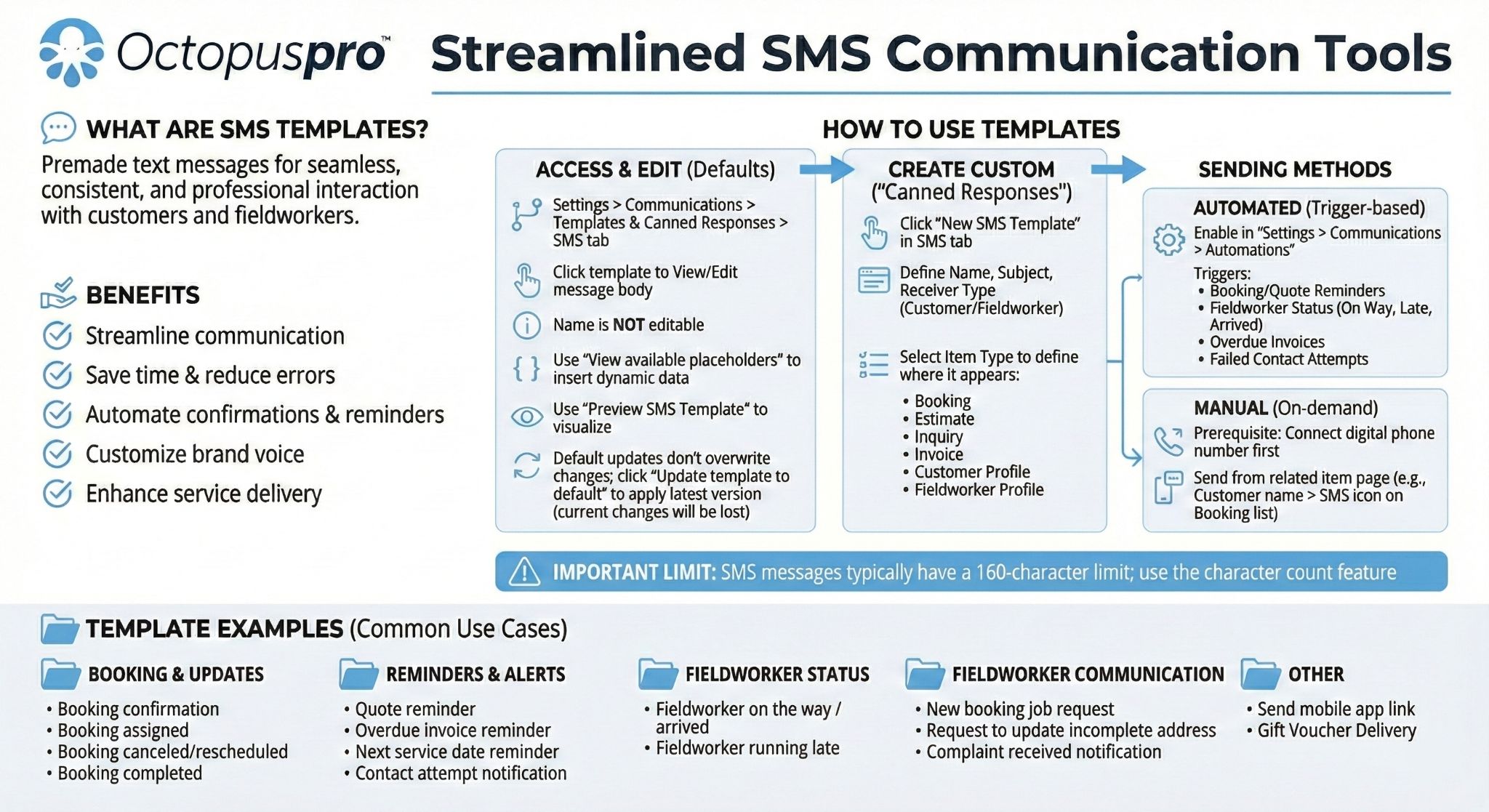
Table of contents
- What are SMS templates?
- Prerequisites
- Access SMS templates
- Edit an SMS template
- Use placeholders (merge fields)
- Preview an SMS template
- View/reset to the latest default template
- Automated SMS notifications
- Send SMS manually (on-demand)
- Create your own reusable SMS messages (Canned Responses)
- Default SMS template examples
- Best practices
- Related articles
What are SMS templates?
SMS templates are pre-written text messages saved in your OctopusPro account. They help you:
- Automate customer/fieldworker notifications when certain events happen (e.g., booking reminders, overdue invoice reminders).
- Standardize messaging so your team communicates consistently and professionally.
- Personalize at scale using placeholders (merge fields), such as {customer_first_name}, {booking_num}, {booking_url}, and {pay_invoice_url}.
Note: SMS messages typically have a 160-character limit. If your message is longer, it may be sent as multiple message segments depending on carrier rules—so keep templates concise where possible.
Prerequisites
- Connect your Digital Phone System (SMS sending requires a connected phone/SMS provider). See: Set Up Digital Phone System (Twilio).
- Ensure the recipient (customer or fieldworker) has a valid mobile number saved in their profile.
Access SMS templates
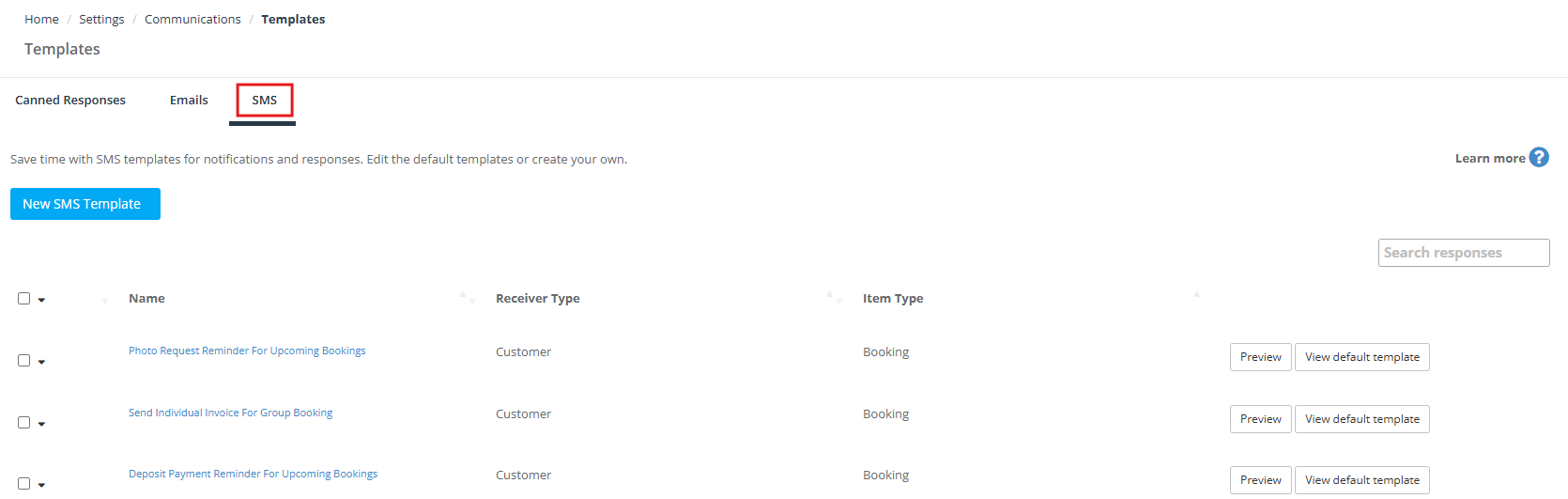
- Go to Settings > Communications > Templates & Canned Responses.
- Open the SMS tab.
Edit an SMS template
From the SMS templates list, click a template name to open and edit it. You can update the message wording to match your brand voice, add/remove placeholders, and tailor the message to the right receiver and item type.
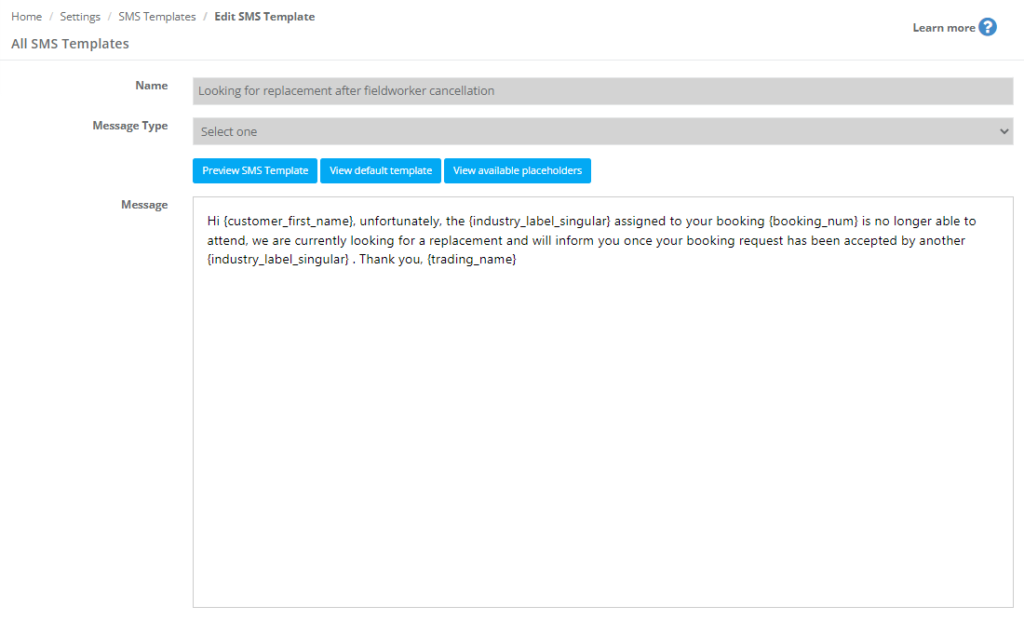
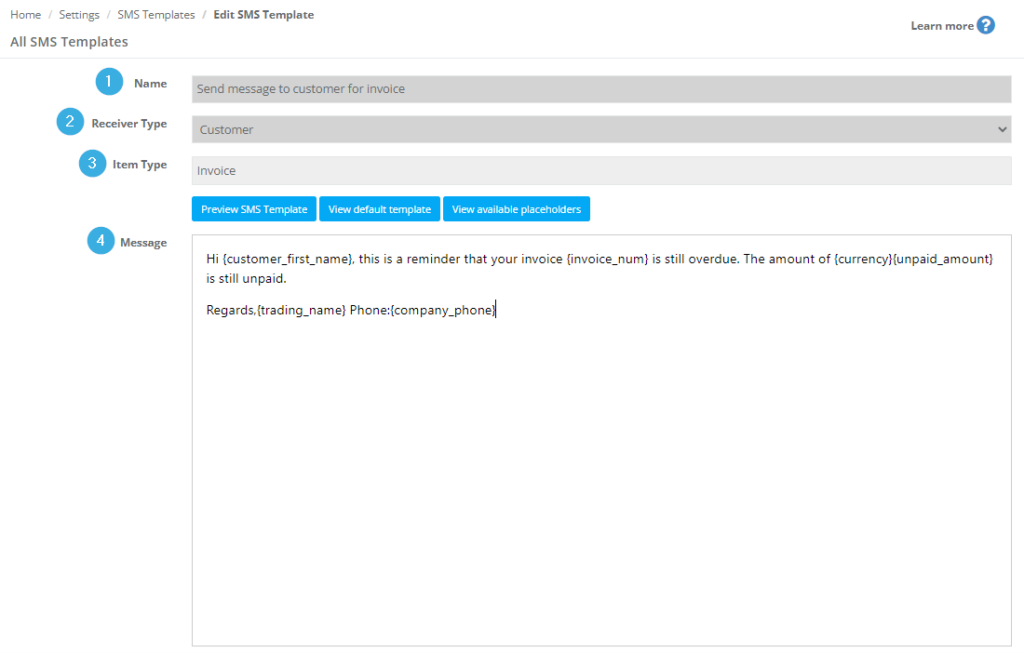
The edit screen typically includes:
- Name (internal label for your team)
- Receiver Type (Customer or Fieldworker)
- Item Type (where the template applies, such as Booking, Inquiry, Invoice, Customer Profile, Fieldworker Profile)
- Message (the SMS body content)
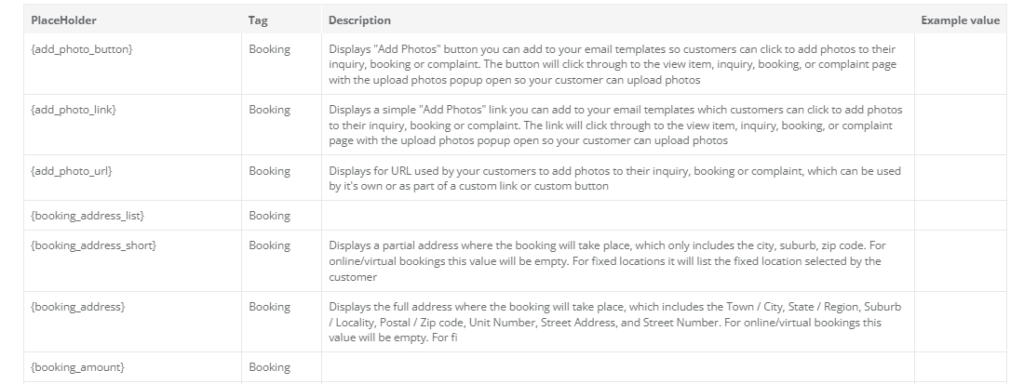
Use placeholders (merge fields)
Placeholders dynamically insert the correct details when the SMS is sent (for example: customer name, booking number, booking link, invoice payment link, appointment date/time).
- When editing a template, click View available placeholders to see what you can use.
- Copy the placeholder exactly (including braces), then paste it into your message.
Preview an SMS template
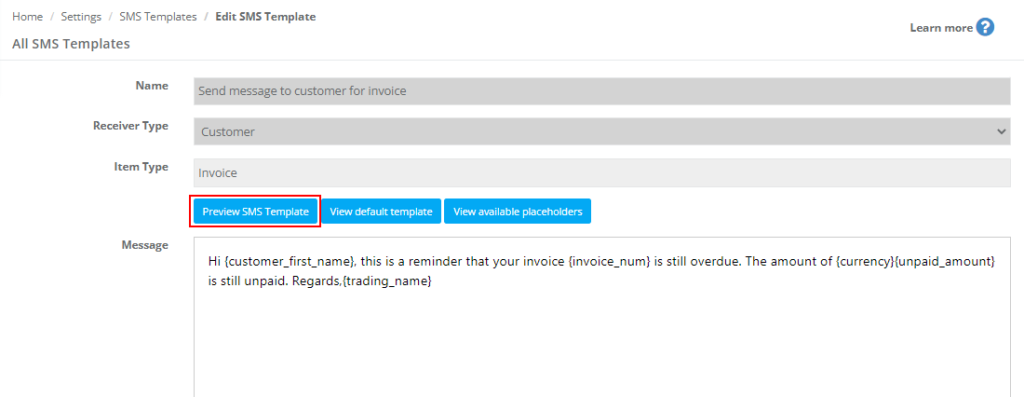
Before using a template, preview it to confirm wording, placeholder placement, and overall length.
- Open the template.
- Click Preview SMS Template.

View/reset to the latest default template
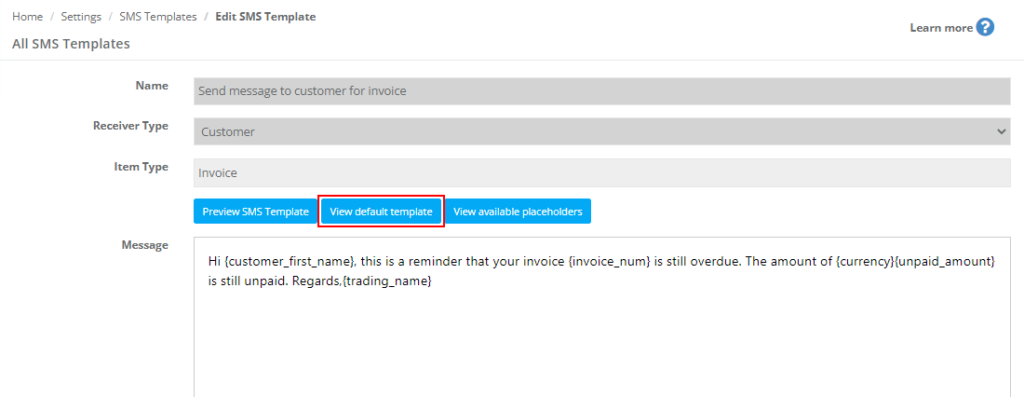
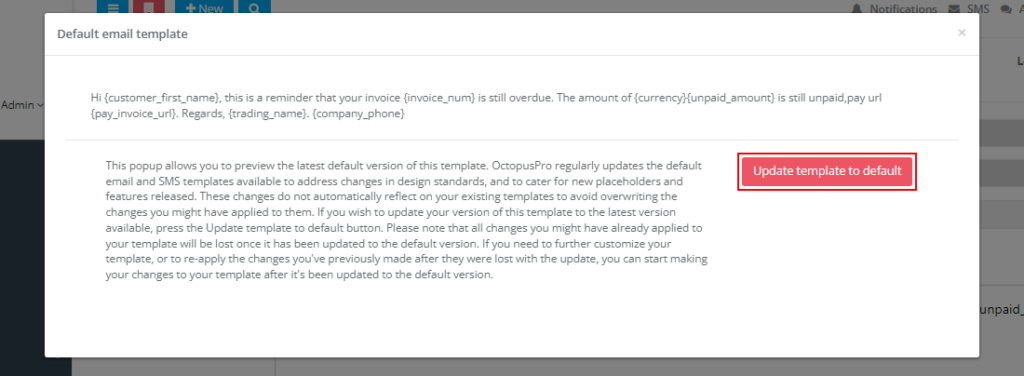
OctopusPro may update default templates over time to support new placeholders and features. You can:
- View default template to compare your customized version with the latest system default.
- Update template to default to replace your current template with the newest default version (this can overwrite your custom changes).
Automated SMS notifications
You can trigger SMS messages automatically through your Automations settings (for example: booking reminders, quote follow-ups, overdue invoice reminders, fieldworker status updates like “on the way” or “running late”).
To configure automation rules, see: Automated Procedures (Automations).
If you want a dedicated guide for customer ETA/live-tracking texts, see: On-the-Way SMS Notifications (ETA & Live Tracking).
Send SMS manually (on-demand)
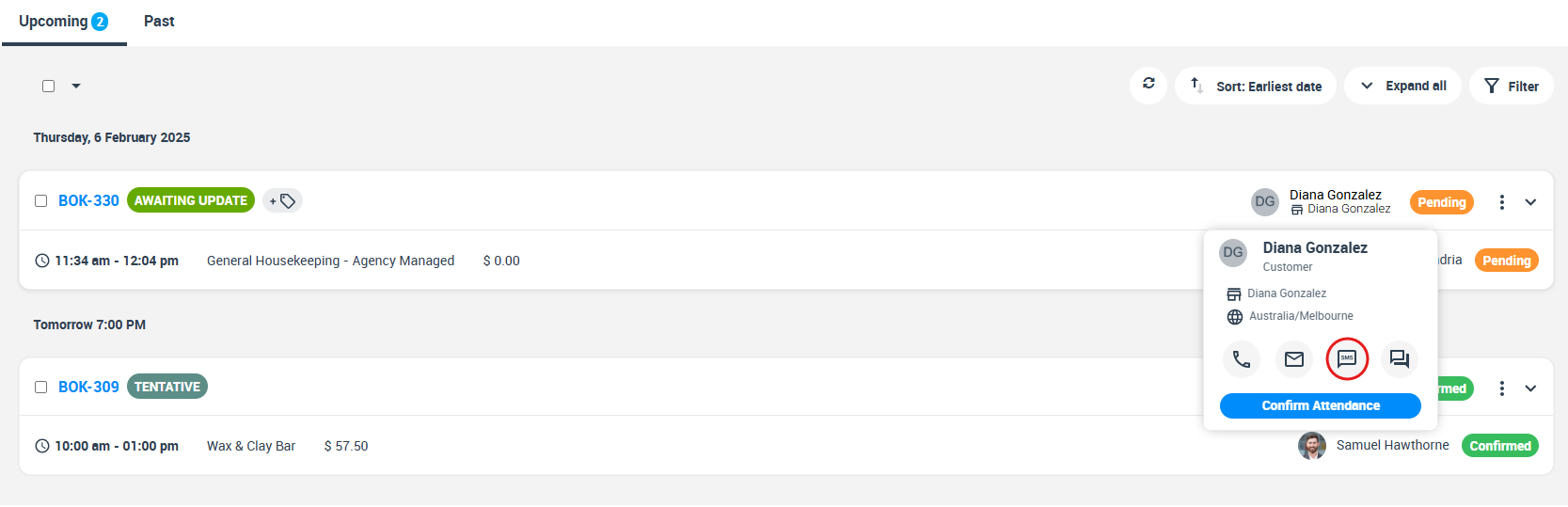
You can also send an SMS manually from relevant records (such as a booking). This is useful for one-off updates or quick confirmations.
- Open the relevant item (e.g., a booking) or use the quick actions menu.
- Click the SMS icon/action.
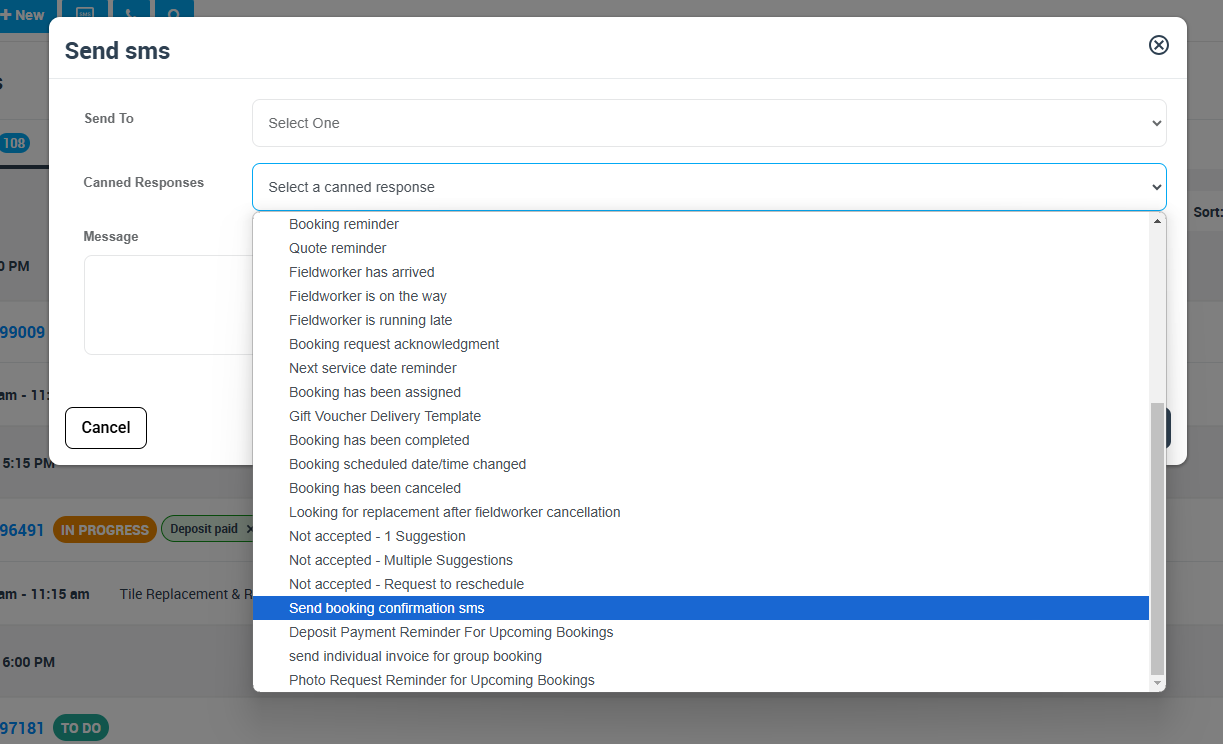
- Select the recipient and optionally choose a Canned Response to insert a saved message.
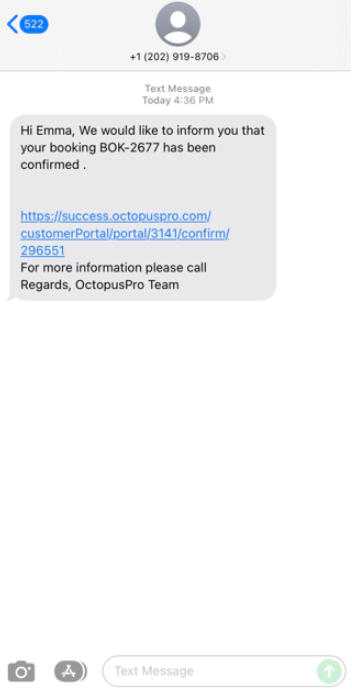
- Edit the message if needed, then send.
Create your own reusable SMS messages (Canned Responses)
OctopusPro’s built-in SMS templates cover common scenarios. If you want additional reusable SMS messages (custom scripts), create them as Canned Responses for SMS. These can then be selected when sending SMS manually (and may also be used in other supported template-driven workflows).
Tip: You may see a New SMS Template button on the SMS tab—this is used to add your own reusable SMS content (via canned responses) depending on your configuration.
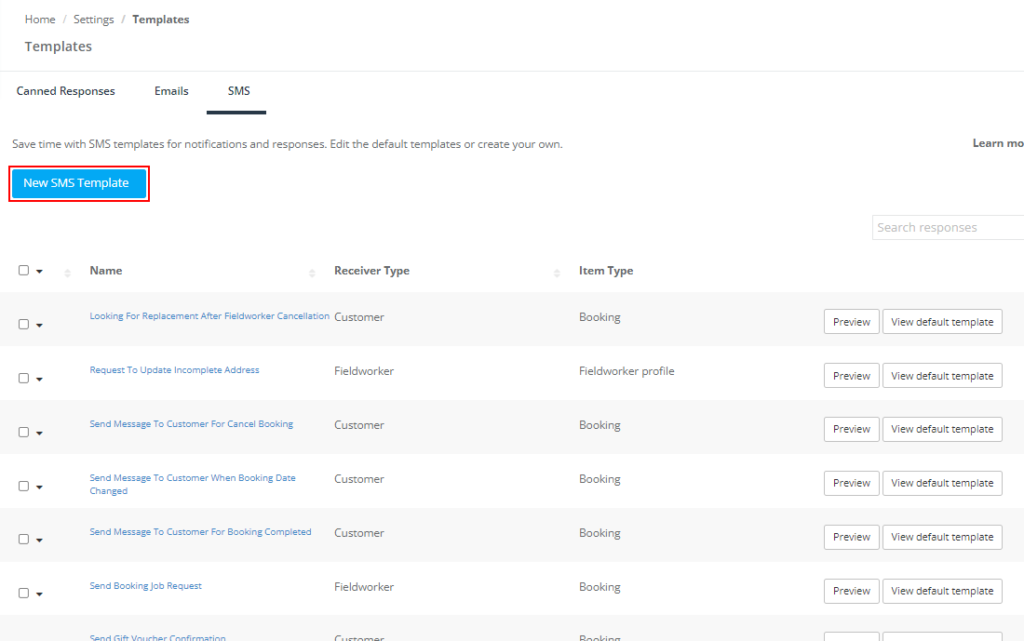
- Go to Settings > Communications > Templates & Canned Responses.
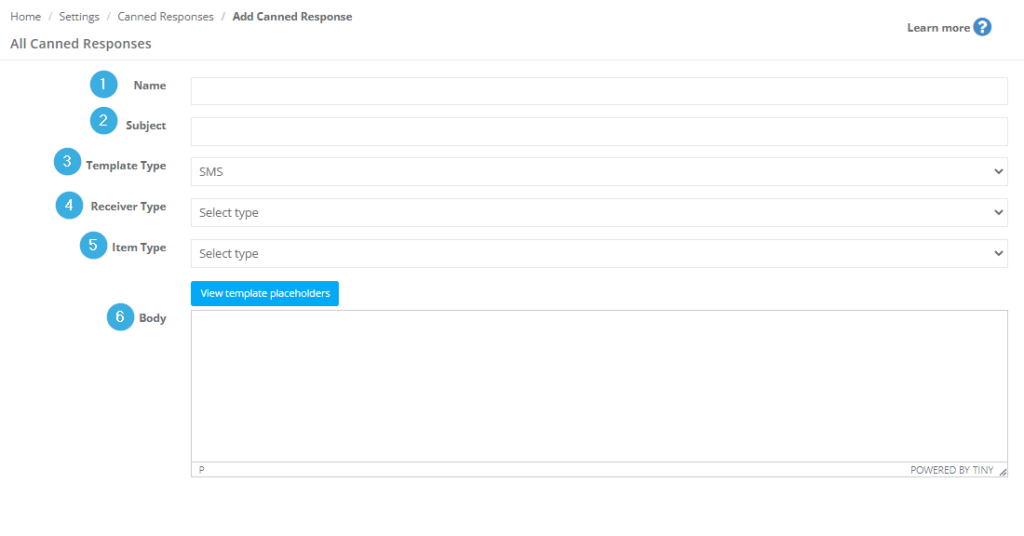
- Click New SMS Template (or create a new canned response and set Template Type to SMS).
- Fill out the fields:
- Name: internal title (e.g., “Deposit reminder – 48 hours”).
- Subject: internal reference (SMS doesn’t use a subject line, but this helps your team search and organize).
- Template Type: select SMS.
- Receiver Type: Customer or Fieldworker.
- Item Type: choose where it should be available (Booking, Inquiry, Invoice, Customer Profile, Fieldworker Profile, etc.).
- Body: the SMS content (use placeholders where needed).
- Click View template placeholders to insert merge fields.
- Save.
Learn more about organizing reusable message content here: Canned Responses Templates.
Default SMS template examples
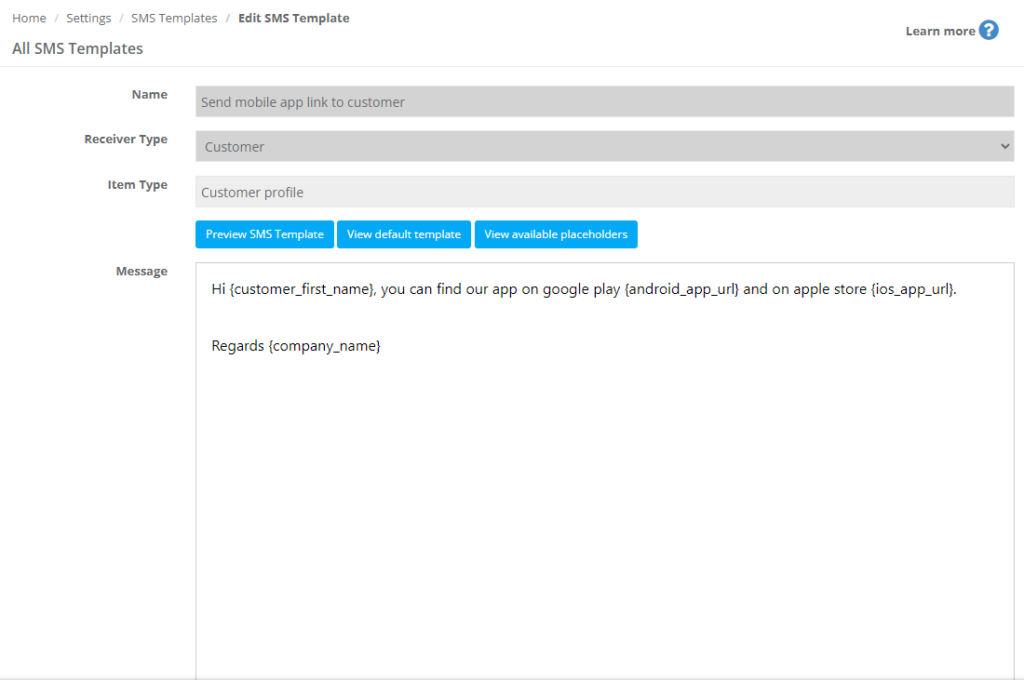
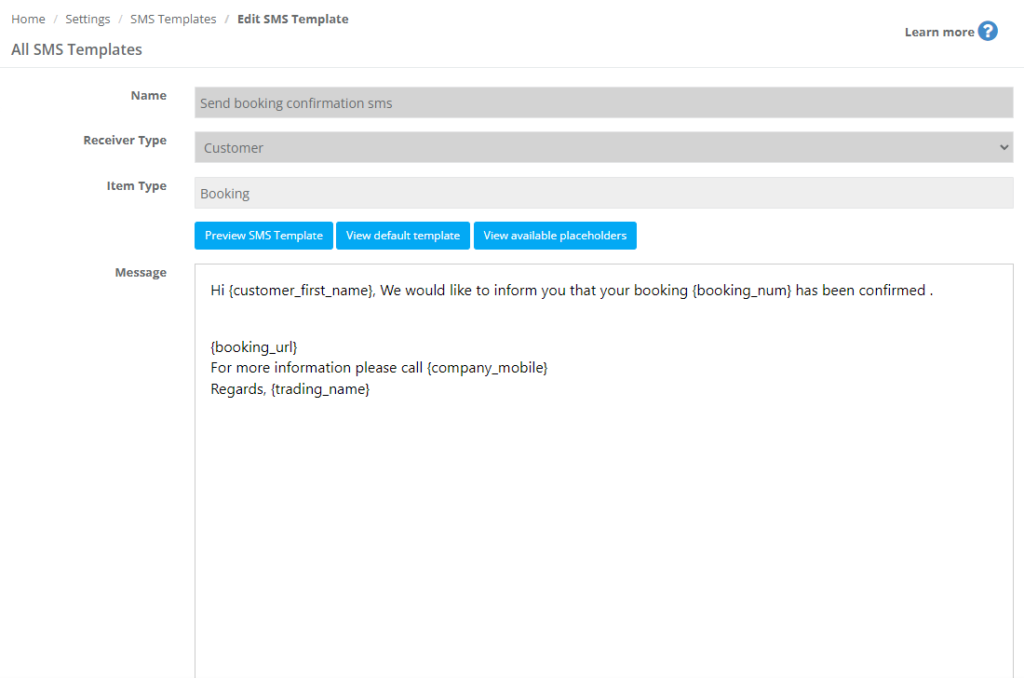
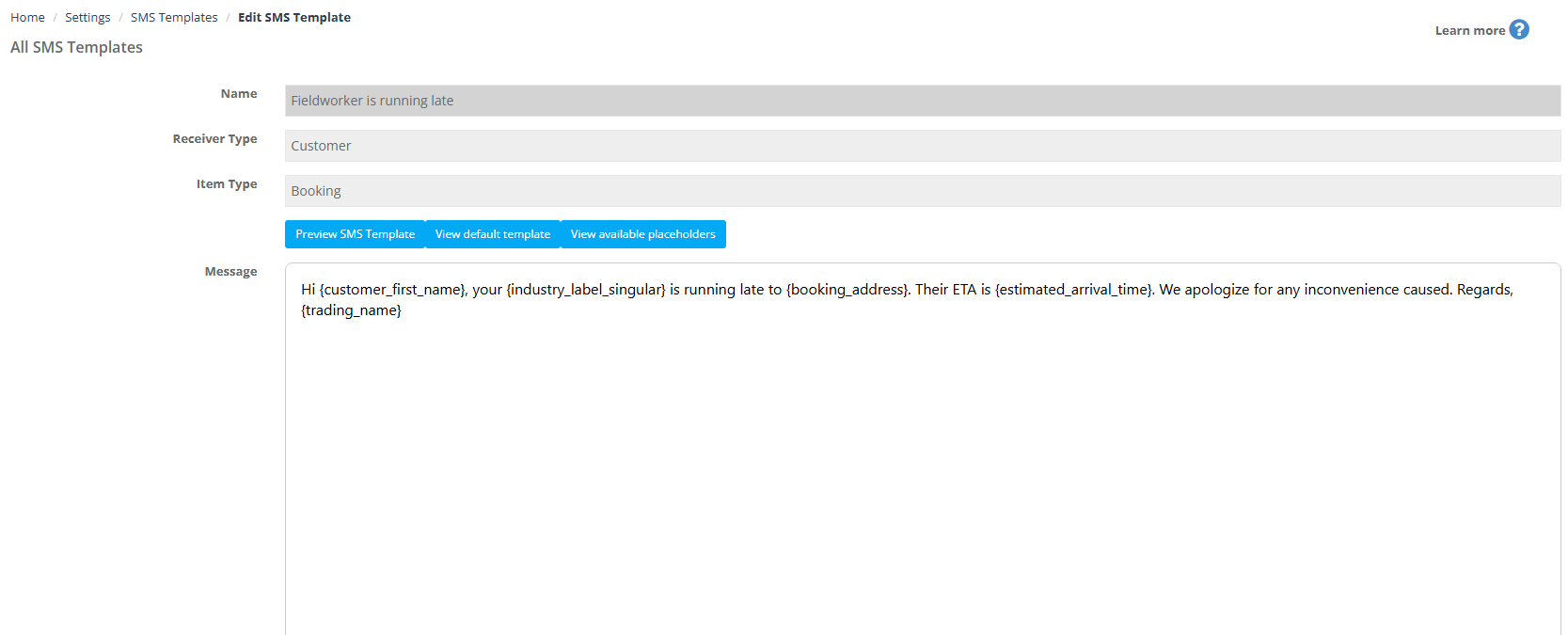
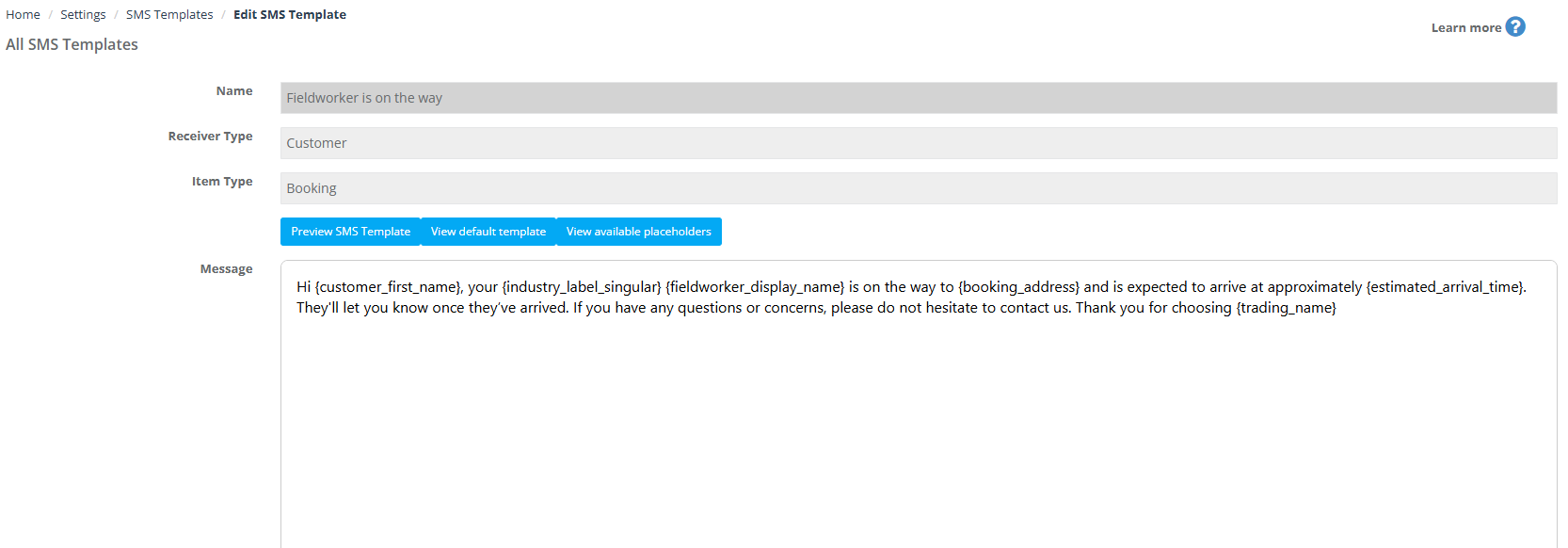
Below are common default SMS templates included in OctopusPro. Use these as-is, or customize the wording and placeholders to match your business.
SMS templates sent to customers
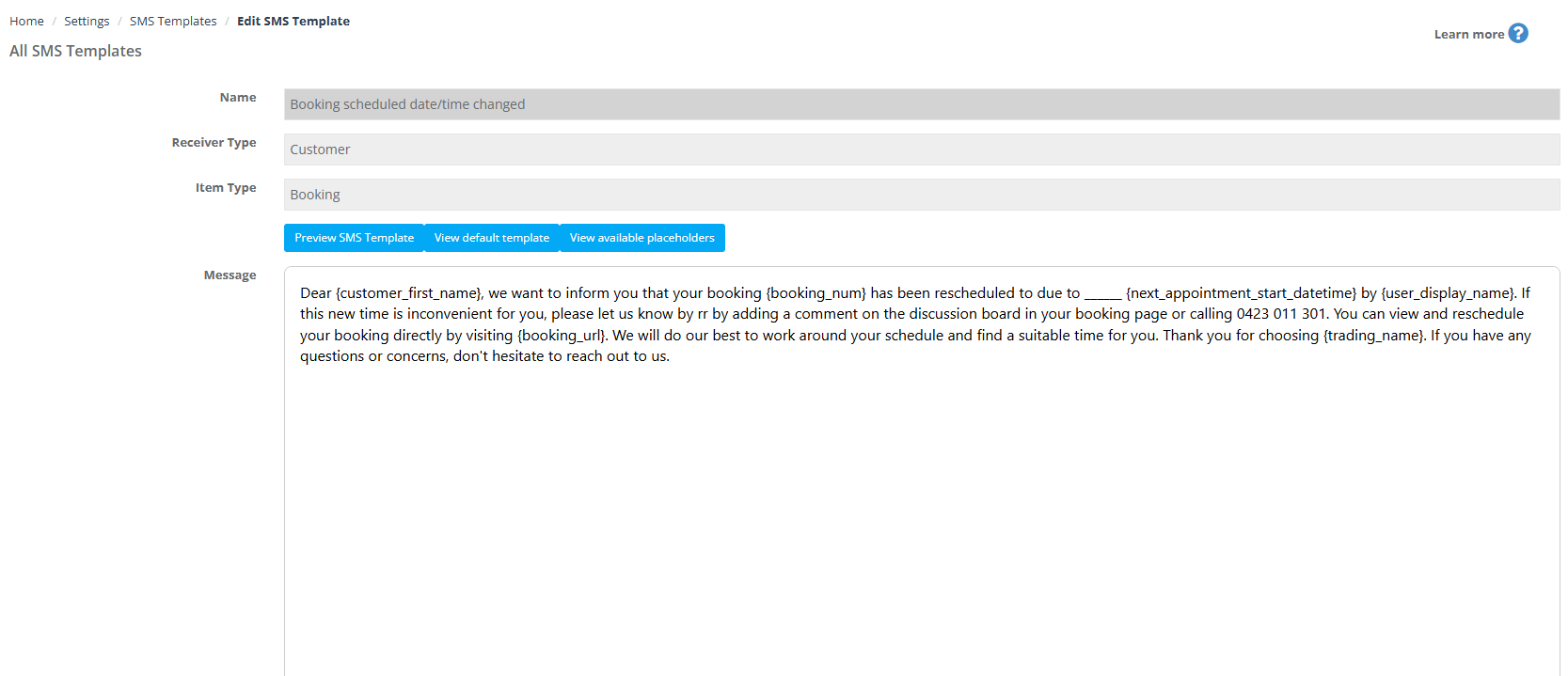
Looking for replacement after fieldworker cancellation
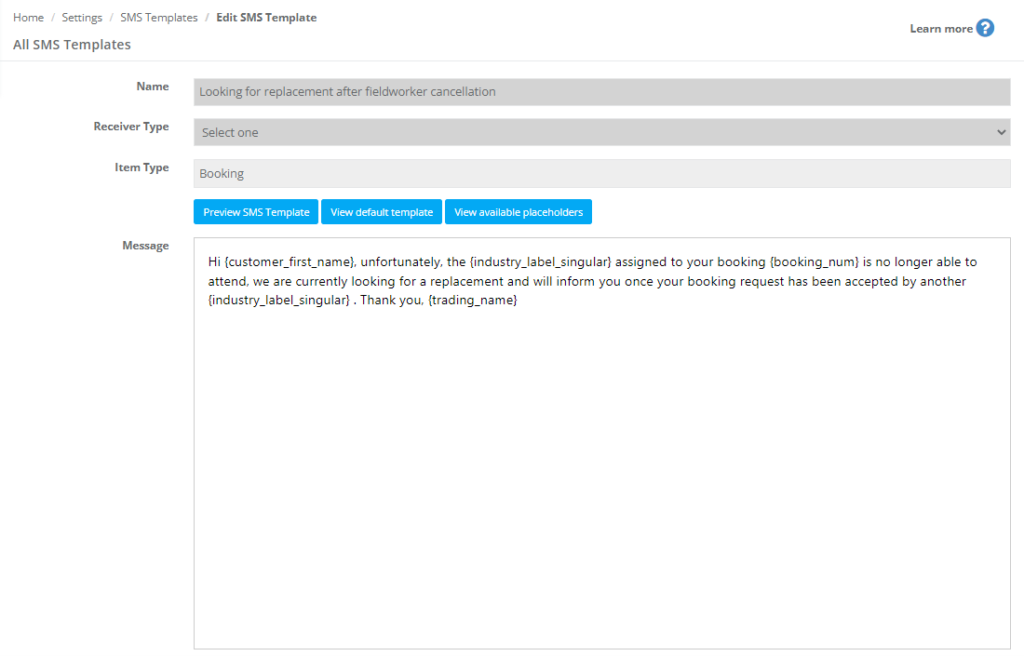
Booking has been cancelled
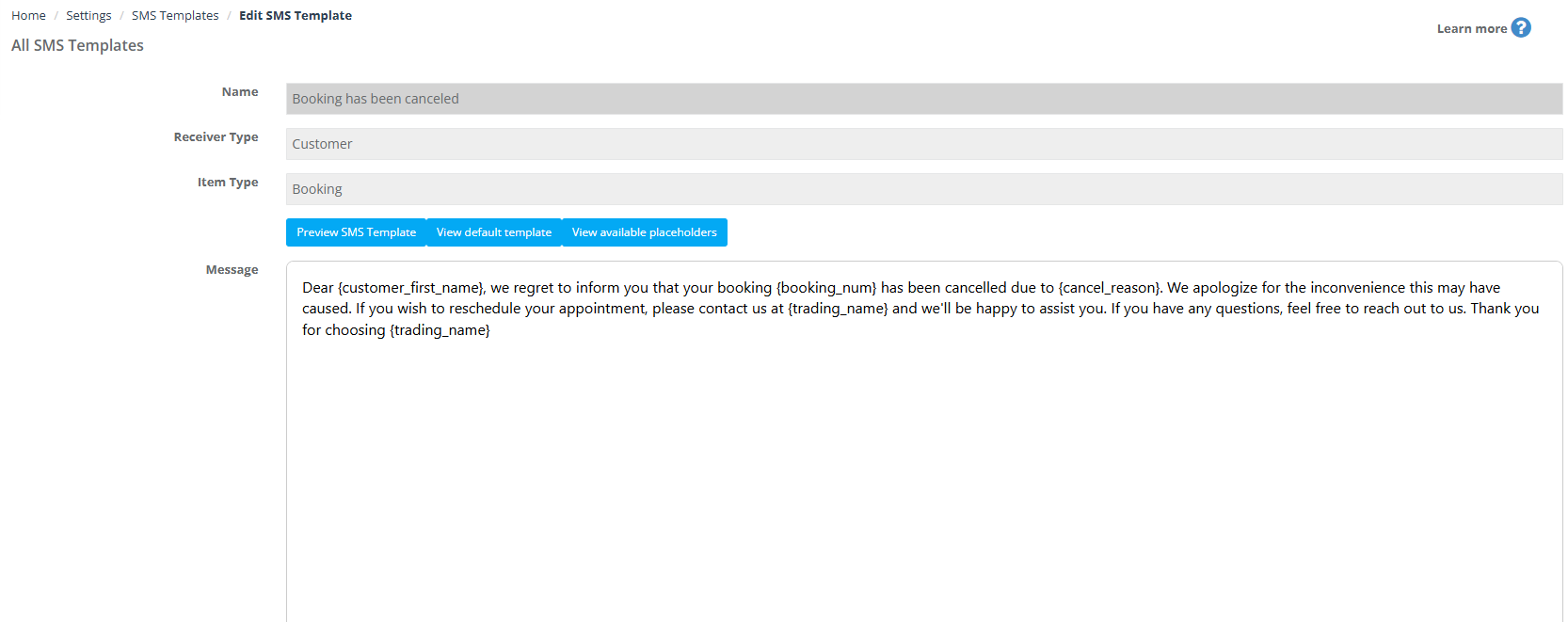
Booking scheduled date/time changed
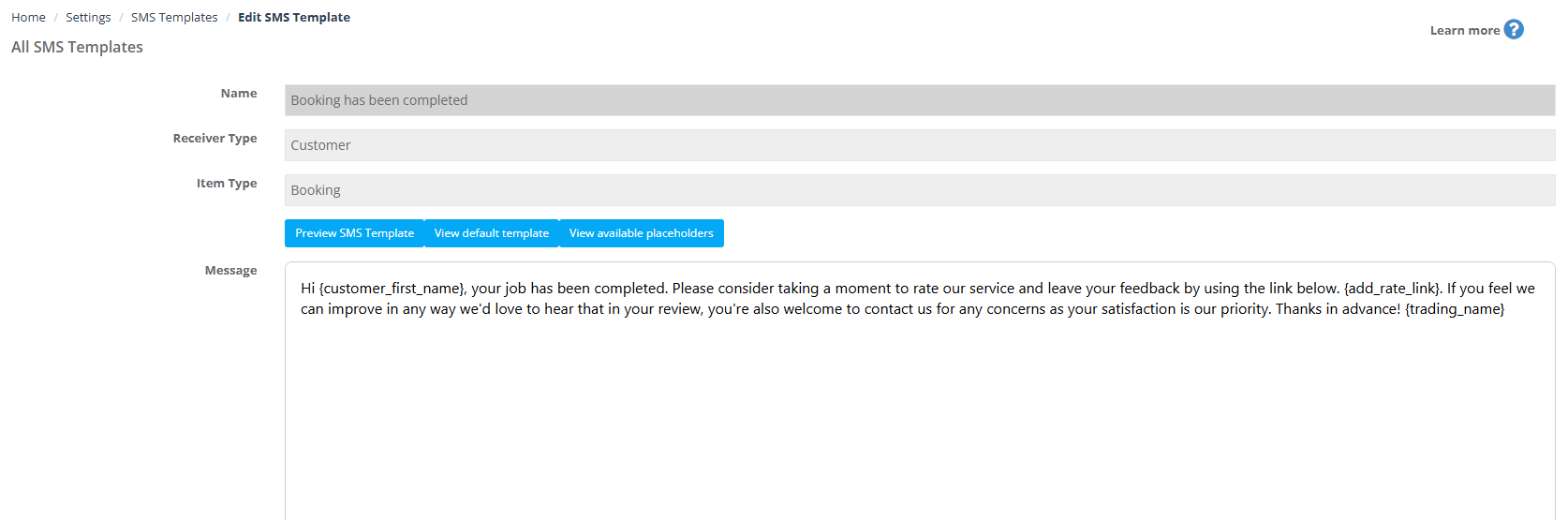
Booking has been completed
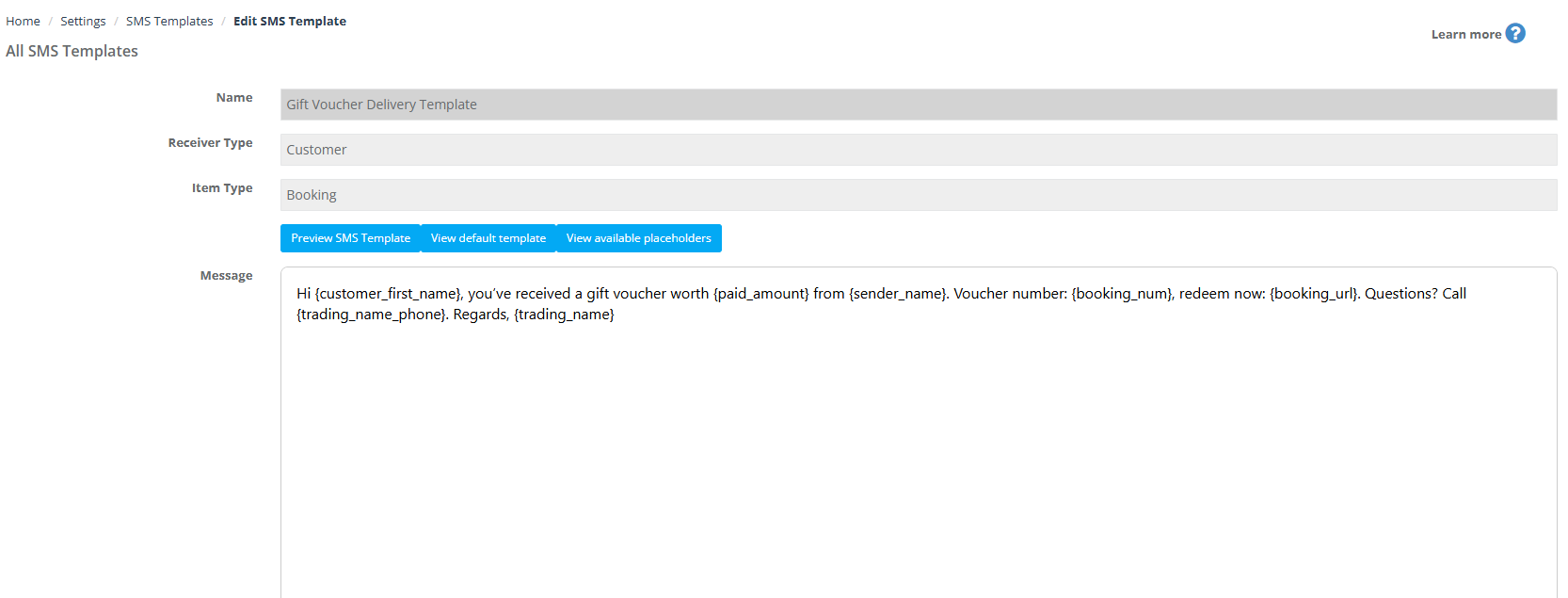
Gift voucher delivery template
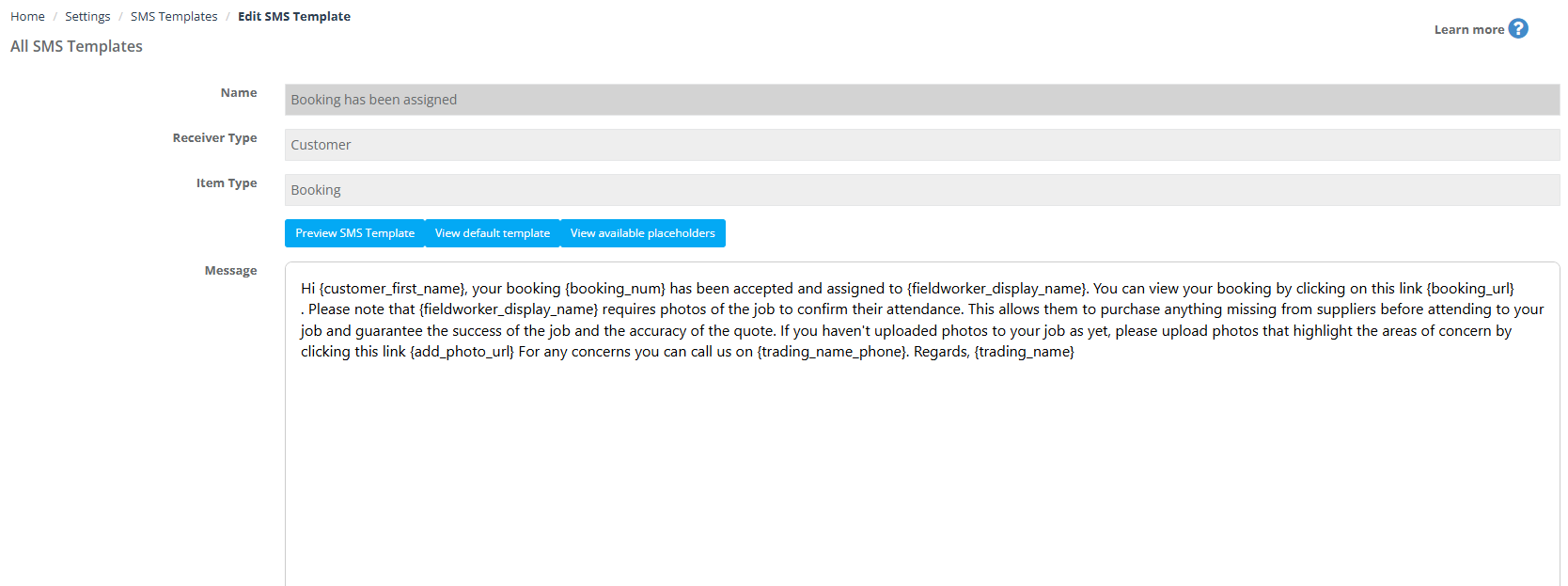
Booking has been assigned
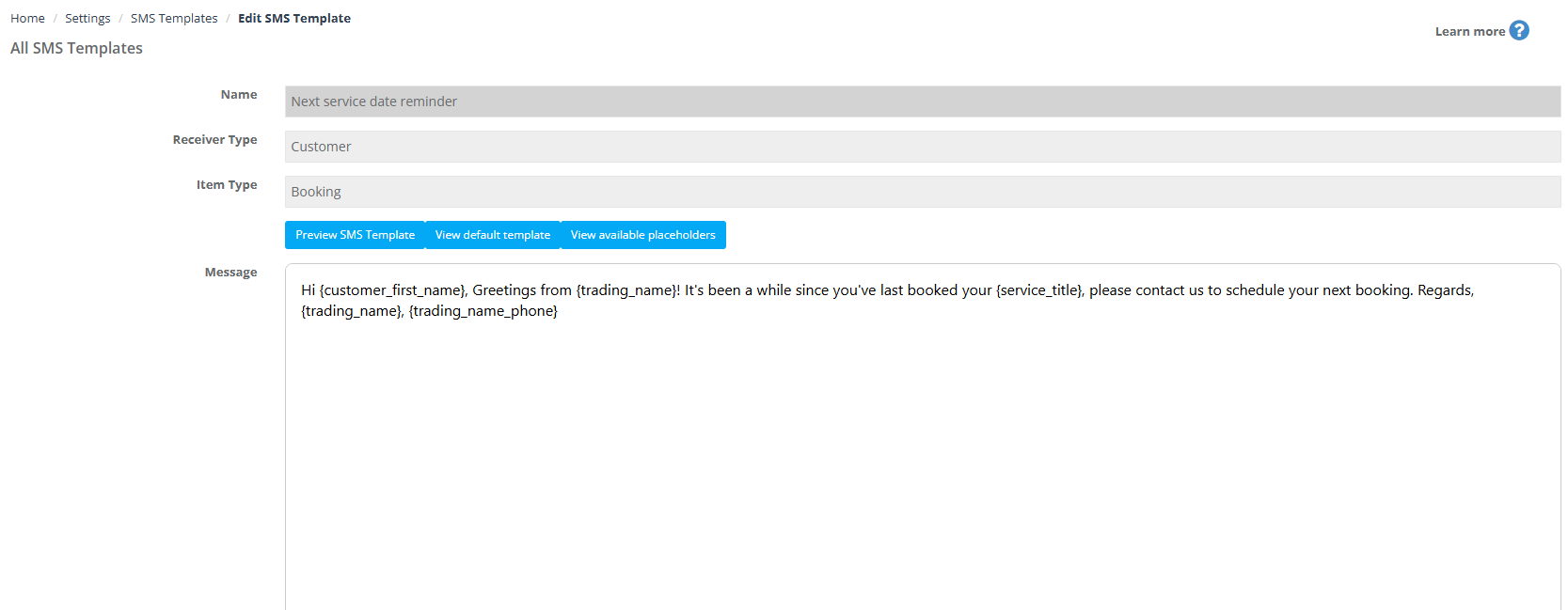
Next service date reminder
Send mobile app link to customer
Send booking confirmation SMS
Fieldworker is running late
Fieldworker is on the way
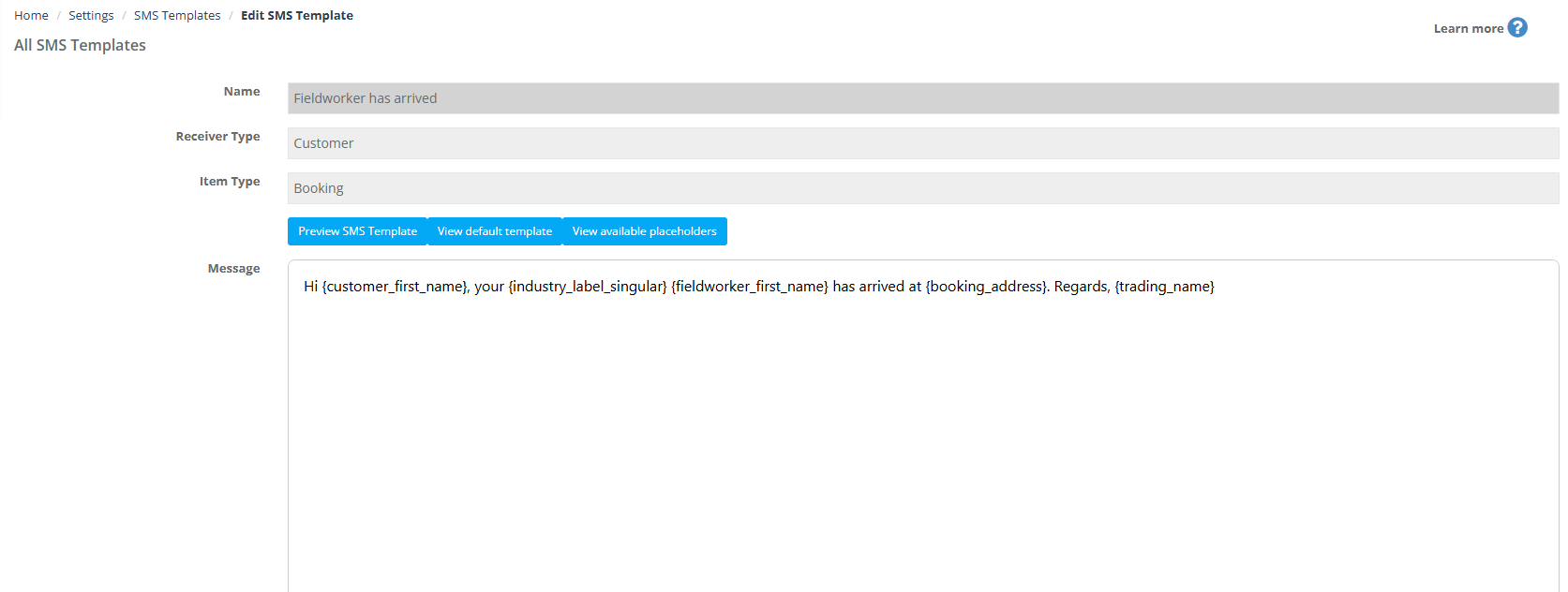
Fieldworker has arrived
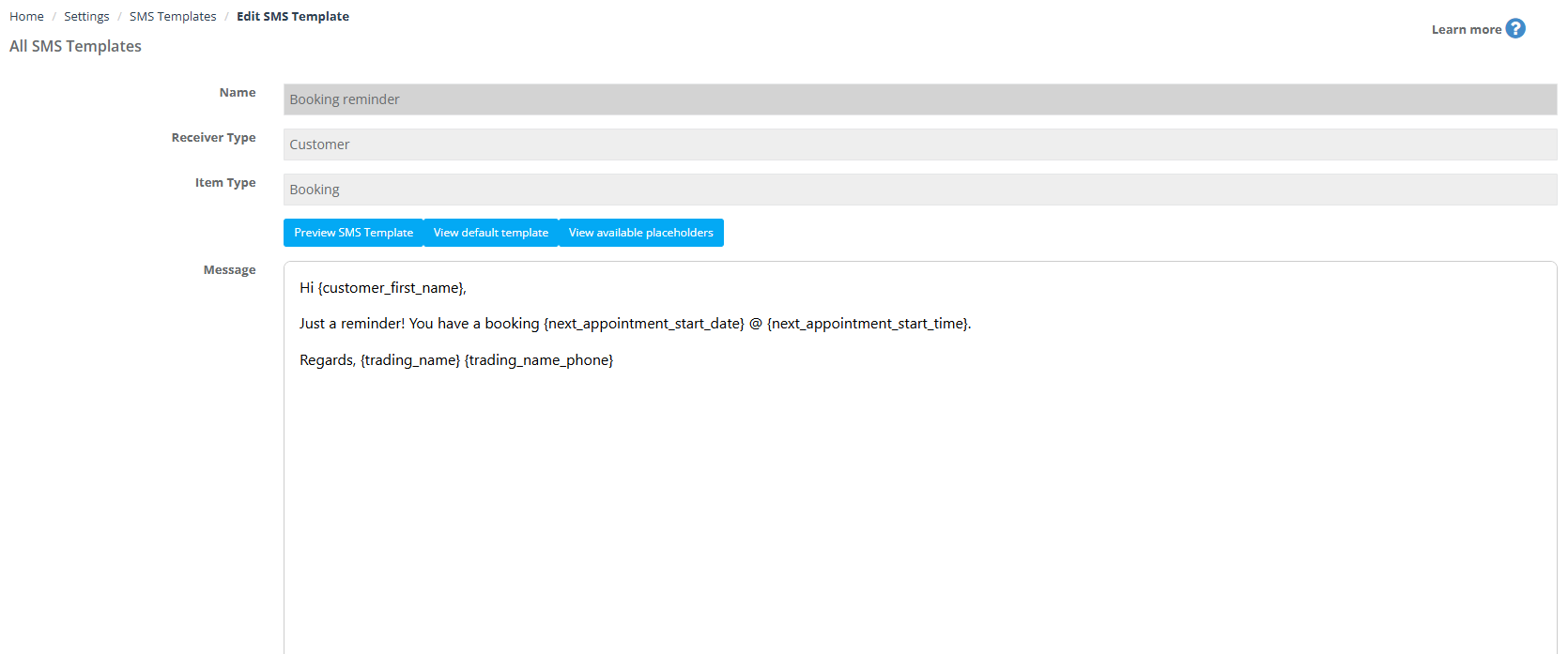
Booking reminder
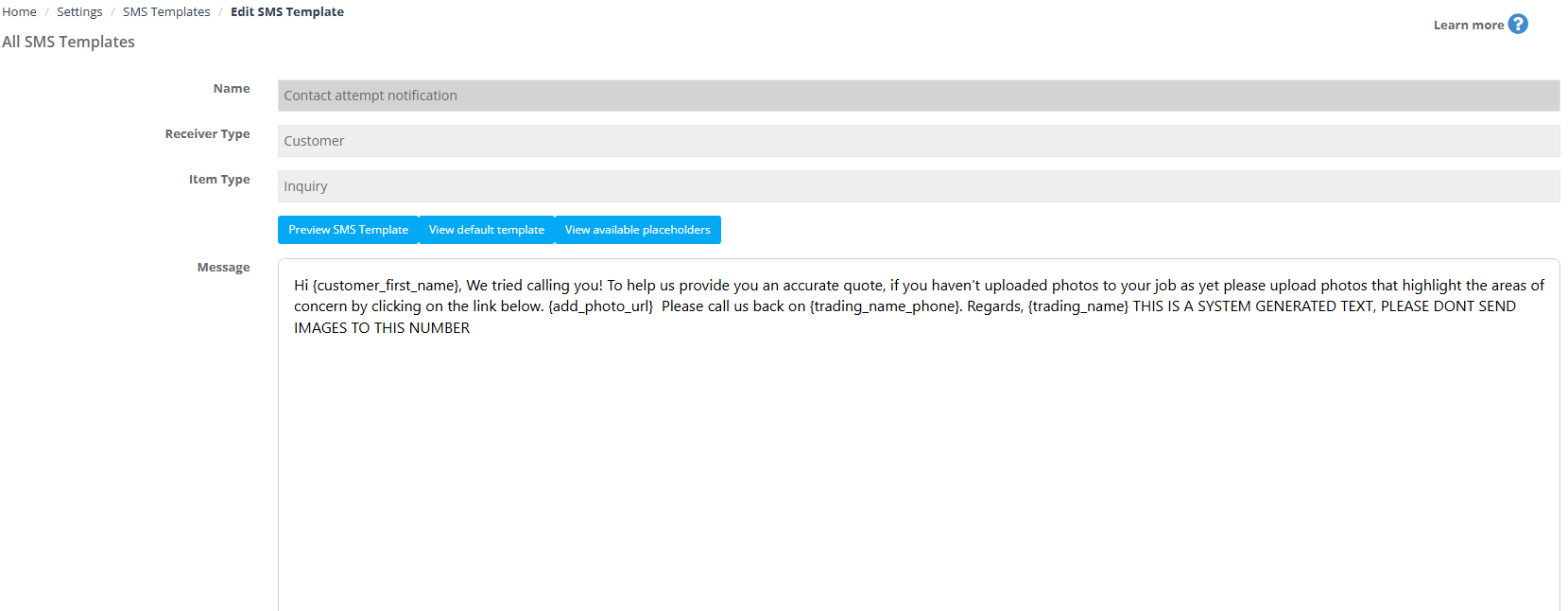
Contact attempt notification
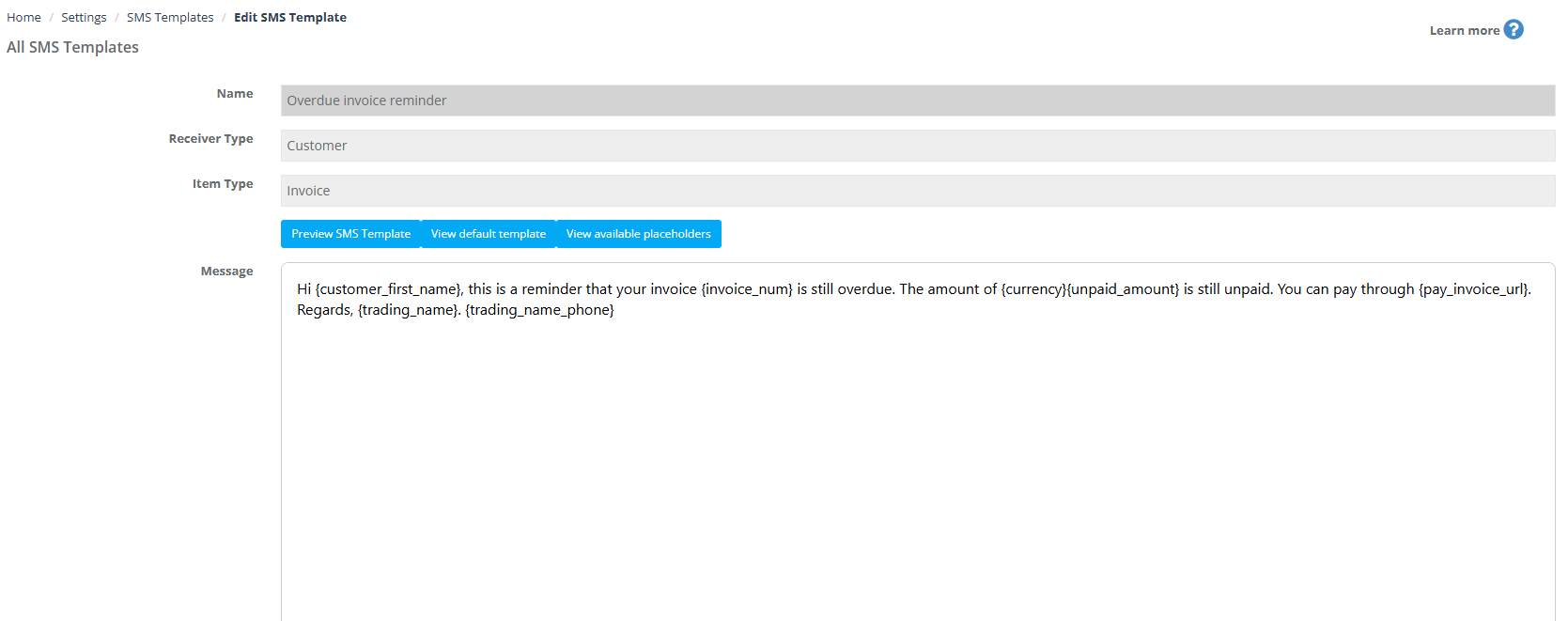
Overdue invoice reminder
SMS templates sent to fieldworkers
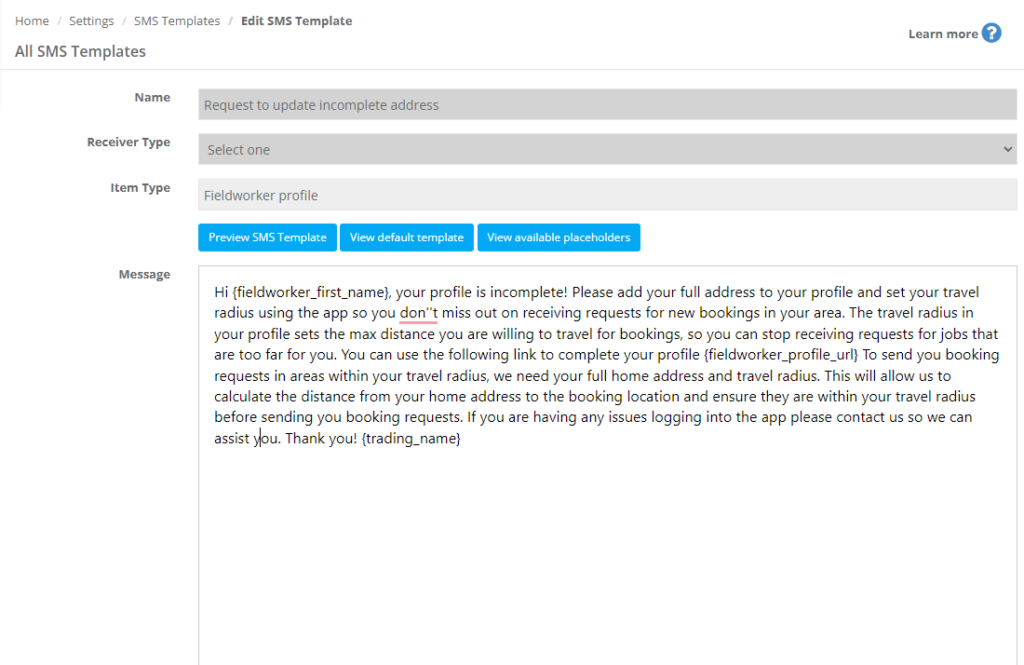
Request to update incomplete address
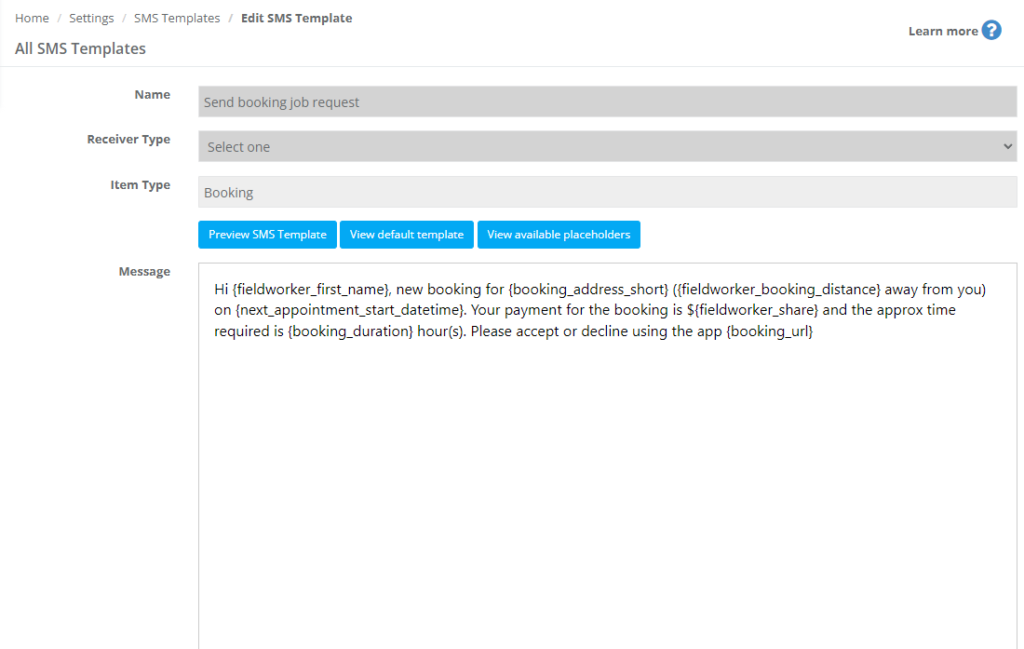
New booking job request
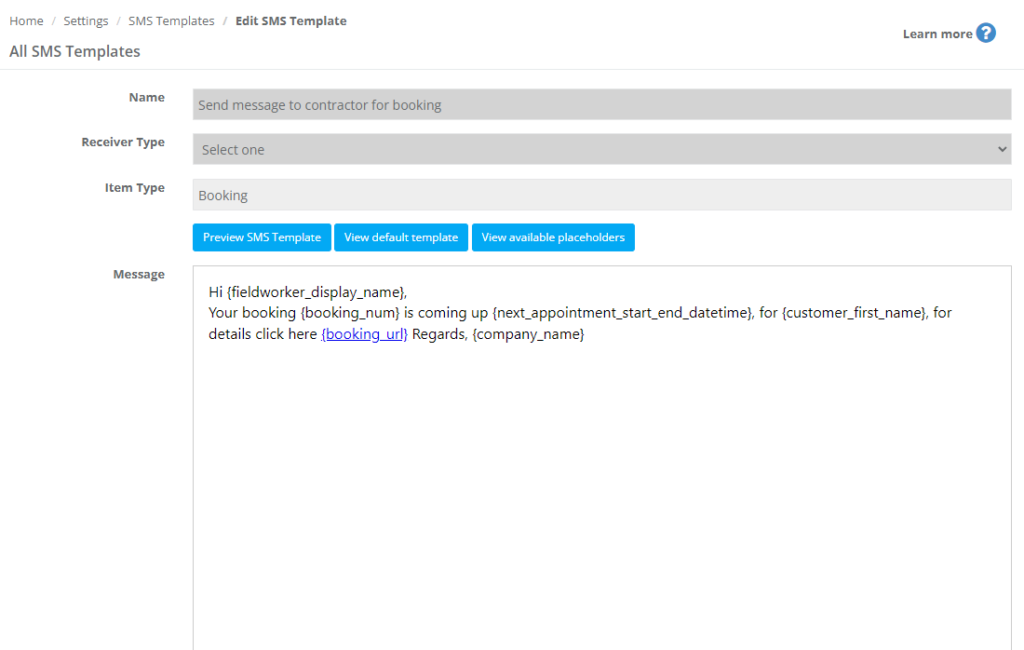
Send message to contractor for booking
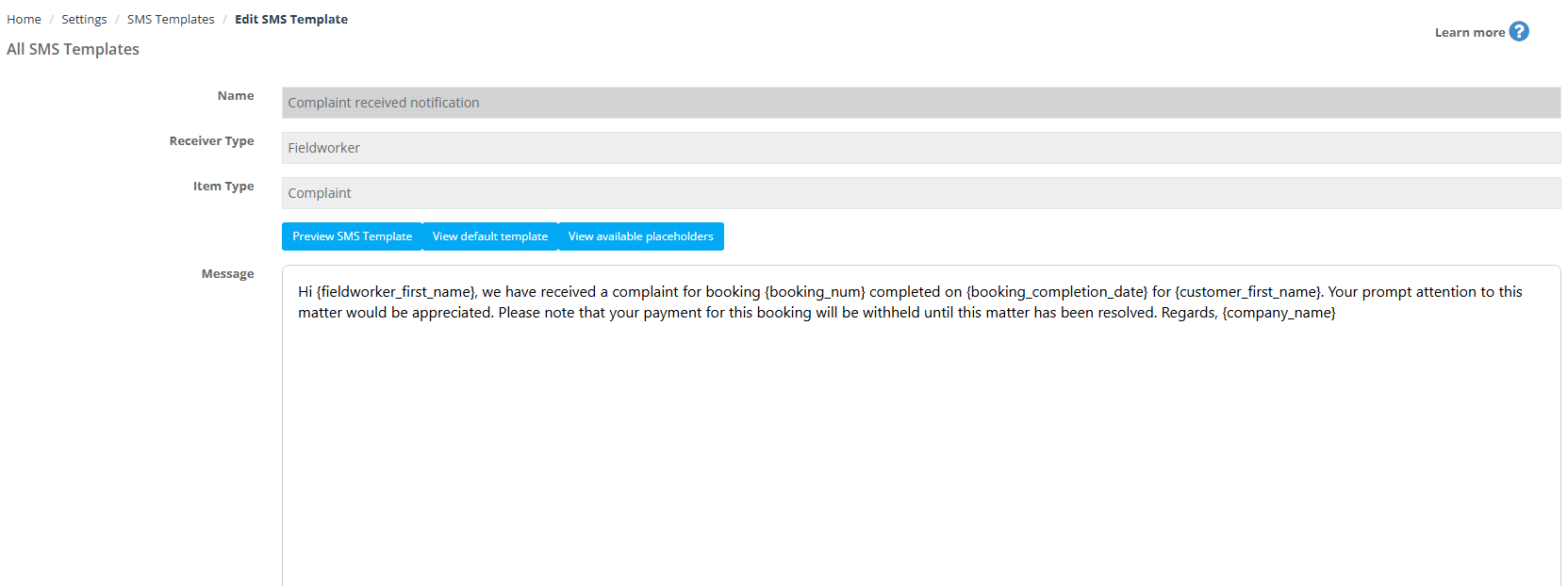
Complaint received notification
Best practices
- Keep it short: Put the key info first (what happened + what the customer should do next).
- Use clear calls-to-action: Include links like {booking_url} or {pay_invoice_url} where appropriate.
- Confirm placeholder coverage: Use placeholders that match the template’s item type (e.g., invoice placeholders in invoice templates).
- Preview before rollout: Test a few real scenarios to confirm formatting, link behavior, and message length.
- Stay compliant: Only text customers who have consented to receive SMS, and include an opt-out instruction if required in your region.
Related articles
Setup & automation
- Set Up Digital Phone System (Twilio)
- Automated Procedures (Automations)
- On-the-Way SMS Notifications (ETA & Live Tracking)
Templates & placeholders
Messaging history & logs
- SMS History Log & Notifications
- Customer Communication History
- Fieldworker SMS Log
- Booking Communication (Contact Customer/Fieldworker)
To stay updated, please subscribe to our YouTube channel.