
Merge Duplicate Customer Records (CRM Deduplication)
Duplicate customer profiles can appear in any CRM—especially when customers contact you through multiple channels, submit multiple inquiries, or when customer data is imported/synced from other systems. OctopusPro lets you identify duplicate customer records and merge them into one primary (master) customer profile, so your database stays clean and each customer’s full history is stored in one place.

Table of contents
- Why duplicate customers happen
- Important: merging is irreversible
- How OctopusPro detects duplicates
- What happens when you merge customers
- How to merge duplicate customers
- Why merging duplicates matters
- How to reduce duplicates going forward
- Best practices
- Troubleshooting
- Related guides
Why duplicate customers happen
Duplicate customer records can be created in several common ways, including:
- Multiple inquiries/leads: A customer submits your website inquiry form more than once (for example, from different devices). See: Website Lead Capture Form.
- Customer portal booking without logging in: Customers book as a guest (or create a new portal account instead of using their existing one). See: Customer Portal Profile Management.
- Manual entry duplicates: An admin adds a customer that already exists and ignores “similar customer already exists” warnings.
- Fieldworker-created duplicates: Fieldworkers create a new customer because they can’t see your full customer list (or didn’t search first). See: Fieldworker Access to Customer Database and Allow Fieldworkers to Add New Customers.
- Imports & accounting sync: Customer contacts are imported from CSV, or pulled in from Xero/QuickBooks when duplicates already exist in the source system. See: Import Existing Customers.
Important: merging is irreversible
Warning: Merging customer profiles is irreversible. Once you save a merge, the duplicate profile(s) are removed and their data is consolidated into the primary customer profile you merge into.
- Before merging, confirm you are merging the correct person/company.
- Make sure the primary profile is the one you want to keep long-term (usually the record with the most accurate contact and billing information).
- If you’re not 100% sure, do not merge—click Back and keep the records separate.
How OctopusPro detects duplicates
OctopusPro identifies potential duplicate customers using exact matches on any of the following fields:
- Mobile number
- Phone number
- Email address
Tips to improve duplicate detection (and avoid false matches):
- Formatting matters: Differences in spacing, country codes, or punctuation can prevent an exact match. Standardize how your team enters phone numbers.
- Avoid placeholders: Values like “N/A”, “-”, or fake numbers/emails can create clutter and incorrect matches.
- Shared contact details: Shared business numbers or generic inboxes (e.g., accounts@) can trigger matches—review carefully before merging.
What happens when you merge customers
1) You choose what profile details to keep
On the merge screen, OctopusPro shows the customer profile fields for each record (for example: name, business name, phone/mobile, email, addresses). You can select which values to keep in the final (primary) record.
Important: Any profile data not selected from the duplicate record(s) is removed as part of the merge, so review each field carefully.
2) Customer history is consolidated into one profile
The system consolidates linked records and activity into the primary customer profile, such as:
- Inquiries / leads
- Quotes / estimates
- Bookings / jobs
- Invoices
- Issues / complaints
- Payments
- Discussions / messages
3) Single-source data is not deleted, but conflicts require your decision
Information that exists only on one of the profiles should remain available after the merge. If both profiles contain different values for the same field (for example, two different emails or addresses), you should explicitly choose the correct value during the merge.
4) Review other customer attributes before saving
Depending on your account configuration, customer records may also include items such as tags/labels, custom fields, internal notes, files/attachments, customer portal details, or linked dependents/assets/properties. Always review the final primary profile preview before saving.
How to merge duplicate customers
You can merge duplicates in two ways:
- Option 1: Use Find Duplicate Customer (recommended when you want to review detected duplicates)
- Option 2: Start from Customers → All Customers (recommended when you already know which record should be primary)
Option 1: Merge using “Find Duplicate Customer” (recommended)
- Go to Customers.
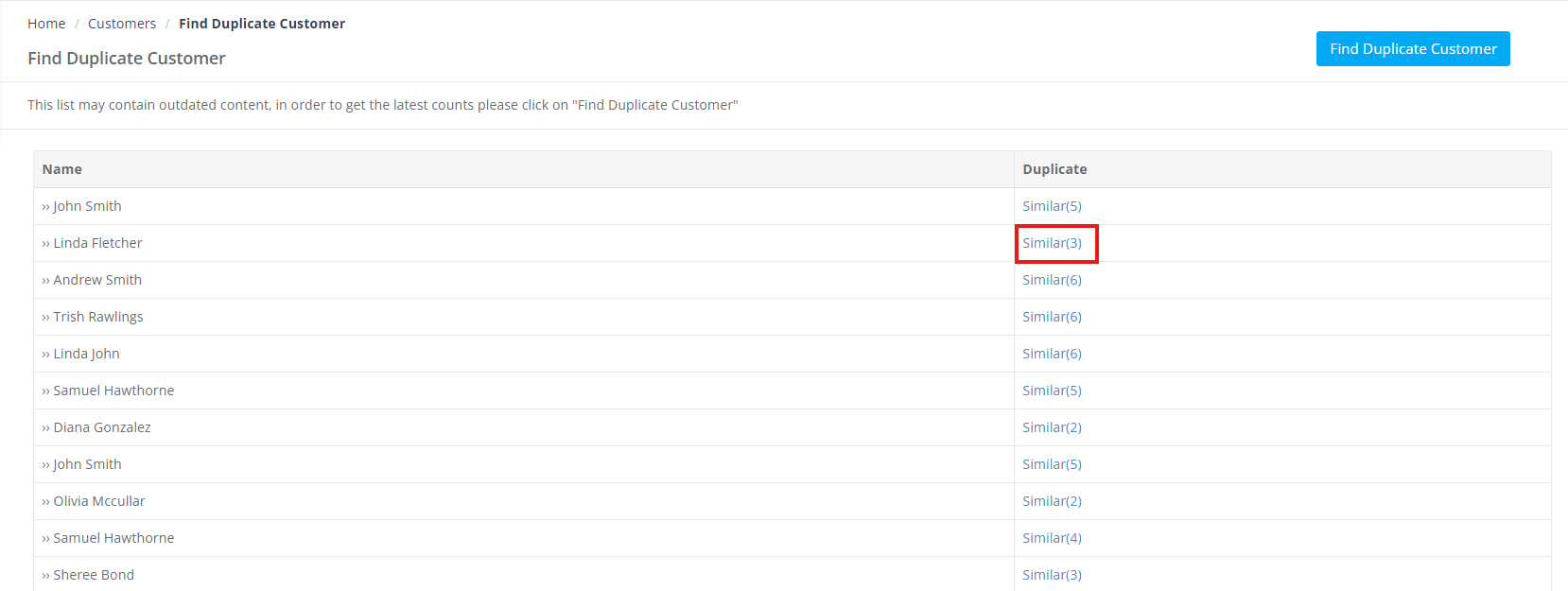
- Select Find Duplicate Customer from the Customers menu.
- If the page indicates results may be outdated, use the on-screen option to refresh/update the list.
- Locate the customer record you want to keep as the primary (master) profile.
- Click Similar (#) beside that customer to view possible duplicates.
- On the cleanup/merge screen:
- Tick Merge this duplicate for each record you want to merge into the primary profile.
- Select the specific field values you want to keep in the final customer record (e.g., email, mobile, address).
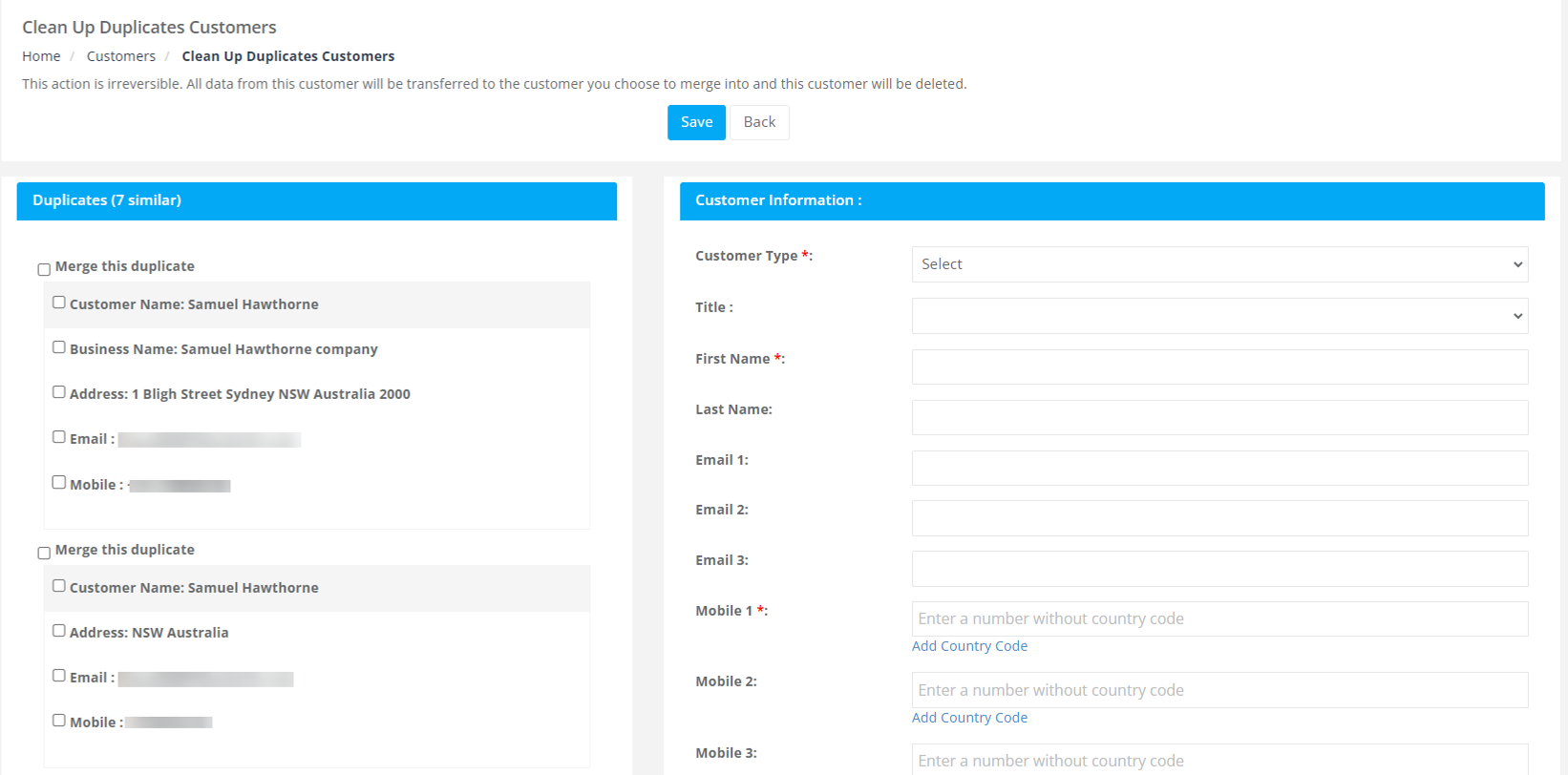
- Review the final primary customer details carefully.
- Click Save to complete the merge.
- If none of the suggested profiles are true duplicates, click Back and do not merge.
Option 2: Merge from Customers → All Customers
- Go to Customers → All Customers.
- Open the customer profile you want to keep as the primary record.
- Click Actions.
- Select Merge Duplicate profiles (or the equivalent merge option shown on your screen).
- Review suggested matches, select which records to merge, choose the field values to keep, then click Save.
Why merging duplicates matters
- Cleaner CRM: One customer = one profile, making it easier to manage communications, billing, and support.
- Accurate reporting: Revenue, bookings, and activity are correctly attributed to a single customer record.
- Fewer communication mistakes: Reduces the risk of sending duplicate reminders, follow-ups, and marketing emails to the same person.
- Smoother imports & syncs: Helps avoid duplicate contact conflicts when importing or syncing with accounting systems.
How to reduce duplicates going forward
Merging fixes duplicates that already exist. To reduce future duplicates, use these controls and habits:
- Train your team to search first: Search by mobile or email before creating a new customer.
- Standardize data entry: Use consistent phone formats and address conventions across your team.
- Customer portal login: Encourage customers to log in so new bookings attach to their existing portal profile. See: Customer Portal Profile Management.

- Fieldworker permissions: If duplicates happen because fieldworkers can’t see the full CRM, enable controlled visibility. See: Fieldworker Access to Customer Database.
- Limit who can create/edit customers: Use role permissions to restrict customer creation/editing to the right users. See: Role-Based Access Control (RBAC) & User Permissions.
- Clean imports before uploading: Deduplicate your spreadsheet by email and phone before importing. See: Import Existing Customers.

Best practices
- Keep the “best” profile as primary: Choose the profile with the most accurate details and the history you want to keep long-term.
- Handle “shared” contacts carefully: If a phone/email is shared across multiple customers (common in families or businesses), confirm you’re not merging two different people.
- Run a regular cleanup: If you have high lead volume or frequent imports, review duplicates weekly/monthly.
- Merge before importing properties/dependents: If you use customer assets/properties, merge first to avoid linking assets to the wrong profile. See: Importing Customer Properties.
Troubleshooting
“I can’t see duplicates, but I’m sure they exist”
- Duplicate detection is based on exact-match values for email/mobile/phone—check for formatting differences or typos.
- If the duplicate list can be refreshed/updated, do so on the Find Duplicate Customer screen.
“These ‘Similar’ records are not actually duplicates”
- Shared business numbers and generic emails can trigger “similar” matches.
- If you are not 100% sure, click Back and do not merge.
Should I merge or delete?
If the problem is duplicate customer profiles, merging is usually safer than deleting, because merging preserves history and linked records. Deleting can remove access to important job/invoice history or may be blocked if related records exist. See: Delete / Restore Customers.

Related guides
- Customer Management & CRM
- View Customer Details
- Edit Customer Details
- Customer Activity Timeline
- Customer Communication History
- Import Existing Customers
- Customer Profile Custom Fields
- Importing Customer Properties
- Contacting Customers
- Delete / Restore Customers
To stay updated, please subscribe to our YouTube channel.