
Assign, Reassign & Unlink Unapplied (Unknown) Payments
Need to reconcile “mystery money”, fix a payment that’s linked to the wrong invoice, or undo a hasty approval?

This guide explains how to manage unapplied payments (also known as unknown, unallocated, or unmatched payments) in OctopusPro. You’ll learn how to import payments from a CSV/bank file, match them (manually or using the auto-match engine), approve or reject them using a dual-control workflow, and safely unlink or reassign payments without breaking your audit trail.
On this page
- What counts as an “unknown” (unapplied) payment?
- Why clear the queue quickly?
- Where to find Unknown Payments / Payment Reconciliation
- Assigning unknown payments (single match)
- Auto-match engine & “multiple matches” badge
- Bulk assign / split one deposit across multiple invoices
- Row actions menu explained
- Handling “No Customer Linked” rows
- Dual-control approvals & fieldworker payment notes
- Fixing a payment linked to the wrong invoice (unassign vs delete)
- Best-practice checklist
- FAQs
- Related guides
What counts as an “unknown” (unapplied) payment?
Most “unknown” rows appear when you import payments that weren’t created by a live-connected gateway (like Stripe/Square), or when the payment reference doesn’t clearly identify the invoice/customer.
- Bank-transfer CSV exported from your online banking portal: The file contains an amount and reference text, but no invoice/customer ID.
- Legacy card deposits (before you linked a gateway): You’re back-loading historical revenue into OctopusPro.
- External POS / non-integrated gateway: You upload batches so OctopusPro becomes your single source of truth.
- Bulk EFT / one deposit covering multiple invoices: One payment must be allocated across several jobs/invoices.
Until you match them, these payments stay in your reconciliation queue and may remain Unapproved (depending on your permissions and approval settings).
Why clear the queue quickly?
- Accurate A/R & P/L: Unmatched cash can confuse what’s truly outstanding and complicate reporting.
- Faster payroll & commissions: Cleared invoices help downstream workflows (e.g., fieldworker payouts) stay accurate.
- Fewer disputes: Prevents “I already paid” situations and stops incorrect reminders being sent.
- Audit compliance: Time-stamped approvals and corrections protect your audit trail.
Where to find Unknown Payments / Payment Reconciliation
Go to:
- Finance → Invoices → Payment Reconciliation
From here you can work through tabs such as Unapproved (and other reconciliation states depending on your setup). Use filters like amount, date, reference, and indicators such as No Customer Linked to locate items quickly.
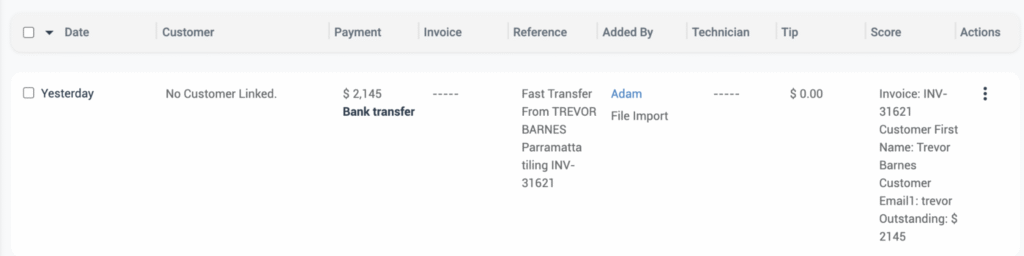
Assigning unknown payments (single match)
1) Locate & filter
Open Finance → Invoices → Payment Reconciliation → Unapproved. Filter by amount, date, reference, or No Customer Linked.
2) Match a single payment line
- Open the payment row Actions (…) menu.
- Select Add to Invoice (or Assign Invoice).
- Choose the correct invoice, then click Save.
What happens next? The payment will either remain Unapproved (if approvals are enabled or required), or move to Approved if you have permission to approve.
Auto-match engine & “multiple matches” badge
OctopusPro can suggest invoice links using signals like amount, customer, reference patterns (e.g., invoice numbers like INV-31621), and date proximity.
- Unapproved by default: Even when the system finds a strong match, the row can stay in Unapproved until an authorised user clicks Approve.
- Multiple possible matches: You may see a badge (e.g., “2 matches”). Click it to review candidate invoices, select the correct one, then approve.
- Wrong suggestion: Use Reassign Invoice to move the payment to the correct invoice, or Unlink Invoice to return it to Unknown/Unlinked for later handling.
Bulk assign / split one deposit across multiple invoices
If a single deposit needs to pay multiple invoices (common with bank transfers or bulk EFTs), use the Bulk Assign or split-payment tools (where available in your account) to allocate the payment across multiple invoices—similar to multi-invoice matching in accounting tools.
Typical workflow:
- Open the payment row and select Bulk Assign / Split Payment (if shown).
- Select the invoices to allocate to.
- Enter the allocated amount per invoice, then Save.
- Approve the payment allocation (if approvals are enabled).
Tip: Always add a Reconciliation Note explaining the allocation when a payment doesn’t map 1:1 to a single invoice.
Row actions menu explained
The Actions (…) menu includes all key reconciliation tools:
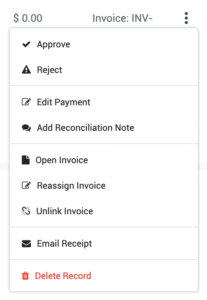
| Action | Use when… | Result |
|---|---|---|
| Approve | Match confirmed | Moves to Approved; invoice balance updates |
| Reject | Duplicate import / wrong currency / not a customer payment | Sends to Ignored/Rejected state; audit trail kept |
| Edit Payment | Incorrect amount, method, reference, or details | Updates payment details (history retained) |
| Add Reconciliation Note | Split/partial payments or anything needing explanation | Adds a time-stamped internal memo |
| Open Invoice | Verify balance, line items, or customer details | Opens the invoice for review |
| Assign / Add to Invoice | Payment is currently unapplied | Links payment to an invoice |
| Reassign Invoice | Payment is linked to the wrong invoice | Relinks payment to the correct invoice |
| Unlink Invoice | You need to undo the link safely | Returns payment to Unknown/Unlinked for proper handling |
| Email Receipt | Customer requests proof of payment | Sends a receipt (if enabled in your workflow) |
| Delete Record | Only for confirmed duplicate/erroneous uploads | Permanently removes the record (admin-only in most setups) |
Handling “No Customer Linked” rows
If neither the customer nor invoice can be identified, the grid may show No Customer Linked. Fix it in two steps:
- Edit the payment and attach the correct Customer.
- Then Assign Invoice to link it to the correct invoice.
The payment typically stays Unapproved until both steps are complete, which helps prevent posting cash against the wrong customer or invoice.
Dual-control approvals & fieldworker payment notes
- Fieldworker offline payments: Fieldworkers can record tender types (card, cash, EFT, cheque, etc.) once you grant the permission “Display booking billing amount to fieldworkers” (and any related payment permissions your workflow requires).
- Keep payments pending (dual-control): If Keep payments pending until reconciled by an authorized user is enabled, offline/manual entries remain Unapproved until a second authorised user verifies and approves them (recommended for fraud/error prevention).

Learn more:
Fixing a payment linked to the wrong invoice (unassign vs delete)
Best practice: Don’t delete real money. If a payment was matched to the wrong invoice, unlink or reassign it. Deleting destroys audit evidence and can create ledger gaps.
How to unassign / reassign safely
- Go to Finance → Invoices → Payment Reconciliation and open the Approved or Unapproved list.
- Find the payment row, open Actions (…), then choose:
- Reassign Invoice (to link straight to the correct invoice), or
- Unlink Invoice (to return it to Unknown/Unlinked and reconcile again)
- If the payment was already approved and your workflow requires reversal first, click Reject (where applicable) before unlinking/reassigning.
Why unassign, not delete?
- Prevents data loss: The payment record remains available for correct re-linking.
- Keeps the audit trail intact: Auditors can see the original capture and the correction.
- Maintains financial accuracy: Balances remain consistent without “missing” transactions.
Reserve Delete Record only for confirmed duplicates or erroneous imports.
Best-practice checklist
- Import & clear regularly (daily/weekly) to avoid month-end reconciliation surprises.
- Standardise payment references (ask customers to include invoice numbers like INV-####) to improve auto-matching.
- Never delete real money—unlink or reassign instead.
- Reduce card declines: If your gateway supports it (e.g., Stripe), enable account/card updater features to help keep stored cards current.
FAQs
Do I need an invoice before matching?
Yes. Create/generate the invoice first so the payment can be applied correctly.
Can I split one deposit across many invoices?
Yes—use Bulk Assign or the split-payment allocation tools (where available), and add a reconciliation note explaining the breakdown.
What if I chose the wrong invoice?
Use Unlink Invoice to return it to Unknown/Unlinked, or Reassign Invoice to switch it to the correct invoice.
What happens after deletion?
The payment record is removed permanently. Only delete confirmed duplicates or erroneous uploads.
Does OctopusPro log card failures?
Yes. When a gateway payment fails, OctopusPro can store the gateway error details and help you collect using an alternative method. Using gateway updater features (if supported) can reduce repeat declines on stored cards.
Related guides
- Payment Import & Reconciliation (CSV bank transactions)
- Add a payment to an invoice (online & offline)
- View invoice payments, receipts & refunds
- Payment methods configuration (system-wide)
- Customer portal payment methods (what customers see at checkout)
- Keep payments pending until reconciled (approval workflow)
- Fieldworker permissions & access control
To stay updated, please subscribe to our YouTube channel.