
Customer Portal Service Search Bar
The Service Search Bar adds a keyword search field to your customer portal so customers can quickly find a specific service instead of scrolling through your entire service list.
Why enable a service search bar?
- Faster bookings: customers can find the right service in seconds.
- Better customer experience: less scrolling, especially on mobile.
- Fewer mistakes: customers are more likely to choose the correct service.
How it works for customers
- The customer opens your portal and sees a Search for services field above the services list.
- They type a keyword (for example: massage).
- The portal shows a list of relevant matching services to choose from.
- The customer selects a service and continues with viewing/booking it.
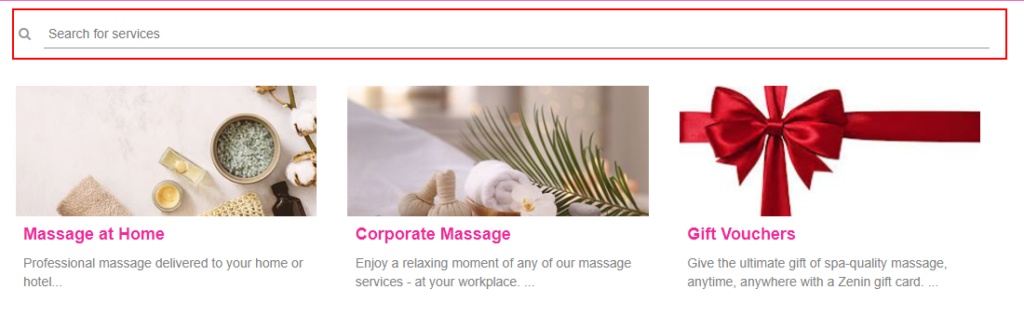
When enabled, a search bar appears above the services list in the customer portal.
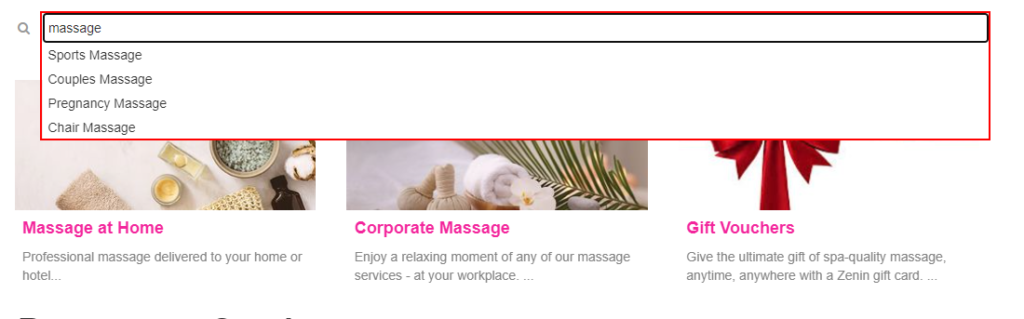
As customers type, they can pick from a list of matching services.
Prerequisites
- This feature applies to the services list in your customer portal. If your portal does not display services, the search bar won’t be useful.
How to enable the Service Search Bar
- In your admin portal, go to Settings.
- Open Customer portal.
- Select Flags & permissions.
- Under the Website Flags section, enable: Display a search bar for services in the customer portal.

How to test it
- Open your customer portal services page.
- Refresh the page (or open the portal in a private/incognito window).
- Confirm the Search for services field appears above your service list.
- Type a keyword and confirm matching services appear in the list.
What happens when it’s disabled?
When disabled, the search bar is hidden and services will be listed normally without a search option.
Examples
- Wellness: type “deep tissue” to find the right massage service.
- Cleaning: type “end of lease” to jump straight to that service.
- Trades: type “inspection” to find inspection-related services quickly.
Troubleshooting
- Search bar isn’t showing: confirm the website flag is enabled under Settings → Customer portal → Flags & permissions.
- Search results look incomplete: confirm the service you expect is available/visible in the customer portal services list.
- Changes don’t appear: refresh the portal page or test in a private/incognito window.
Related resources
- Customer Portal Flags & Permissions
- Set Up & Enable Online Bookings (Customer Portal Setup)
- OctopusPro User Guide (Help Center Home)
To stay updated, please subscribe to our YouTube channel.