
Display Service Descriptions in the Customer Portal Services List
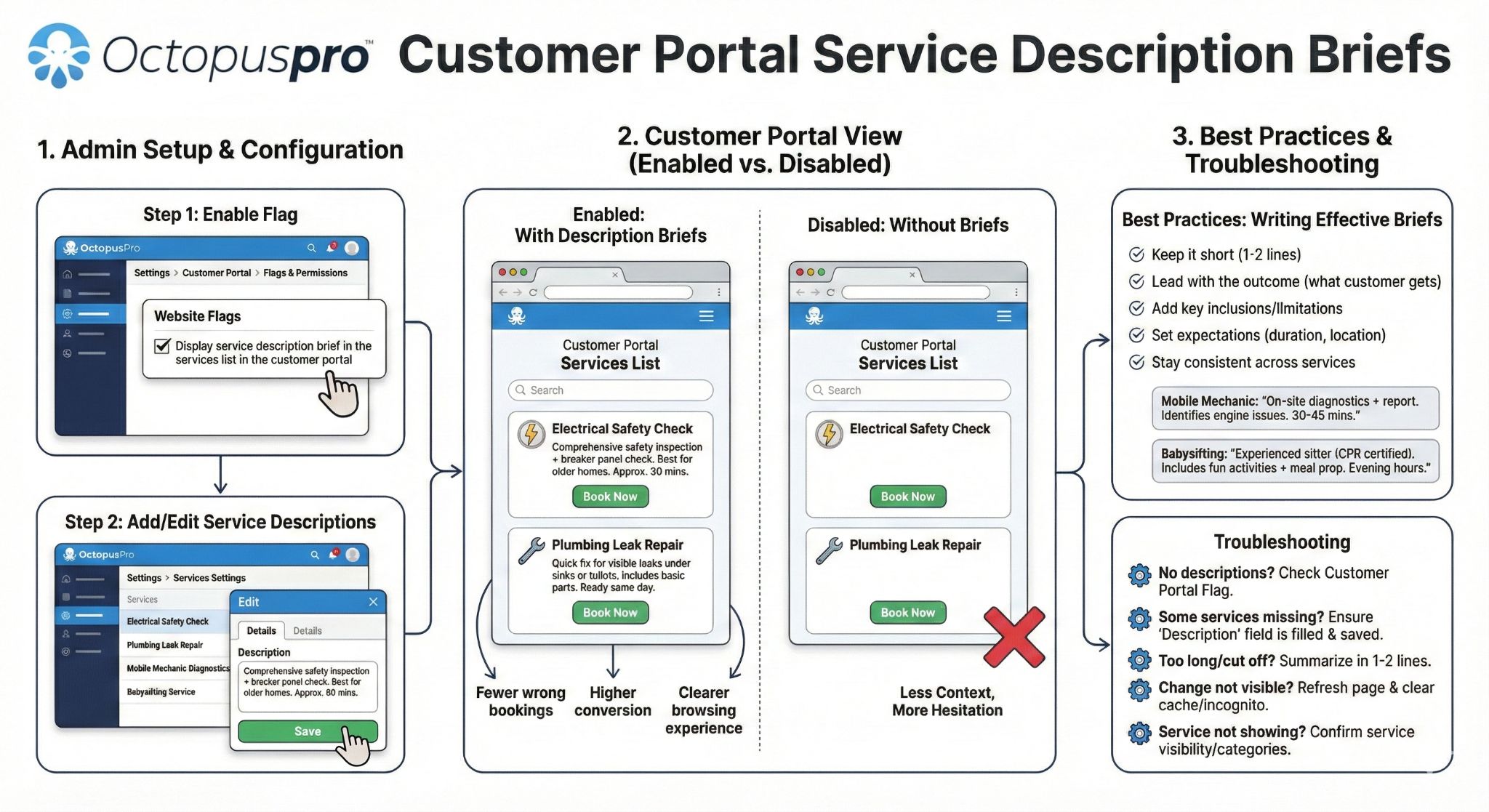
OctopusPro lets you display a short service description brief under each service in your Customer Portal services list. This helps customers quickly understand what each service includes, who it’s for, and what to expect—reducing incorrect bookings and increasing confidence when customers are choosing between similar services.

On this page
- What this feature does
- Step 1: Enable the service description brief (Customer Portal flag)
- Step 2: Add / edit your service descriptions
- Step 3: Preview what customers will see
- Enabled vs disabled (example screenshots)
- Best practices (what to write)
- Troubleshooting
- Related guides
What this feature does
When enabled, OctopusPro displays a short description snippet under each service on the Customer Portal services list. The text is pulled from your service’s Description field (in your service settings). This gives customers quick context while they browse your services—before they select a service and proceed to booking/checkout.
Typical benefits:
- Fewer wrong bookings: customers can tell the difference between similar services (e.g., Basic vs Premium, Standard vs Deep).
- Higher conversion: clearer services reduce hesitation and “I’m not sure which one” drop-offs.
- Less admin back-and-forth: fewer calls/messages to clarify what a service includes.
- Better browsing experience: customers can scan quickly and choose the best-fit service.
Step 1: Enable the service description brief (Customer Portal flag)
- Log in to your OctopusPro account as an admin user.
- Go to Settings > Customer Portal > Flags & Permissions.
- In the Website Flags section, enable:
Display service description brief in the services list in the customer portal

Learn more about Customer Portal flags here: Customer Portal Flags & Permissions.
Step 2: Add / edit your service descriptions
After enabling the flag, you control what appears under each service by updating the service Description field.
- Go to Settings > Services Settings > Services.
- Find the service you want to update, then open it for editing.
- In the Details tab, enter or update the Description field.
- Click Save.
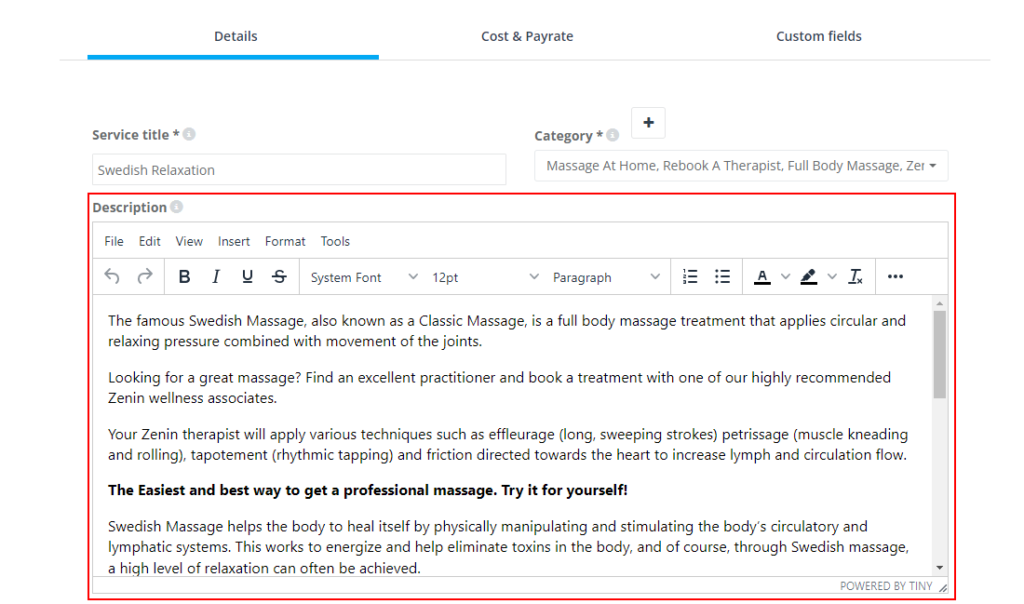
To learn more about creating and editing services, see: Creating a New Service – Configure Your Service Settings.

Step 3: Preview what customers will see
To confirm the change is working:
- Open your Customer Portal services page in a new browser tab.
- Refresh the page.
- If you’ve viewed the portal recently, open an incognito/private window to avoid cached content.
- Confirm each service shows a short description under the service name (where a description exists).
Enabled vs disabled (example screenshots)
When enabled: a description appears below the services in the Customer Portal services list.
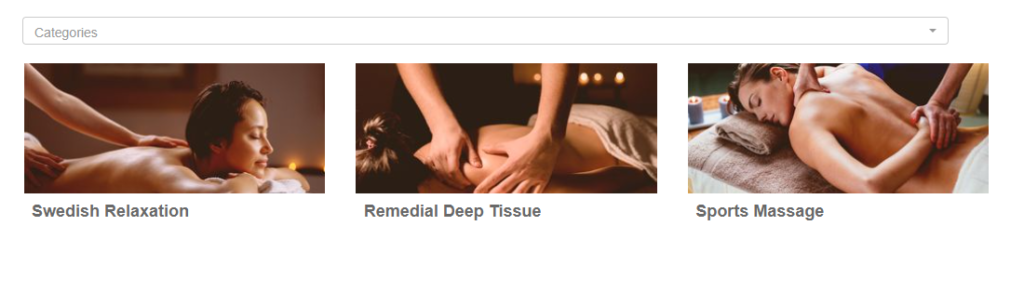
When disabled: services appear without a description—showing only the service image and name.
Best practices (what to write)
Customers skim the services list, so keep your opening line clear and customer-friendly. Your first sentence is the “brief” that matters most.
- Keep it short: aim for 1–2 lines at the start (long text may not display well in list view).
- Lead with the outcome: what the customer gets (not internal process jargon).
- Add 1–2 key inclusions: what’s included, who it’s for, or a key limitation.
- Set expectations: typical duration, delivery type (on-site vs in-store vs virtual), or “from” pricing if relevant.
- Stay consistent: use the same style across services so your portal looks professional.
Examples you can copy:
- Mobile / on-site: “Deep clean + protective seal. Best for heavy staining. Approx. 90–120 mins.”
- Fixed-site / in-store: “In-store tune-up. Safety check + brakes + gears. Ready same day.”
- Virtual / online: “Online consultation (Zoom). Personalised plan + follow-up notes. 45 mins.”
- Tiered services: “Standard clean (kitchen + bathroom). Add-ons available at checkout.”
Troubleshooting
- No descriptions showing? Confirm the flag is enabled in Customer Portal Flags & Permissions.
- Only some services show a description? Those services may not have text in the Description field, or the changes weren’t saved.
- The description is too long or gets cut off? Put your best summary in the first sentence and keep it to 1–2 lines.
- I updated a description but can’t see the change yet? Refresh the portal and try an incognito/private window (browser caching can delay what you see).
- A service isn’t showing in the portal at all? Confirm the service is available/visible in your portal configuration (and assigned to the correct categories if you use categories).
Related guides
- Customer Portal Flags & Permissions
- Customer Portal General Settings
- Service Catalogue Overview (Services List Management)
- Creating a New Service
- Create & Edit Service Categories
- Display a Search Bar for Services in the Customer Portal
To stay updated, please subscribe to our YouTube channel.