
Minimum Cancellation Notice Time (Customer Portal)
OctopusPro lets you enforce a minimum cancellation notice time (also known as a cancellation cut-off window) for bookings managed through your Customer Portal. This prevents last-minute cancellations and helps protect your schedule, revenue, and fieldworker availability.
When enabled, customers can only cancel (and typically reschedule) if they act at least X hours before the booking start time. If the cut-off has passed, OctopusPro blocks the action and displays your custom message.
Table of contents
- What this setting does
- Benefits & common examples
- Prerequisites (portal permissions)
- Enable the minimum notice time
- Set hours + customize the blocked-action message
- Customer experience: cancelling a booking
- Customer experience: rescheduling a booking
- Disable the feature
- Remove restrictions (allow cancellation any time)
- Best practices & related settings
- FAQ
What this setting does
- Enforces a cut-off window (in hours) before the booking start time.
- Blocks customer cancellations once the remaining time is less than your configured hours.
- Blocks customer rescheduling in the same way (customers will see your blocked-action message).
Note: This is a Customer Portal rule. It controls what customers can do online via the portal (including portal links opened from emails).
Benefits & common examples
- Reduce last-minute cancellations: protects your calendar and staffing.
- Improve utilization: gives you time to backfill slots.
- Set clear expectations: customers see a consistent, automated message when the cut-off has passed.
Examples (hours):
- 2 hours = short-notice appointments
- 24 hours = standard professional services
- 48 hours = 2 days
- 72 hours = 3 days
Prerequisites (portal permissions)
This setting only applies if customers are allowed to cancel and/or reschedule through the portal. If you want to stop cancellations entirely, disable the cancellation permission instead of using a time window.
- Cancel bookings permission: Allow customers to cancel bookings through the customer portal and email links
- Reschedule bookings permission: Allow customers to reschedule bookings through the customer portal and email links
Enable the minimum notice time
- Go to Settings > Customer Portal > Flags & Permissions.
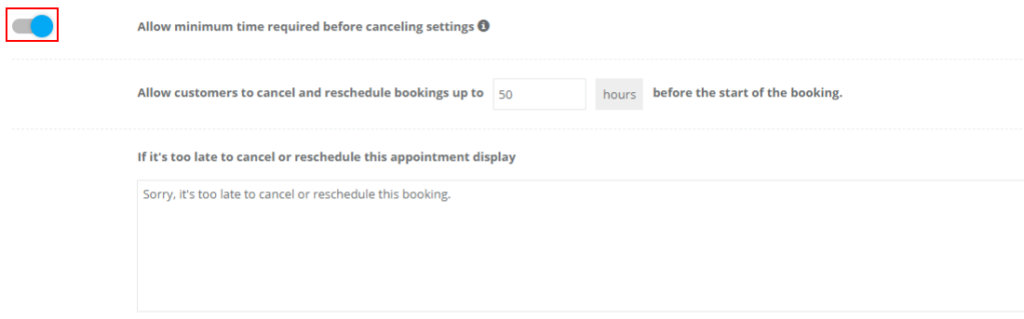
- In the Booking Flags section, enable Allow minimum time required before cancelling settings.
- Click Save.

Set hours + customize the blocked-action message
Once enabled, an extension appears where you can:
- Enter the number of hours required before the booking start time.
- Customize the message shown when customers try to cancel/reschedule after the cut-off has passed.
Recommended message wording (example):
- “Sorry, it’s too late to cancel or reschedule this booking. Please contact us if you need help.”
Customer experience: cancelling a booking
Customers can open their booking in the Customer Portal and click Cancel booking from the booking confirmation/view page.

If the customer tries to cancel after the minimum notice time has passed, OctopusPro blocks the action and shows your custom message.

Customer experience: rescheduling a booking
If rescheduling is enabled, customers can attempt to reschedule from the booking view page (for example, by using an Edit action).
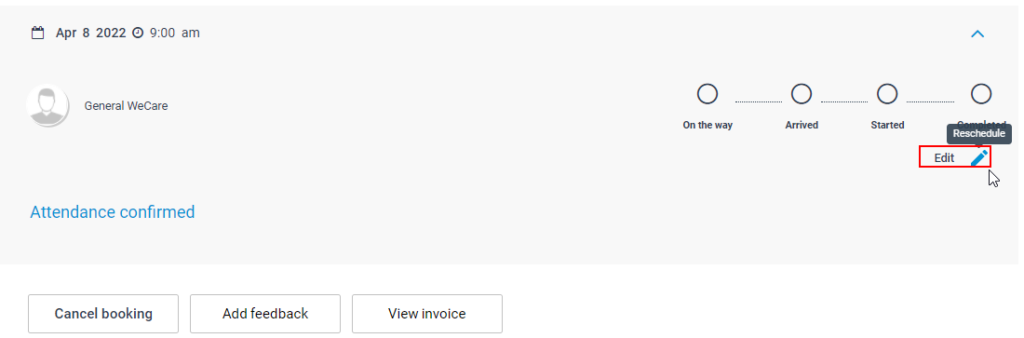
If the cut-off has passed, OctopusPro blocks rescheduling and displays your message.

Disable the feature
To stop enforcing a minimum notice time:
- Go to Settings > Customer Portal > Flags & Permissions.
- Disable Allow minimum time required before cancelling settings.
- Click Save.

Remove restrictions (allow cancellation any time)
If you want customers to cancel at any time (no cut-off), keep cancellation enabled in portal permissions, but disable the minimum notice time setting. Customers will then be able to cancel without time restrictions.
When customers cancel, they may also be prompted to confirm the cancellation (and, depending on your setup, provide a reason).
For a dedicated cancellation guide, see: Allow customers to cancel bookings through the customer portal and email links.

Best practices & related settings
- Show the policy before booking: Add your cancellation rules to your portal disclaimer so customers see them before confirming. Customer Portal Booking Disclaimer
- Use consistent wording: If this cut-off blocks both actions, mention “cancel or reschedule” in your message.
- Cancellation fees (optional): If you charge for late cancellations, configure fees so your policy is consistent. Booking Cancellation Fees
- Email links: Customers may open portal actions from confirmation/reminder emails. Keep your portal rules aligned with what your templates allow. Send Booking Confirmation
FAQ
Is the notice period in minutes, hours, or days?
This setting uses hours. For example, set 48 for a 2-day cut-off.
Will this also block rescheduling?
Yes—customers won’t be able to cancel or reschedule after they exceed the minimum notice time, and they will see your custom message.
Customers can still access cancel/reschedule from an email link. Why?
Email links usually open the portal booking page. If you want to prevent portal cancellations entirely, disable the cancellation/rescheduling permissions and remove cancel/reschedule links from your templates (if used).
To stay updated, please subscribe to our YouTube channel.