
Make Photo Uploads Mandatory During Customer Portal Booking
If your services require visual confirmation before you can confirm scope, pricing, or onsite requirements (e.g., painting, installations, repairs, cleaning, packing, restoration), you can force customers to upload at least one photo during Customer Portal booking checkout.
Contents
- What this setting does
- Before you enable this (required)
- Enable mandatory photo uploads (Admin setup)
- Customer experience (what customers see)
- Where uploaded photos appear (Admin + Fieldworker)
- Best-practice tips (get the right photos)
- Troubleshooting
- Make photo uploads optional again
- Related guides
What this setting does
- Adds a mandatory “Upload photos” step to the Customer Portal booking (checkout) flow.
- Blocks checkout until the customer uploads at least one image.
- Also applies when an admin user creates a booking on behalf of a customer using the same portal booking flow.
Note: This is a Customer Portal booking requirement. It’s separate from fieldworker “before/after” photo requirements at job start or completion.
Before you enable this (required)
This mandatory rule only works when the standard photo upload feature is enabled too. To enforce photo uploads during booking checkout, you must enable both of these flags:
- Make uploading images mandatory for customers when making a booking
- Allow customers to upload photos when making a booking
If only the “mandatory” flag is enabled, customers won’t see the upload step correctly during checkout.
Enable mandatory photo uploads (Admin setup)
- Go to: Settings → Customer Portal → Flags & Permissions
- Enable: Make uploading images mandatory for customers when making a booking
- Enable: Allow customers to upload photos when making a booking
- Click Save
1) Enable the mandatory rule

2) Enable the standard upload step (required)

Tip: Use the custom message (shown in the upload popup) to tell customers exactly what to upload (e.g., “Upload 1 wide photo + 2 close-ups of the affected area and one photo showing access/entry.”).
Customer experience (what customers see)
During checkout, customers will see an Upload photos step after selecting the service and choosing a date/time.
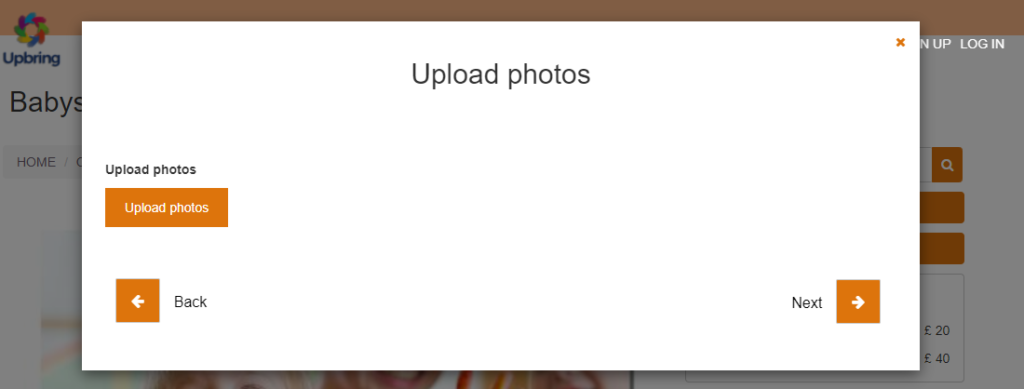
What happens if they try to continue without uploading?
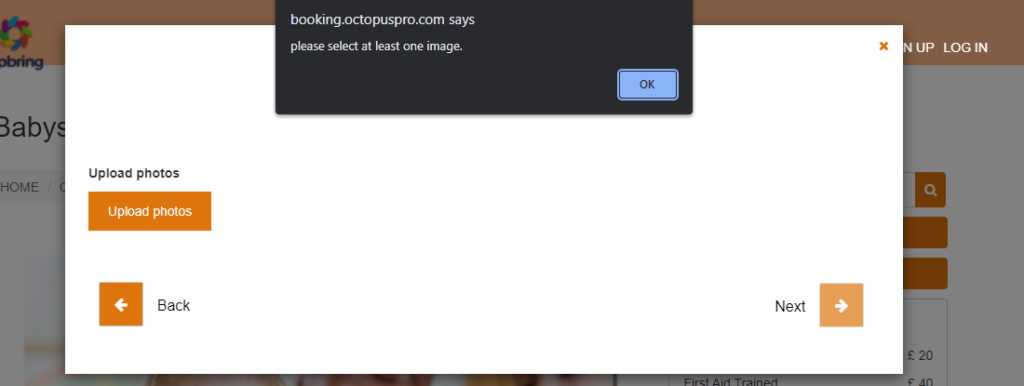
If the customer clicks Next without uploading at least one image, the portal will show a warning message and prevent checkout until a photo is added.
Once one or more images are uploaded, the customer can continue checkout and submit the booking.
Need the full guide for photo uploads (including adding photos after booking)?
Allow Customers to Upload Photos During Online Booking (Customer Portal)
Where uploaded photos appear (Admin + Fieldworker)
Admin Portal
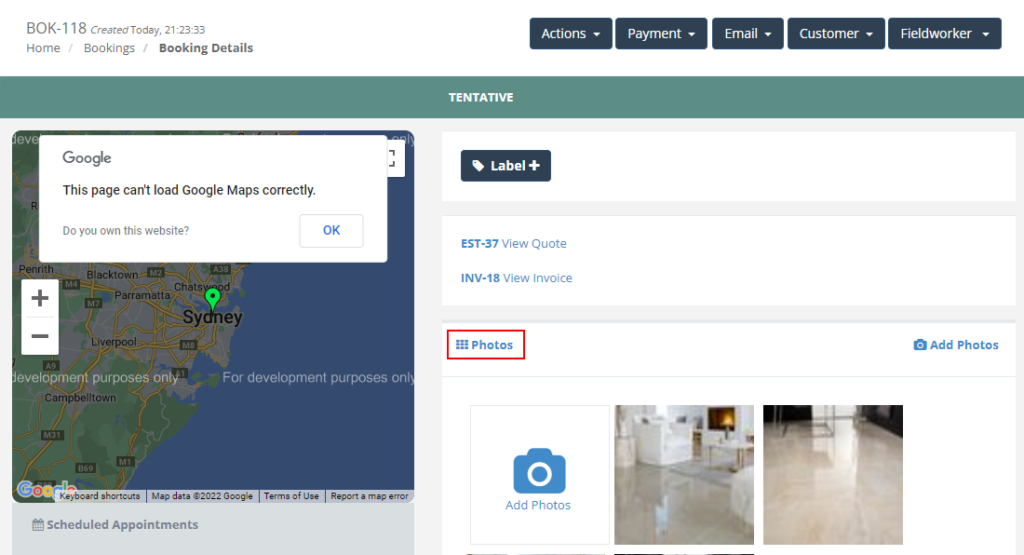
Photos uploaded during checkout are stored on the booking and appear in the Photos section on the booking view page. Admin users can view images, add comments, download, or delete them (based on permissions).
Fieldworker App
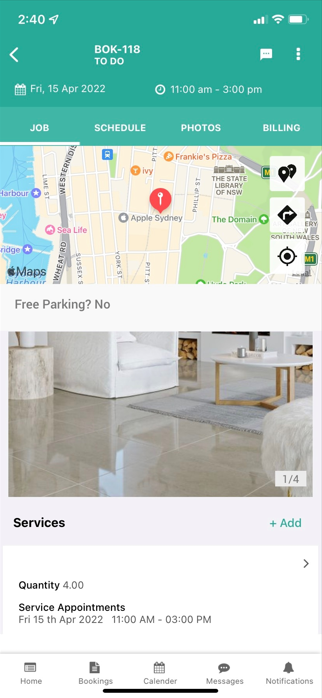
Fieldworkers can view customer-uploaded photos from the booking in the Fieldworker App (and may be able to add/manage photos depending on their permissions).
Best-practice tips (get the right photos)
- Tell customers what to upload: in your upload popup message, request specific angles (wide shot + close-ups), access points, measurements, damage areas, and relevant context.
- Set expectations in the service description: add a short line like “Photo required to confirm scope before arrival.”
- Encourage multiple images: ask for 2–5 photos so your team can assess scope accurately and reduce back-and-forth.
- Privacy reminder: advise customers not to upload unnecessary personal/sensitive information.
Troubleshooting
- Customer can’t proceed: confirm both flags are enabled (Upload Photos + Mandatory) under Settings → Customer Portal → Flags & Permissions, then click Save.
- Upload step doesn’t appear: the standard upload flag may be OFF — enable Allow customers to upload photos when making a booking.
- Upload fails or hangs: ask the customer to retry with a smaller image, a stronger connection, or a different browser/device.
- Need documents (PDFs) too? Use the portal attachments workflow for PDFs and other document types: Customer Portal PDF Uploads (Booking Attachments)
Make photo uploads optional again
To stop enforcing photo uploads during checkout:
- Disable: Make uploading images mandatory for customers when making a booking
Customers will still be able to upload photos during checkout if you keep Allow customers to upload photos when making a booking enabled.
Related guides
- Allow Customers to Upload Photos During Online Booking (Customer Portal)
- Customer Portal Flags & Permissions
- Upload Images, PDFs & Docs to Bookings, Quotes & Inquiries
- Customer Portal PDF Uploads (Booking Attachments)
- Require “Before” Photos at Job Start (Fieldworker App)
- Require “After/Completion” Photos at Job Finish (Fieldworker App)
To stay updated, please subscribe to our YouTube channel.