
View & Manage Service Quotes & Cost Estimates
OctopusPro’s Quote Management tools help you create professional quotes/estimates, send them to customers, track progress, automate follow-ups, and convert accepted quotes into bookings and invoices—without re-entering details.

Common terms: Quotes are also called estimates, proposals, or cost estimates. In OctopusPro, they all refer to the same pre-approval pricing document used before scheduling and invoicing.
On this page
- Why fast, accurate quotes matter
- Quote management feature overview
- Where to find quotes & pipeline statuses
- Create a quote (web, inquiry, field, portal)
- Search & filter quotes
- View & edit quote details
- Send quotes & track engagement
- Customer approval (accept/decline + signatures)
- Follow-up reminders & automation
- Convert accepted quotes to bookings & invoices
- Labels, ownership & audit/history
- Collaboration, issues & communication controls
- Delete/restore quotes (clean-up)
- Use-case snapshots
- Best practices
- Related guides
Why fast, accurate quotes matter
Most businesses win or lose jobs during the quote-to-cash window—the time between sending an estimate and collecting payment. A structured quoting workflow reduces admin bottlenecks, shortens sales cycles, and increases customer confidence.
- Expiry dates encourage faster decisions and protect you from pricing/availability changes.
- Deposits improve cash flow and reduce cancellations/no-shows.
- Automation keeps quotes from going cold (follow-ups and reminders).
- One-click conversion reduces re-keying errors when moving from quote → booking → invoice.
OctopusPro quote management — feature overview
| Capability | What it does | Why it matters |
|---|---|---|
| Instant quote creation | Create estimates in the office, in the field, or from an inquiry. | Respond faster and reduce admin delays—especially during peak demand. |
| Search & smart filters | Find any quote by EST number, customer details, date ranges, user/tech, service, totals, status, and more. | Stops teams from scrolling long lists and speeds up follow-up work. |
| Editable line items & totals | Edit services, quantities, pricing, discounts, taxes, extra charges, deposits, terms/notes. | Keeps quotes accurate as scope changes and reduces disputes. |
| PDF preview & export | Preview branded PDFs before sending; export/download when needed. | Ensures customers see a clean, professional quote every time. |
| Customer engagement tracking | Track when a customer opens/views a quote link (where available). | Reduces “I didn’t receive it” confusion and guides follow-up timing. |
| Approvals | Customers can accept/decline online; optionally capture signatures if enabled. | Creates a clear audit trail and speeds up scheduling and invoicing. |
| One-click conversion | Convert accepted quotes to bookings, then generate invoices using the same line items. | Eliminates re-keying and keeps operations aligned across teams. |
| Financial controls | Set expiry dates, follow-up dates, and deposit requirements per quote. | Improves conversion rates and protects cash flow. |
| Collaboration & issue management | Discussion threads, internal notes, and issues/complaints tied to the quote. | Keeps context in one place and supports accountability. |
| Clean-up controls | Delete and restore quotes (and permanently delete when required). | Keeps your pipeline clean while maintaining recoverability/audit control. |
Where to find quotes & pipeline statuses
To view and manage quotes in the web admin portal:
- Go to Menu → Quotes.
- Use the available tabs and filters to narrow the list (commonly: Draft, Sent, Accepted, Declined, Expired, and All).
- Click the EST # to open the quote.
For a full overview of quote lists, pipeline workflows, and statuses, see: Quotes & Estimates Overview.
Create a quote (web, inquiry, field, portal)
1) Create a new quote (web admin portal)
Use this method when you already know the customer and scope and want to prepare pricing before scheduling work.
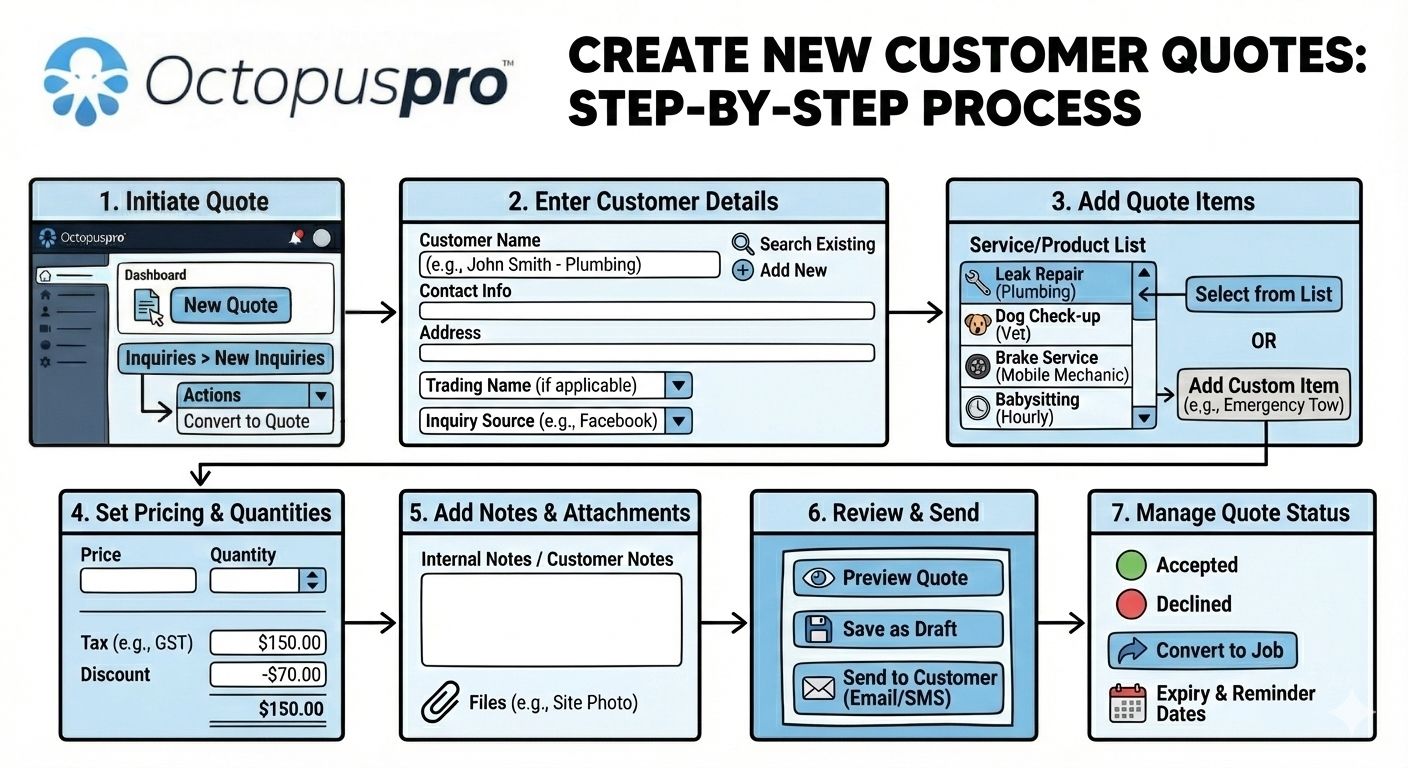
Step-by-step: Create a New Quote (Estimate).
2) Convert an inquiry (lead) into a quote
Use this method when a customer submits an inquiry and you need to confirm pricing/scope before booking.

Guide: Convert Inquiries to Quotes (Estimates).
3) Send quotes from the fieldworker app (optional, permission-based)
If enabled, trusted fieldworkers can send quotes on-site using your templates—great for faster approvals and fewer office bottlenecks.

Guide: Let Fieldworkers Send Quotes by Email/SMS (Mobile App).
4) Customer portal quoting (optional)
If you use customer portal workflows, customers can initiate service requests that your team can price and convert into bookings.

Learn more: Quotes & Estimates Overview.
Search & filter quotes
Option A — Quick search (fastest when you know the EST #)
- Click the Search icon in the top bar.
- Type the EST number (for example: EST-12345).
- Select Quote (if prompted), then click Go.

Option B — Advanced quote search (best when you don’t know the EST #)
Use Advanced Search to filter by common criteria such as:
- Keywords, Status, Customer name, Assigned user
- EST #, Booking #, Business name
- Address, Email, Mobile/Phone
- Date ranges (booking/quote timeframes), Technician, Service
- Total range (From/To), State/Region
- Click the Search icon.
- Select Quote.
- Enter one or more filters, then click Search.

View & edit quote details
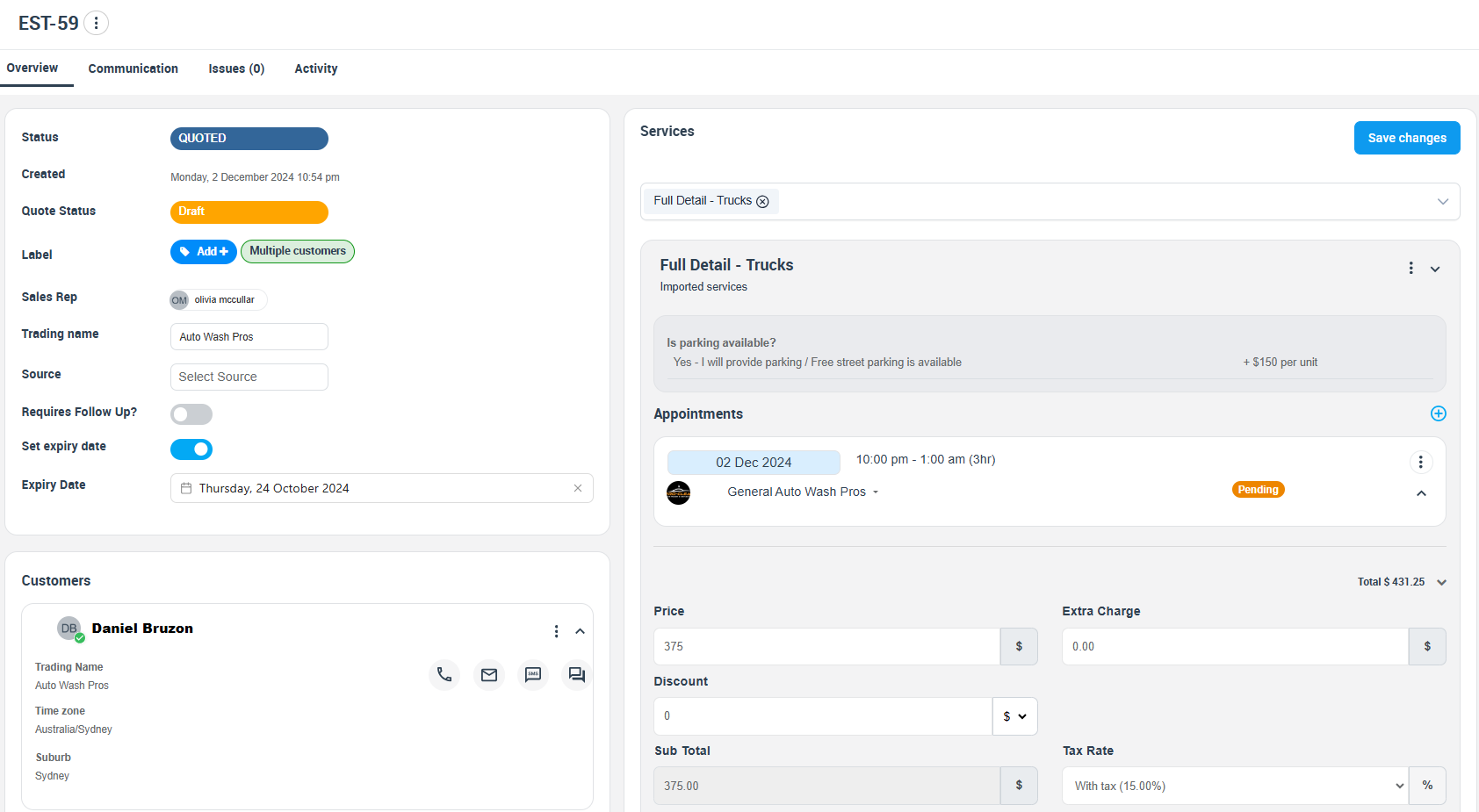
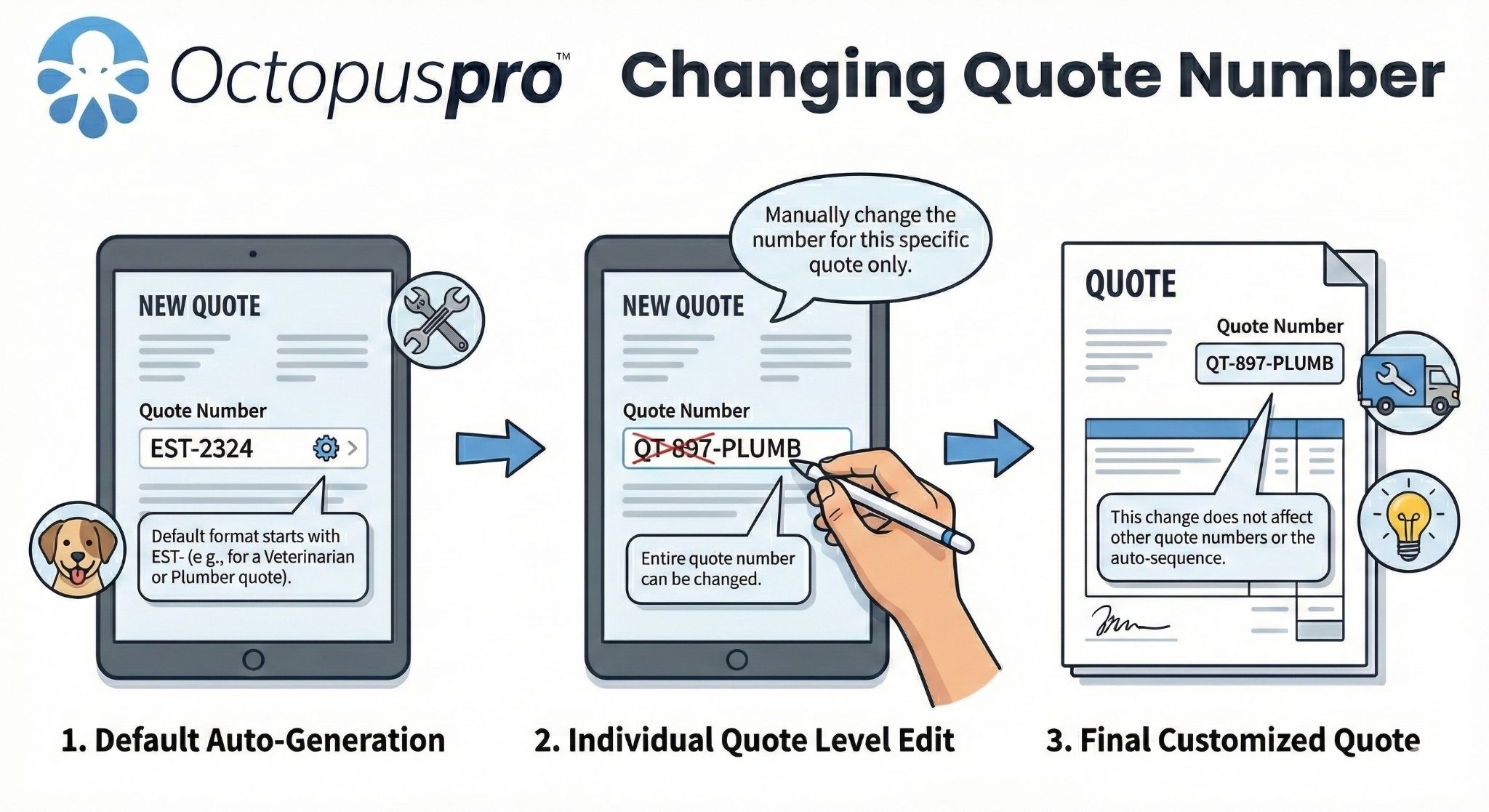
When you open a quote, you’ll see a complete snapshot of what was quoted, who it’s for, where it will happen, and how it’s progressing (status, expiry, follow-up, labels, ownership, and activity).
- Go to Quotes and click the EST #.
- Review customer/site details, services/line items, totals, and quote settings.
- Click Edit (or update fields directly where supported), then Save changes.
Send quotes & track engagement
Once your quote is ready, you can send it to the customer by email and/or SMS (depending on your configuration). Quote communications can be logged so your team can see what was sent and when.
Recommended sending workflow:
- Open the quote and review line items, totals, and terms.
- Use PDF Preview to confirm the final layout and branding.
- Send via Email or SMS.
- Monitor the quote status and customer engagement (for example, “viewed/opened” indicators where available), then follow up if needed.


Customer approval (accept/decline + signatures)
OctopusPro supports customer approval workflows so quotes can be Accepted or Declined online. This creates a clear record of the outcome and helps your team move quickly to scheduling and invoicing.


Tip: If a customer approves by phone or in person, office users can still update the quote status so reporting and follow-ups remain accurate.
Follow-up reminders & automation
Follow-up reminders help you win more work by automatically nudging customers who haven’t responded. This reduces manual chasing and keeps your sales pipeline moving.
- Send reminders after a quote is sent
- Remind customers before a quote expires
- Reduce “forgotten” quotes and improve close rates

Guide: Quote Follow-Up Reminders & Automation (Email, SMS & WhatsApp).
Convert accepted quotes to bookings & invoices
Once a quote is accepted, you can convert it to a booking (job) and then generate an invoice using the same quote line items—helping you avoid double entry.

Typical conversion workflow:
- Convert → Booking (locks date/time, assigns a fieldworker/technician, syncs to the mobile app).
- Generate Invoice (reuses accepted quote lines with no re-keying).
- Collect payment (including deposits or pay-now links if enabled).


Labels, ownership & audit/history
Labels (tags) for pipeline visibility
Use colour-coded labels to highlight urgency, internal stages, or special handling (e.g., “High value”, “Needs site visit”, “Awaiting deposit”) without changing the quote status.

Ownership (Sales Rep) tracking
Assign or transfer quote ownership so reporting and accountability remain accurate (especially when staff change roles).

Guide: Transfer Quote, Booking & Invoice Ownership.
Quote history / audit trail
Use quote history reporting to monitor what was created/updated and ensure accepted quotes don’t sit idle.

Guide: Quotes & Estimates History Log.
Collaboration, issues & communication controls
Discussion board (keep context in one place)
Use the discussion board to keep internal communication tied to the quote record (instead of scattered emails/messages).

Guide: Real-Time Discussion Board.
Issues & complaints tracking
If a quote becomes disputed or needs formal tracking, log an issue so it’s visible to staff and retained for auditing.

Guide: Add & Manage Issues & Complaints.
Pause/resume automated communications
If you need to temporarily stop automated reminders (for example, while waiting on customer information), you can pause and resume communications as required.

Guide: Pause & Resume Automated Notifications.
Delete/restore quotes (clean-up)
If a quote was created in error, duplicated, or is no longer relevant, you can delete it to keep your pipeline clean. Deleted quotes can typically be restored, and permanently deleted when required.

Guide: Delete or Restore Quotes & Estimates.
Use-case snapshots
HVAC replacement
Problem: seasonal demand spikes; quotes must be actioned quickly.
Workflow: send a quote with a 7-day expiry and a deposit requirement. Customer accepts online; you convert to a booking and schedule the crew.
Domestic cleaning
Problem: repeat customers request minor scope changes.
Workflow: duplicate the previous quote’s structure, adjust rooms/add-ons, preview PDF, and send the updated quote within minutes.
Group tutoring session
Problem: multiple participants and shared costs.
Workflow: quote includes per-student pricing plus a flat session fee; deposit secures venue; availability finder helps allocate an educator.
Landscaping & outdoor maintenance
Problem: scope changes after site inspection (materials, disposal, access).
Workflow: attach photos/notes, update line items, re-send, and set a follow-up reminder to close the job.
Best practices
- Always set an expiry date (protect margins and availability).
- Use deposits for high-cost materials, long travel, or high no-show risk.
- Attach evidence (photos, measurements, documents) to reduce back-and-forth.
- Use follow-up reminders so quotes don’t go cold.
- Label quotes consistently (e.g., “Site visit required”, “Waiting deposit”, “High value”).
- Convert accepted quotes promptly to keep schedules, fieldwork, and invoicing aligned.
Related guides
- Quotes & Estimates Overview
- Create a New Quote (Estimate)
- Convert Inquiries to Quotes (Estimates)
- Edit Quote Details
- Change Quote Number (EST)
- Send, Track & Automate Quotes
- Accept / Decline Quotes (Customer Approval)
- Collect Customer Signatures
- Quote Follow-Up Reminders & Automation
- Use Labels to Track Bookings & Quotes
- Label Management
- Quote File Attachments
- Export Quote as PDF
- Convert Quote to Booking
- Fieldworker Availability Finder
- Nearby Bookings (Proximity Scheduling)
- Transfer Ownership (Sales Rep)
- Quotes & Estimates History Log
- Discussion Board
- Handle Issues & Complaints
- Pause / Resume Automated Notifications
- Delete / Restore Quotes
- Fieldworkers Sending Quotes (Optional)
To stay updated, please subscribe to our YouTube channel.