
Export a Quote as PDF (Print / Download Quote PDF)
OctopusPro lets you export any quote / estimate as a professional PDF so you can download it, print it, or share it with customers, property managers, insurers, or internal teams. A PDF is ideal for approvals, procurement, record keeping, and offline access.

On this page
- What this feature is for
- What the quote PDF can include
- Option A: Export/preview PDF from the Quotes list (fastest)
- Option B: Export PDF from the Quote details page
- Email the quote PDF (manual sending & attachments)
- Automatic PDF attachment in quote emails
- Fieldworker access (mobile/app permissions)
- Customize your quote PDF template (branding & layout)
- Best practices & troubleshooting
- Related guides
What this feature is for
- Professional proposals: Send a clean, branded quote/estimate that’s easy to review and forward.
- Approvals & procurement: Provide a printable document for sign-off (property managers, strata, insurance, internal approvals).
- Reduce back-and-forth: Clearly communicate scope, pricing, and terms in one document.
- Offline access: Download the PDF and access it anytime (even without internet).
- Audit trail: Keep a snapshot of what was quoted at the time it was issued/sent.
What the quote PDF can include
Depending on your quote setup and PDF template settings, your quote PDF can include:
- Quote reference: quote number, created date, expiry date, status.
- Customer & site details: name, contact info, service address/location details.
- Scope & line items: services/items, quantities, descriptions, taxes, discounts, totals.
- Terms & conditions: payment terms, exclusions, disclaimers, policies.
- Itemized pricing visibility: show detailed breakdown or totals-only (configurable).
- Scheduled appointments: include or hide appointment date/time blocks (configurable).
- Branding: logo, header/footer content, fonts, and styling.
Note: If you edit the quote after exporting, export it again to generate a fresh PDF that reflects the latest scope/pricing.
Option A: Export/preview PDF from the Quotes list (fastest)
Use Preview PDF when you need a quick export without opening the quote record.
- Go to Quotes from the main menu.
- Open All Quotes (or another quote list view).
- Find the quote, then open the Actions menu on the right.
- Select Preview PDF to generate/view the PDF (then download or print from your browser PDF viewer).
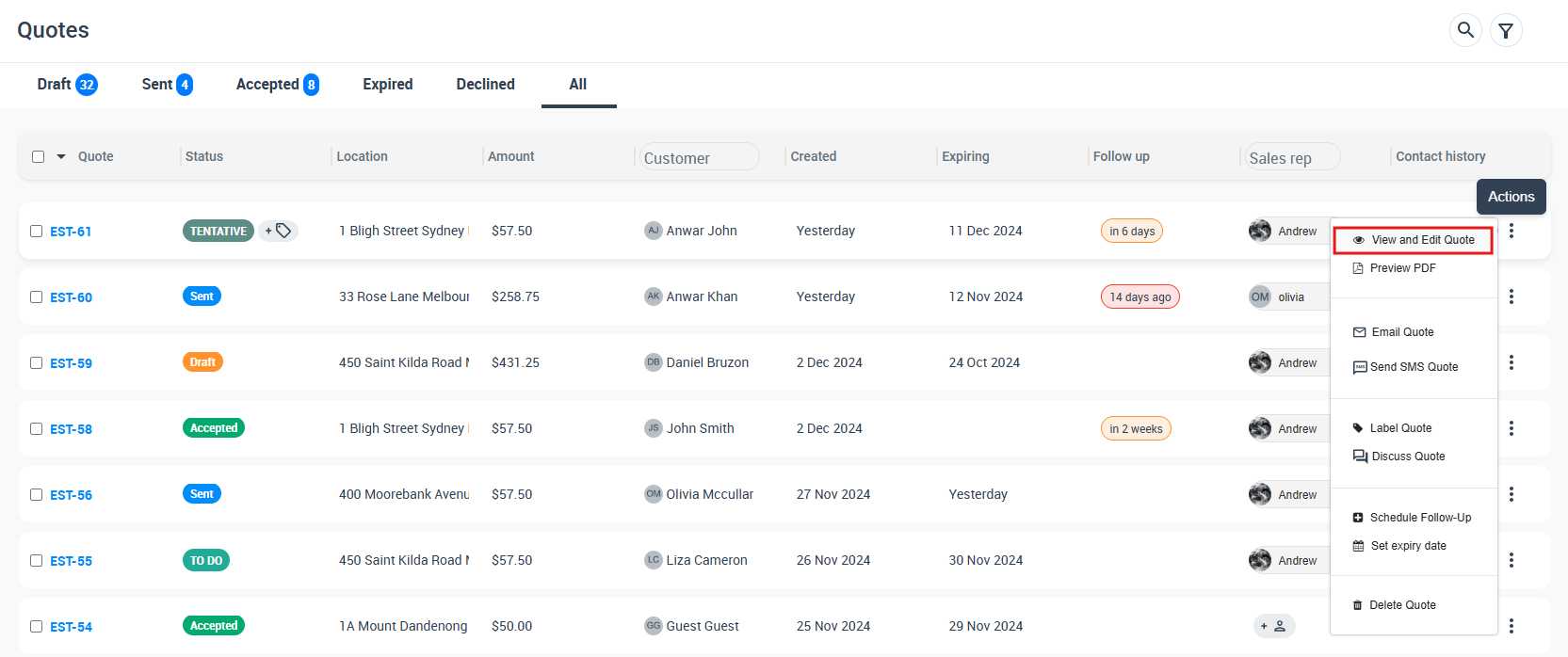
Tip: Preview PDF is also the fastest way to double-check branding and layout before emailing the quote.
Option B: Export PDF from the Quote details page
Use Print Quote PDF when you want to review or update the quote first (scope, pricing, expiry date, follow-up date, appointments, attachments, etc.).
- Go to Quotes → All Quotes.
- Click the quote to open the Quote details page.
- Open the quote Actions / ⋮ menu.
- Select Print Quote PDF (the PDF will download or open in a new tab depending on your browser settings).
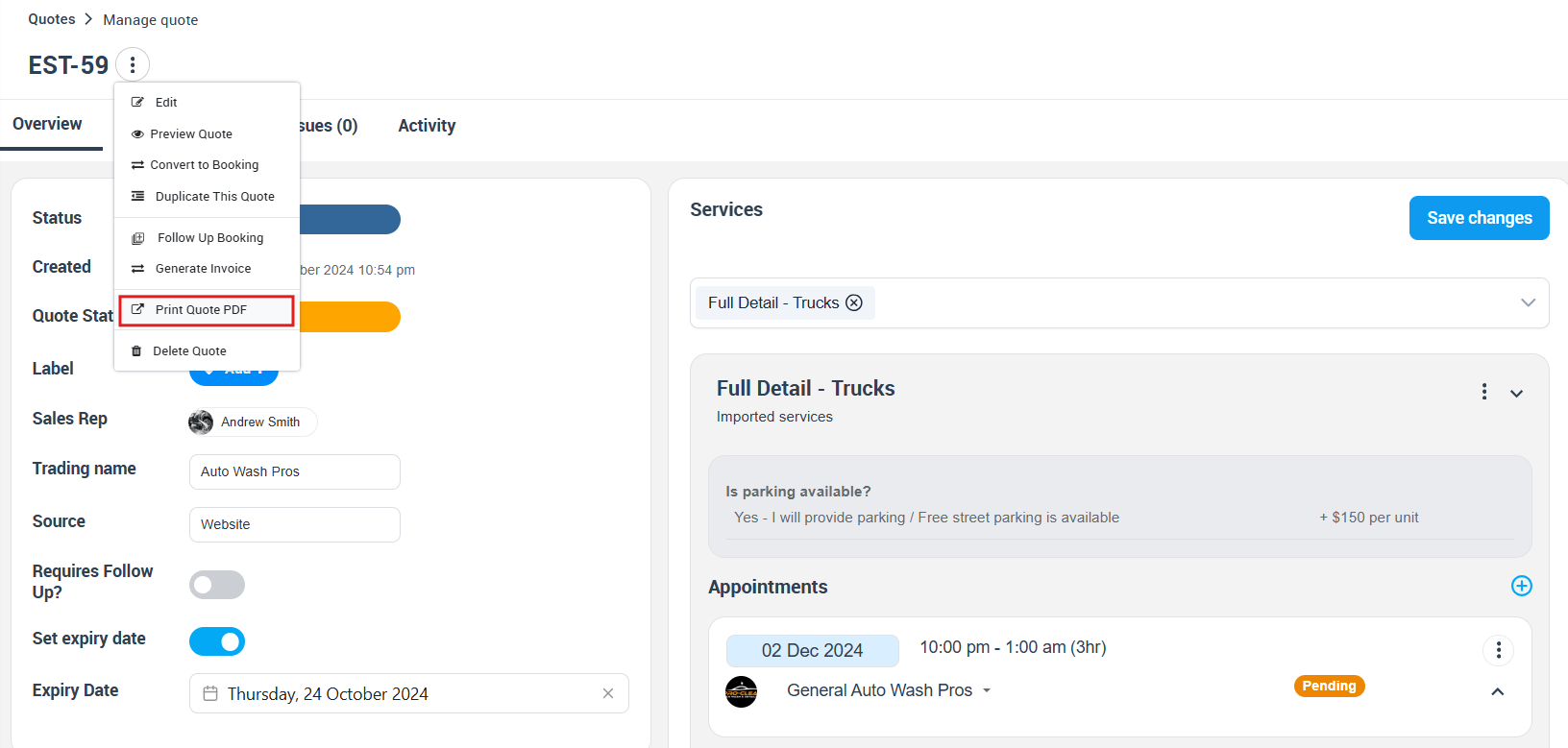
Tip: If your browser blocks pop-ups/new tabs, allow pop-ups for your OctopusPro domain and try again.
Email the quote PDF (manual sending & attachments)
When you email a quote from OctopusPro, you can include the quote PDF as an attachment and add extra files (photos, documents, specifications) if needed.
- Open the quote.
- Select the email option (e.g., Send Quote).
- Confirm the quote PDF attachment is included (if enabled), attach any extra files, then click Send.
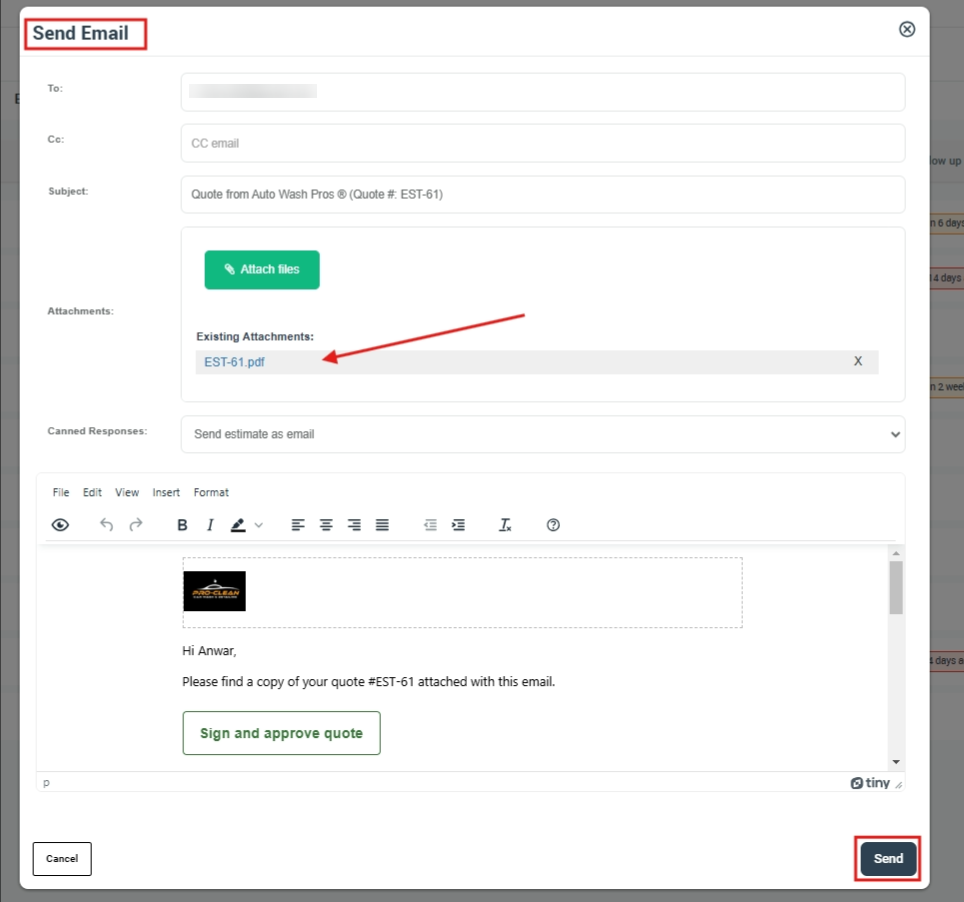
Learn more: How to Send, Track & Automate Quotes in OctopusPro


Automatic PDF attachment in quote emails
OctopusPro can automatically include the quote as a PDF attachment in both manual quote emails and automation-enabled quote emails. A simple checkbox controls whether the PDF is attached—so you can include it when needed and remove it when you don’t.
- Use cases: automatically attach the PDF for approvals, procurement, and record keeping.
- When to disable: if your customer’s email security blocks attachments and you prefer link-based viewing/approval.
Tip: If a customer says they didn’t receive the attachment, ask them to check their spam/quarantine filters (some email systems strip attachments), then resend with the PDF enabled.
Fieldworker access (mobile/app permissions)
Fieldworkers can view and email quote PDFs from the Fieldworker App if an admin enables the required permissions. This is useful when a technician needs to send an estimate from the field.
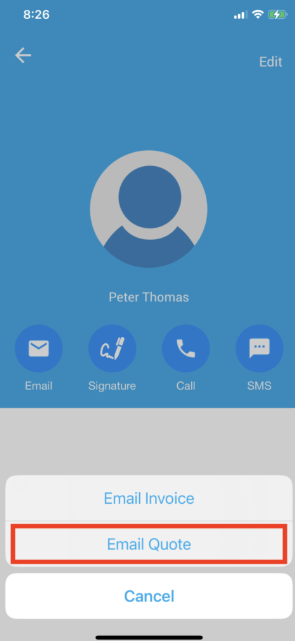
- Permissions guide: Fieldworker Permissions & Access Control
- Enable quote sending from the app: Let Fieldworkers Send Quotes by Email/SMS (Mobile App)

Customize your quote PDF template (branding & layout)
You can control how your quote PDFs look and what they include—so every PDF matches your branding and shows the right level of detail.
Go to: Settings → Financial Settings → Invoice Template
Full guide: Invoice & Quote Template Layout, Style and Design Customization
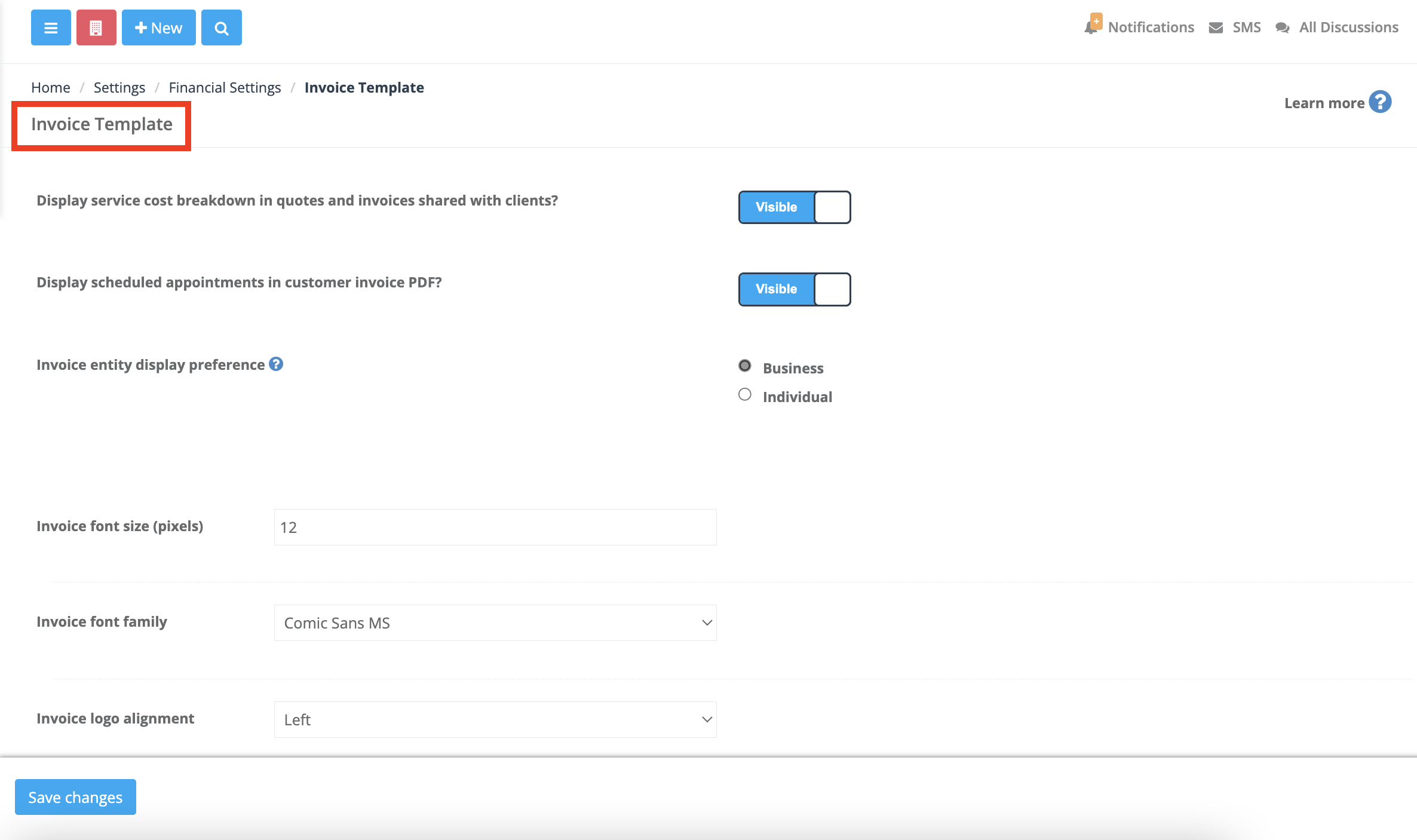
1) Font style (family, size)
Choose a readable font family and size so your PDFs look professional on-screen and in print.
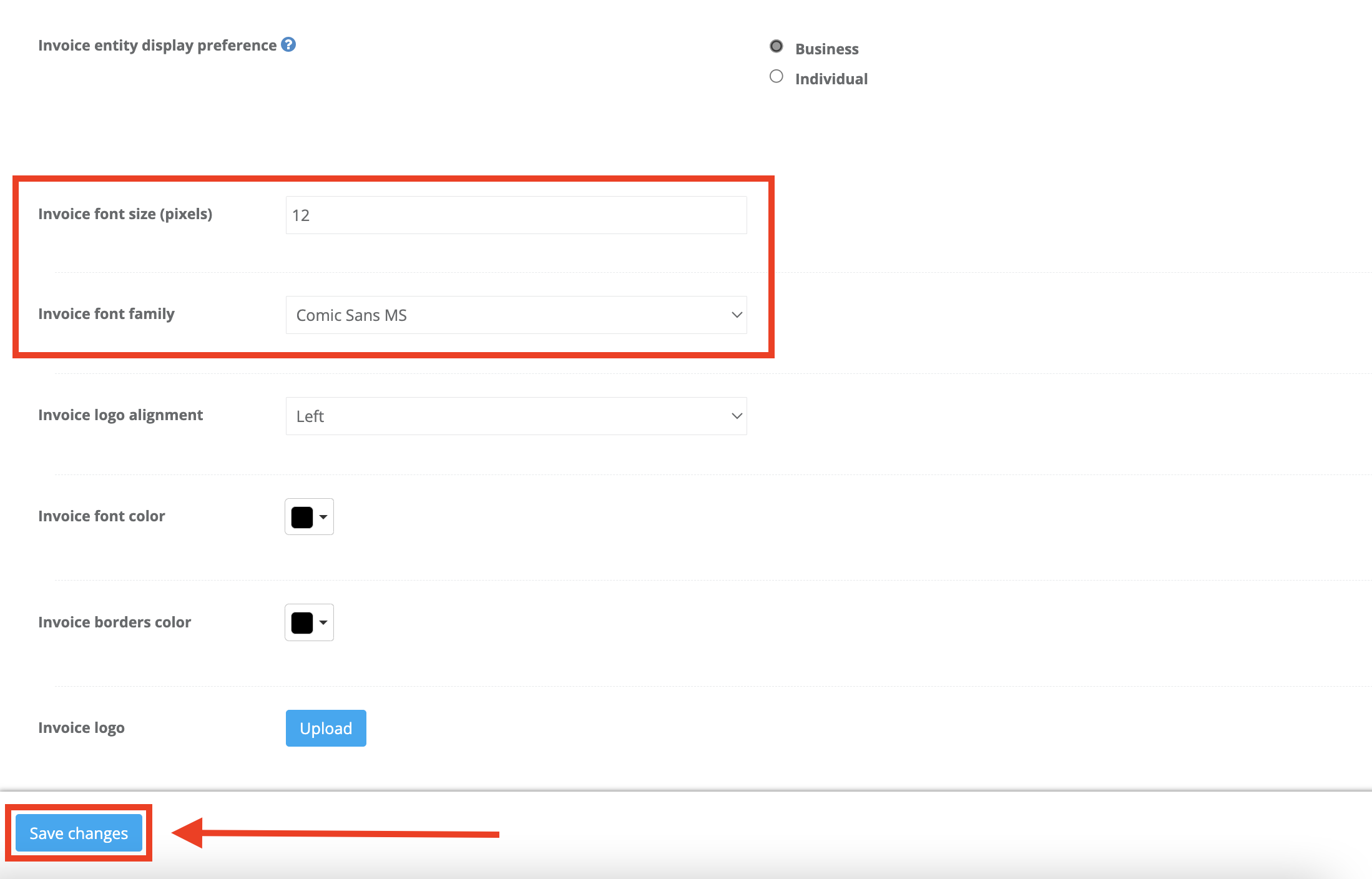
2) Business logo & alignment
Upload your logo and control its alignment so every quote PDF is instantly recognizable and on-brand.
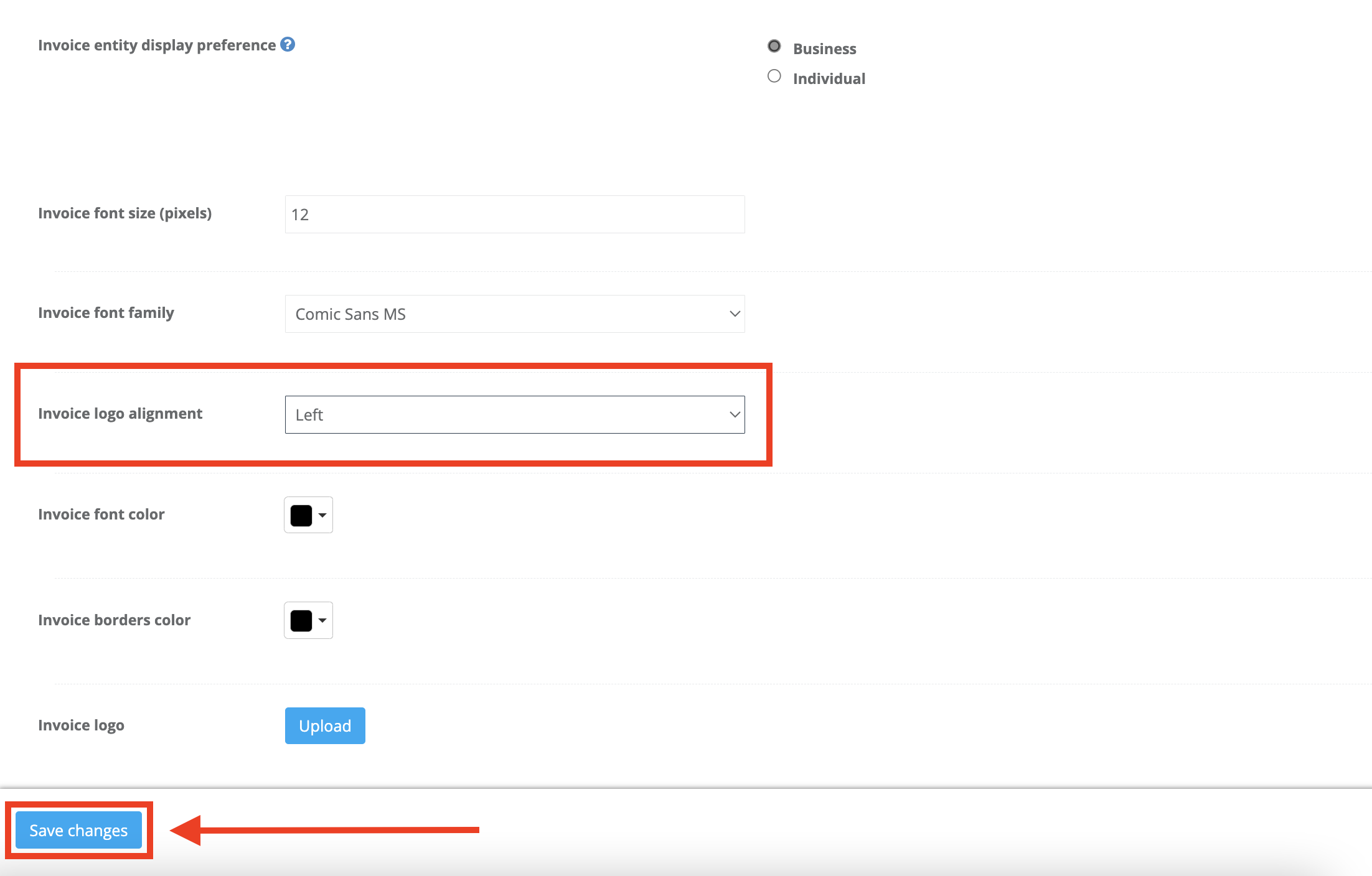
Branding guide: Company Branding & Logo Setup (Invoices, Trading Names & Emails)
3) Header & footer content (business info, notes, disclaimers)
Add custom header/footer content such as contact details, licensing info, warranty/aftercare notes, or important disclaimers.
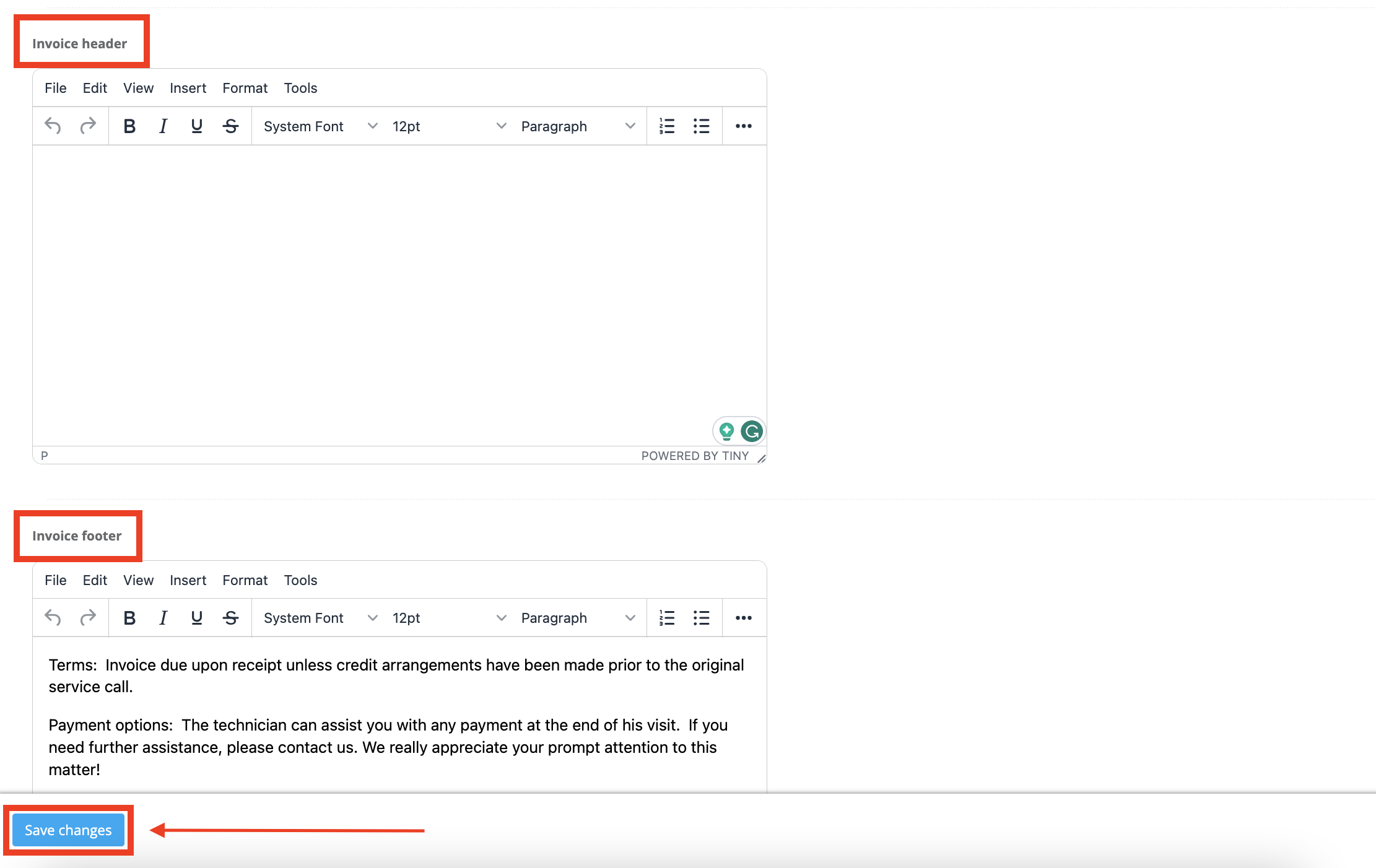
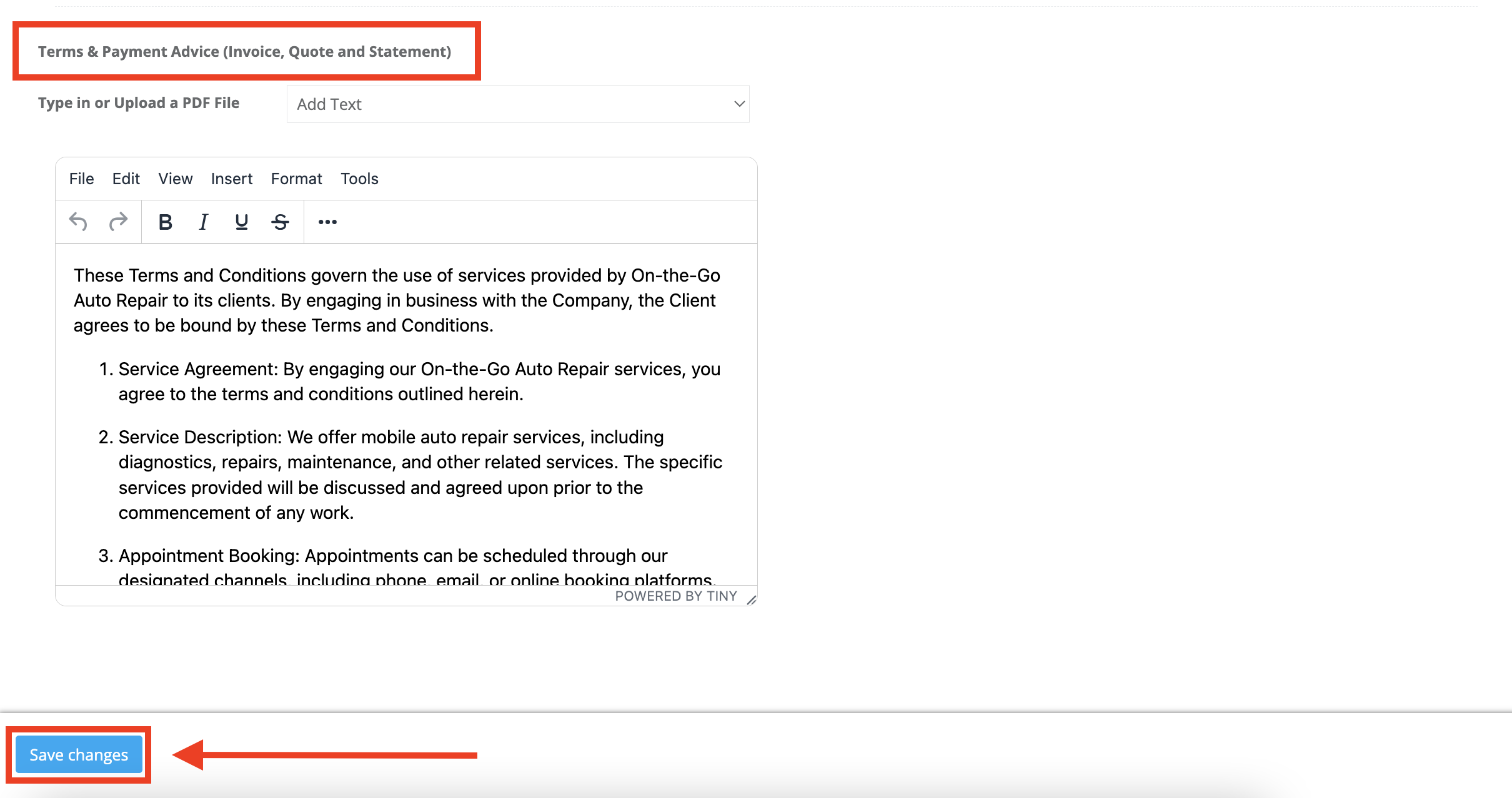
4) Payment terms & regulations (terms & conditions)
Include payment terms, cancellation policies, and any legal/regulatory text required for your industry.
5) Visibility controls (itemized pricing & scheduled appointments)
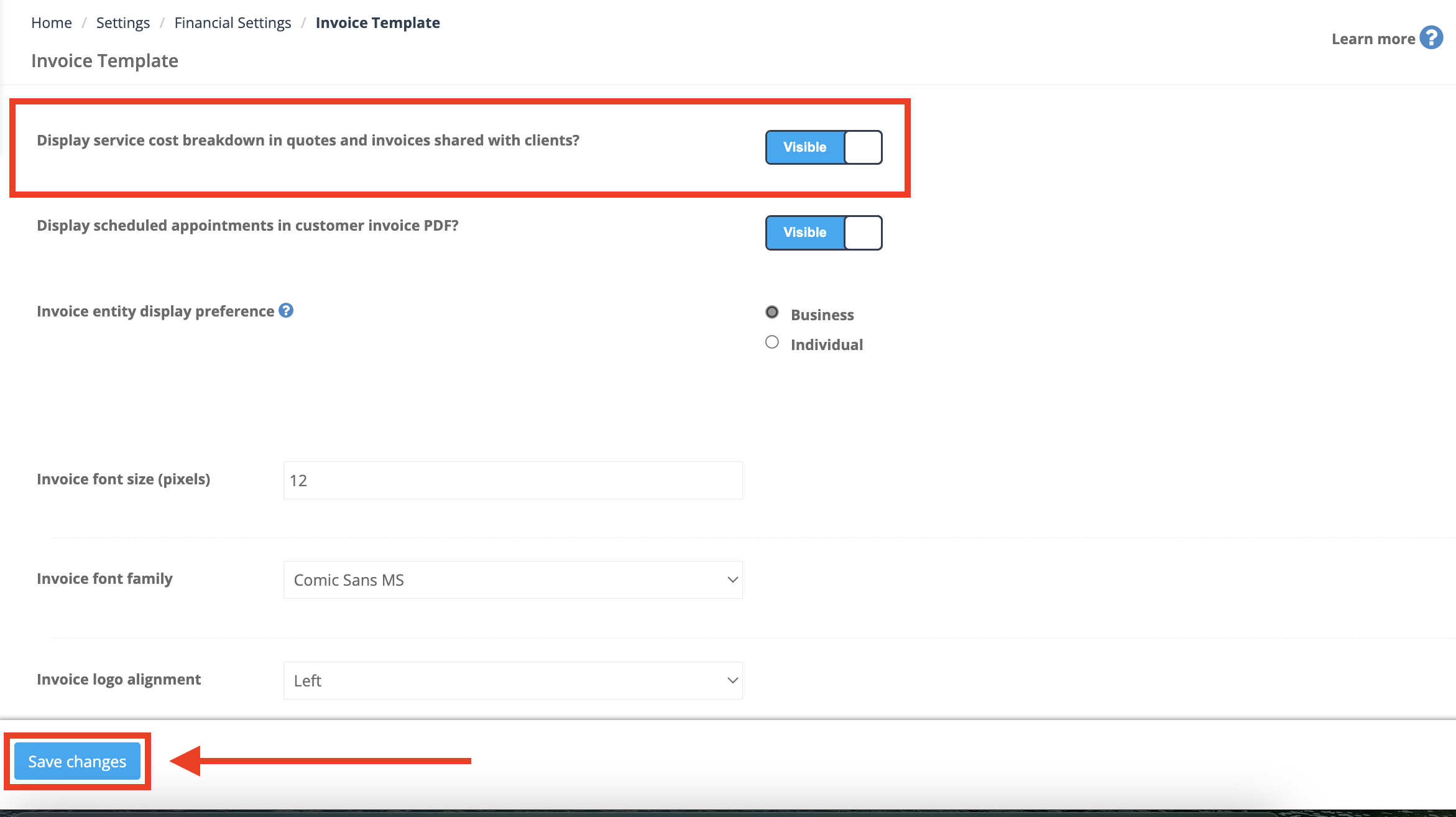
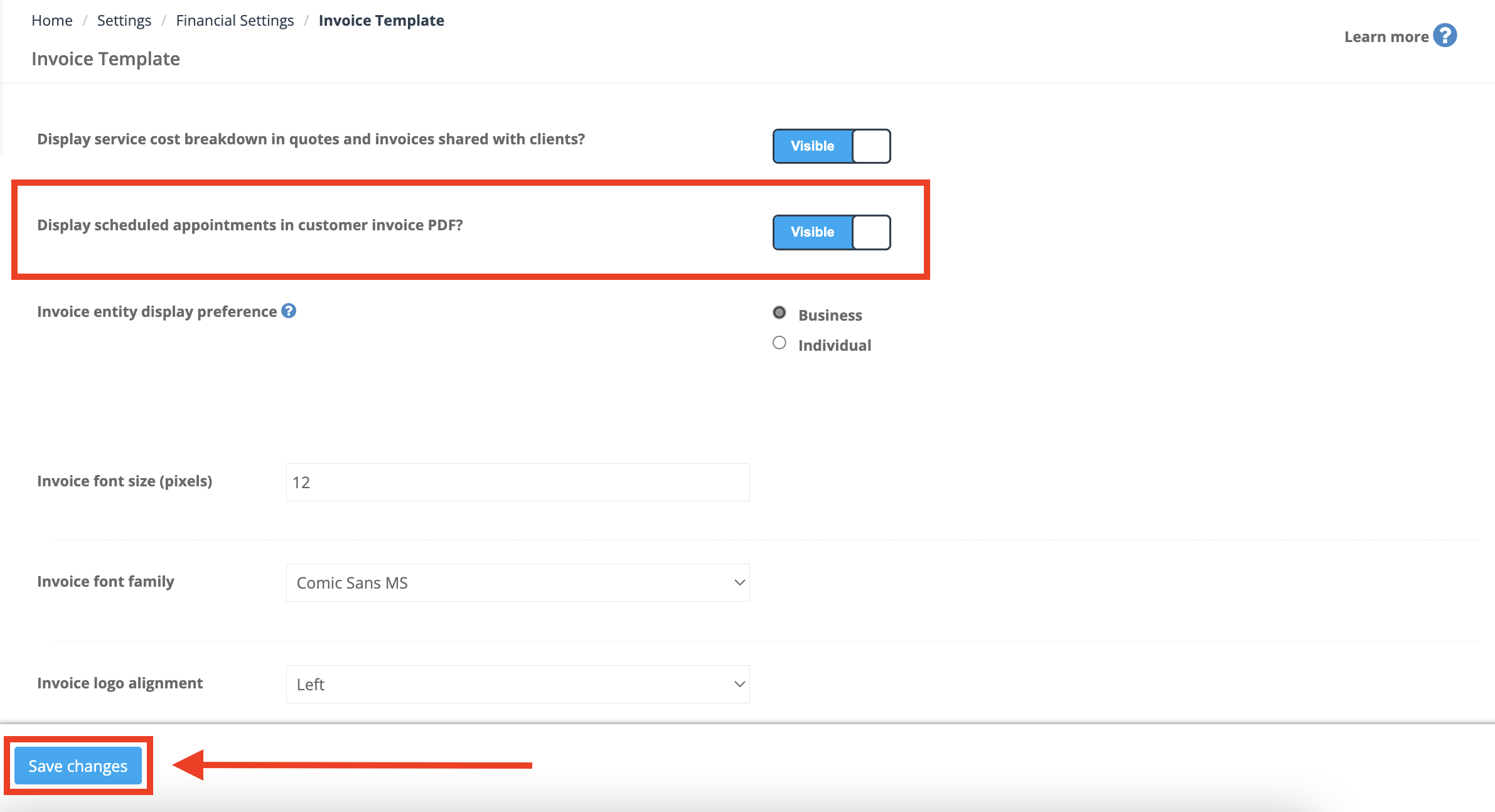
Control the level of detail customers see in the PDF:
- Itemized cost breakdown: show detailed service line items (or simplify to totals-only).
- Scheduled appointments: include or hide appointment dates and times (where applicable).
Best practices & troubleshooting
- Export after edits: If you changed scope/pricing/terms, export again so the PDF reflects the latest version.
- PDF won’t download/open: Check browser pop-up blockers and download settings, then retry (or try another browser).
- Customer can’t see the attachment: Confirm the PDF attachment checkbox was enabled and ask them to check spam/quarantine filters.
- Branding looks wrong: Update logo/fonts/header/footer/terms in Invoice Template, then preview/export again.
- Itemized pricing or appointments not showing: Review the PDF visibility toggles (itemized cost breakdown / scheduled appointments) and re-export.
Related guides
- Service Quote Management & Estimating
- How to Send, Track & Automate Quotes in OctopusPro
- Accept or Decline Quotes & Estimates (Customer Approval)
- Quote Follow-Up Reminders Automation (Email, SMS & WhatsApp)
- Convert Quote to Booking
- Export an Invoice as PDF
- Invoice & Quote Template Layout, Style and Design Customization
- Upload Images, PDFs & Docs to Bookings, Quotes & Inquiries
- Fieldworker Permissions & Access Control
To stay updated, please subscribe to our YouTube channel.