
Display Fieldworker Working Hours to Customers (Customer Portal)
OctopusPro lets you display each fieldworker’s working hours on their public profile in the Customer Portal. This helps customers understand when a specific fieldworker is typically available, reduces out-of-hours requests, and improves booking accuracy.
Important: Displaying working hours is different to Real-Time Availability. Working hours are a published roster (e.g., Mon–Wed 8am–2pm). If you want customers to only see bookable time slots that are truly free (based on rosters + calendar blocks + existing bookings), use Dynamic Real-time Fieldworker Availability Scheduling.

Quick navigation
- What this feature does
- Why show working hours (benefits)
- Prerequisites
- How to enable it (Admin)
- What customers see
- How to update working hours (Admin & Fieldworker)
- Time off, breaks & calendar blocks
- What happens if you disable it?
- Troubleshooting
- Best-practice tips
What this feature does
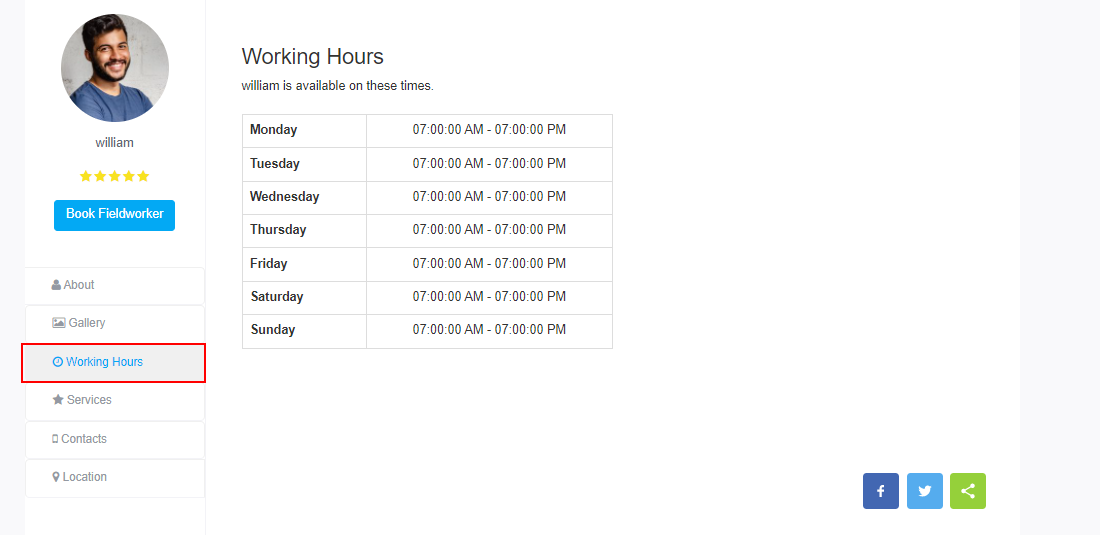
When enabled, customers can open a fieldworker’s public profile and click a Working Hours button to view that fieldworker’s weekly roster (days and time ranges). This is especially useful when customers prefer a specific staff member (e.g., a technician, therapist, cleaner, trainer, or inspector).
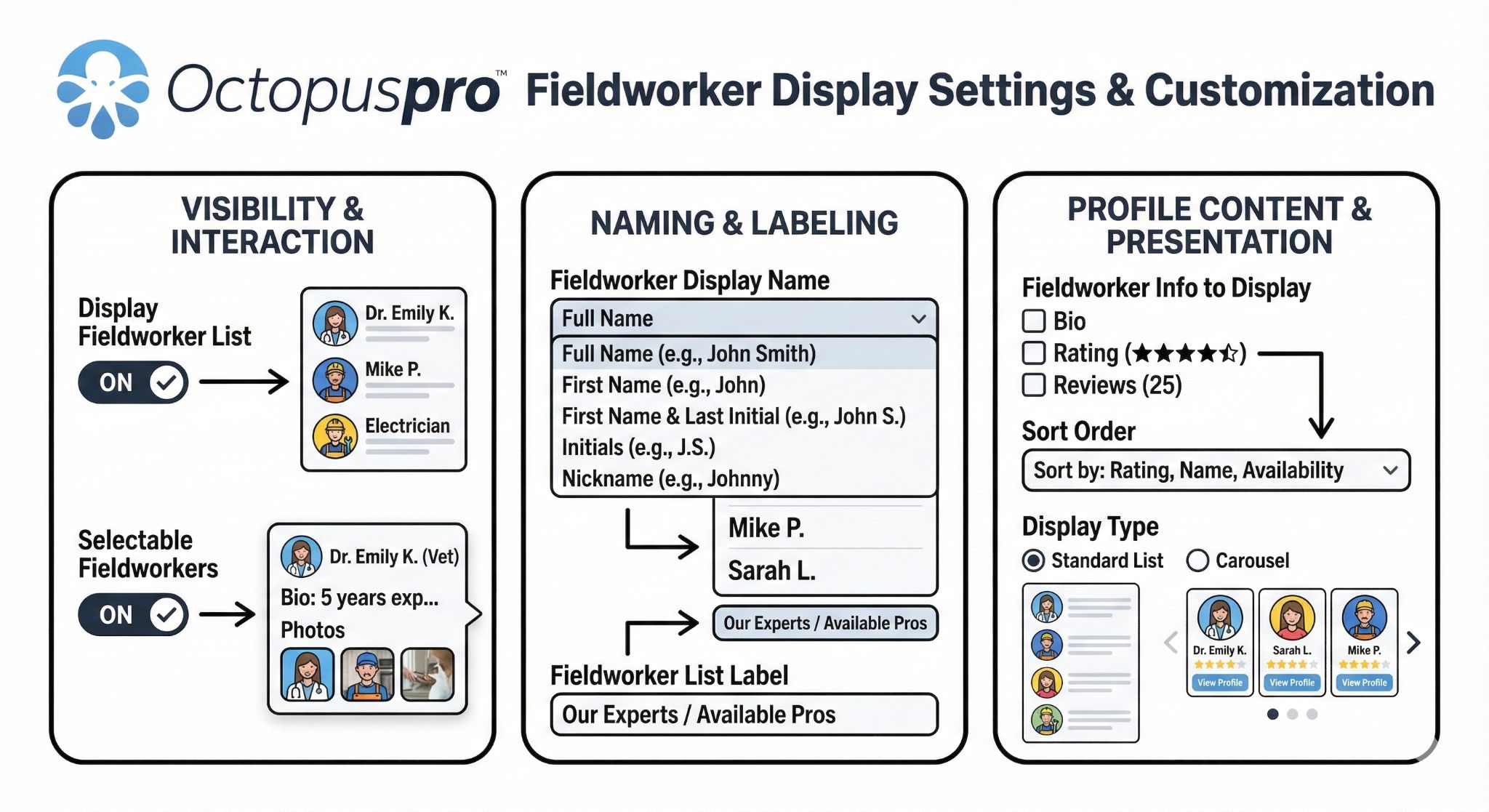
This feature typically appears wherever your Customer Portal displays fieldworker profiles, such as the Fieldworkers directory and/or during the booking flow (depending on your portal setup). Learn more about the Fieldworkers directory here: Display Fieldworker List on Customer Portal.
Why show working hours (benefits)
- Set clear expectations: Customers immediately understand when a specific fieldworker is generally available.
- Reduce admin back-and-forth: Fewer calls/messages asking “When is Maria available?”
- Fewer out-of-hours or invalid requests: Helps prevent customers requesting times the fieldworker never works.
- Higher conversion rates: Less uncertainty during booking increases completion rates.
- Better customer experience: More transparency and fewer reschedules.
Prerequisites
- Customer Portal is active and customers can access your public booking/portal pages.
- Fieldworker profiles are visible on the portal (commonly via the Fieldworkers list/directory). See: Display Fieldworker List on Customer Portal.
- Working hours are set for each fieldworker (otherwise customers may see limited/empty rosters). See: Manage Fieldworker Working Hours & Availability.

How to enable “Display Fieldworker Working Hours” (Admin)
- Go to Settings → Customer Portal → Flags & Permissions.
Customer Portal Flags & Permissions - Scroll to the Website Flags section.
- Enable: Display Fieldworker Working Hours on the portal.
- Click Save.
Recommended: If you haven’t already, enable fieldworker profiles on the portal so customers can access profiles and the Working Hours button. See: Display Fieldworker List on Customer Portal.
What customers see
When a customer opens a fieldworker profile, they can click Working Hours to view the weekly roster. This helps customers choose a fieldworker that matches their preferred day/time.
Example: A residential cleaning company allows customers to choose between:
- Maria (Mon–Wed, 8:00am–2:00pm)
- Tom (Thu–Sat, 10:00am–6:00pm)
Maria’s off-hours won’t appear in her roster, so customers are less likely to request Friday appointments for her.
How to update working hours (Admin & Fieldworker)
Working hours can be maintained by admins and/or fieldworkers (depending on your workflow). You can also use split shifts to represent lunch breaks or mid-day downtime (e.g., 8:00–12:00 and 1:00–5:00).
Admin (Web)
- Go to Fieldworkers.
- Open the fieldworker profile.
- Go to Job Settings → Working Hours.
- Add or edit working hours, then Save.
Full guide: Manage Fieldworker Working Hours & Availability
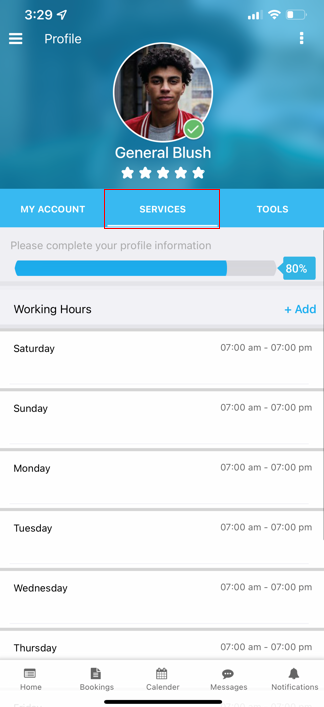
Fieldworker (Mobile App)
- Open the Fieldworker App.
- Go to Profile → Services → Working Hours.
- Tap + Add to create or adjust hours, then Save.

Fieldworker (Web)
If your account supports fieldworker web access, fieldworkers can also update their own working hours from the web portal (availability controls remain within company working-hour limits).
Time off, breaks & calendar blocks
Working hours define when a fieldworker normally works. To prevent bookings during vacations, appointments, training, or other time off, block unavailable time on the Calendar:

If you use Real-Time Availability: OctopusPro cross-checks company hours + fieldworker working hours + existing bookings + unavailable blocks to show only truly available time slots on the portal. Learn more: Dynamic Real-time Fieldworker Availability Scheduling.
What happens if you disable the flag?
- The Working Hours button is hidden from customers.
- Admins and fieldworkers can still view and manage working hours internally.
- If you use Real-Time Availability, the scheduling engine can still respect working hours and unavailable blocks—even if customers can’t see rosters publicly.
Troubleshooting
Customers can’t see the Working Hours button
- Confirm the flag is enabled: Settings → Customer Portal → Flags & Permissions → Website Flags.
- Confirm fieldworker profiles are visible on the portal (Fieldworkers list/directory is enabled). See: Display Fieldworker List on Customer Portal.
- Confirm the fieldworker has working hours configured. See: Manage Fieldworker Working Hours & Availability.
Hours look incorrect
- Check the fieldworker’s roster (including split shifts and lunch breaks).
- Check company working hours/time zone settings if your account restricts availability windows.
- Use calendar blocks for time off so availability stays accurate. See: Block Unavailable Dates & Times.
Best-practice tips
- Keep hours current: Encourage fieldworkers to update working hours and block time off promptly to avoid last-minute reschedules.
- Pair rosters with skills/services: Showing a roster helps, but you also want the right people selectable for the job. Make sure fieldworkers are assigned to the correct services. See: Assign Services to Fieldworkers (Skills-Based Scheduling).

- Use split shifts for breaks: Prevent bookings during planned downtime (e.g., lunch).
- After-hours strategy: If you don’t want to expose evening availability, keep rosters private and offer a separate “After Hours / Emergency” service with its own pricing and rules.
Related guides
- Display Fieldworker List on Customer Portal
- View / Edit Fieldworker Profiles
- Manage Fieldworker Working Hours & Availability
- Manage Fieldworker Calendar Availability
- Block Unavailable Dates & Times
- Dynamic Real-time Fieldworker Availability Scheduling
To stay updated, please subscribe to our YouTube channel.