
Display “Is Parking Available?” Question During Checkout
OctopusPro lets you control exactly what customers see in your Customer Portal booking flow. One optional checkout prompt you can enable is “Is parking available?”.
This question appears right before the customer confirms their booking, helping your team identify locations where free parking may not be available so fieldworkers can plan arrival time, loading access, and travel buffers more accurately.
What this feature does
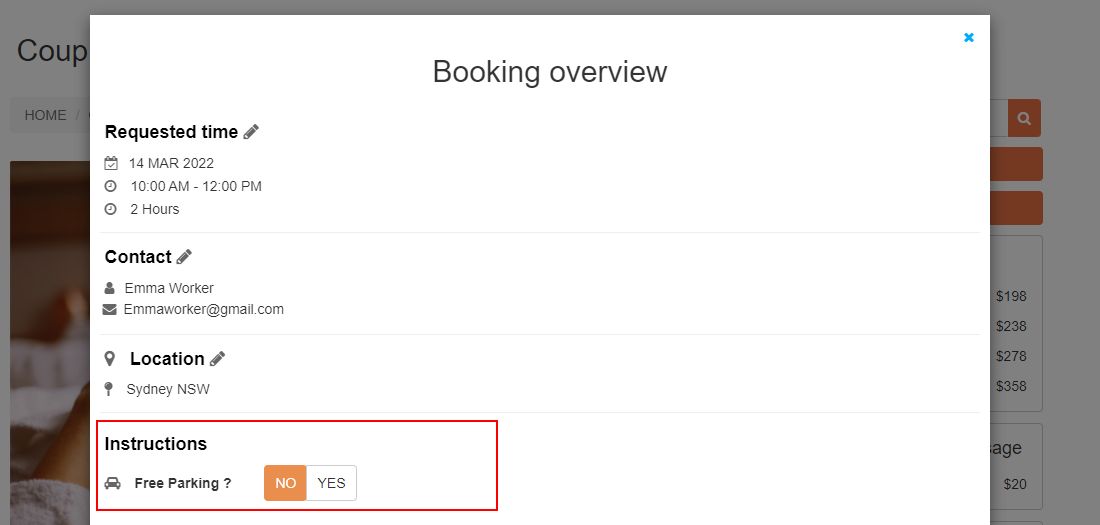
- Adds a parking availability question to the Booking overview pop-up during checkout (before booking confirmation).
- Displays a simple Yes / No toggle so customers can answer in seconds.
- Helps reduce delays caused by unknown parking restrictions (paid parking, limited visitor parking, loading zones, etc.).
Common use cases
- Mobile/on-site services (cleaning, trades, pest control, detailing): avoid late arrivals due to parking limitations.
- Apartment buildings: confirm whether visitor parking exists or if alternative access is required.
- Busy/CBD areas: identify when extra travel buffer may be needed.
How to enable the “Is parking available?” question
- In your admin portal, go to Settings > Customer Portal > Flags & Permissions.
- Scroll to the relevant booking flag.
- Enable: Display “Is parking available?” question during checkout.
- Click Save.

What customers see during checkout
After you enable the flag, the parking question appears on the Booking overview pop-up before the customer confirms the booking. Customers can select Yes or No using the toggle.
Branding note
The toggle/button colour shown to customers follows your Customer Portal Branding & Style button colour settings.
If the flag is disabled
If you disable this flag, the parking question will not appear on the Booking overview pop-up during checkout.
Best-practice recommendations
- Capture details when parking is limited: If you want customers to explain the situation (e.g., “paid parking only”, “visitor parking behind building”, “loading dock access”), enable the “Leave a note” / additional notes area during checkout and ask customers to include parking instructions when needed.
- Set expectations in your Booking Disclaimer: If your business may pass on parking/toll costs, add a short note in your portal disclaimer (e.g., “Parking/tolls may be charged if required”).
- Operational workflow tip: Have dispatch/admin staff check parking availability when scheduling tight routes or assigning jobs in high-traffic areas.
Related guides
- Customer Portal Flags & Permissions
- Customer Portal Branding & Style
- Customer Portal Booking Disclaimer
To stay updated, please subscribe to our YouTube channel.