
Set Up Recurring & Repeat Bookings
OctopusPro makes it easy to schedule repeat (one-off) and recurring (multi-visit series) bookings without manually duplicating jobs. In a few clicks, you can clone an existing booking into a follow-up appointment or build an entire booking series (weekly, fortnightly, monthly, seasonal, or custom dates). This helps you lock in future work, reduce admin time, and keep your calendar and billing organised.

On this page
- What repeat & recurring bookings are
- Who can create them
- Before you start (quick checklist)
- Create repeat/recurring bookings (Admin)
- Create repeat/recurring bookings (Fieldworker app)
- Allow customers to create repeat/recurring bookings (Customer Portal)
- Invoicing & billing options for recurring work
- Automation & reminders for recurring visits
- Best practices & examples
- Troubleshooting
- Related guides
What repeat & recurring bookings are
- Repeat once: Create a single follow-up booking from an existing job (e.g., “come back next Tuesday”).
- Multiple repeat (recurring series): Create multiple future bookings in one action (e.g., weekly cleaning for 12 weeks, quarterly inspections for a year, or custom dates).
Typical recurring use cases include maintenance plans, scheduled inspections, routine cleaning, lawn care, tutoring sessions, therapy check-ins, equipment servicing, and seasonal programs.
Who can create them
| Role | Where | Example |
|---|---|---|
| Admin / Dispatcher | Web dashboard | Schedule 12 weekly visits for a commercial client |
| Fieldworker / Technician | Fieldworker app | On-site, book the next 6 visits before leaving |
| Customer | Customer portal / branded app | Customer books weekly servicing during checkout |
Before you start (quick checklist)
- Make sure the original booking has the correct service, duration, address, and (if applicable) assigned fieldworker.
- If you want customers to self-schedule repeats, ensure your Customer Portal / Online Booking is enabled.
- If you plan to invoice recurring work in a specific way (merged invoice, deposits, payment terms), confirm your billing and payment settings are configured first.
Create repeat/recurring bookings (Admin)
1) Start from an existing booking
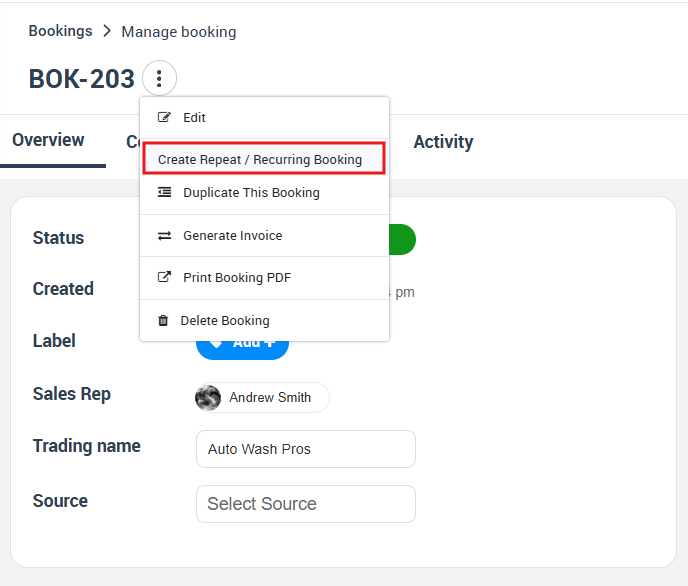
- Go to Bookings (Upcoming or Past), then open the booking you want to repeat.
- Click Create Repeat / Recurring Booking.
2) Repeat once (single follow-up)
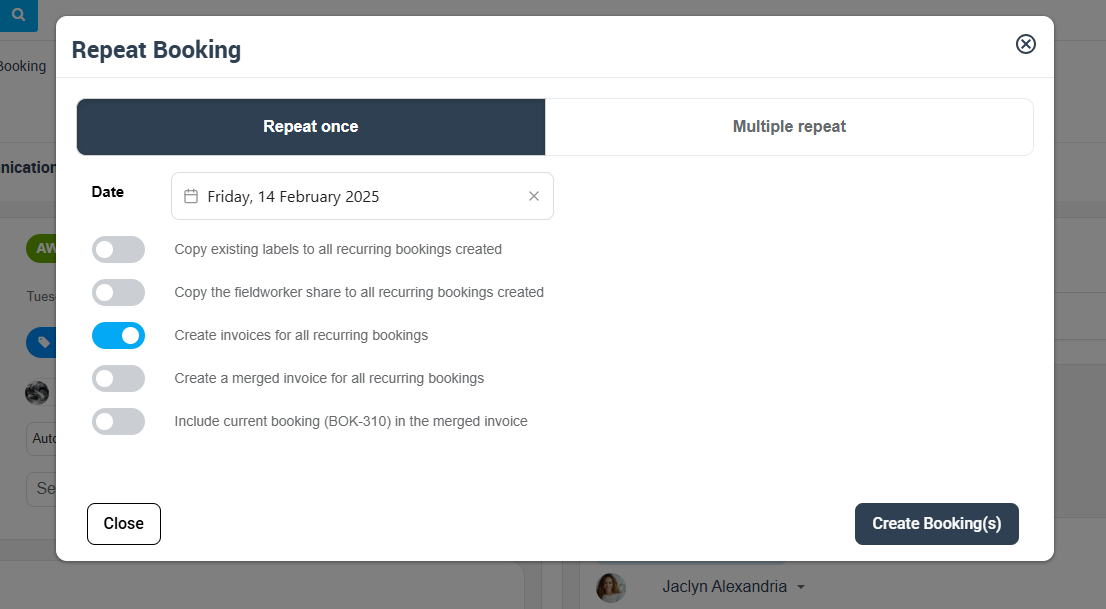
Use this when you only need one follow-up booking (e.g., “return next week”). Select the date, and apply any optional copy or billing options available in your account.
3) Multiple repeat (recurring series)
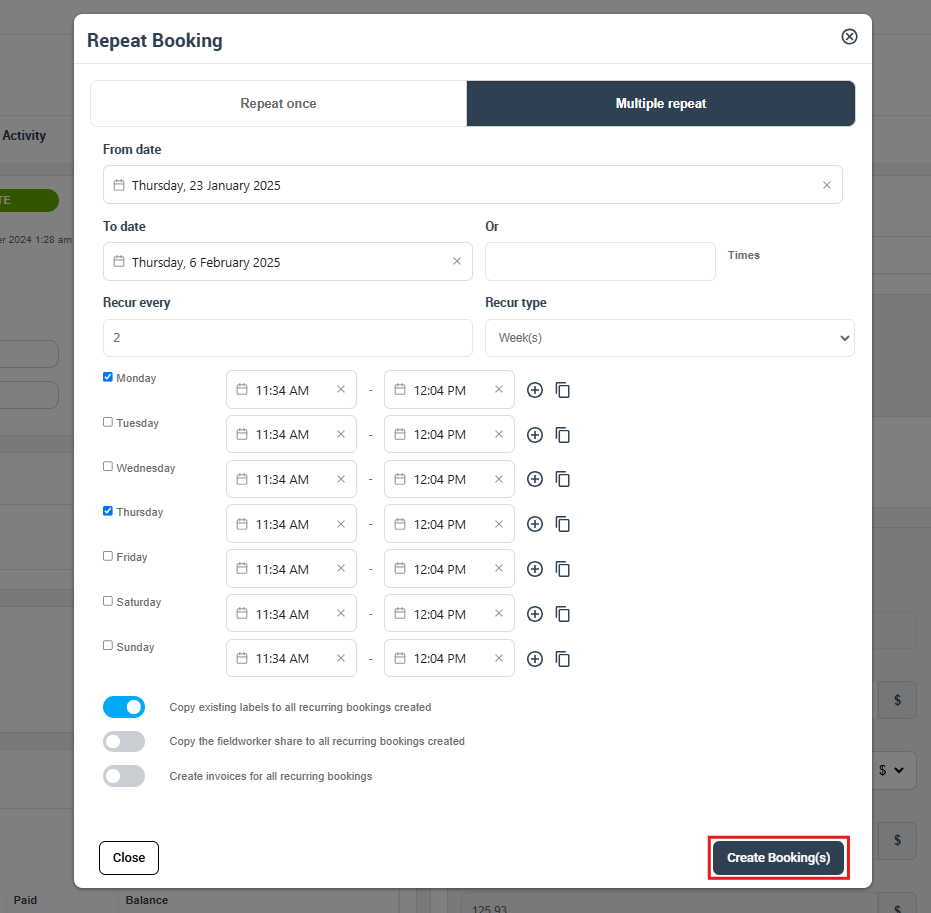
Use this to create a series of bookings in one action. You can build a schedule by date range or by number of occurrences, and you can usually choose the interval and (where applicable) the weekdays/times.
- Start date: First booking date in the series
- End condition: Set an end date or a number of occurrences
- Recurrence pattern: Choose the interval (e.g., every 1 week, every 2 weeks, monthly)
- Day/time selection: Where available, select specific days and/or time slots
- Options (may vary by account): Copy labels, copy fieldworker share/commission, and invoice options (individual or merged)
- Preview list: Review all generated dates and deselect any you don’t want before creating
4) Review the created series (Repeated Bookings)
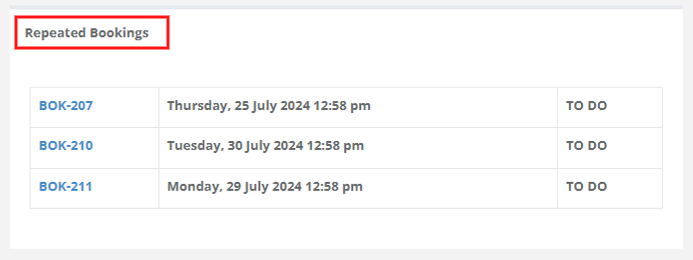
After saving, OctopusPro lists the new instances under Repeated Bookings. Each occurrence behaves like a normal booking, so you can open it to manage notes, status, assignments, and billing as needed.
Create repeat/recurring bookings (Fieldworker app)
Fieldworkers can follow a similar workflow in the mobile app (permissions apply): open the booking → choose Create Repeat / Recurring → select Repeat once or Multiple repeat → confirm. If your business uses job requests, assignment and acceptance rules will still apply to any new bookings created.
Allow customers to create repeat/recurring bookings (Customer Portal)
1) Enable repeat/recurring booking option in the portal
To allow customers to schedule repeat/recurring bookings during checkout, enable the flag:
Settings > Customer Portal > Flags & Permissions > Allow customers to make repeat/recurring bookings

If you haven’t enabled online bookings yet, start here: Accept Online Bookings Through Your Website.

2) What customers see at checkout
Customers can choose:
- Don’t repeat (single booking)
- Repeat once (one follow-up date)
- Multiple repeat (a recurring series)
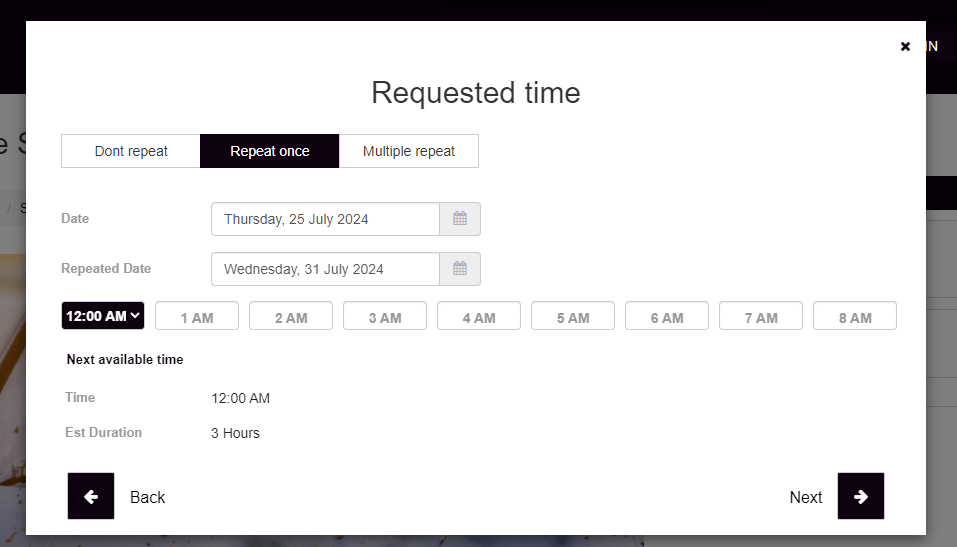
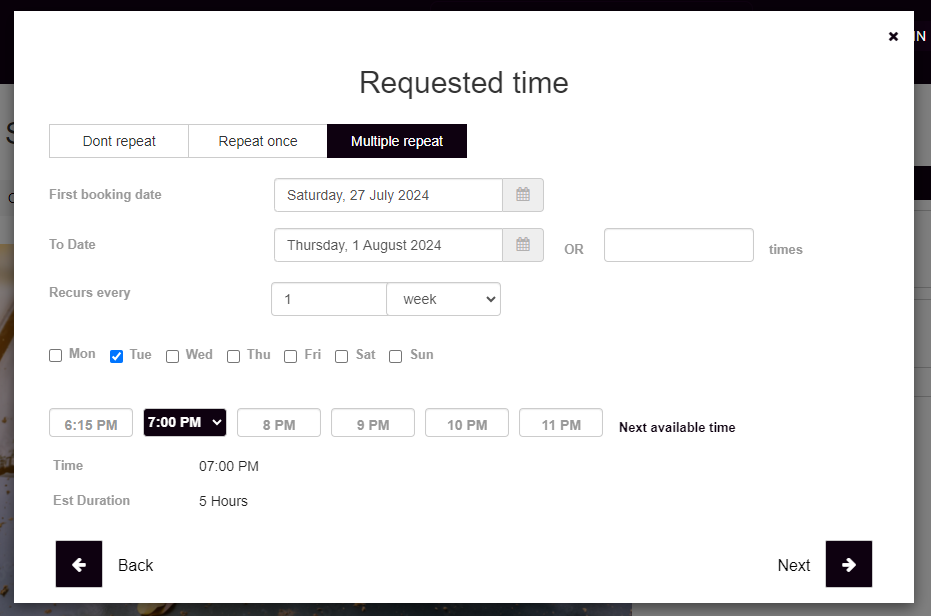
Before confirming, customers can review a generated list of scheduled dates (and edit if needed).
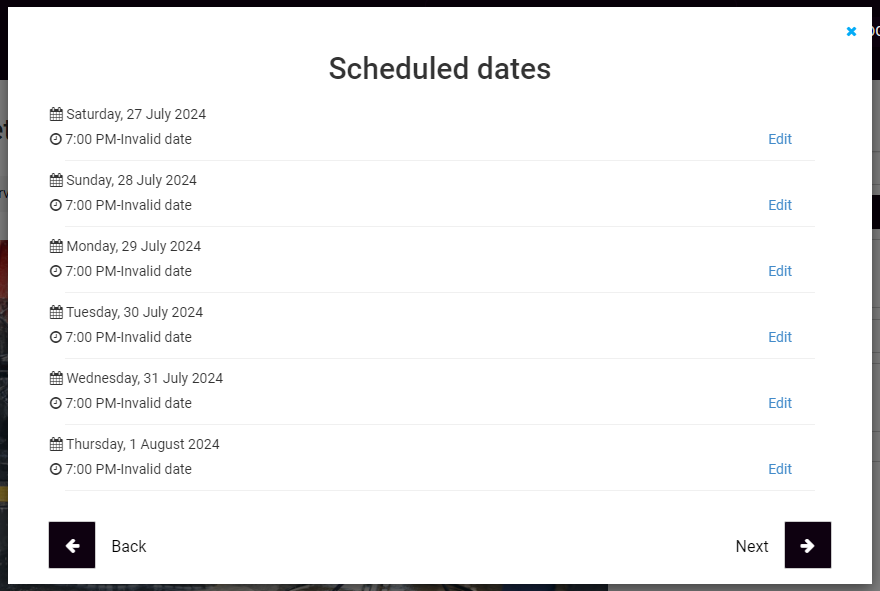
For a dedicated portal guide, see: Allow Customers to Make Repeat / Recurring Bookings (Customer Portal).

Invoicing & billing options for recurring work
When creating repeats, you may see invoice-related options such as:
- Create invoices for all recurring bookings (generates an invoice per booking, based on your invoice rules).
- Create a merged invoice (consolidates multiple bookings into a single invoice for easier billing and reconciliation).
Common billing setups for recurring customers:
- Invoice per visit: Best for residential or pay-per-visit services.
- Periodic consolidated billing (weekly/monthly): Best for commercial accounts, corporate clients, or “bill at end of month” agreements.
Helpful billing guides:
- Merge Multiple Invoices (Consolidated Billing)
- Lock / Unlock Merged Invoices
- Customer Billing Cycle Management
- Auto-Create Invoices on Customer Portal Bookings


To control deposits, pay-in-full, and payment terms for recurring services, see: Service Payment Terms and Payments & Deposits for Bookings.


Automation & reminders for recurring visits
Recurring work runs best when communication is automated. Typical automation examples include:
- Booking reminders (email/SMS) before each visit
- Service reminders for customers (e.g., “time for your next service”)
- Invoice sending and overdue reminders

Best practices & examples
- Always set an end rule (end date or number of occurrences) for long-running services to avoid creating excessive future bookings by mistake.
- Use merged invoicing for commercial clients who prefer weekly/monthly consolidated bills.
- Send reminders before each occurrence to reduce no-shows and last-minute cancellations.
- Keep availability realistic: if a series is customer-scheduled, make sure your working hours, service areas, and availability rules are configured.
Examples:
- Weekly cleaning: every Monday at 9:00 AM for 12 weeks
- Fortnightly lawn care: every 2 weeks on Wednesday afternoon for 6 visits
- Quarterly inspections: every 3 months for 1 year
- Tutoring package: 10 sessions every Saturday morning
Troubleshooting
- I can’t see “Create Repeat / Recurring Booking”: confirm you’re viewing an existing booking and that your user role has permission to create/manage bookings. Start with: Create a New Booking.
- Fieldworkers can’t create repeats: check fieldworker permissions and dispatch rules. Useful references: Fieldworker Permissions and Allow Fieldworkers to Accept/Decline Job Requests.
- Customers don’t see repeat/recurring at checkout: enable the portal flag and ensure online bookings are enabled: Accept Online Bookings Through Your Website.
- Billing isn’t consolidating as expected: review your consolidated billing settings and customer billing cycle configuration: Customer Billing Cycle Management.
Related guides
- OctopusPro User Guide (Platform Overview)
- Create a New Booking
- Repeat / Recurring Bookings (Customer Portal)
- Configure Recurring Service Reminders
- Automated Procedures
- Merge Multiple Invoices
- Lock / Unlock Merged Invoices
- Customer Billing Cycle Management
- Service Payment Terms
- Payments & Deposits for Bookings
To stay updated, please subscribe to our YouTube channel.