
Allow Customers to Upload Photos During Online Booking (Customer Portal)
OctopusPro lets you add a photo upload step to your Customer Portal booking (checkout) flow. Customers can upload photos while scheduling a booking, helping your admin team and fieldworkers understand the job requirements before arriving onsite.

Contents
- Overview (what this does)
- Enable the photo upload step (Admin)
- Optional vs mandatory photo uploads
- Customer experience: upload photos during checkout
- Upload multiple photos
- After booking: add more photos + comments
- Booking Chat (optional)
- How admins/fieldworkers view & manage customer photos
- What happens if the setting is disabled?
- Related settings & guides
Overview (what this does)
When enabled, customers will see an Upload photos step during the booking process and can attach one or more images before submitting their booking.
Why enable photo uploads?
- Better job scoping: photos show the issue, access points, dimensions, site conditions, or damage upfront.
- Fewer questions & reschedules: customers can explain what they need visually instead of long messages.
- Better fieldworker prep: the assigned team can bring the right tools/materials the first time.
Common use cases
- Inspection-based services (repairs, restoration, installations, pest control, cleaning, maintenance)
- Work that depends on condition/access (driveways, roofs, bathrooms, HVAC, electrical, landscaping)
- Before/after documentation and quality assurance
Important note: After checkout is completed, customers can’t view or remove the photos they uploaded during the checkout step. If you want customers to add more photos later, they can do so from the booking page (if available in your setup) and/or via Booking Chat (if enabled).
Enable the photo upload step (Admin)
- Go to: Settings → Customer Portal → Flags & Permissions
- Under Booking flags, enable: Allow customers to upload photos when making a booking
- Click Save

Tip: Use the “custom message” for the upload popup
- In the same flag area, you can set a custom message that tells customers exactly what to upload (example: “Please upload 2–3 clear photos of the affected area + one wide shot showing access.”).
Optional vs mandatory photo uploads
This page covers the standard (optional) photo upload step. If you need to force customers to upload at least one image before they can submit a booking, enable the separate mandatory rule.
- Optional upload: customers can upload photos during checkout, but you’re not enforcing it.
- Mandatory upload: customers are blocked from continuing until they upload at least one image.
Make uploading images mandatory for customers when making a booking
Customer experience: upload photos during checkout
When the flag is enabled, customers will see an Upload photos step during the booking process.
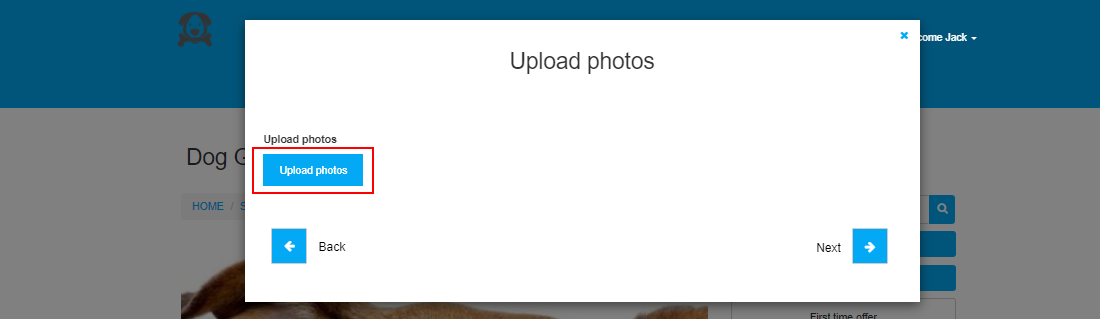
To upload a photo, customers click Click here to upload files, select an image, then click Next.
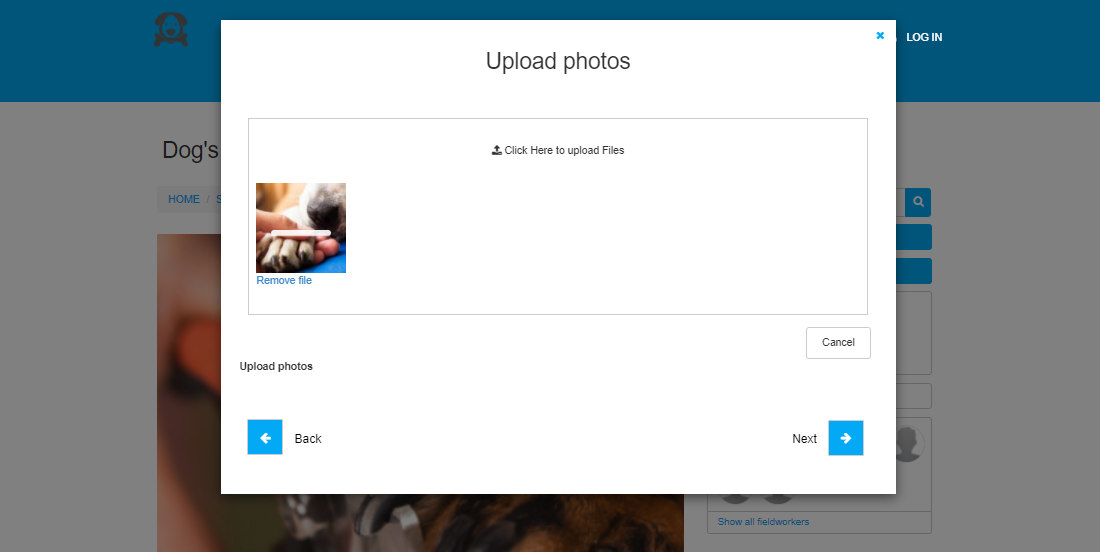
Upload multiple photos
Customers can upload multiple photos by adding them one by one using the same upload control. They can remove a photo added by mistake by clicking Remove file, or click Cancel to start over.
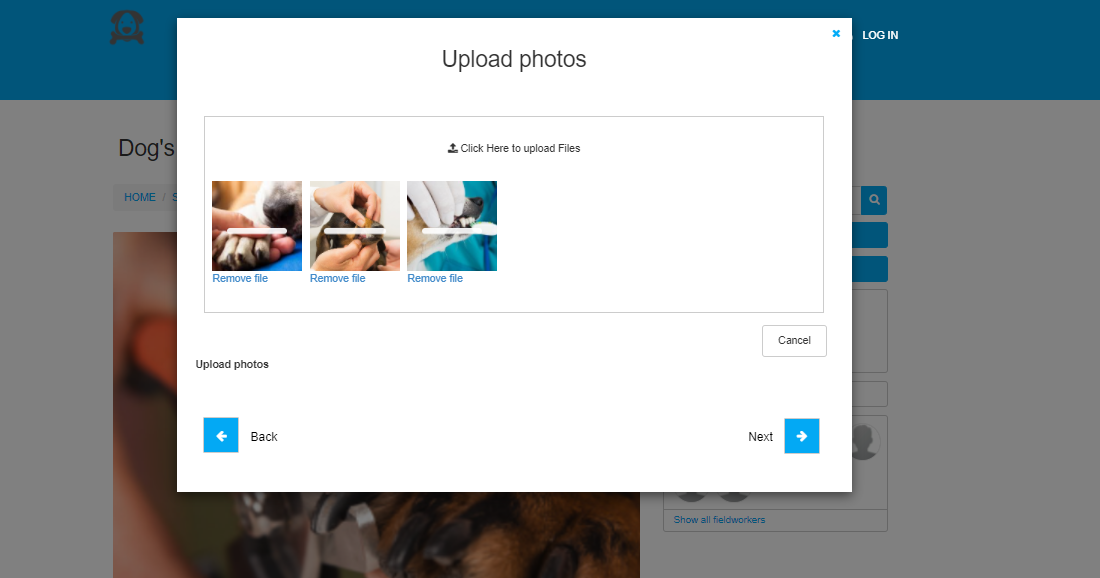
Important: After checkout is completed, customers won’t be able to view or remove the photos uploaded during the booking process.
After booking: add more photos + comments
Customers can add more photos and comments after booking from the booking view page. Scroll to the Images section and click Add photos.
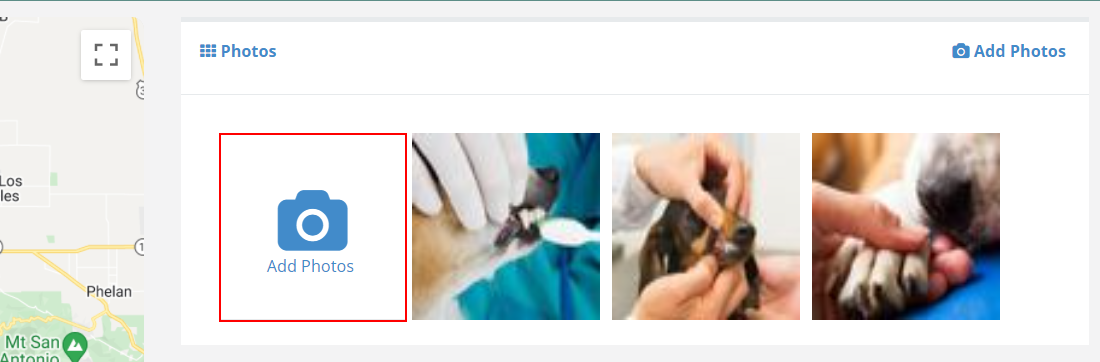
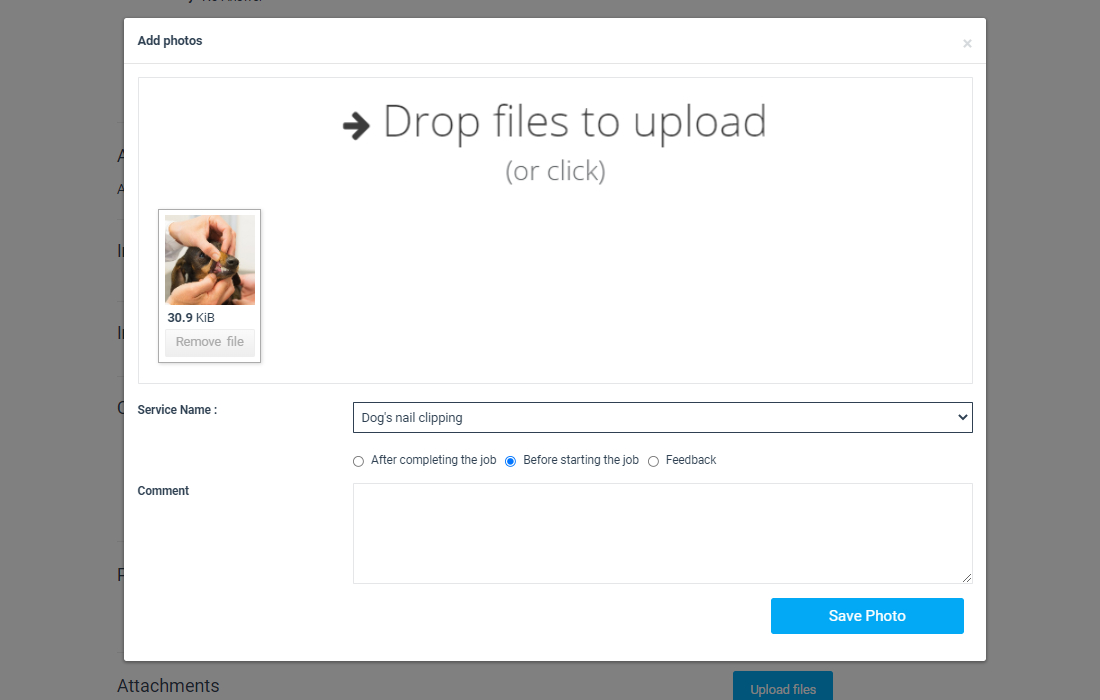
A window will appear where customers can upload photo(s), select the related service name, add a comment, then save.
Booking Chat (optional)
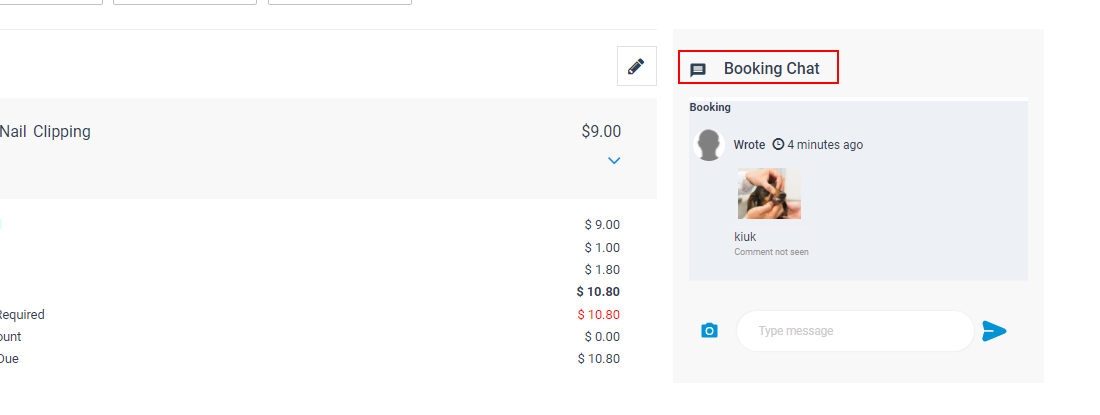
If Booking Chat is available in your portal setup, customers can also send a message and upload photos to your team from the booking page. Photos sent via chat can be deleted by the customer later (depending on your configuration).
If you want assigned fieldworkers to be notified and able to view/reply to portal booking messages, see: Notify Fieldworkers About Customer Booking Discussions
How admins/fieldworkers view & manage customer-uploaded photos
Admin users (and fieldworkers, where applicable) can view customer-uploaded photos by opening the booking. Photos appear in the Photos section.
Add photos from the booking (Admin)
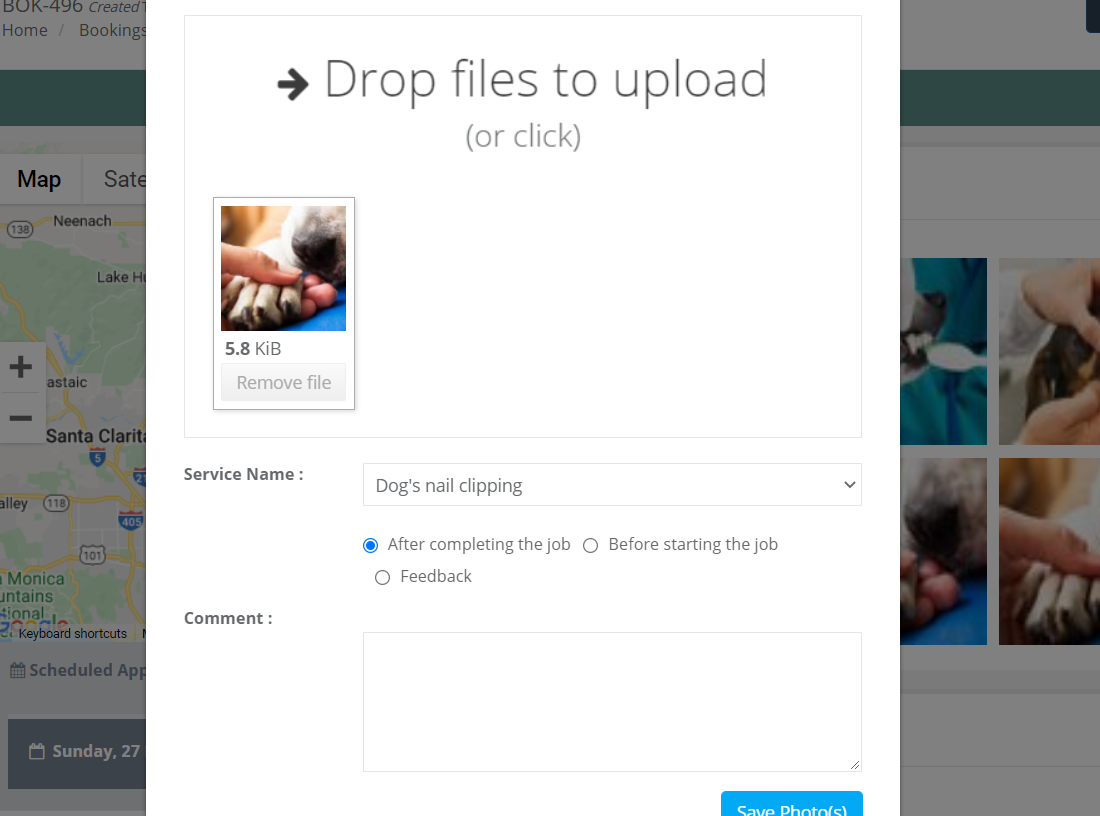
Admins can click Add Photos, upload the image(s), select the service name, add a comment, then save.
Comment on an uploaded photo
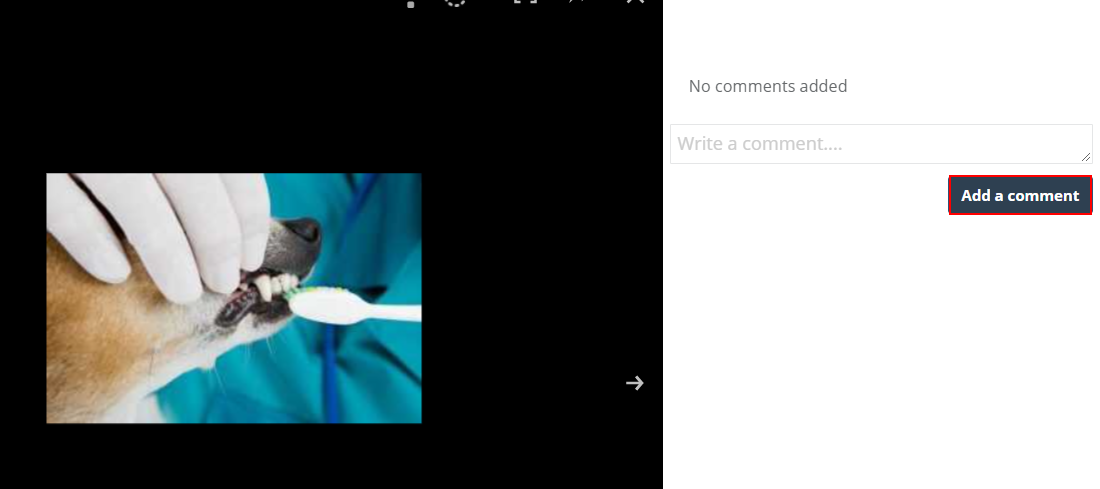
When viewing a photo, admins can add a comment if needed.
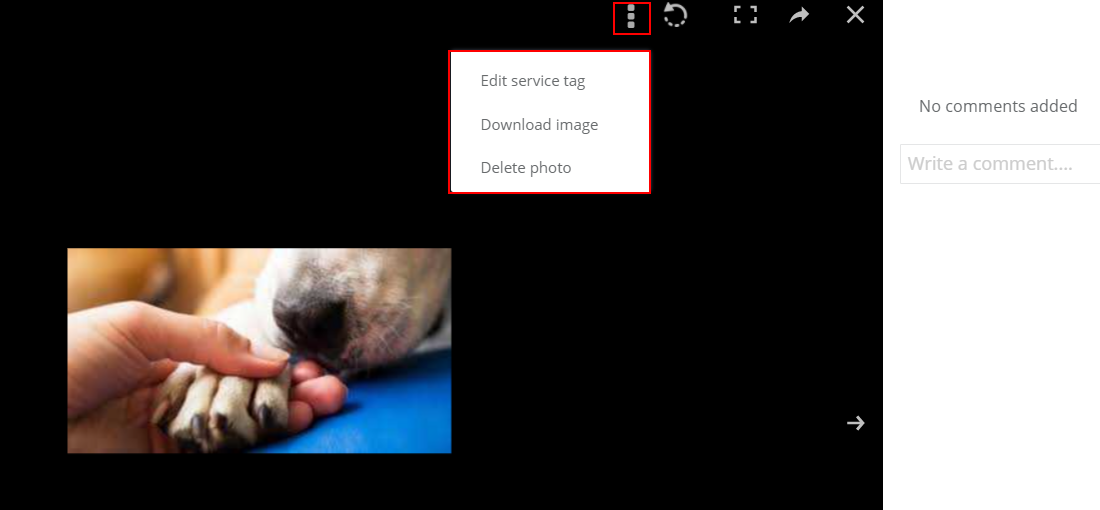
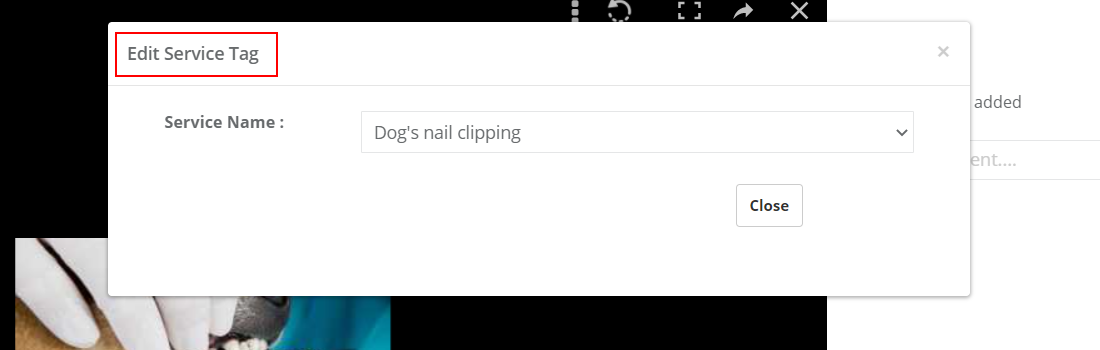
Edit the service tag, download, or delete
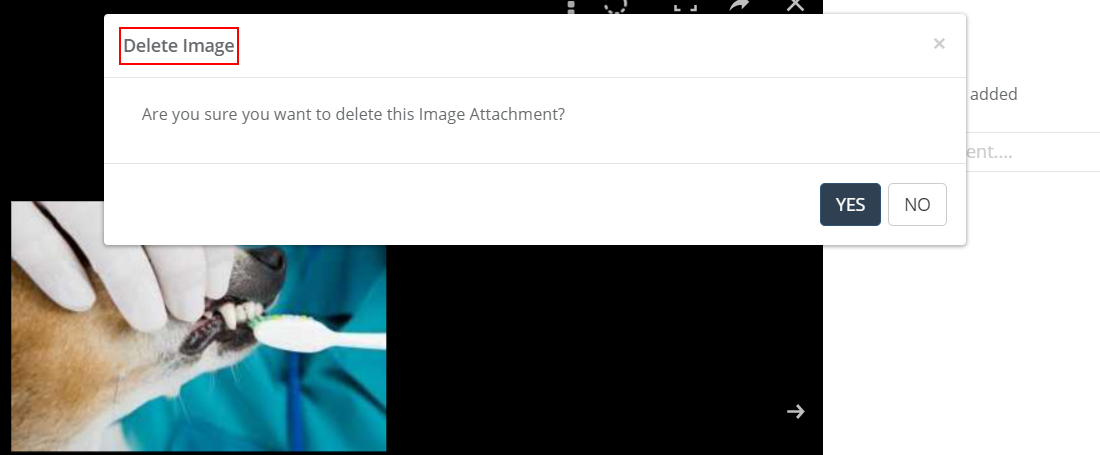
From the photo viewer action menu, admins can edit the service tag, download the image, or delete the photo.
What happens if the setting is disabled?
When this flag is disabled, customers won’t have the option to upload photos during booking checkout and the Upload photos step/button will disappear.

Related settings & guides
- Customer Portal Flags & Permissions
- Make uploading images mandatory for customers when making a booking
- Customer Portal PDF Uploads (Booking Attachments)
- Upload Images, PDFs & Docs to Bookings, Quotes & Inquiries
- Notify Fieldworkers About Customer Booking Discussions
To stay updated, please subscribe to our YouTube channel.