
Display Booking Duration (Estimated Time) to Customers
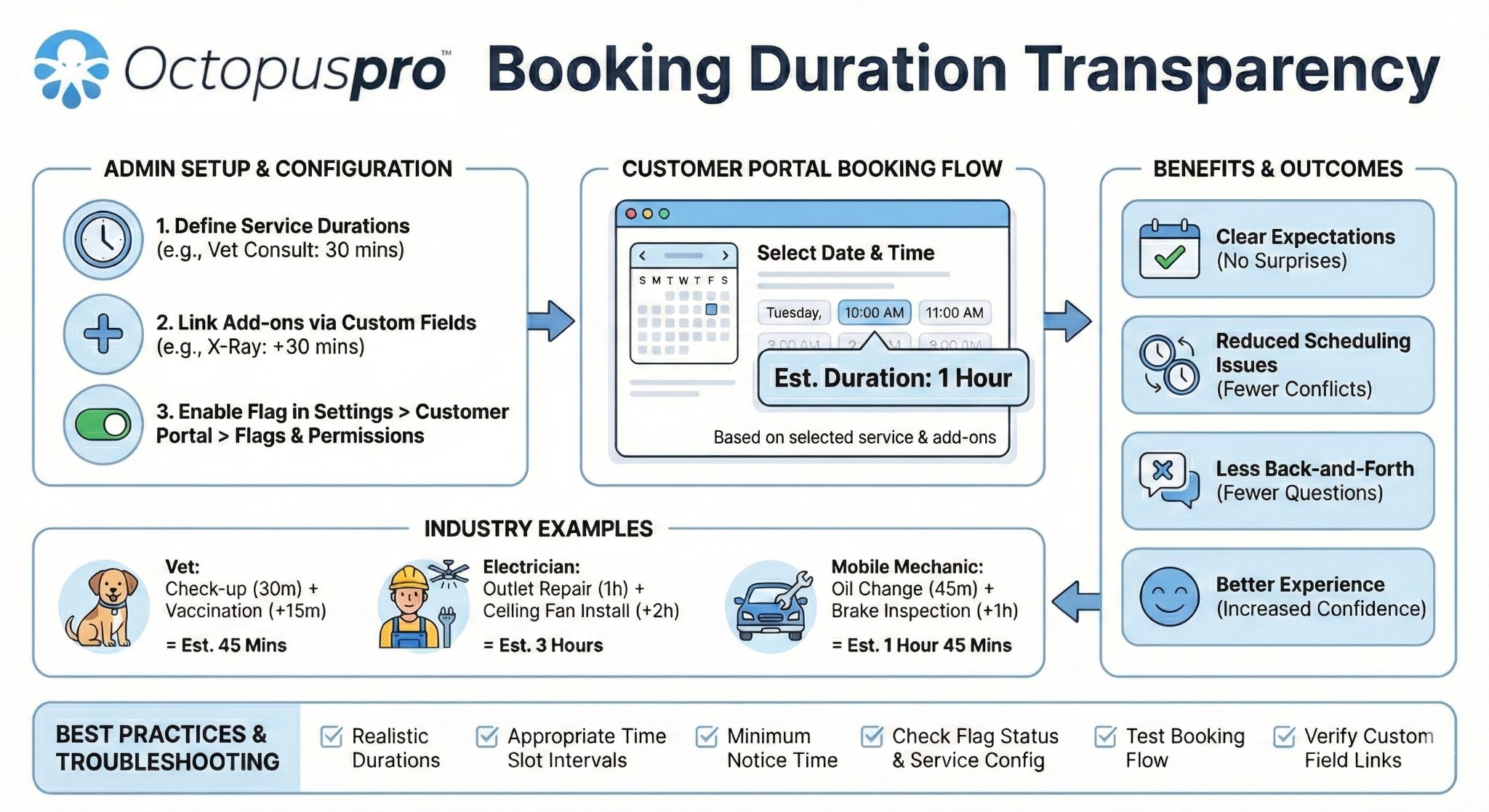
OctopusPro allows you to control what information appears in your Customer Portal during online booking. One helpful option is displaying the booking duration (also known as estimated appointment time) to customers while they choose a date and time.
When enabled, customers can clearly see how long their appointment is expected to take based on the service(s) they select (and any service options/add-ons captured through custom fields, if applicable). This improves scheduling accuracy and sets expectations before the booking is confirmed.
Benefits
- Clear expectations: customers know the estimated service length before confirming.
- Fewer scheduling issues: helps avoid customers choosing unsuitable time slots.
- Less back-and-forth: reduces “How long will it take?” questions.
- Better booking experience: more transparency means more confidence and fewer drop-offs.
Table of contents
- What this setting does
- Before you start
- How to enable the setting
- Where customers see the estimated duration
- What the estimated duration is based on
- Examples
- Best practices
- Troubleshooting
- Related guides
What this setting does
The Display booking duration / estimated time to customers flag controls whether OctopusPro shows an estimated duration to customers while they are selecting a booking date and time in the Customer Portal.
This is a display setting for the Customer Portal booking flow, designed to improve clarity during scheduling.
Before you start
For the customer portal to display a useful estimated duration, ensure your services are configured correctly:
- Set a duration for each service when creating or editing services (so the system knows how long the appointment should take). Learn how to configure services
- If you use custom fields to capture options/add-ons (e.g., “extra room”, “deep clean”, “multiple units”), ensure they are configured and linked to the relevant services. Learn about custom fields
How to enable “Display booking duration / estimated time to customers”
- Go to Settings > Customer Portal > Flags & Permissions.
- Find the flag: Display booking duration / estimated time to customers.
- Switch it ON.

Where customers see the estimated duration
After enabling the flag, customers will see the estimated duration while selecting a date and time in the Customer Portal booking flow (during the requested time / availability step).

What the estimated duration is based on
The estimated duration shown to customers is primarily based on the service duration you configured for the selected service(s). If your booking flow includes service options or add-ons captured via custom fields, the final estimated time may vary depending on the selected options (based on how your services and booking steps are configured).
If service durations are not configured, the portal may not display a meaningful estimate.
Examples
- Home cleaning: A “Standard Clean” service might show 2 hours. If your booking flow includes add-ons (e.g., “Deep clean kitchen”), the estimated duration can increase depending on what the customer selects.
- HVAC servicing: “Single unit service” vs “Multiple units” captured during booking can result in different time expectations.
- Beauty & wellness: “Massage 60 mins” vs “Massage 90 mins” makes duration obvious at the time selection step.
Best practices
- Keep service durations realistic: update them when your delivery time changes.
- Use time slot intervals that match your business: intervals control the “step” between available times shown to customers. Time slot intervals
- Set a minimum notice time: prevent last-minute bookings that your team can’t accommodate. Minimum notice time for new bookings
- Confirm date/time preferences: ensure your timezone and 12/24-hour format are set correctly. Date & time configuration
Troubleshooting
Customers can’t see the estimated duration
- Confirm the Display booking duration / estimated time to customers flag is enabled.
- Confirm your service(s) have durations configured.
- Test the booking flow in the Customer Portal using the same service selections your customers use.
The estimated duration looks wrong
- Re-check the configured duration for the selected service(s).
- If you use custom fields/options that influence the booking setup, confirm the service and booking steps are configured as intended.
- Make sure you are testing the correct service (some businesses have similar services with different durations).
Related guides
- Customer Portal Flags & Permissions
- Creating a New Service (service duration setup)
- Custom Fields (service options & booking questions)
- Time Slot Intervals
- Minimum Notice Time for New Bookings
- Booking Settings, Flags & Permissions
To stay updated, please subscribe to our YouTube channel.