
Quotes & Estimates History Log (Recent Quotes Report)
The Quotes & Estimates History Log (also called Recent Quotes) is a real-time report that lists every quote/estimate that has been created or updated in your OctopusPro account. Use it to monitor your sales pipeline, prioritise follow-ups, and make sure accepted quotes don’t sit idle.

This report is ideal for:
- Sales pipeline visibility: instantly see new quotes and recent edits across your whole team.
- Follow-ups & conversion: focus on quotes in Sent status that need chasing.
- Quality control: spot quote edits, pricing issues, or $0 totals before they impact revenue.
- Accountability: see the latest Date / By so you know who last touched the quote.
- Reporting: export to CSV for KPIs (quote volume, value, win rate, response time).
On this page
- What this report shows (and what it doesn’t)
- How to open the Quotes History Log
- Permissions & access control
- Understanding the grid (columns & status badges)
- Filters, dashboards, sorting, search & export
- Everyday workflows (examples)
- Best practices
- Frequently asked questions
- Related guides
What this report shows (and what it doesn’t)
What it shows: A live list of quotes/estimates that were recently created or modified, including key details (status, customer, value, and the user who last updated it). This makes it perfect for pipeline monitoring and follow-up lists.
What it doesn’t replace: The full, line-by-line audit history inside an individual quote. If you need to see exactly what changed (items, pricing, expiry date, notes, etc.), open the quote record and review its internal activity/timeline.
How to open the Quotes History Log
Admin Portal navigation: Reports → History Log → Recent Quotes
The grid loads with the newest activity first. Refresh the page to pull the latest updates.
Mobile access: The report can also be available via supported apps. Path may appear as: Menu → Reports → History Log → Recent Quotes (labels can vary slightly by app version).
Permissions & access control
Because this report can display customer information and quote values, access may be restricted by your role permissions. If you can’t see the History Log reports, ask an admin to update your role credentials.
Learn more: Role-Based Access Control (RBAC) & User Permissions
Understanding the grid (columns & status badges)
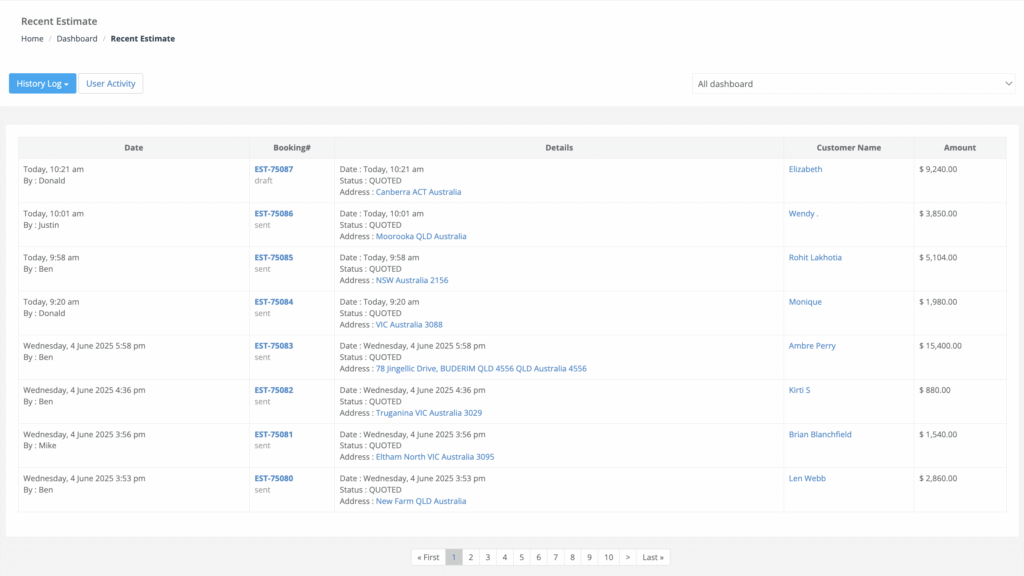
The Recent Quotes grid is designed for quick scanning and fast drill-down. Common columns include:
| Column | What it means | How teams use it |
|---|---|---|
| Date / By | When the quote was created or last updated, plus the user who performed the most recent change. | Accountability (“who last edited this?”) and prioritising recent activity. |
| Estimate / Quote # | Clickable quote reference (e.g., EST-#####) with a status badge. | Open the quote instantly to follow up, edit, resend, or convert (based on your workflow). |
| Details | Quote date, status details, and service address (where relevant). | Fast context—especially for multi-site customers. |
| Customer | Clickable customer name. | Jump to the customer profile for history, communication, and next steps. |
| Amount | Total quote value (tax display depends on your settings). | Prioritise follow-ups by value and quickly identify pricing errors. |
Status badges help you take the right action fast. Common statuses include:
- Draft (work-in-progress, not yet sent)
- Sent (delivered to customer, awaiting response)
- Accepted (approved by customer)
- Rejected / Declined (customer declined)
- Expired (passed expiry date)
Colour cue example (may vary by theme): Grey = Draft, Blue = Sent, Green = Accepted, Red = Expired/Rejected.
Filters, dashboards, sorting, search & export
- Dashboard switcher (All vs My): Use the dropdown to switch between All Dashboard (everyone’s quotes) and My Dashboard (quotes you created/own).
- Status shortcuts: Some accounts show quick links like “Recent Draft” and “Recent Sent” for faster follow-up lists.
- Sorting: Click column headers (Date, Amount, Customer) to prioritise the list you need.
- Search: Use your browser search (Cmd/Ctrl + F) for visible rows, or use on-screen search (if available) to find a quote number or customer quickly.
- Pagination: Move through older records without exporting.
- Export to CSV: Export filtered results for reporting, KPIs, and marketing ROI analysis.
Everyday workflows (examples)
1) Daily sales huddle (pipeline review)
Sort by Date to review quotes created or edited since yesterday. Assign follow-ups to specific team members and set conversion targets.
2) Fast follow-up on “Sent” quotes
Filter to Sent, open each quote, and contact the customer (email/SMS/call). A simple cadence many teams use is 24 hours, 48 hours, then 7 days (adjust to your sales cycle).
If you want OctopusPro to do this automatically, use quote follow-up reminders:
Quote Follow-Up Reminders (Manual + Automated Email/SMS)

3) High-value quote check (protect margin)
Sort by Amount to review high-value quotes before sending to ensure correct pricing, tax settings, and line items.
4) Customer calls about a quote (answer in seconds)
Search the quote number (EST-#####) or customer name, open the quote, confirm its latest status, and advise the next step (accept/decline link, expiry date, or scheduling options).
5) Make sure accepted quotes are actioned
Filter to Accepted and ensure each quote progresses to the next stage of your workflow (e.g., convert to booking, schedule, invoice).


Best practices
- Automate follow-ups: Set reminders for quotes that remain Sent after 48 hours to increase conversions without manual chasing: Quote Follow-Up Reminders.
- Export weekly: Share a CSV with management to track quote volume, value, conversion rate, and response time.
- Review $0 quotes: A zero total often indicates missing line items, incorrect quantities, or pricing rules not applied.
- Use Draft properly: Save work-in-progress quotes as Draft to avoid sending too early and triggering premature follow-ups.
- Validate messaging delivery: When investigating “was it sent?”, cross-check logs:
- Monitor automation runs: If reminders should have been sent automatically, review: Automations / Scheduled Tasks Log.
- Limit access to quote values: Use RBAC to control who can view reports and amounts: RBAC & User Permissions.
Frequently asked questions
Does the report include expired or declined quotes?
Yes. Expired and declined/rejected quotes appear in the log so you can analyse lost opportunities and improve your process.
Can I see who edited a quote?
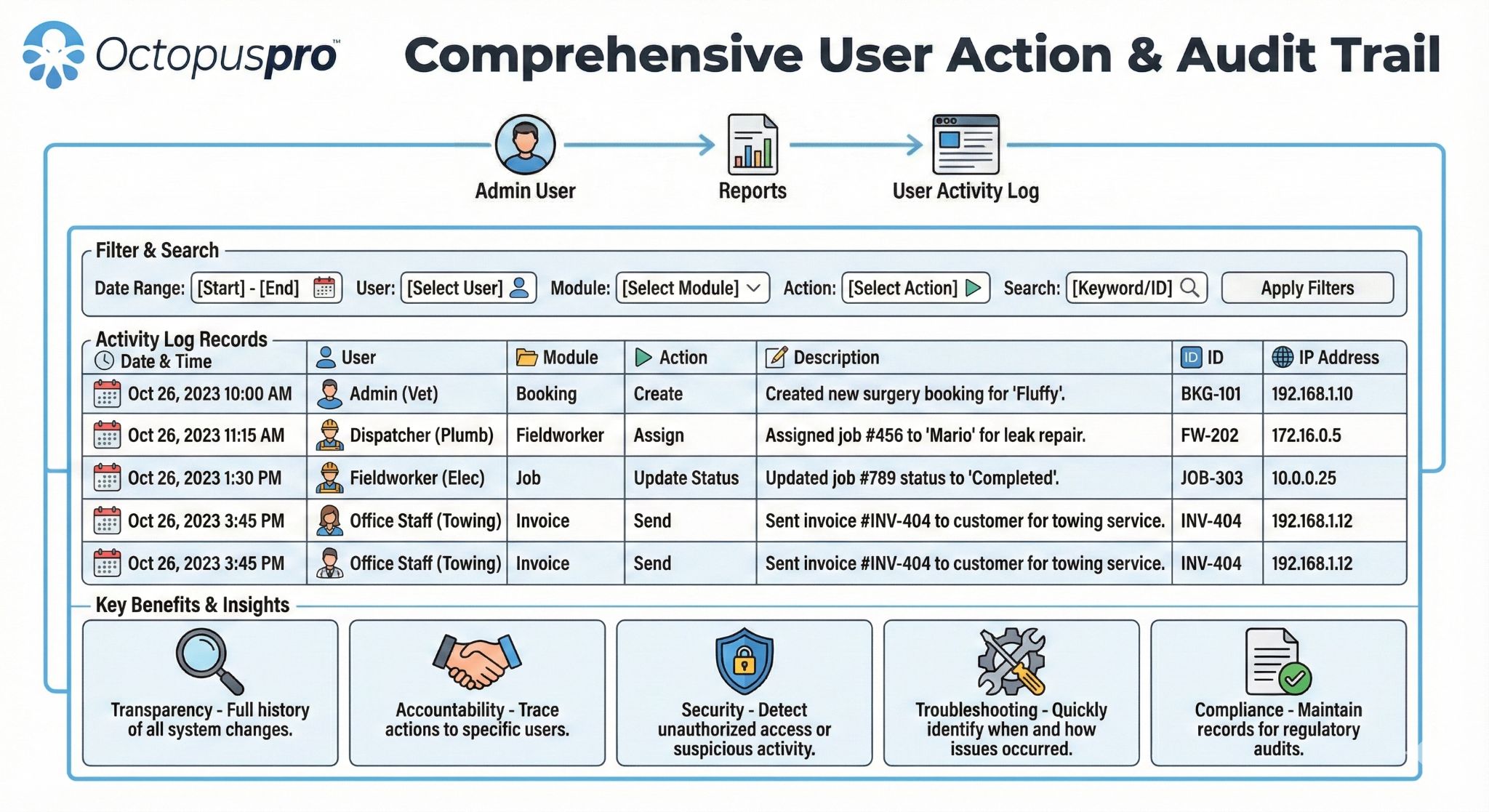
Yes. The Date / By column shows who last updated the quote. For deeper, line-by-line changes, open the quote record and review its internal activity/timeline. For an account-wide audit across all modules, use: User Activity Log.
Is the report real-time?
The list updates as quotes are saved. Refresh the page to load the newest activity.
Where can customers accept or decline a quote?
Customers can typically accept/decline via email buttons and/or the Customer Portal (depending on your configuration). Learn more: Accept or Decline Quotes & Estimates.

Related guides
- Accept or Decline Quotes & Estimates
- Quote Follow-Up Reminders (Manual + Automated Email/SMS)
- Recent & Modified Bookings History Log
- Invoice History Log
- Automations / Scheduled Tasks Log
- Outbound Email Log
- SMS History Log
- Call History Log
- User Activity Log
- Role-Based Access Control (RBAC) & User Permissions
To stay updated, please subscribe to our YouTube channel.