
Using Template Placeholders for Personalized Communications
Template placeholders (also known as merge fields or dynamic variables) let you automatically insert live data into your communication templates. When a message is sent, OctopusPro replaces each placeholder (e.g., {customer_first_name}) with the actual value from your account—so messages feel personal, accurate, and consistent without manual typing.

What are template placeholders?
Placeholders are tags wrapped in curly braces like {company_name} or {booking_num}. They pull information from different areas of OctopusPro, such as:
- Company & branding (business name, email, phone, logo, trading name details)
- Customer details (name, contact info, signature URL, etc.)
- Booking / appointment data (date/time, status, location, assigned fieldworkers, payment links)
- Quotes & invoices (numbers, totals, due dates, acceptance links/buttons)
- Fieldworker information (name, rating, profile links, profile photo update links)
- Forms & checklists (completed form data using a dedicated placeholder)
Why use placeholders?
- Personalize at scale: Each customer gets a tailored message automatically.
- Reduce mistakes: No copy/paste errors for addresses, times, totals, or IDs.
- Save time: Templates become “set once, use forever”.
- Improve conversion: Add direct links/buttons (e.g., pay deposit, accept quote) to speed up action.
- Standardize communication: Keep branding, wording, and formatting consistent across the team.
Where can I use placeholders?
You can use placeholders anywhere you build messages, including:
- Email templates (including subject + body)
- SMS templates (keep it short—some placeholders can output long text)
- WhatsApp templates (when configured)
- Canned responses (quick replies that still personalize automatically)
- Automation messages (sent automatically based on triggers and workflows)
How to use placeholders in OctopusPro
- Choose your template or canned response
Select the template you want to edit. Placeholder availability depends on the Receiver Type (e.g., Customer / Fieldworker) and the Item Type (e.g., Booking / Invoice / Quote / Inquiry).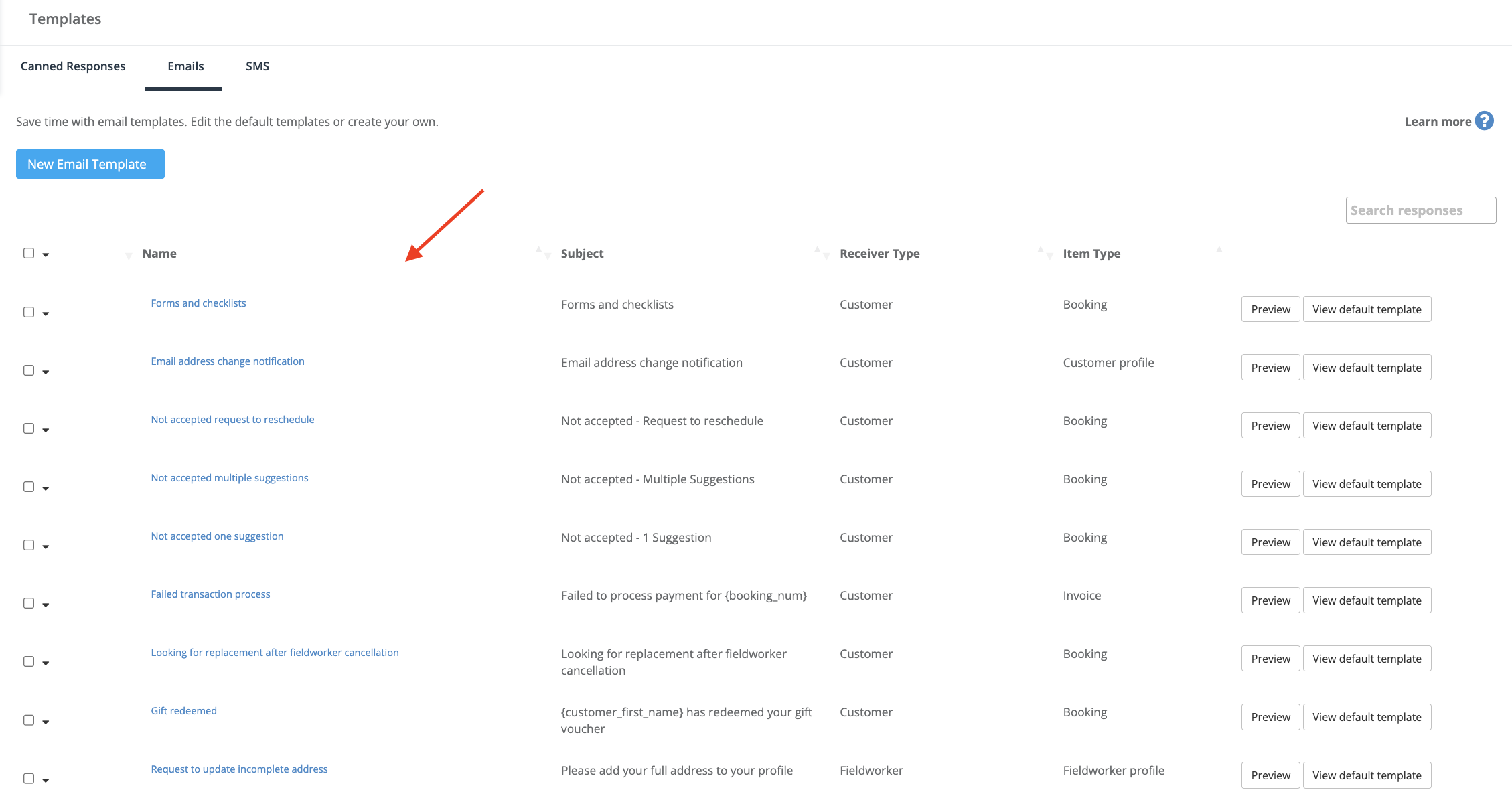
- Insert placeholders where you want data to appear
Add placeholders into your text. For example: “Hi {customer_first_name}, your booking {booking_num} is confirmed.”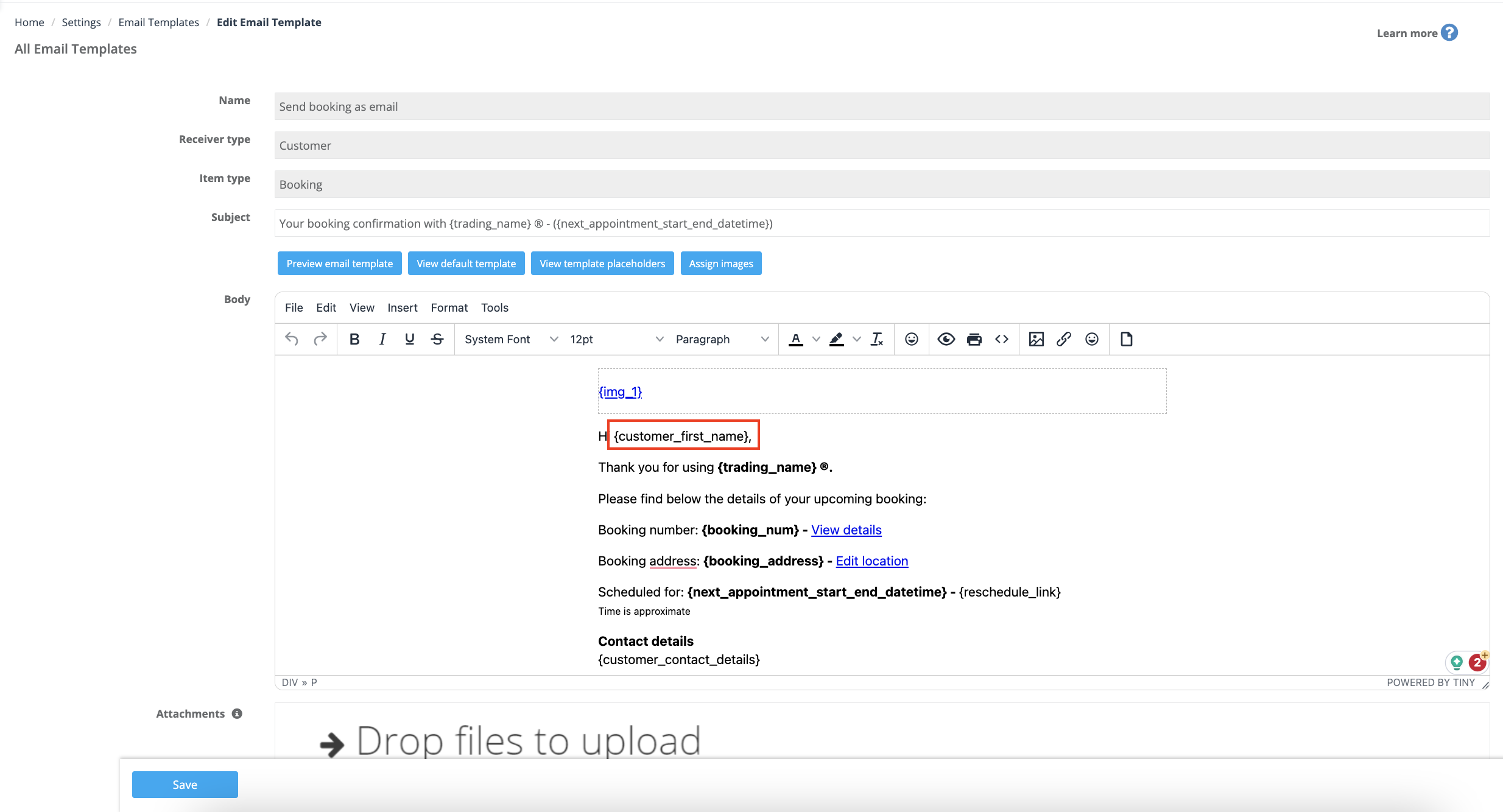
- Confirm placeholder availability for that template
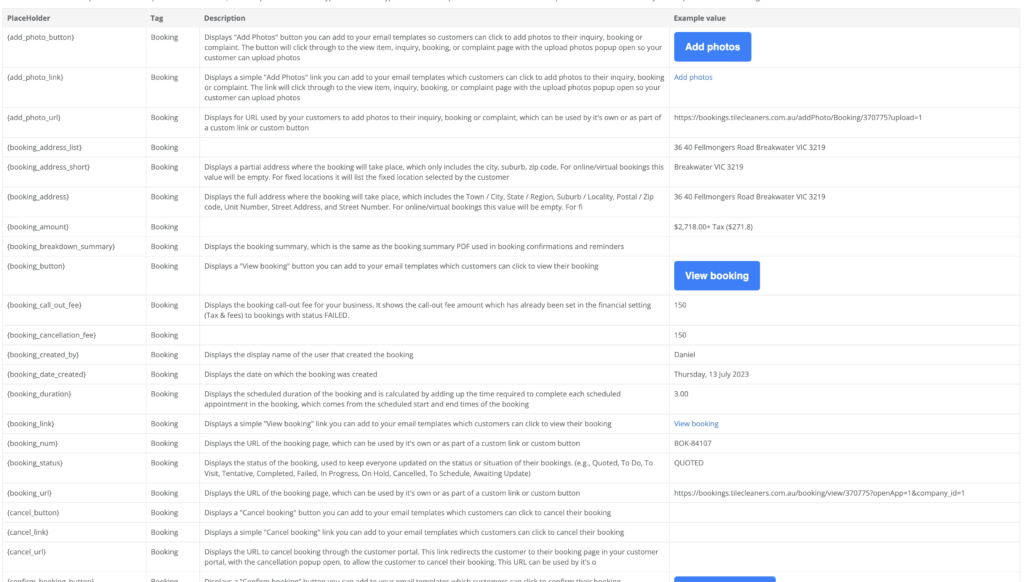
Not every placeholder appears in every template. Use the View template placeholders list to confirm the tag exists for your template type.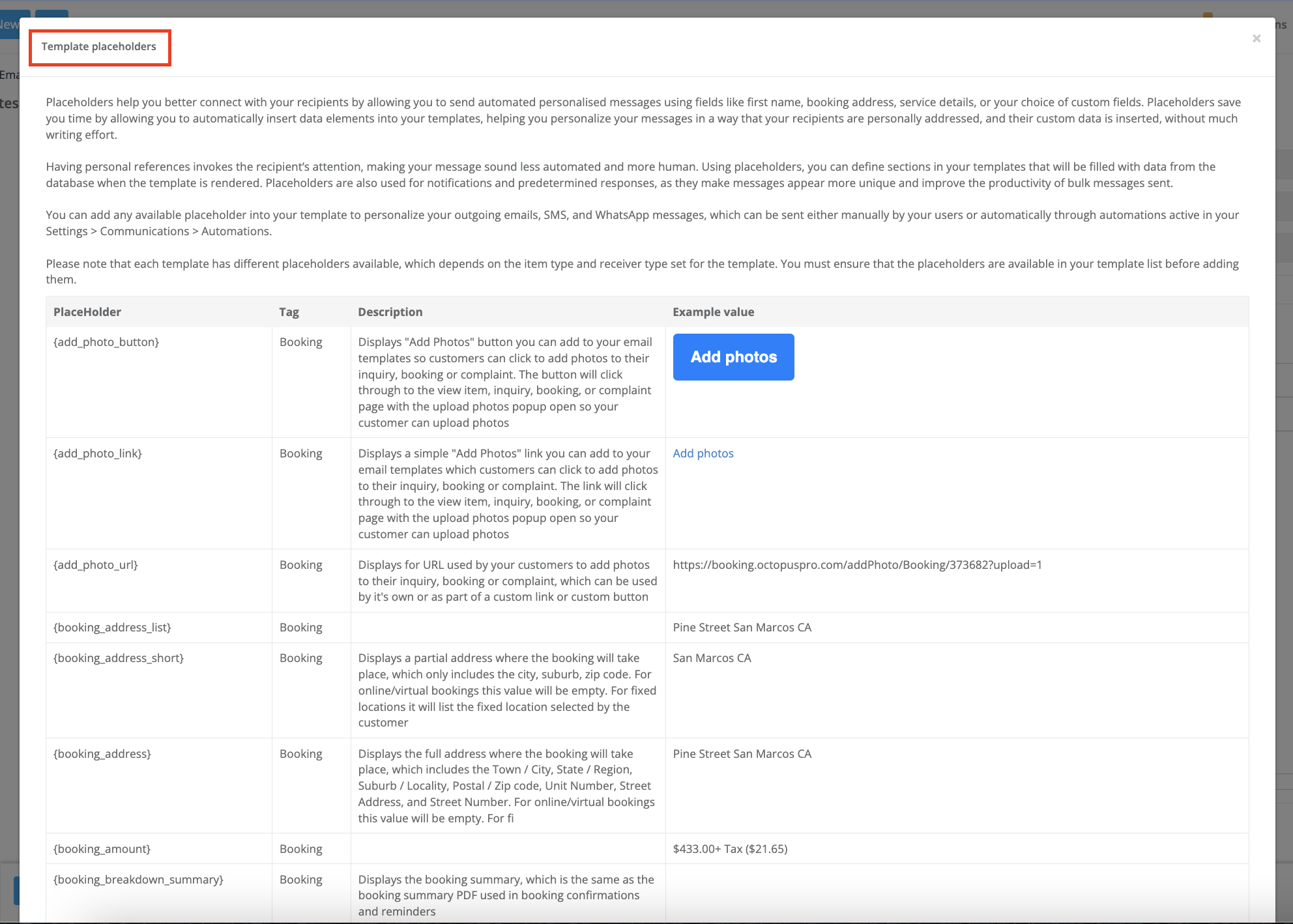
- Test your template before using it live
Preview and/or send a test message to confirm placeholders pull the correct information and formatting.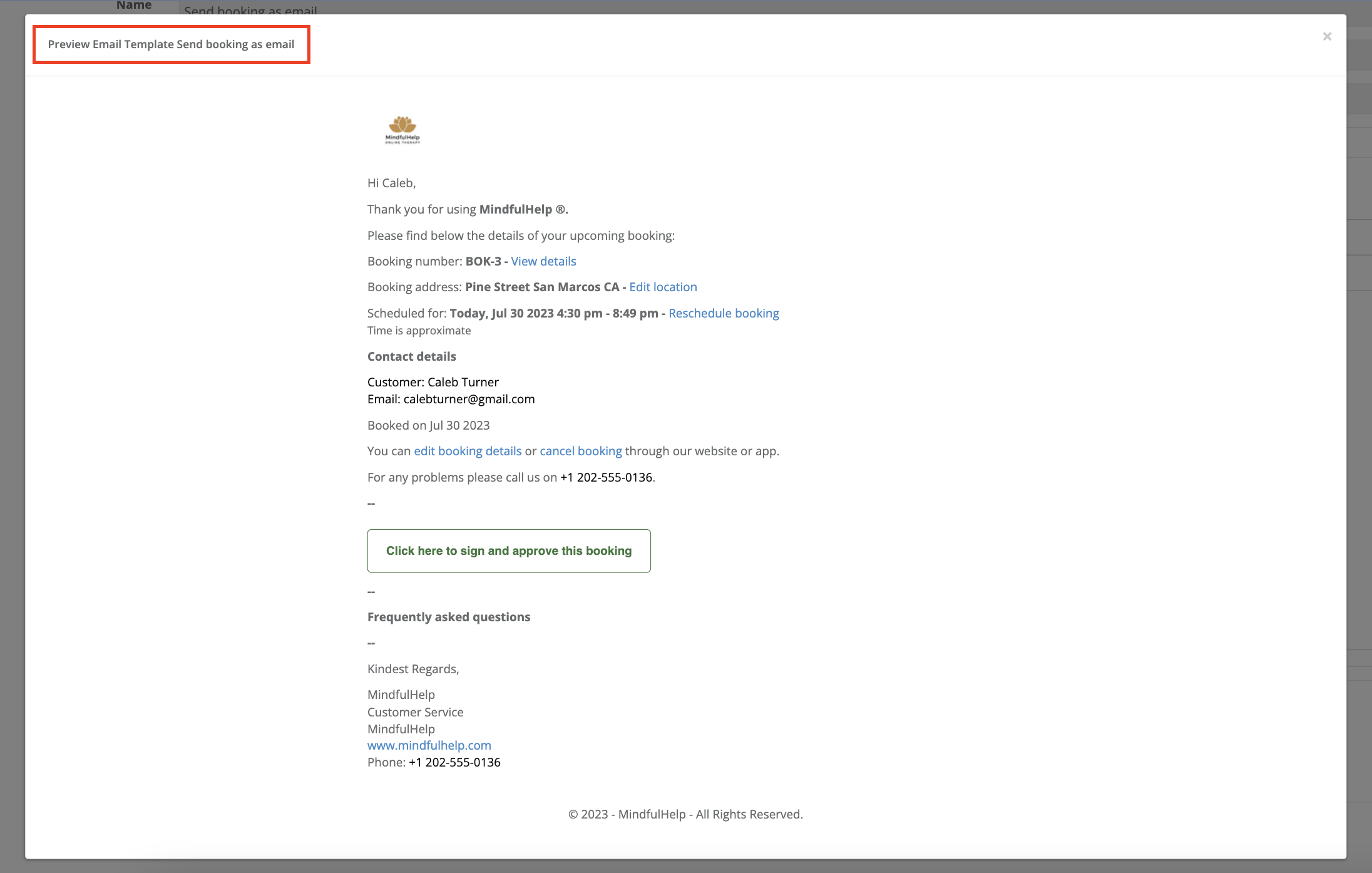
Tip: Templates containing placeholders can be sent manually or automatically through your workflows under Settings > Communications > Automations.
Viewing template placeholders
OctopusPro lets you view all placeholders available for a specific template. In the template editor, click View template placeholders to open the list. This list changes dynamically based on the template’s Item Type and Receiver Type, so you only see placeholders relevant to that template.
Forms & Checklists placeholder
If you want to include submitted form data inside an email/SMS/WhatsApp message, use:
- {forms_checklists} — Displays completed fields from your account’s custom forms/checklists for the relevant item type.
This is useful for sharing a completed checklist (e.g., job completion checklist) or summarizing a submitted customer form (e.g., satisfaction survey) in your communications.
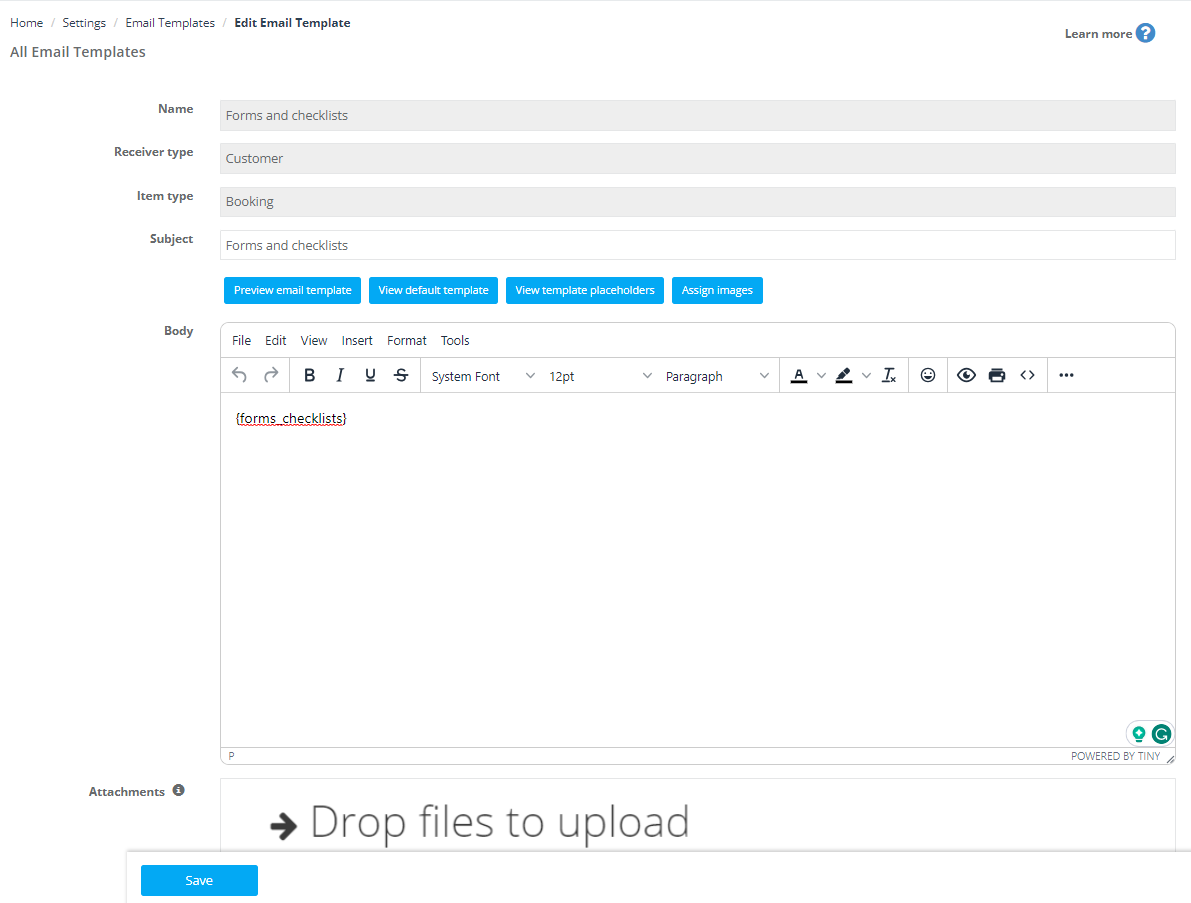
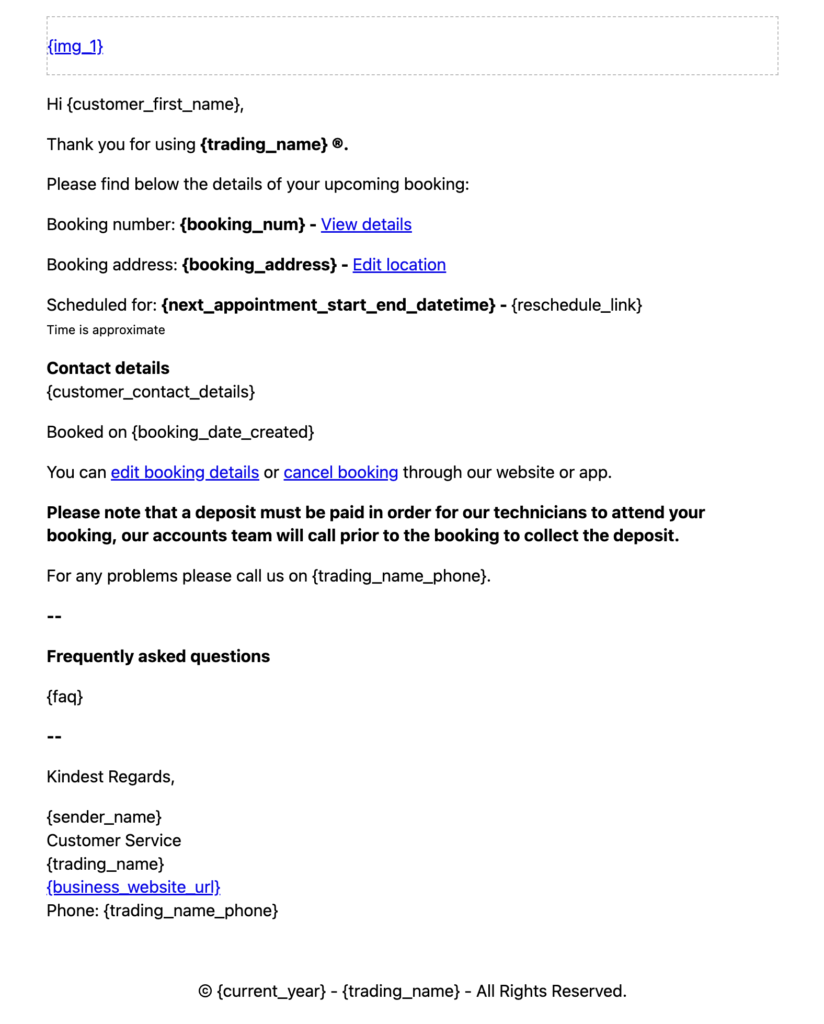
Example: placeholders inside a template
This example shows how placeholders can be inserted into a message and then replaced with real data when sent:
Types of placeholders (examples)
Below are common placeholder categories and examples. The full list available to you can vary based on your account settings and the specific template type.
1. Company Settings Placeholders:
Company settings placeholders pull data related to your company’s settings and profile. Here are a few examples:
- {company_name}: This placeholder gets replaced with your company’s name.
- {company_email}: This placeholder is replaced by your company’s email address.
- {company_mobile}: This placeholder is replaced with the company’s mobile number.
- {company_phone}: This placeholder is replaced with the company’s phone number.
- {business_website_url}: This placeholder gets replaced with your company’s website URL.
- {company_logo_image}: This placeholder will display the company logo image uploaded in your company settings.
- {industry_label_singular}: This placeholder is replaced with the singular term used to describe workers in your industry.
- {industry_label_plural}: This placeholder is replaced with the plural term used to describe workers in your industry.
- {tax_label}: This placeholder is replaced with the label for tax relevant to the company’s operation.
2. Branding and Trading Name Placeholders:
Trading names placeholders pull data related to your company’s trading names. These placeholders help in making your communications consistent with the specific branding of your trading name. Here are some examples:
- {trading_name}: This placeholder is replaced with the company’s trading name.
- {trading_name_color}: This placeholder is replaced with the color associated with the company’s trading name.
- {trading_name_email}: This placeholder is replaced with the email address associated with the company’s trading name.
- {trading_name_phone}: This placeholder is replaced with the phone number associated with the company’s trading name.
- {trading_name_pomotional_text}: This placeholder is replaced with promotional text associated with the company’s trading name.
- {trading_name_website_url}: This placeholder is replaced with the website URL associated with the company’s trading name.
3. Customer Placeholders:
Customer placeholders are used to include customer-specific information in your messages. Some examples are:
- {customer_first_name}: This placeholder gets replaced with the customer’s first name.
- {customer_last_name}: This placeholder is replaced with the customer’s last name.
- {customer_email}: This placeholder gets replaced with the customer’s email address.
- {customer_business_name}: This placeholder is replaced with the customer’s business name.
- {customer_contact_details}: This placeholder is replaced with the customer’s contact details.
- {customer_emails}: This placeholder is replaced with the customer’s email addresses.
- {customer_mobile_numbers}: This placeholder is automatically replaced with all the customer’s mobile numbers stored in their profile.
- {customer_mobile}: This placeholder is replaced with the customer’s mobile number.
- {customer_phone_numbers}: This placeholder is replaced with the customer’s phone numbers.
- {customer_signature_url}: This placeholder is replaced with the URL of the customer’s digital signature.
4. Dependents / Customer Properties Placeholders:
The Dependents / Customer Properties placeholders in OctopusPro are dynamic, meaning they are based on the fields you’ve added to your customer properties settings. They help you to manage and communicate effectively about your customers’ dependents, properties, and assets. The placeholders should follow the format {Property Title_Field Label}.
- {Sub Customer_Customer Name}: This placeholder will display the name of a sub-customer related to the main customer. For example, this could be a child’s name if you’re providing childcare services.
- {Sub Customer_Phone Number}: This placeholder will display the phone number of a sub-customer. This is useful when you need to communicate directly with the sub-customer.
- {Patient_Patient Name}: In the context of home healthcare services, this placeholder will display the name of the patient.
- {Patient_Date of Birth}: This placeholder will display the date of birth of the patient, important in healthcare settings where age and birth dates are crucial for patient care.
- {Student_Student Name}: For educational services, this placeholder will display the student’s name.
- {Student_Grade}: This placeholder will display the student’s grade level.
Remember, to use these placeholders correctly, you need to ensure that you write the property title and field label names correctly, exactly as they show in your customer properties settings, with the exact capitalization, spaces, and format used in your settings.
This feature allows for highly personalized and efficient communication with your customers, their dependents, and any related properties or assets. It can significantly improve customer service, operational efficiency, and overall customer satisfaction across a wide array of industries.
5. Fieldworker Placeholders:
Fieldworker placeholders draw data from individual fieldworker’s profiles. Here are some examples:
- {fieldworker_first_name}: This placeholder gets replaced with the fieldworker’s first name.
- {fieldworker_display_name}: This placeholder is replaced with the display name of the fieldworker.
- {fieldworker_email}: This placeholder gets replaced with the fieldworker’s email.
- {fieldworker_photo}: This placeholder will show the photo thumbnail of the fieldworker, which is uploaded on the fieldworker’s profile page.
- {fieldworker_bio}: This placeholder displays the bio of the fieldworker, showing personal information added to the fieldworker’s profile page.
- {fieldworker_rating}: This placeholder is replaced by the average star rating the fieldworker received from their customers.
- {fieldworker_mobile}: This placeholder is replaced with the fieldworker’s mobile number.
- {fieldworker_profile_button}: This placeholder is replaced with a button to the fieldworker’s professional profile.
- {fieldworker_profile_completion_rate}: This placeholder is replaced with the completion rate of the fieldworker’s profile.
- {fieldworker_profile_link}: This placeholder is replaced with a link to the fieldworker’s professional profile.
- {fieldworker_profile_url}: This placeholder is replaced with the URL of the fieldworker’s professional profile.
- {update_profile_photo_button}: This placeholder is replaced with a button to update the fieldworker’s profile photo.
- {update_profile_photo_link}: This placeholder is replaced with a link to update the fieldworker’s profile photo.
- {update_profile_photo_url}: This placeholder is replaced with the URL to update the fieldworker’s profile photo.
6. Inquiry Placeholder:
Inquiry placeholders are related to the inquiry details. For example:
- {add_photo_url}: This placeholder is replaced with a URL used by your customers to add photos to their inquiry, booking, or complaint, which can be used on its own or as part of a custom link or button.
- {inquiry_details}: This placeholder is a comprehensive object that holds all relevant information associated with an inquiry. It is designed to be flexible and accommodate all potential fields related to an inquiry. This placeholder will be dynamically populated with data from each unique inquiry. The specific fields included in this placeholder can vary, depending on the details submitted with each inquiry. For instance, the specific fields under this placeholder could include:
- {inquiry_name}: Represents the name of the individual or organization making the inquiry.
- {inquiry_email}: Represents the email address of the individual or organization making the inquiry.
- {inquiry_phone_number}: Represents the contact number of the individual or organization making the inquiry.
- {inquiry_message}: Represents the content of the inquiry message.
- {inquiry_trading_name}: Represents the trading name associated with the inquiry.
- {inquiry_received_date}: Represents the date when the inquiry was submitted.
These are examples of the type of information that can be captured. The actual fields populated in the placeholder will depend on the specific details provided in each inquiry. Remember to use the exact field names when incorporating these placeholders into your templates to maintain the accuracy and consistency of the information displayed. This feature is one of the many ways we’re working to make your business operations smoother and more efficient.
The {inquiry_details} Placeholder is usefull when your workflow involves sending an email to a designated address upon receiving an inquiry. It caters to the needs of businesses managing multiple trading or brand names within the same account, sending pertinent inquiry details to different email addresses based on the trading name associated with the inquiry. This feature provides an enhanced level of communication, supplementing app push and web notifications.
The placeholder can be included in the email template for the automatic email that is dispatched when an inquiry is received. Administrators can also manually send this from the inquiry page or listing. To activate this feature, you can enable the relevant flag in your Settings > Communications > Automations. With the {inquiry_details} Placeholder, you can ensure the accurate, timely, and efficient delivery of critical information, optimizing your workflow and boosting productivity.
7. Booking Placeholders:
Booking placeholders are related to the booking details. For example:
- {booking_num}: This placeholder is replaced by the booking number.
- {booking_address}: This placeholder is replaced by the booking location address.
- {booking_amount}: This placeholder is replaced by the total booking amount.
- {booking_status}: This placeholder is replaced by the booking status.
- {fieldworkers_list}: This placeholder is replaced with a list of fieldworkers associated with the booking.
- {next_appointment_start_datetime}: This placeholder is replaced with the start date and time of the next appointment.
- {next_appointment_start_date}: This placeholder is replaced with the start date of the next appointment.
- {next_appointment_start_end_datetime}: This placeholder is replaced with the start and end date and time of the next appointment.
- {next_appointment_start_time}: This placeholder is replaced with the start time of the next appointment.
- {paid_amount}: This placeholder is replaced with the amount paid for the booking.
- {pay_deposit_link}: This placeholder is replaced with a link to pay the deposit for the booking.
- {private_notes}: This placeholder is replaced with private notes associated with the booking.
- {property_type}: This placeholder is replaced with the type of property associated with the booking.
- {repeated_bookings}: This placeholder is replaced with information about whether the booking is repeated.
- {reschedule_button}: This placeholder is replaced with a button to reschedule the booking.
- {reschedule_link}: This placeholder is replaced with a link to reschedule the booking.
- {reschedule_url}: This placeholder is replaced with a URL to reschedule the booking.
- {scheduled_appointments_list}: This placeholder is replaced with a list of scheduled appointments for the booking.
- {suggested_availability_link}: This placeholder is replaced with a link suggesting the company’s availability.
- {service_info}: This placeholder is replaced with information about the service booked.
- {total_with_tax}: This placeholder is replaced with the total amount for the booking including tax.
- {unpaid_amount}: This placeholder is replaced with the amount unpaid for the booking.
- {fieldworker_rating_url}: Generates a unique URL that directs customers to a page where they can rate the fieldworker who completed the service or booking. Ideal for sending in post-job communications to collect customer feedback and ratings.
- {fieldworker_rating_link}: Generates a clickable link that directs customers to a page where they can rate the fieldworker who completed the service or booking. Ideal for sending in post-job communications to collect customer feedback and ratings.
- {fieldworker_rating_button}: Creates a button that, when clicked, takes customers to a page where they can rate the fieldworker who completed the service or booking. Ideal for sending in post-job communications to collect customer feedback and ratings.
- {forms_checklists}: This placeholder displays all completed fields in your account’s custom forms and checklists for a particular item type. This enables efficient communication about the status of custom forms or checklists, such as a customer satisfaction survey or a job completion checklist.
8. Quote Placeholders:
- {quote_number}: This placeholder is replaced with the unique quote number.
- {quote_date} – The date when the quote or estimate was created.
- {quote_expiry_date} – The expiry date of the quote or estimate.
- {quote_total} – The total amount of the quote or estimate.
- {quote_tax} – The tax amount in the quote or estimate.
- {quote_subtotal} – The subtotal amount before tax in the quote or estimate.
- {quote_items} – The list of items/services included in the quote or estimate.
- {quote_url} – The direct URL link to the quote or estimate. Customers can click this URL to view their quote details online.
- {quote_link} – A hyperlink text that leads to the quote or estimate page. This can be used in a more conversational tone, like “Click here to view your quote”.
- {quote_button} – A call-to-action button that takes the customer directly to their quote or estimate. This is useful for communications that support HTML, creating a more engaging and intuitive user experience.
- {accept_button}: This placeholder is replaced with an “Accept” button for the quote.
- {accept_link}: This placeholder is replaced with a hyperlink that allows the customer to accept the quote.
- {accept_url}: This placeholder is replaced with a URL that the customer can visit to accept the quote.
- {decline_button}: This placeholder is replaced with a “Decline” button for the quote.
- {decline_link}: This placeholder is replaced with a hyperlink that allows the customer to decline the quote.
- {decline_url}: This placeholder is replaced with a URL that the customer can visit to decline the quote.
9. Invoice Placeholders:
Invoice placeholders are related to the invoice details. For example:
- {amount}: This placeholder is replaced with the total invoice amount.
- {formatted_due_date}: This placeholder is replaced with the invoice’s due date, formatted according to the local date format.
- {invoice_date_created}: This placeholder is replaced with the creation date of the invoice.
- {invoice_due_date}: This placeholder is replaced with the due date of the invoice.
- {invoice_num}: This placeholder is replaced with the invoice number.
- {pay_deposit_button}: This placeholder is replaced with a button for the invoice deposit payment.
- {pay_deposit_url}: This placeholder is replaced with the URL for the invoice deposit payment.
- {pay_invoice_url}: This placeholder is replaced with the URL for invoice payment.
- {payment_amount}: This placeholder is replaced with the amount of payment made on the invoice.
- {payment_received_date}: This placeholder is replaced with the date the invoice payment was received.
- {payment_reference}: This placeholder is replaced with the payment reference for the invoice payment.
- {payment_type}: This placeholder is replaced with the type of payment made on the invoice (e.g., credit card, bank transfer, etc.).
- {total_tax}: This placeholder is replaced with the total tax amount on the invoice.
10. Service and Service Pricing Placeholders:
These placeholders are related to the services provided and their pricing:
- {service_description}: This placeholder will be replaced with a description of the service.
- {service_title}: This placeholder is replaced with the title of the service.
- {service_cost_breakdown}: This placeholder provides a detailed breakdown of the service cost.
- {service_total_quote}: This placeholder gets replaced with the total quoted price for the service.
- {service_custom_fields}: This placeholder is replaced with any custom fields related to the service.
Remember, the placeholders available can vary depending on the template, so be sure to confirm a placeholder’s availability in your template list before using it.
11. Message Data Placeholders:
Message data placeholders are used for information related to the specific message being sent. Here are some examples:
- {current_year}: This placeholder gets replaced with the current year when the email or SMS is sent.
- {send_date}: This placeholder is replaced with the exact date when the email or SMS is sent.
- {sender_name}: This placeholder gets replaced with the name set in the profile of the user sending the email.
12. Branded App Placeholders:
- {android_app_button}: This placeholder is replaced with a button to download the company’s Android app.
- {android_app_link}: This placeholder is replaced with a link to download the company’s Android app.
- {android_app_url}: This placeholder is replaced with the URL to download the company’s Android app.
- {ios_app_button}: This placeholder is replaced with a button to download the company’s iOS app.
- {ios_app_link}: This placeholder is replaced with a link to download the company’s iOS app.
- {ios_app_url}: This placeholder is replaced with the URL to download the company’s iOS app.
Remember, the placeholders available can vary depending on the template, so be sure to confirm a placeholder’s availability in your template list before using it.
Please note, this is not a comprehensive list. The complete list of placeholders available to you depends on your specific OctopusPro settings and configurations.
Best practices
- Always confirm availability: Use “View template placeholders” before adding new tags.
- Keep SMS short: Avoid placeholders that output long lists/blocks (e.g., {inquiry_details} or {forms_checklists}) in SMS.
- Use buttons/links where supported: In HTML emails, placeholders like {quote_button} and {accept_button} create clearer calls-to-action.
- Check formatting: Verify how dates/times appear (your account’s date/time settings affect output).
- Test with real data: Preview using bookings/quotes/invoices that have full customer details populated.
Troubleshooting
- Placeholder didn’t replace: The tag may not be available for that template’s receiver/item type—confirm in the placeholders list.
- Output is blank: The underlying field may be empty (e.g., customer phone not saved, booking address not set).
- Customer properties placeholder not working: Ensure the property title and field label match your settings exactly (including spaces/case).
Related articles
- Email Templates
- SMS Templates
- Canned Responses & Templates
- Automated Reminders & Confirmations (Workflow Automations)
- Custom Fields (Booking, Lead Capture & CRM)
- Customer Properties (Dependents, Assets & Properties)
- Business Trading Names (Multi-Brand Accounts)
- Branding & Logo Configuration
- Date & Time Configuration
- Forms & Checklists Overview
- Contact a Customer
To stay updated, please subscribe to our YouTube channel.