
Use the Same Email Address for Multiple Users (Role Switching)
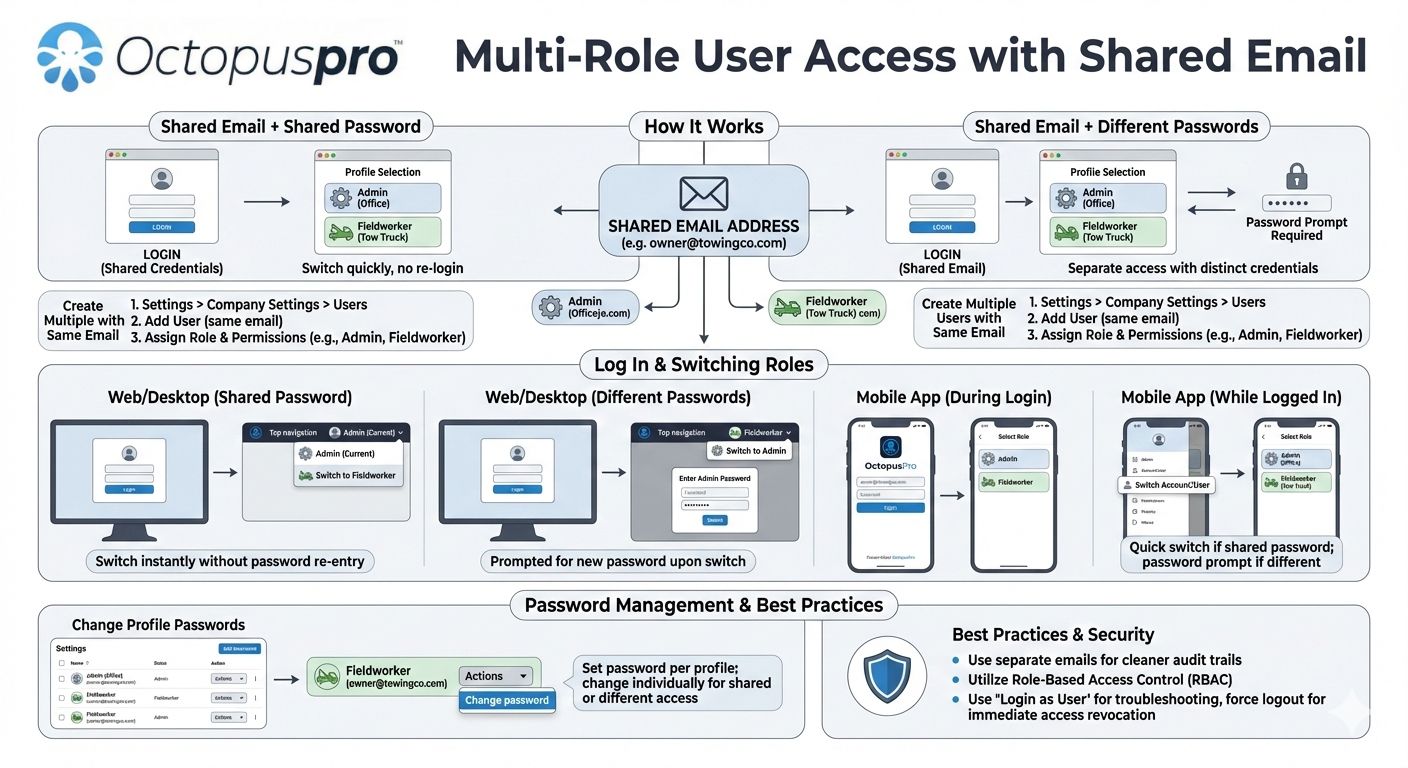
OctopusPro lets you create multiple user profiles using the same email address. This is useful when one person needs access to the system under different roles (e.g., Admin and Fieldworker), or when you want multiple profiles linked to a shared inbox.
Each user profile can have its own role, permissions, and (optionally) its own password. This gives you flexibility to either:
- Switch roles quickly (shared email + shared password)
- Separate access between profiles (shared email + different passwords)
Contents
- How it works
- Create multiple users with the same email
- Log in with a shared email + shared password (web/desktop)
- Log in with a shared email + different passwords (web/desktop)
- Switch roles during login (mobile app)
- Switch roles while already logged in
- Change the password for a specific user profile
- Set the same password for all profiles using the same email
- Best practices, security notes & troubleshooting
- Related guides
How it works
When multiple user profiles share the same email address, OctopusPro links them under that login identity. What happens next depends on how you configure passwords:
- Same email + same password: The system can show you a list of profiles you can access and let you switch between them quickly.
- Same email + different passwords: Profiles are separated by credentials. If you switch to a profile with a different password, you’ll be prompted to log in again using that profile’s password.
Tip: This feature is most commonly used for owner-operators who perform both office/admin work and fieldwork and want to switch views without managing multiple inboxes.
Create multiple users with the same email
To set up multiple user profiles under the same email:
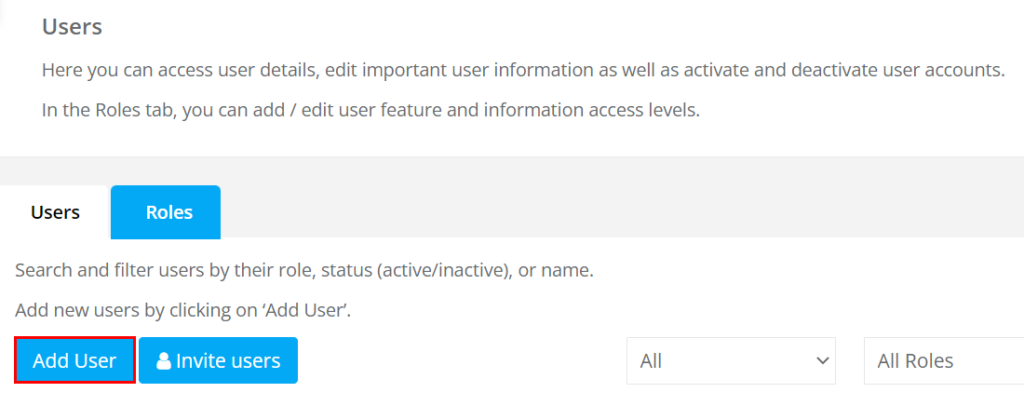
- Go to Settings > Company Settings > Users.
- Click Add User (or invite a user if you prefer an email-based onboarding flow).
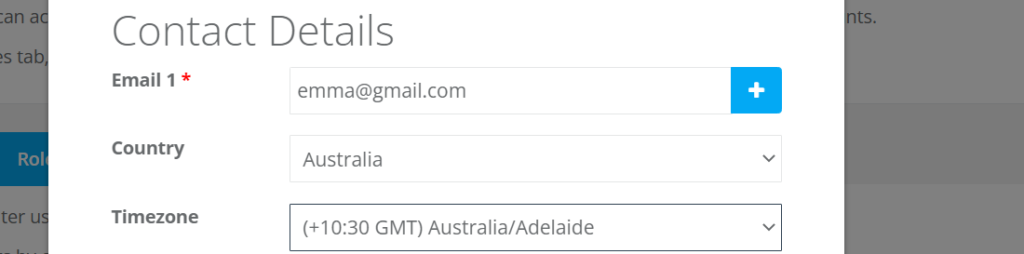
- Enter the user details and use the same email address for any additional profiles you want to link.
- Assign the correct role (and permissions) for each user profile.
- Save your changes.
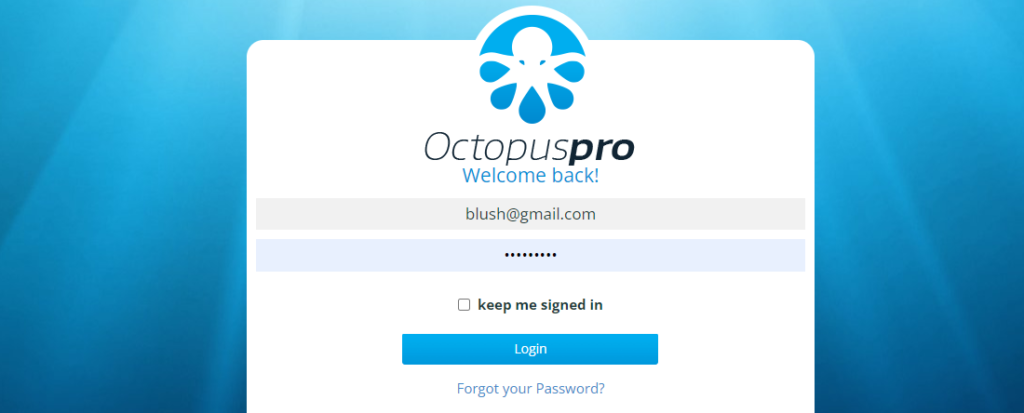
Log in with a shared email + shared password (web/desktop)
If all user profiles that share the email also share the same password, you can switch between those profiles more easily.
What you’ll see: After entering the shared email and password, OctopusPro can display a list of linked user profiles you can access. Select the profile/role you want to use.
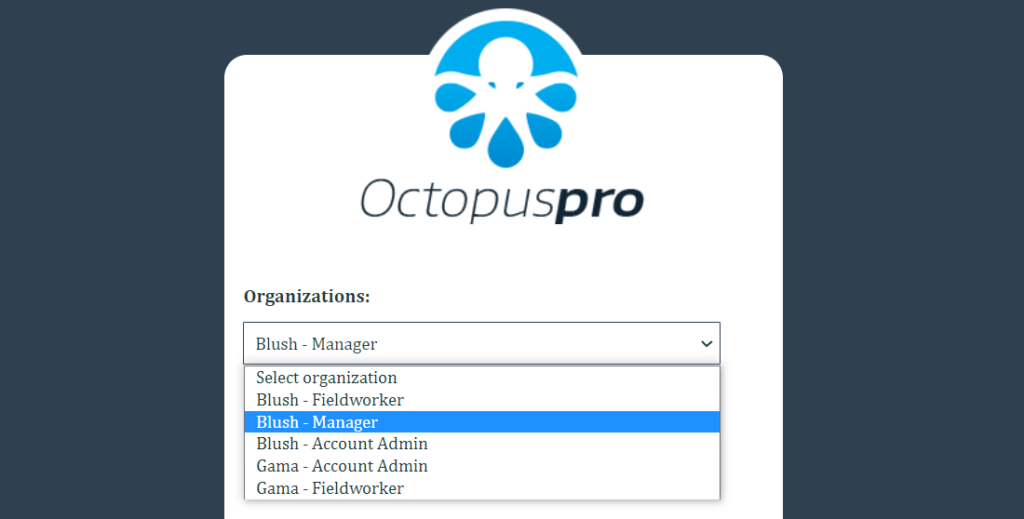
Switching profiles: While logged in, you can switch between profiles that share the same email/password without needing to re-enter a password.
Log in with a shared email + different passwords (web/desktop)
You can also use the same email across multiple user profiles while assigning different passwords for each profile. This is useful when:
- Different people access different profiles but must not access each other’s role/account.
- You want an extra credential step when switching between profiles.
How switching works: If you select a profile that uses a different password, you’ll be logged out automatically and prompted to enter that profile’s password to continue.
Switch roles during login (mobile app)
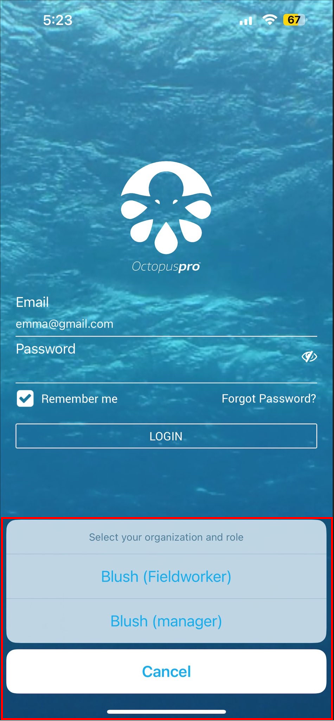
On the OctopusPro mobile app, you can choose which role/profile to access at login when multiple user profiles share the same credentials.
- Enter the shared email and password.
- Tap Login.
- Select the user role/profile you want to access from the list.
Switch roles while already logged in
From the mobile app
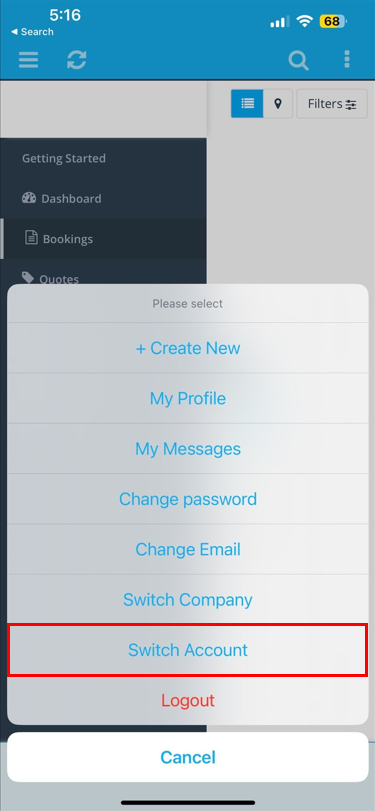
After you log in, you can switch roles without re-entering credentials when the target profile shares the same password. If the target profile uses a different password, you’ll be prompted to log in again.
In most cases, you can access switching options from the app menu (e.g., the action menu in the top-right corner) and choose the option to switch account/user.
From web/desktop
In the admin portal, you can switch between profiles that share the same email from the user/company switcher in the top bar. If the profile you select has a different password, OctopusPro will log you out and prompt for that password.
Change the password for a specific user profile
Each user profile can have its own password—even if multiple profiles share the same email. Changing one profile’s password does not automatically change the others unless you intentionally set them the same.
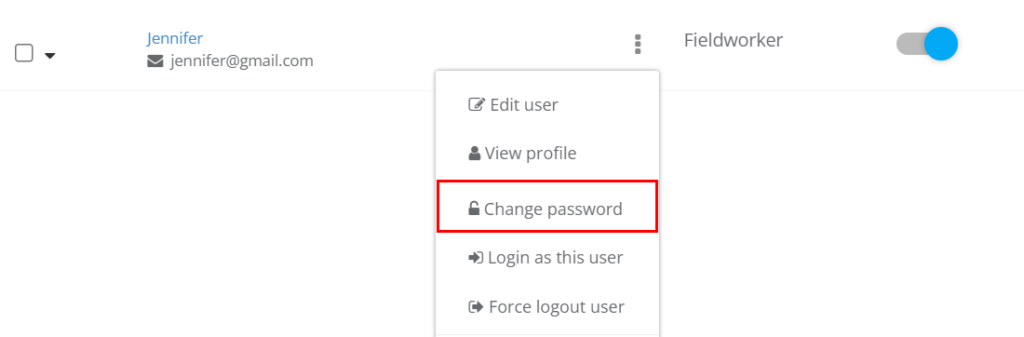
- Go to Settings > Company Settings > Users.
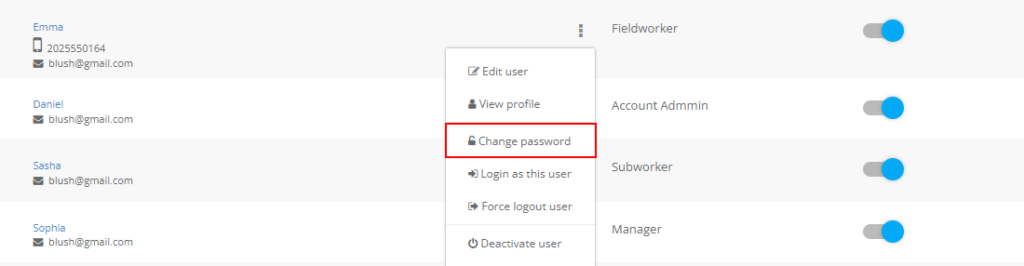
- Find the user profile you want to update.
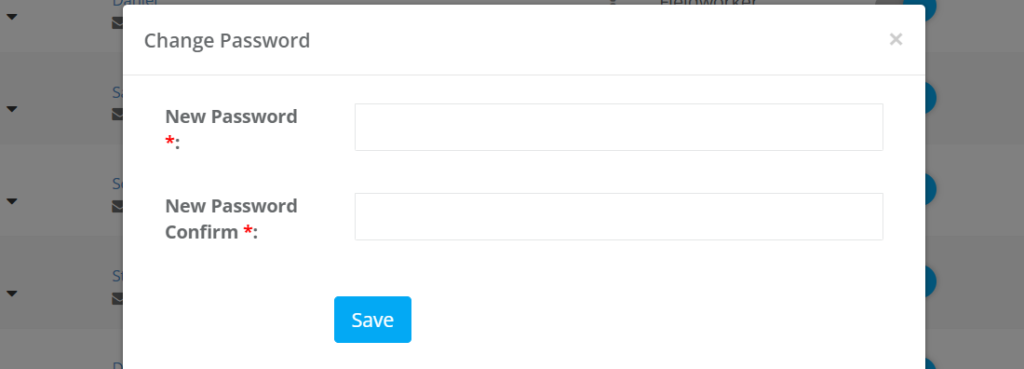
- Click the Actions menu next to the user and select Change password.
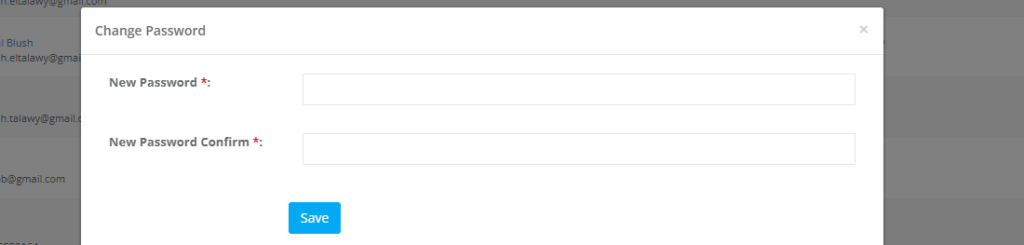
- Enter and confirm the new password, then click Save.
Set the same password for all profiles using the same email
If you want to switch between profiles without being asked to re-enter passwords, you can set the same password for each profile that shares that email.
Important: This is done by updating each user profile individually (there is no single “bulk set one password for all” button). The process is quick—repeat the password change steps for each linked profile and enter the same password each time.
- Go to Settings > Company Settings > Users.
- For each user profile that shares the email, open Actions > Change password.
- Enter the same password value for each profile and click Save.
Best practices, security notes & troubleshooting
- Best practice: If multiple people need access, use separate user emails where possible for cleaner audit trails and accountability.
- Use roles & permissions: Keep access controlled using role-based permissions (RBAC), especially when creating multiple profiles.
- Need to troubleshoot as a user? Use “Login as this user” (impersonation) instead of sharing passwords.
- Need to immediately revoke access? Force logout a user profile if required (e.g., staff changes, device loss).
Related guides
- User Management: Adding, Inviting, Importing Users
- Configuring User Roles, Permissions & Access Control (RBAC)
- Changing and Resetting User Passwords
- Login as Another User (User Impersonation)
- Force Logout Specific Users
- OctopusPro App Login & Access for All User Roles
To stay updated, please subscribe to our YouTube channel.